Activating SMS with a link to Track & Trace
Last updated: 11 August 2025
Applies to Opter Driver for iOS and Opter Driver Labs for Android.
In this article
The recipient can sign the proof of delivery on Track & Trace, thereby avoiding having to touch the driver’s device. To make things easier for the recipient, the driver can send a text message containing a link directly to the order on Track & Trace. The status must be at least Picked up.
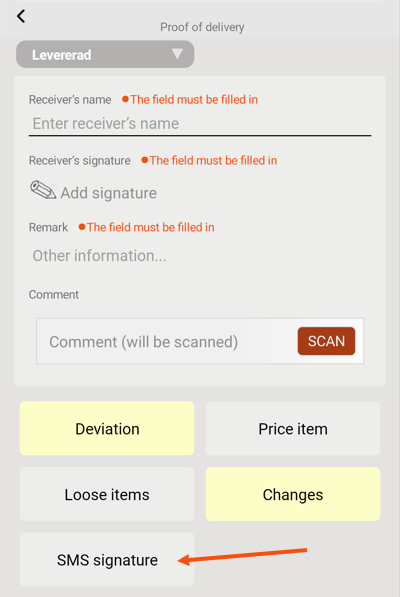
Instructions for drivers are available at Sending an SMS with a link to Track & Trace and Proof of Delivery (POD) in Opter Driver.
Step 1: Setting the Mobile data settings
Two mobile data settings need to be configured, SMSSignaturePermission and InternetBaseAddress. Proceed as follows:
-
Click Settings > Mobile data > Settings mobile data.
-
If SMSSignaturePermission is not already in the list, click on an empty row in the Name column, then click on the down arrow of the row being added. Select SMSSignaturePermission from the list.
-
Type "True" in the column Value. For more information, see Mobile data settings (window).
-
If InternetBaseAddress is not already in the list, click on an empty row in the Name column, then click on the down arrow of the row being added. Select InternetBaseAddress from the list.
-
Enter the URL of the customer web in the column Value. For example, the URL may be “https://expresstransport.no/opter” or “https://expresstransport.opter.cloud” (if you are using the Opter cloud solution). For more information, seeCustomer web and Track & Trace.
In the Base address field of the Internet tab in the office settings, it is possible to see which address to enter in the Value column. Don't forget the "https://" at the start of the address.
-
Click on Save at the bottom of the Mobile data settings window.
Step 2: Show the Sign POD button on Track & Trace
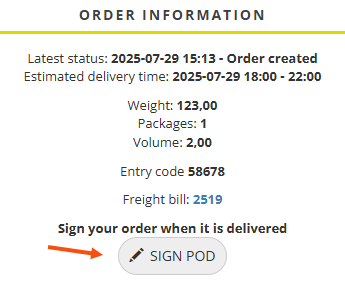
Proceed as follows:
-
Click Settings > Internet > Internet order settings.
-
Select a configuration from the list on the left, go to the Track & Trace tab and tick Allow POD from T&T customer under Fields on Track & Trace.
-
Click on Save to save all changes.
As the Sign POD button is already activated when the shipment is given the status Picked up, the recipient can search for the order and sign already then if they know the Order number. We therefore recommend deselecting Search by order number under Search options. Then the receiver cannot go to the order until they have received a link to it.
To hide the order number in the link, Encrypted search should also be selected. Otherwise, the recipient can easily work out other order numbers and search for them (unless you uncheck Search by order number).
Step 3: Send the SMS from Opter Driver and sign in Track & Trace
The driver can send the text message if the shipment has status Picked up or later. For more information, see Sending an SMS with a link to Track & Trace and Signing the proof of delivery in Track & Trace.
When the receiver signs, a POD of the type selected by default is registered in the Proof of delivery types window. However, the status of the shipment does not change. The reason is that the signing function appears on Track & Trace from the status Picked up, and if the recipient signs the pod before the goods have been delivered, and the POD-type is set to change the status to Delivered, the shipment disappears from the driver's Todo list (in Opter Driver) even though the goods have not been delivered.

