Managing delays in Opter Driver
Last updated: 10 December 2025
In this article
When a driver delivers, or sets the status of a shipment to unloaded, later than the latest delivery time indicated on the order, the delivery is considered late. You can make it mandatory for the driver to indicate the reason for the delay, or record a deviation.
Mandatory reason for delay
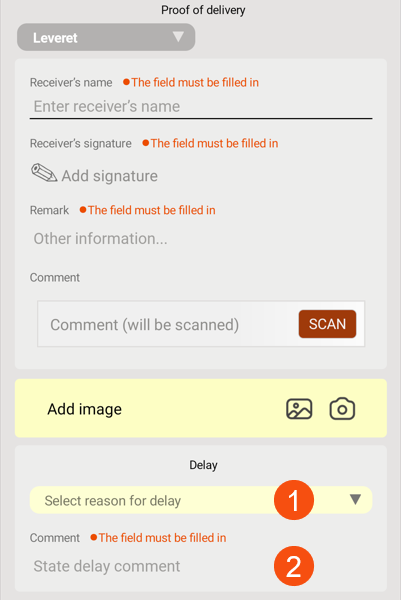
In Opter Driver for iOS and Opter Driver Labs for Android, the reason is entered in the POD view where the driver selects a delay reason (1) and writes a comment (2). It is not possible to save the pod until the reason and comment have been filled in.
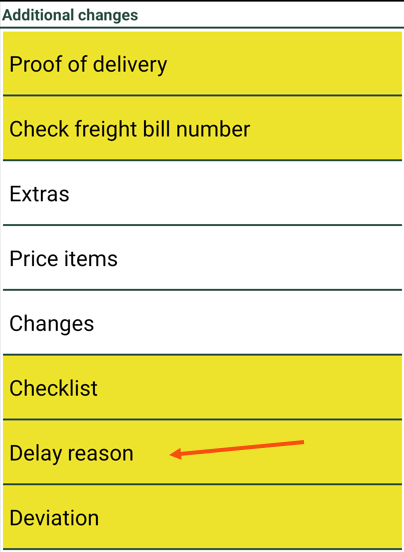
In Opter Driver (classic) for Android, the option Delay reason appears when the driver changes the status to Delivered. The status change cannot be saved until the reason and comment have been filled in.
|
Desired features of the app |
What settings need to be made? |
|---|---|
|
Mandatory reason for all late deliveries. |
Available in mobile device = App.ForceDelayReasonOnDelay = "true". |
|
Mandatory reason for all late deliveries except to a few customers. |
Available in mobile device = App.ForceDelayReasonOnDelay = "true". Mandatory reason and comment if delayed delivery = |
|
Mandatory reason for late deliveries to some single customers. |
Available in mobile device = Mandatory reason and comment if delayed delivery = |
|
Not mandatory reason for late deliveries. |
No settings need to be made. This is the default setting. |
 on the reasons for delays that can be used in the app.
 for those customers for whom it is not mandatory (tab
 -
Drivers who are logged in to Opter Driver when the settings are saved will need to log out and back in to see the changes.
-
The mobile data server may need to be restarted for the settings in the customer register to take effect. Contact for more information.
-
The reasons for delays are displayed in the Times (deadlines) group in Order reception.
Mandatory deviation in the event of a delay
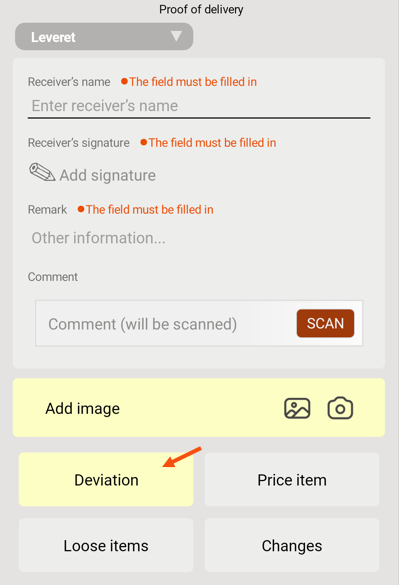
The deviation is registered in the POD view and it is not possible to save the pod until the deviation has been registered.
Check that none of the Mobile data settings DamagesPermission and AddNewDamagePermission are set to "false". If DamagesPermission is set to "false", the Deviation option will not appear at all in the app. If AddNewDamagePermission is set to "false", drivers cannot add new deviations.
|
Desired features of the app |
What settings need to be made? |
|---|---|
|
Mandatory deviation for all late deliveries. |
Available in mobile device = App.ForceDamageOnDelay = "true". |
|
Mandatory deviation for all late deliveries except to a few customers. |
Available in mobile device = App.ForceDamageOnDelay = "true". Mandatory deviation if delayed delivery = |
|
Mandatory deviation for late deliveries to a few customers. |
Available in mobile device = Mandatory deviation if delayed delivery = |
|
Non-mandatory deviation for late deliveries. |
No settings need to be made. This is the default setting. |
-
Drivers who are logged in to Opter Driver when the settings are saved will need to log out and back in to see the changes.
-
The mobile data server may need to be restarted for the settings in the customer register to take effect. Contact for more information.
Authorising causes of delays and deviations in dispatch
Go to Settings > Mobile data > Shipment Change Elements and select Require Approval for the following options
-
Delay reason
-
Delay comment
-
Deviations: This means that all deviations must be authorised in dispatch, not just those recorded for late deliveries.
Troubleshooting
If it does not work properly in case of late delivery, check the following:
-
It is only the delivery to the recipient on the order that can be considered as delayed, not deliveries to Terminals.
-
Check that Available in mobile device is ticked for at least one reason for delay. If no delay reason is available in Opter Driver, no reasons can be given.
-
Check that Available in mobile device is selected for at least one deviation type. If no deviation type is available in Opter Driver, it is not possible to add any deviations.
-
If the settings do not seem to have an effect, you can ask support to restart your mobile data server. Contact for more information.

