Require changes when changing status in Opter Driver
Last updated: 26 August 2025
In this article
If you want drivers to register at least one change on the shipment/order to be able to change the status to Picked up (for example), then tick the checkbox Require changes for status Picked up in the window Life cycles. (Detailed instructions can be found below).
In Opter Driver, when the driver changes the status to Picked up (for example), the following applies
-
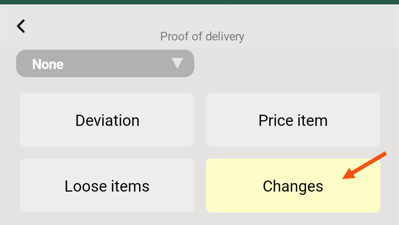
The POD view opens and the Changes button appears in yellow colour. Yellow colour of the button means that changes must be entered.
-
The driver must press the Changes button, change to Weight, Volume or Pallet space, for example, and then press Save.
-
The driver can now go ahead and do the rest required to change the status to Picked up (for example).
(For example, the system administrator may have set drivers to record deviations and/or loose items, see POD view in Opter Driver.)
Instructions for drivers are available at Proof of Delivery (POD) in Opter Driver.
Conditions
-
For drivers to be able to register changes, the Mobile data settings ChangesPermission must be set to "True". For more information, see Changes to orders in Opter Driver.
-
If you wish, you can customise the Changes view. You can choose which fields to display, the order in which they appear and even rename them. For more information, see Changes to orders in Opter Driver.

-
By default, changes made in Opter Driver must be manually approved in dispatch for the change to be saved, but it can be set so that no changes at all need to be approved, or only certain changes need to be approved. For more information, see Setting how changes made in Opter Driver are approved.
Proceed as follows
If you want drivers to be required to register at least one change to the shipment/order in order to change the status, do the following
-
Click on Settings > Life cycles and statuses.
-
Select the life cycle you want to make the setting for in the list on the left and go to the tab Statuses.
-
Select the status whose setting needs to be configured under Statuses, for example Picked up. (See picture below).
-
In the box Opter Driver, tick the boxes Require changes and Available to mobile device.
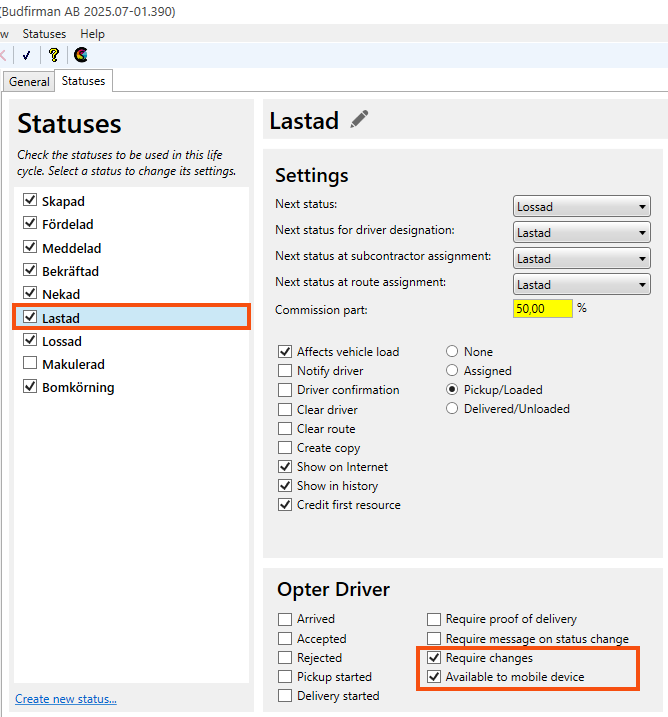
For example, if you want drivers to be required to register at least one change when they change the status of a shipment to Picked up, tick the checkboxes Require changes and Available to mobile device for the status Picked up.
-
Click on Save to save all changes.
-
Drivers who are logged into Opter Driver when the changes are saved in Opter will need to log out and then log back into the app to get the new behaviour.
Troubleshooting
-
Check that drivers have version 2.4.24 or later of the Opter Driver app. They have to log out of the app and then log in again to get the new behaviour.
-
Make sure that the Mobile data settings ChangesPermission are set to "True".

