View and print freight bills and parcel labels in Opter Driver
Last updated: 22 July 2026
Applies to Opter Driver for iOS and Opter Driver Labs for Android.
In this article
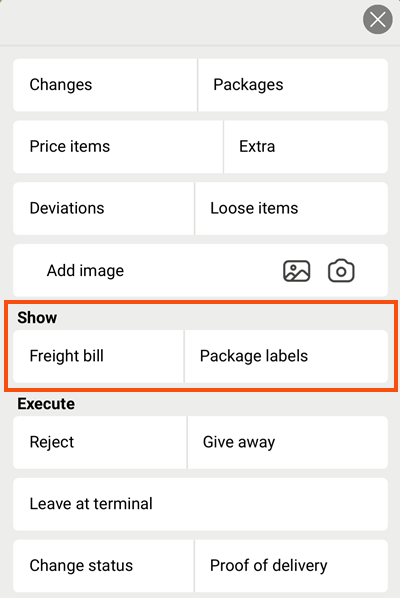
By default, drivers can open and print freight bills and parcel labels in Opter Driver, but you can hide this menu option if you do not want them to be able to do so.
Instructions for drivers can be found in Pages, tabs and menus in Opter Driver.
If there are no packages on the order, the Package labels option will not appear on the menu.
Settings
This function is controlled by two mobile data settings, PrintPermission and InternetBaseAddress. Freight bills and parcel labels are downloaded in PDF format to the mobile device. InternetBaseAddress indicates the address of the web page from which the PDF files are downloaded.
Information on how to add mobile data settings can be found in Mobile data settings (window).
|
Desired feature in the app |
What mobile data settings need to be configured? |
|---|---|
|
|
InternetBaseAddress = the address of your customer portal. For example, ‘https://transportfirman.opter.cloud’ or ‘https://transportfirman.se/opter’. In the Base address field on the Internet tab in the office settings, you can see which address should be entered. Don't forget the "https://" at the start of the address. |
|
|
PrintPermission = “false”. The menu option is hidden in Opter Driver. |
 View and print freight bills and parcel labels
 View and print freight bills and parcel labels
Please bear the following in mind
There is a difference in how the Opter Driver for Android and iOS handles the downloaded PDF file:
-
Opter Driver Labs for Android: The app cannot display or print PDF files. When the driver taps Freight bill/Package labels, the PDF file is downloaded and can then be opened in another app that supports PDF files. There, the driver can view the freight bill and parcel labels, and also print them out.
-
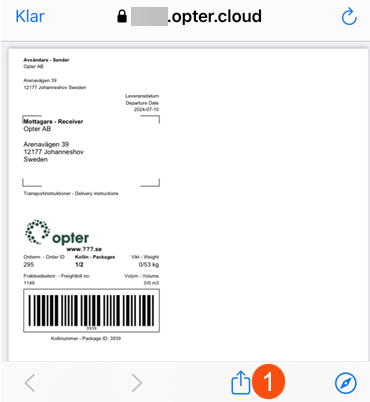
Opter Driver for iOS: When the driver presses Freight bill/Package labels, the PDF file is downloaded and opened in Opter Driver. The driver can print it by tapping the share icon (1), and then selecting Print.