Setting the settings the driver is allowed to make in Opter Driver
Last updated: 4 August 2025
In this article
Drivers can make a number of settings themselves in Opter Driver, see image below.
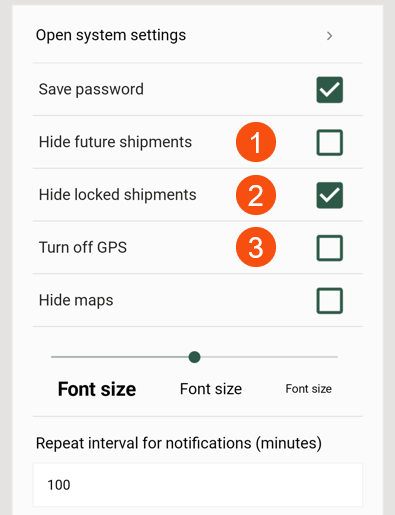
As a system administrator, you can choose whether or not to display the following three settings in the app:
-
Hide future shipments
-
Hide locked shipments
-
Turn off GPS
By default, these settings are displayed, allowing drivers to choose to switch off the GPS, for example. If you do not want drivers to be able to switch off the GPS, set the Mobile data settings ShowSettingDisableGPS to "false". The setting Turn off GPS will no longer be displayed in the app, and the driver cannot switch off the GPS in the app.
Choosing which settings drivers are not allowed to do
If you want to prevent drivers from being able to switch off the GPS, hide future and/or locked shipments, do this
-
In Opter, click on Settings > Mobile data > Settings mobile data.
-
Use the following Mobile data settings to set which settings should not be displayed in the app:
-
If drivers should not be able to switch off the GPS, set ShowSettingDisableGPS to "false".
-
If drivers should not be able to hide future shipments, set ShowSettingHideFutureShipments to "false".
-
If drivers should not be able to hide locked shipments, set ShowSettingHideLockedShipments to "false".
-
-
If the Mobile data settings are not already in the list, click on an empty row in the Name column and then on the down arrow of the row being added. For example, select ShowSettingDisableGPS from the list. (If the Mobile data settings are not in the list, you can manually enter the name of the Mobile data settings).
-
Enter one of the following in the cell to the right:
-
"False" = The setting Turn off GPS / Hide future shipments / Hide locked shipments is not displayed.
-
“True” (default) = Setting Turn off GPS / Hide future shipments / Hide locked shipments is displayed on the Settings page when the driver is logged in to the app. For more information, see Settings in Opter Driver and Mobile data settings (window).
If no value has been set for ShowSettingDisableGPS / ShowSettingHideFutureShipments / ShowSettingHideLockedShipments, it is counted as 'true'.
-
-
Click on Save.

