Proof of Delivery (POD) in Opter Driver
Last updated: 30 June 2026
Applies to Opter Driver for iOS and Opter Driver Labs for Android.
In this article
When the status of a shipment is changed, it may be necessary to register a proof of delivery. It is also possible to choose to register a proof of delivery by clicking on the Proof of delivery menu option or the proof of delivery type name, for example Nobody home.
Depending on the settings configured by your traffic manager or system administrator, the app works in different ways when you need to record proof of delivery. Here’s an example of what it might look like.
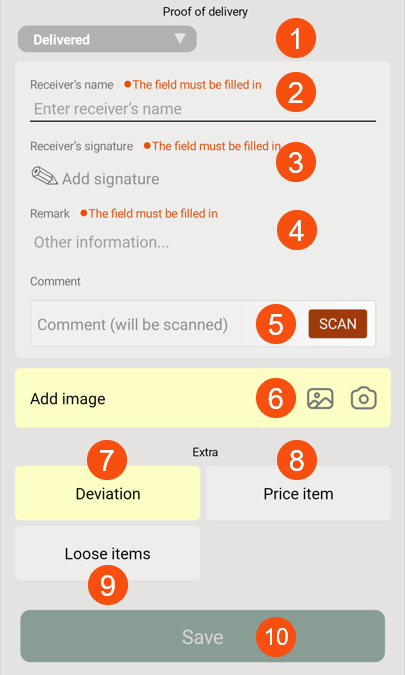
In the image above, select the type of proof of delivery (1), enter the receiver's name (2), add the signature (3), remark (4), possible comment (5), image (6), deviation (7), possible price items (8) and loose items (9), and then save the proof of delivery (10).
The image above shows the SCAN button in the Comment field (5); this means that you can, or must, scan in a comment (for example, scan a freight bill). The Add image field (6) is yellow, which means an image has to be added. The Deviation field (7) is yellow, which means an deviation has to be added. The Price item (8) and Loose items (9) buttons are grey, which means price items and loose items can be added if desired, but this is not mandatory. The Save button (10) is dimmed, which means that the proof of delivery cannot be saved until all the mandatory information has been filled in.
Registering a proof of delivery
Follow these steps on this page Proof of delivery:
-
Enter everything you must enter:
-
If a field contains the text The field must be filled in – for example, the recipient’s signature – that field must be completed.
-
If a button is yellow, you must press it and, for example, select ‘loose items’.
You cannot save the proof of delivery until all the required fields have been completed.
The buttons and fields are described below.
-
-
Please enter any additional information you wish to provide:
-
If a field not contains the text The field must be filled in, it is optional to complete the field.
-
If a button is greyed out, it is optional to press it and, for example, specify loose items.
-
If a button is green, it means you have done everything necessary, such as adding deviations. If you wish, you can press the button again – for example, if you want to add more deviations.
-
-
Tap Save when finished.
Check freight bill number
If the field Check freight bill numberis already filled in, compare the freight bill number in the app with the one on the package or freight bill and make sure they match.
If the consignment note number is incorrect or has not been pre-filled, enter it manually in the field or scan it. If you wish to scan, press SCAN and scan the number on the parcel or the freight bill. When you’ve finished, press SCAN again. For more information, see Checking the freight bill number in Opter Driver.
Checklists
If there is a checklist for the shipment, you must complete it. If the delivery is, for example, a washing machine, the questions might be “Have you installed the new washing machine?” and “Have you taken the old washing machine away for recycling?”.
Answer the questions by pressing Yes (1), No (2) or typing in your answer (3).
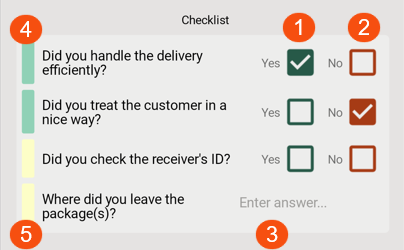
A green colour next to question (4) means that it has been answered. You can change your answer until you click Save at the bottom of the page. Yellow (5) means that you must answer the question before you can save the proof of delivery.
Proof of delivery type
Select the proof of delivery type, for example Delivered, Nobody home or New address.
Receiver’s name
Enter the recipient’s name in the field Receiver’s name.
Receiver’s signature
Add a signature by tapping Add signature and letting the recipient write their signature on the screen using their finger or a stylus designed for touchscreens. Then tap Save signature.
If you want to delete a signature that you’ve made a mistake with, tap Clear. Then the receiver can write their signature again.
Remark
Add a comment by pressing Other information and typing in the comment.
Comment
Comments can be added in the following ways:
-
Scan the comment by pressing SCAN and, for example, scanning a barcode. Once you are happy with the scan, press SCAN again.
If you want to delete an incorrect scan, press SCAN again and scan in the correct comment. The previous comment is then replaced by the new one.
-
Enter it in the field as usual.
Number of packages
Ange Number of packages. Tap the Number of packages field and enter the number of parcels covered by the proof of delivery. You can also press the plus and minus buttons to change the value in the field.
Add image
Choose whether you want to add one or more photos that you already have on your mobile device (1) or take a new photo (2). For more information, see Adding images to Opter Driver.

If the Add image field is light grey, it means you can add images if you wish.
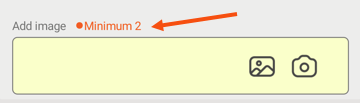
If the Add image field is yellow, it means you must add at least one image. For example, if the text “Minimum 2” appears, you must add at least two images.
If the field is green, it means you’ve done everything you need to, but you can add more images if you like. You can add as many as you like.
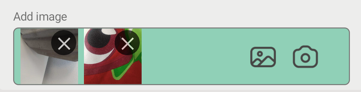
If you want to delete an image, click on the cross on the image. Once you have saved the proof of delivery, you will no longer be able to delete images.
If you have added lots of images, you can scroll through them by swiping your finger sideways across the images in the field Add image.
 For Opter Driver version 2.4.135 or earlier, and Opter version 2025.12.00 or earlier
You can only attach one image per POD. If you want to add more images to the shipment, you can do so via the menu in the detail view. For more information, see Adding images to Opter Driver.
Delay reason
Enter the reason for the delay and the delay comment. If the Select reason for delay drop-down box appears, you must select a delay reason and enter a delay comment in the Comment field.
Deviations
Go to Deviations to register a new deviation. Select the deviation type, and possibly the event and cause. Write a comment and add pictures. Some fields may be mandatory to fill in. It depends on the settings made by the traffic controller.
Once Save has been tapped, it is no longer possible to change the deviation in the app.
If a picture is added, it will be displayed at the bottom of the detail view, under Attached files. For more information, see Adding images to Opter Driver.
The button Deviations can have different colours. The different colours mean the following:
-
Yellow: You must register a deviation.
-
Grey: You don't have to do anything, but you can register deviations if you wish.
-
Green: You have done everything necessary, but if you want you can add new deviations.
Loose items
To register new and modify existing loose items, go to Loose items. Tap Save when finished.
The different colours mean the following:
-
Yellow: There are loose items registered on the order and you need to specify the quantity.
For example, if you deliver a shipment where there is 1 pallet and 4 straps recorded at the start, you must record how many pallets and straps there are at the end of the transport.
-
Grey: No loose objects are recorded. You don't have to do anything, but you can register loose items if you wish.
-
Green: You have done everything necessary, but if you wish, you can add new and modify existing loose items.
Price item
The button Price item can have different colours. The different colours mean the following:
-
Yellow: You need to add a Price item.
-
Grey: You can add Price items if you wish.
-
Green: You have added one or more Price items. If you want, you can add more.
Depending on the settings made by your system administrator, you may be able to do the following:
-
Add price items, for example if carrying out an extra service in connection with the delivery. (See 1 in the picture below.)
The Price items you add yourself are listed under Delete price items (3).
-
Change in Price items (2) that are already on the shipment from before.
-
Remove Price items (3) that you have added yourself to the pod.
If you have added a new item to the pod, but then change your mind and want to remove it, click on the Price item at Delete price items. The Price item is removed immediately.
Once you have saved the pod, you can no longer delete Price items.
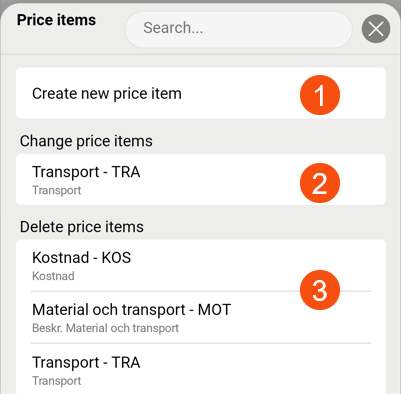
This means you cannot change price items that you have added yourself to the proof of delivery. Instead, delete the incorrect one and create a new one the way you want it.
Changes
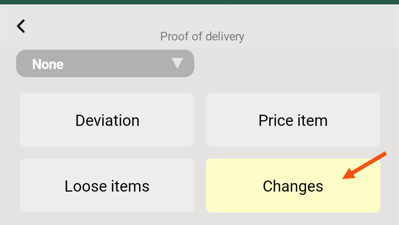
You can make changes to the shipments if, for example, the number of parcels or the journey time is incorrect. Press Changes, make your changes, and then press Save in the top right-hand corner. (However, the changes are not saved until the entire proof of delivery has been completed and Save at the bottom of the proof of delivery page has been tapped).
More detailed instructions are available in Changing orders in Opter Driver.

The different colours of the button mean the following:
-
Yellow: You must make at least one change.
-
Grey: You can make changes if you wish.
-
Green: You have made one or more changes. If you like, you can make further changes.
SMS signature
The receiver can sign the proof of delivery in Track & Trace. This way, the recipient does not need to touch the driver’s device. To make it easier for the recipient to find the order, you can send a text message containing a link directly to the order on Track & Trace.
For more information, see Sending an SMS with a link to Track & Trace.
Smart locks
If you are collecting from or delivering to an address with a smart lock, Unlock {0} will appear in the POD view when you change the status to Picked up or Delivered. When you select that option, the smart lock app will open, allowing you to manage the lock.
Warning regarding early collection
If you manually change the status of a shipment to Picked up before the earliest collection time specified on the order, a warning may appear. You can still change your status to Picked up if you wish.
The warning is displayed in a pop-up window with the text Earliest pickup time is {0}..
If the warning about early collection appears, do the following:
-
Close the pop-up window containing the warning by pressing
 .
. -
Select one of the following:
-
Continue to change the status to Picked up, even though it is too early to collect the shipment.
-
Change your mind and don’t change your status to Picked up, as it’s too early to collect the shipment.
-
Save
Once you’ve filled in everything, press Save. The proof of delivery is saved, and the time and location are automatically recorded in the system.

