Manually sort the route sequence in Opter Driver
Last updated: 27 May 2025
Applies to Opter Driver for iOS and Opter Driver Labs for Android version 2.4.22 and later.
 Version 2.4.21
If you are using version 2.4.21, it works a little differently. We recommend that you update to the latest version of the app. If you still want to use 2.4.21, see Manually sort the route sequence in Opter Driver 2.4.21.
In this article
In the image below, four shipments are shown with the order numbers 1-4.
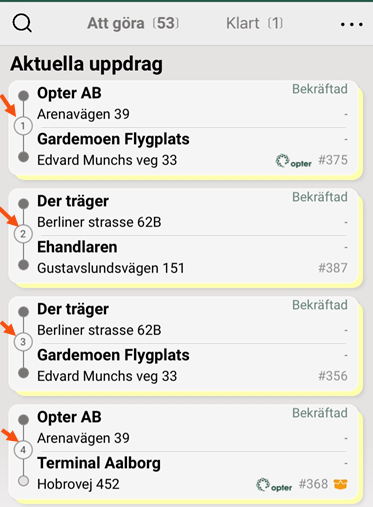
Those with the lowest queue number should be handled first (is the idea).
Driving order number manually or from route optimisation
The shipments in Opter Driver can be given an order number in two different ways:
-
The traffic controller has done a route optimisation in Opter.
-
The driver has manually assigned shipment numbers in Opter Driver.
Order of shipments in the shipment list
The following applies to the task list in Opter Driver:
-
By default, the mission list in Opter Driver is displayed in the same order as in dispatch, i.e. according to the route optimisation. If no route optimisation has been done, the shipments are sorted by shipment date, with the oldest shipment appearing at the top of the list.
-
If the menu items Sort and Manual route sequence are displayed, you can sort the job list as you wish.
The dispatcher can set the route sequence you make manually in the app to be displayed in the dispatch or not.
If you have pressed Sort and chosen to sort the list on one or two fields (for example Status and Postcode (sender)), and then manually give shipment order numbers, the sorting will be prioritised on the fields you have chosen, i.e. Status and Postcode (sender). If you want to assign shipment order numbers manually, you can first click on Sort > Clear to desort the fields.
Route number from route optimisation
For shipments that have received a route number from route optimisation, the following applies when sorting the shipment list
-
Menu option Manual route sequence: If the shipments have route numbers from route optimisation, you can still give them new route numbers manually.
-
If you manually assign order numbers to all shipments, the shipment list will be sorted according to the order numbers you have entered.
-
If you give one or more shipments new routing numbers, and the rest of the shipments keep their routing numbers from the route optimisation, the shipment list will be sorted according to the routing numbers. It therefore does not matter whether the shipment has received its order number from the driver or from the route optimisation.
If you have Sort > Order set to ↑ Ascending, the shipment with the lowest order number will appear at the top of the list.
-
-
Menu option Sort: If the shipments have route numbers (from route optimisation and/or from the driver), then if you click on Sort and choose how to sort the list (for example by Status), the shipment list will be displayed first according to how you have chosen to sort the list (for example by Status).
(For more information on the Sort menu item, see Sorting shipments in Opter Driver.)
The route sequence can be transferred to the dispatch centre
Depending on the settings made by the system administrator or the traffic controller, it works slightly differently.
This is how it works if the system administrator has chosen to:
Changes to the route sequence in Opter Driver must be communicated to dispatch
Prerequisite: Sort is not set to sort on any field.
If you click on Manual route sequence in the menu, give the shipments an order number and save your changes, the following applies:
-
The new route sequence is transferred to the dispatch centre immediately when you save your changes.
If the shipments had route sequence numbers from route optimisation, but you give them new route sequence numbers, the route sequence you have specified will now apply. The new route sequence is displayed in the dispatch and in Opter Driver.
There is no way to undo the new route sequence after you have saved it. What you can do is press Manual route sequence again and choose a new route sequence, or remove the numbers that indicate the route sequence. If you remove the numbers and save, the shipments will be sorted by shipment date.
-
The new route sequence is saved, so if you log out and later log back in to Opter Driver, your saved route sequence will remain.
Changes to the route sequence in Opter Driver should not be transferred to dispatch
Prerequisite: Sort is not set to sort on any field.
If you click on Manual route sequence in the menu, give the shipments an order number and save your changes, the following applies:
-
The new route sequence is not transferred to the dispatch, it is only displayed in Opter Driver.
If the shipments had route sequence numbers from route optimisation, but you give them new route sequence numbers, the route sequence you have specified will now apply. The new route sequence is only displayed in Opter Driver, (that is, not in the dispatch).
-
The new route sequence is not saved on the mobile data server, so if you log out and later log back into Opter Driver, your manually entered route sequence will not be there.
Assigning an order number to one, several or all shipments
You can choose whether you want to assign an order number to one, several or all shipments in the shipment list.
The text below describes how it works if Sort is not set to sort on any field, and no shipments have route optimisation numbers.
If you do not put the order number on all the shipments, but on one or some shipments, they are sorted as follows
-
Manually entered driving order number. (The idea is that those with the lowest queue numbers will be dealt with first.)
-
The shipments that have not been manually assigned an order number are sorted by shipment date.
If Sort > Order is set to ↑ Ascending, then shipments with manually entered order numbers will appear at the top of the list and those without order numbers will be at the bottom of the list. If Order is set to ↓ Descending, the shipments will appear in reverse order in the list.
If shipments have received route optimisation order numbers, see Route optimisation order numbers above.
Example
If you manually assign shipment numbers to all shipments
The text below describes how it works if Sort is not set to sort on any field, and no shipments have route optimisation numbers.
If you manually assign shipment numbers to all shipments, and Sort > Order is set to ↑ Ascending, then the following applies:
-
They are displayed in ↑ Ascending order, i.e. the shipment with the lowest order number appears at the top. The shipment with the highest order number appears at the bottom of the list.
-
If you have skipped one or more numbers, it does not matter. For example, you may have entered the order numbers 1, 2, 3, 6, 7, 8 and 9. They are listed in ascending order even if some numbers are missing.
-
If you have given the same order number to several shipments, they appear in sequence in the list and are sorted according to the shipment date between them. For example, you may have entered the order numbers 1, 2, 3, 4, 4, 4, 9.
If you give all the shipments order numbers manually, and they already had order numbers from route optimisation
See the Route Optimisation Order Number above.
If you manually assign some (but not all) shipment order numbers
The text below describes how it works if Sort is not set to sort on any field, and no shipments have route optimisation numbers.
If Sort > Order is set to ↑ Ascending, and you then manually assign some (but not all) of the shipment order numbers, the following applies:
-
The top of the list shows the shipments that have been manually assigned an order number. They are displayed in ↑ Ascending order, i.e. the shipment with the lowest order number appears at the top.
-
At the bottom of the list are the shipments that have not been manually assigned an order number. These shipments are sorted by shipment date and in ↑ Ascending order.
If shipments have received route optimisation order numbers, see Route optimisation order numbers above.
If you manually give some (but not all) shipments order numbers, and they already had order numbers from route optimisation
See the Route Optimisation Order Number above.
If you have a shipment that should suddenly be prioritised
The text below describes how it works if Sort is not set to sort on any field, and no shipments have route optimisation numbers.
If you have a shipment that suddenly needs to be prioritised, and Sort > Order is set to ↑ Ascending.
-
Follow the ' Do this' instruction below, but only give the shipment to be prioritised an order number, for example the number '1'.
-
Once you have saved your changes, the prioritised shipment will appear at the top of the shipment list. The REST of the shipments are sorted by shipment date.
If you have a shipment that should suddenly be prioritised, and the shipments have route optimisation numbers
The text below describes how it works if Sort is not set to sort on any field.
If you have a shipment that suddenly needs to be prioritised, and Sort > Order is set to ↑ Ascending.
-
Follow the ' Do this' instruction below, but only give the shipment to be prioritised an order number, for example the number '1'.
-
If you gave the shipment a priority number of "1", it will appear at the top of the shipment list when you save your changes, but if there are now several shipments with the number "1", the priority shipment may not appear at the top of the list. As the rest of the shipments still have their order numbers from the route optimisation, there can now be two shipments with order number "1", and the two shipments are then sorted according to the shipment date.
Here's how to do it
To manually assign a shipment number to one, several or all shipments, proceed as follows
-
In the mission list, press the menu (
 ) and then press Sort.
-
Make sure Order is set up the way you want it, ↑ Ascending or ↓ Descending.
If you want the shipment with the lowest order number to appear at the top of the list, select ↑ Ascending. Click on Order to change the sorting order (↑ Ascending / ↓ Descending).
-
Please check that Sort is not set to sort on any field. (If Sort is set to sort on, for example, Status, then the shipment list will be displayed primarily sorted according to Status, even after you have manually assigned shipment order numbers).
If Sort is set to sort on one or two fields, click on Clear to remove that sorting. (For more information on the Sort menu item, see Sorting shipments in Opter Driver.)
Tap
 when finished.
 -
-
Click on Manual route sequence in the menu of the job list.
-
Tap on the shipment to which you want to assign an order number. The keyboard opens. Enter the order number you want the shipment to have.
For example, enter the number "1". The authorisation number must be an integer.
-
Tap the next shipment to which you want to assign an order number. Enter the driving order number, for example "2".
-
Orange circle (3) means you can give the shipment an order number, if you wish. If a number is already displayed in the circle, then the shipment already has a routing number from before (from the route optimisation or from the driver), but you can enter a new number.
-
Green circle (1) and (2) means that you have given the shipment an order number. The number is shown in the green circle. If you want to change the number, tap on the shipment and enter the new number.
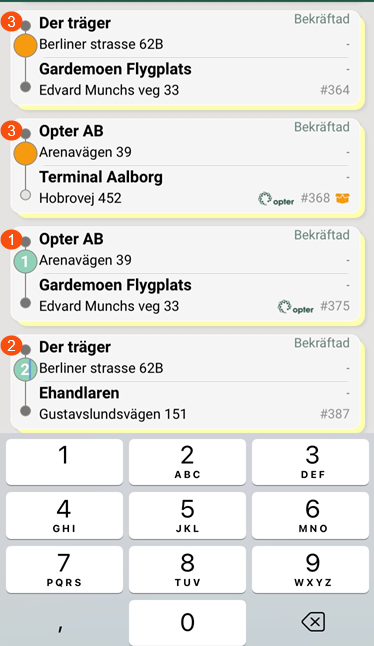
The image shows a shipment list where we have given two shipments order numbers (1) and (2).
-
-
Tap the next shipment to which you want to assign an order number. Enter the driving order number, for example "3".
To ensure that the order numbers are clearly displayed in the app, do not enter order numbers larger than "99". For example, if you enter the order number "110", it will look like "11" in the shipment list, but the shipment will be in the right place in the list in terms of order.
-
When you have finished making your changes to the route sequence, do the following depending on whether your device is iOS or Android
-
iOS: Press the last modified shipment again to make the keyboard disappear.
-
Android: Press the back button (bottom left) to make the keyboard disappear.
-
-
To save the manually entered route sequence, press the menu (
) again and then press Save route sequence.Your changes will be saved and the shipments with manually entered order numbers will now appear at the top of the list, if you selected ↑ Ascending. The REST of the shipments are sorted by shipment date. (If the shipments had route optimisation order numbers, see Route optimisation order numbers).
The image shows the driving order numbers in the light grey circles. The shipments may have received their routing numbers from the driver and/or from the route optimisation.
During loading and unloading
Shipments can be given an order number in two different ways, and the following happens
-
If the dispatcher has done a route optimisation in Opter:
-
The status of the shipment is Confirmed: The shipment shows the pick-up address's routing number.
-
The status of the shipment is Picked up: The shipment now shows the delivery address's routing number instead.
-
(The status of the shipment is Delivered: The shipment still shows the delivery address's order number).
-
-
If the driver manually assigns shipment numbers in Opter Driver:
-
By status Confirmed:
-
The status of the shipment is Confirmed: The driver gives the shipment a routing number for the pick-up address.
-
The status of the shipment then changes to Picked up: The shipment now has no order number. If the driver wants, he can give the shipment a new order number for the delivery address.
-
-
By status Picked up:
-
The status of the shipment is Picked up: The driver gives the shipment a routing number for the delivery address.
-
(The status of the shipment is then changed to Delivered: The shipment still shows the order number that the driver GIFed to the shipment).
-
-
Deleting or changing a driving licence number
If you want to delete or change the driving licence number, do the following:
-
Follow the ' Do this' instruction above.
-
If you want to change the order number, tap on the shipment and enter the new number.
-
If you want to delete the order number, press the shipment and use the backspace key on your keyboard to delete the number.
-
-
Once you have saved your changes, they will appear in the task list in Opter Driver.
Depending on the settings made by the system administrator or the dispatcher, the changes in route sequence are either passed on to the dispatcher, or they are only displayed in the Opter Driver.
Undo
This is how it works if the system administrator has chosen to:
Changes to the route sequence in Opter Driver are transferred to dispatch
If you press Manual route sequence on the menu, give the shipment a route sequence number and save your changes, there is no way to undo the new route sequence (after you have saved it).
What you can do is press Manual route sequence again and choose a new route sequence, or remove the numbers that indicate the route sequence. If you remove the numbers and save, the shipments will be sorted by shipment date.
If the shipments first had route optimisation order numbers, and if you then manually GIF the shipments with new order numbers, you cannot go back to the route optimisation order numbers.
Changes to the route sequence in Opter Driver are not transferred to dispatch
If you click on Manual route sequence in the menu, give the shipments an order number and save your changes, the following applies:
-
As the new route sequence is only saved locally in the app (and not saved on the mobile data server or in the dispatch), you can undo the manually entered route sequence by logging out and then logging back into Opter Driver, in which case your manually entered route sequence is gone.
-
If the shipments first had route optimisation order numbers, and if you then manually assigned new order numbers to the shipments, you can revert to the route optimisation order numbers by logging out and then logging back into Opter Driver.

