Sending an SMS with a link to Track & Trace
Last updated: 8 August 2025
In this article
The recipient can sign the proof of delivery on Track & Trace, thereby avoiding having to handle your device. To make things easier for the recipient, you can send a text message containing a link directly to the order on Track & Trace if the status is at least Picked up.
Proceed as follows
To send an SMS with a link directly to the order on Track & Trace and then have the recipient sign the pod on their device:
-
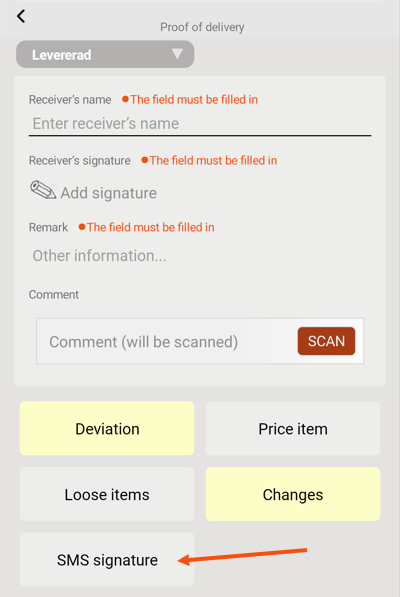
In Opter Driver, the Proof of delivery page opens and the SMS signature button appears there when you do any of the following:
-
Scans the parcel label, the Freight bill or the load carrier label, and if the scan then results in the shipment changing status to Picked up or a status later in the life cycle.
-
Click on Change status in the menu in the detail view and then change the status of the shipment to Picked up or a status later in the life cycle.
-
Click on Proof of delivery in the menu in the detail view, and whether the shipment is in status Picked up or a status later in the life cycle.
(If the SMS signature button does not appear on the Proof of delivery page in these scenarios, it is due to settings made by your system administrator).
-
-
Tap the SMS signature button.
-
Enter the receiver’s mobile number and tap Send.
The SMS app (on your device) opens with the number of the recipient pre-filled and a link to Track & Trace as the message text. Send the message as usual.
If your device shows several different apps instead, select the app you usually use to send SMS.
-
Once the recipient has received the SMS, ask the recipient to press the link. The order is opened in Track & Trace on the recipient's device.
Ask the recipient to click on Sign POD.
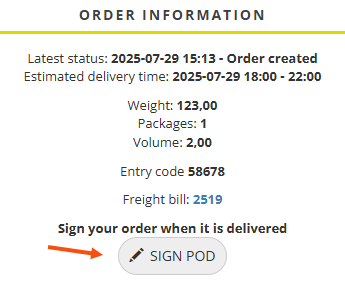
Ask the recipient to write their signature in the text field and then press Save.
When the pod is signed on Track & Trace, the shipment does not disappear from the Todo list in Opter Driver. This is so that the route sequence is not changed if the proof of delivery is signed in advance. Once the goods have been delivered to the receiver, the shipment can be removed from the list by registering a proof of delivery for the shipment as usual.

