Checking the freight bill number in Opter Driver
Last updated: 13 March 2025
Applies to Opter Driver for iOS and Opter Driver Labs for Android.
In this article
If the system administrator has defined that the freight bill number should be checked in conjunction with loading and/or unloading, the Check freight bill number field will be displayed when the status is changed to Picked up and/or Delivered in the app. The check is also displayed when the status is changed in the context of the POD.
If the Check freight bill number field is shown, it is not possible to save the status change until the freight bill number has been checked.
Depending on the settings, the freight bill number may or may not already be filled in.
Pre-filled consignment note number
Check that the Freight bill number (1) in the app matches the one on the parcel or consignment note.
If the Freight bill number is not correct, enter the correct number in the app, or scan by tapping SCAN (2) and scanning the number on the parcel or Freight bill. When you are satisfied with the scan, press SCAN again.
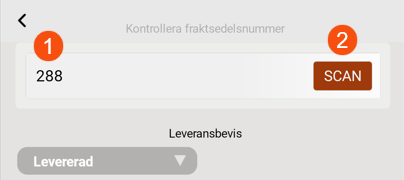
Then proceed to fill in any proof of delivery, loose items and/or deviations. Tap Save when finished.
No consignment note number
If the field is empty (1), enter the number of the parcel or Freight bill manually, or scan by clicking on SCAN (2) and scan the number of the parcel or Freight bill. When you are satisfied with the scan, press SCAN again.
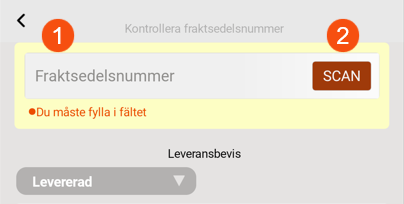
Then proceed to fill in any proof of delivery, loose items and/or deviations. Tap Save when finished.

