Sorting shipments in Opter Driver
Last updated: 27 May 2025
In this article
By default, the mission list in Opter Driver is displayed in the same order as in dispatch, i.e. according to the route optimisation. If no route optimisation has been done, the shipments are sorted by shipment date.
You can sort the lists on the shipment page (Todo and Done) either by various fields in the shipments (for example, Status or Earliest pickup), or manually assign run order numbers to the shipments (see Manually sort the route sequence in Opter Driver).
You can sort the task list in two fields. If all shipments have the same info in both fields (e.g. the same status and the same postcode), the order will be the same as the Route optimised route sequence in the dispatch. If no route optimisation has been done, the shipments are sorted by shipment date.
The sorting you do on the menu item Sort is never transferred to the dispatch, it only appears in Opter Driver.
Proceed as follows
-
Click on the menu (
 ) at the top right and select Sort.
 -
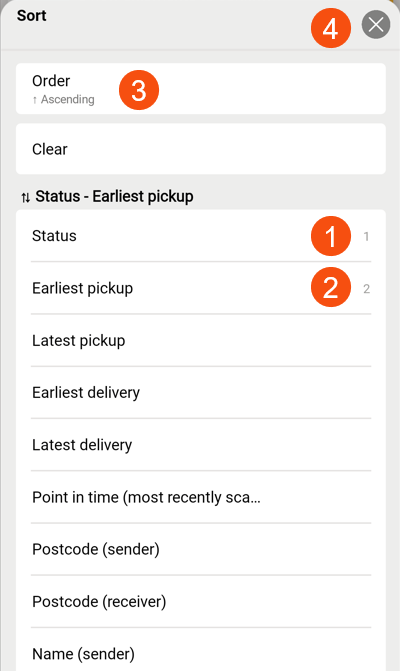
Press the first field you want to sort by, for example Status. The number "1" indicates that the list is sorted on this field in the first place, (1 in the image below).
If several shipments have the same value in that field, you can sort on another field secondarily by pressing it, for example Earliest pickup. The number '2' indicates that the list is sorted on this field secondarily (2).
-
Press Order (3) to switch between ascending (0-9) and descending (9-0).
-
Close the menu with
 (4).
(4).
Delete
If you want to remove the sorting you have done, do this:
-
Click on the menu (
) at the top right and select Sort. -
Tap Clear.
The previous sorting is removed.
The task list in Opter Driver is now displayed in the same order as in dispatch, i.e. according to the route optimisation. If no route optimisation has been done, the shipments are sorted by shipment date, with the oldest shipment appearing at the top of the list. (If you have assigned order numbers to the shipments manually, see Manually sort the route sequence in Opter Driver.)
-
Close the menus with
.
Change
If you want to change the sorting you have done, do this:
-
Click on the menu (
) at the top right and select Sort. -
Tap Clear.
The previous sorting is removed.
-
Press the first field you want to sort by, for example Latest delivery.
If several shipments have the same value in that field, you can sort on another field secondarily by pressing it, for example Earliest pickup.
-
To change the sorting order (↑ Ascending / ↓ Descending), click on Order.
-
Close the menus with
.
The Sort menu
All fields can be sorted in ascending or descending order using Order at the top of the menu. In the table below you can see what is meant by 'rising' and 'falling' for the different fields.
|
Field |
Description |
|---|---|
|
Status |
The shipments are sorted by status. ↑ Ascending = from Created to Delivered. ↓ Descending= from Delivered to Created. |
|
Earliest pickup |
The shipments are sorted by the earliest time (date and time) at which the goods can be picked up. ↑ Ascending= earliest to latest. ↓ Descending= latest to earliest. |
|
Latest pickup |
The shipments are sorted by the latest time (date and time) by which the goods must be picked up. ↑ Ascending= earliest to latest. ↓ Descending= latest to earliest. |
|
Earliest delivery |
The shipments are sorted by the earliest time (date and time) at which the goods can be delivered. ↑ Ascending= earliest to latest. ↓ Descending= latest to earliest. |
|
Latest delivery |
The shipments are sorted by the latest time (date and time) by which the goods must be delivered. ↑ Ascending= earliest to latest. ↓ Descending= latest to earliest. |
|
Point in time (most recently scanned) |
The shipments are sorted by the time at which the packages in the shipment were last scanned. ↑ Ascending = from first to last scanned. ↓ Descending = from last to first scanned. |
|
Postcode (sender) |
The shipments are sorted in numerical order by the sender’s postcode. ↑ Ascending = 0–9. ↓ Descending = 9–0. |
|
Postcode (receiver) |
The shipments are sorted in numerical order by the receiver’s postcode. ↑ Ascending = 0–9. ↓ Descending = 9–0. |
|
Name (sender) |
The shipments are sorted alphabetically by the sender’s name. ↑ Ascending = A–Z. ↓ Descending = Z–A. |
|
Name (receiver) |
The shipments are sorted alphabetically by the receiver’s name. ↑ Ascending = A–Z. ↓ Descending = Z–A. |

