
Last updated: 2025-04-23
Opter 2024.12.00
In this article
Road tolls
-
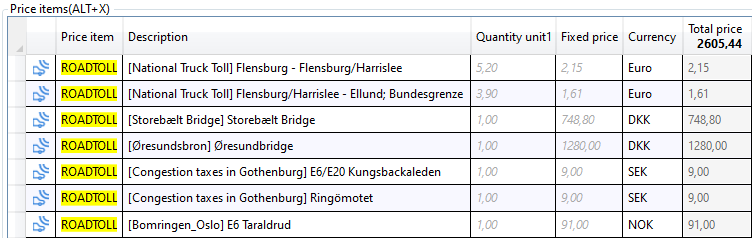
Previously, you could only view all Road tolls individually or view all Road tolls grouped by country (without any details). Now you can choose to display some Road toll types grouped, some individually, and also ignore some Road toll types. For example, you can display distance-based Road tolls grouped by country, but bridge tolls individually. You can also choose to display distance-based Road tolls individually for Denmark, but grouped for Germany.
-
You can now also enter the CO2 emission class (EU) of price vehicle types in Opter. This leads to more equitable amounts for Road tolls, for example for the Danish distance-based and CO2 differentiated Road tolls.
-
Now the order date is used first and the order date second to calculate the Road tolls. This leads to more fair amounts for Road tolls. (Previously, "today's date" was used, which could be the date the order was created, for example.)
-
For consignments: You can now choose whether to use the same service or different services for consignment orders and original orders. (Previously, different services had to be used for consignment orders and original orders if, for example, you did not want original orders (customer orders) that were consigned to be charged Road tolls).
-
Other improvements made are that if you change the resource on a shipment, toll items (that have not been manually changed) are moved to the new resource. Toll items have also been given clearer icons, etc.
More information:
CO2 emissions
It is now possible to do the following:
-
Show calculated CO2 emissions for the order in order reception, order check and on the customer web.
-
Recalculate CO2 emissions in the order check for one or more orders at the same time, e.g. if you have changed the fuel consumption of a vehicle.
-
Change the Calculated CO2 emissions for a shipment in Order reception. (This will also change the Calculated CO2 emissions for the order).
-
Display CO2 emissions on Freight bills.
-
Display CO2 emissions in the mission control and in the co-loading control.
-
For consignments, it is possible to select whether or not the CO2 emissions calculated for the consignment order are to be distributed between the original shipments.
In addition, CO2 emissions are calculated automatically for orders that come into your Opter via EDI.
More information:
Account coding
Account coding has been made faster and handles consignment orders better.
-
Progress bar showing the status when closing invoice and supplier bill periods.
-
Faster pre-screening.
-
Account for orders with shipments included in a consignment order according to the account coding of the consignment order or the original order. Set for the account assignment sources for which it may be relevant in Account coding priority order (for example, customer).
-
Include the year and month from the original order and/or consignment order, as well as the waybill number from the consignment order, in the invoice export to file (XmlSerializer). Set on the Economy tab in the office settings. This can be useful if you want to accrue based on order date instead of invoice date.
More information:
Consignment
-
The distance of a consignment order is always calculated by totalling the consignment shipments, i.e. as the order is actually carried out. The setting on the service (tab Orders and pricing) does not apply.
-
The status of the consignment shipment is updated when an original order is released from the consignment order.
-
PODs that are registered on the consignment order are also put on all original orders included in the consignment order.
PODs registered on a consignment shipment, for example if the POD is registered in Opter Driver or Opter Terminal, are also registered on the original shipment that has the same sender/recipient as the consignment shipment.
-
Account for orders with shipments included in a consignment order according to the account coding of the consignment order or the original order. Set for the account assignment sources for which it may be relevant in Account coding priority order (for example, customer).
-
Include the year and month from the original order and/or consignment order, as well as the waybill number from the consignment order, in the invoice export to file (XmlSerializer). Set on the Economy tab in the office settings. This can be useful if you want to accrue based on order date instead of invoice date.
More information:
Other news
 Invoice export to Procountor (API)
You can connect (integrate) Opter with the Procountor financial system. After that, you can export invoices from Opter to Procountor via API.
More information:
Easier to change distribution routes
It is now easier to change routes so that, for example, the 12345 postcode is also served on Thursdays. On the Pickup and Delivery tabs of the Routes window, there are new columns with tick boxes for all days of the week (Monday-Sunday).
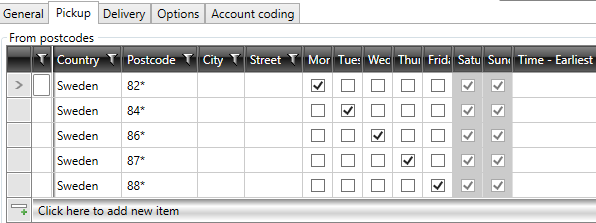
For example, if you get a new customer or a larger vehicle, and thus want to extend the area or days the route runs, you can now easily add a new row with e.g. a postcode and mark which day(s) and time(s) apply. This way you don't have to create a completely new route.
More information:
Invoice export to Duett via API
Opter can be connected to (integrated with) the Duett accounting system. Invoices can then be exported from Opter to Duett via API.
More information:
EDI: Multiple email recipients on the transport
It is now possible to have multiple email recipients in EmailRecipientK2 in the XSLT file. Addresses are delimited by "," (comma) or "|" (vertical line). If there is an email recipient in the XSLT, there no longer needs to be one in the Email recipient field of the transport, it is sufficient that it is in the XSLT.
If you enter several e-mail addresses in the Email recipient field in the Transport window, they should be separated by ";" (semicolon).
More information:
Mandatory to enter Price item on the web portals
It is now possible to make it mandatory to select at least one Price item when ordering on the web portals. Select Order requires price item in the General tab of the internet order settings. The setting must be combined with setting individual fields under Price items as mandatory (done on the tab Fields on the order page). If you don't, you can still save the order without a Price item.
More information:
Postrack
It is now possible to display positions from Postrack devices on the map in dispatch.
More information:
"Price share to resource" drop-down list moved
As the Price percentage to resource drop-down list is relevant for both manual and non-manual Price items, the drop-down list has been moved to the item register.
More information:
Upload image on status change via link/QR code
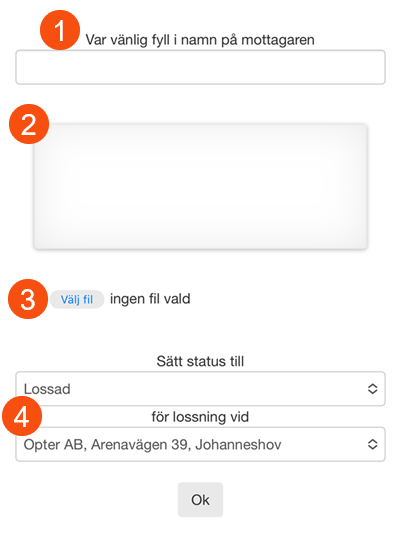
It is now possible to attach an image to the order when the status is changed to Delivered via the links that can be inserted in emails to subcontractors and QR codes on Freight bills (3). The option is set with Require image on the POD-type, which also means that the subcontractor has to upload an image.
More information:
Customer name and customer code on the resource webs
The Show customer name with order details checkbox has been renamed to Show customer information, and now applies to both customer name and customer code. You can find it in the internet order settings, on the Menu alternatives and functions tab under The resource webs.
More information:
Display VAT rate per shipment and per order in shipment control and co-loading control
Previously, it was only possible to display the VAT rate of the order in the order check and the co-loading check. It is now also possible to display the shipment's VAT rate. The columns are now called VAT, shipment (%) and VAT, order (%) (previously called VAT (%)).
For mission control: In the Shipment settings window on the Columns tab, you can display the VAT rate of both the order and the shipment by adding the columns VAT, order (%) and VAT, shipment (%).
For the co-loading control: In the Consignment settings window on the Shipment columns tab, you can display the VAT rate of both the order and the shipment by adding the columns VAT, order (%) and VAT, shipment (%). On the Consignment columns tab, you can display the VAT rate for consignment orders by adding the column VAT, order (%).
More information:
Time limit for the email and route optimisation logs
It is now possible to set the number of days for which emails and route optimisations are stored in the logs. The settings are made in the system settings, the default is 90 days.
More information:
Column "Customers" extras in the statistical report for load carriers
The column Customers shows which customers have parcels in the load carrier.
More information:
Load carriers in order check
The column Load carrier and the search option Load carrier are now available in the order check. In the column you can see which load carriers an order has parcels in.
If you enter the ID of the load carrier in the field Load carrier (tab More search options), a list of the orders that have packages in that load carrier will be displayed.
More information:
