EDI integration with Opter
Last updated: 12 August 2026
In this article
Opter is a real-time transport management system.
If you do not have Opter and if your partner has Opter, you can connect your transport management systems using an EDI integration (EDI connection), which provides the following functions
-
You can easily send shipments to each other.
-
You receive an order confirmation so that you can see if the subcontractor has received the shipment.
-
If the status of an order changes in one system, it also changes in the other system.
-
Proofs of delivery (PODs) are automatically transferred between the systems.
Integrations are set up in Opter customers’ own Opter installations. There is no centralised loading for all Opter customers.
This article describes what data Opter can send and receive, as well as the supported transport modes and file formats. There is also information here about the order service, a web service in which a partner can create orders in the Opter customer’s system. If you cannot find what you are looking for in this article, you are welcome to contact , and we will find a solution together.
Concepts:
-
EDI (Electronic Data Interchange): EDI is the transfer of structured information in an agreed format. An EDI integration must be tailored to the export or import that is to be made, and the information to be exported or imported must be in the right format.
-
Opter customer: The partner that has the Opter transport management system.
-
POD: Proof of delivery. For example, the delivery order types Delivered, New address and Nobody home are used in Opter.
-
Status: A status update sends statuses for orders, such as Picked up and Delivered, between systems.
Sending data to Opter
Format
In order for the Opter customer to be able to send and receive data via EDI, it is necessary to decide how to organise the transfer of the order documents. Opter can read order documents in the XML, EDIFACT, JSON and CSV formats, and other text files with static separators/delimiters. Opter can handle different character encodings. Please contact if you have any questions about formats.
In order for data to be imported into Opter, Opter’s EDI team needs to set up an EDI link that interprets the information from the partner’s system. To do this, the EDI team needs a sample file in one of the above formats and preferably a specification of the format used by the partner.
If you don't have your own format, you can do one of the following:
-
Use the Opter REST API. For more information, see Calls via REST API below.
-
Send XML files in the standard Opter format. For the XML schema, see: https://download.opter.com/xsd/. Always use the latest available version of order.xsd.
If the Opter XML format is used, the creator of the file has to comply with the way the Opter customer wants the order to look.
Even if the same XML standard is used for integration with several different Opter customers, there can be significant differences in the way in which the different Opter customers want the documents to be presented, as everyone has different working methods. You will therefore need to make these adaptations. If a custom format is used, Opter takes care of the adaptations. For more information, please contact to get examples and documentation.
Data transfer
 File transfer via FTP, SFTP and FTPS
The most common approach is to share an internet storage location where both parties can access each other’s orders and status files. For example, an FTP server can be used for this. The FTP server is set up by the Opter customer’s IT manager or an equivalent person at the EDI partner. The FTP data is then sent to the Opter EDI team at . Once Opter has retrieved the file from the FTP server, it is deleted, but the file can also be archived or moved to another folder after it has been imported.
There is a more detailed description of how to set up the FTP service, which we can send to the person responsible for its configuration. Please contact .
Opter supports the loading of files via FTP, SFTP and FTPS:
-
FTP: the communication is unencrypted over the internet.
-
SFTP: Opter can connect to SFTP services with username/password, or with SSH private key authentication (both with and without a password-protected key). It is also possible to combine private key authentication with password authentication.
-
FTPS: Opter can only connect to FTPS via explicit mode on standard ports (21), not implicit mode.
The EDI partner’s system has to support the protocols used, which is not always the case. Some require communication to be encrypted, while others have older systems in which FTP is the only option.
Calls via REST API
It is also possible to send order and status information to Opter customers via a REST API.
Conditions
Contact to:
-
ask them to set up the integration
-
obtain an API key. (The person who will use the API needs an API key.)
Go to the swagger documentation
-
The swagger documentation for the API is at the same URL as the customer web, but with "/api" at the end:
-
If you are running Opter Cloud:
https://<your company name><country>.opter.cloud/api/index.html
Example: If your company name in Opter is "courier services" and the country is Sweden, use https://courierservicesse.opter.cloud/api/index.html
-
If you have your own server:
https://<your company name or IP address>.<country>/api/index.html
Example: If your company name in Opter is "courier services" and the country is Sweden, use
“https://courierservices.se/api/index.html or https://123.45.678.901/api/index.html”
If you cannot find the swagger documentation for the API, please contact the EDI team at .
-
-
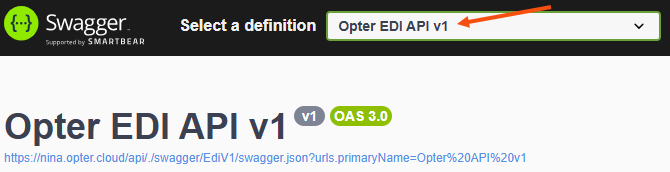
In the top right-hand corner of the website is the Select a definition drop-down list. Select "Opter EDI API v1".
Using the data model
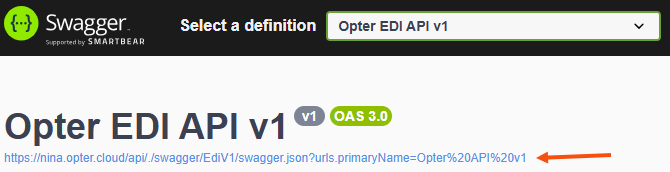
To import the API into a tool such as Postman, the data model for the API is at the top of the swagger website.
Example and description of the parameters
At https://download.opter.com/json/ there are examples of how the JSON structure can look like for an order booking. It is possible to start with an example, but then adapt it to suit your organisation.
https://download.opter.com/json/opterOrderBookingJsonSchema1.0.json describes the functions and formats of all the parameters.
The API call can look like this:
curl --location 'https://opterkunden.opter.cloud/api/textedi' \
--header 'Content-Type: application/json' \
--header 'x-api-key: placeholder' \
--data-raw '{jsonhere}'Try using the API
To test using the API, it is possible to use the swagger website or a test program such as Postman.
Order booking
When the file is imported using one of the above transport methods, a new order is created in Opter. The order contains the information that the Opter customer, in consultation with us, has deemed relevant in order to carry out the transport operation.
We recommend including the following information in the order created in Opter:
-
Addresses (mandatory)
A pickup address and a delivery address must be provided. These should be physical addresses and not coordinates, GLN numbers or UN/LOCODE codes as Opter does not have any look-up facility for these types of addresses. The address should include the street address (i.e. street name and number, it is acceptable to send to a PO box), postcode and city/town. A name (of a person or company), a country code (ISO 3166), and any contact details are often included.
In exceptional cases, there is no need to provide an address, but there must be an agreement with the Opter customer as to how this will be handled. An example of this would be if the orders always have fixed addresses.
-
Customer number (optional/mandatory)
Customer refers to Opter’s paying customer. It is possible to set a fixed customer number on the integration so that it does not need to be sent. However, if several customers are managed in the same integration, the customer number has to be included. We recommend always including the customer number in the documentation sent to the Opter customer.
-
Service (optional)
An agreement has often been made with the transport operator to have some kind of service (e.g. part loads, groupage, etc.) that is booked. This then needs to be included in the data in order for the right service to go on the order in Opter. A default service that is applied to all orders can also be specified. Then the service does not need to be included in the data.
It is also possible to set up the service on the order in Opter based on other parameters. In this case, it is an adaptation made by the EDI department based on the data.
-
Dimensions/package (optional)
Many Opter customers price their transport operations based on the weight and volume included in the documentation. It is necessary to agree with the Opter customer as to whether to work at order level or package level. If you are working at order level, the total weight and volume should be specified for the entire order. If you are working at package level, the dimensions of each individual package should be specified so that they can be displayed correctly in Opter.
If the order involves dangerous goods, this should be specified with the class and dimensions.
Opter can load the following dimensions at both order and package level:
-
weight
-
volume
-
load metres
-
pallet space.
The following dimensions can only be loaded at package level:
-
length
-
width
-
height.
-
It is possible to include further information in addition to that described above. In that case, we will agree on this before setting up the integration.
The documentation requirements may differ from one Opter customer to another as not everyone works in the same way, but as long as the data is included in the documentation, we can make the adjustments for each of the Opter customers. If you have chosen to use the Opter XML format, you will have to make these adjustments yourself.
Modifying an existing order
It is possible to make changes to an existing order received by the Opter customer. This assumes that the documentation that will modify the existing order contains one of the unique IDs that identify the order and that were used when it was created (e.g. freight bill number or order number). The documentation should also include an indicator that it is a change and not a new order to simplify matters for the Opter customer.
You need to agree with the Opter customer on whether changes to existing orders should be permitted, and if so, which fields in the document can be changed.
If Opter’s XML format is used, we will describe to you what a change to an existing order should look like. The Opter EDI team must approve the document before you can start sending it automatically.
Exporting data from Opter to another system
In order for Opter to send data to another system, an integration must be set up. The integration has similar conditions to those applicable when sending data to Opter, see Sending data to Opter above.
Send a specification of the counterparty’s format or sample files to and we will examine whether it is possible to create an integration.
For authentication, basic auth or static tokens sent as headers are supported. This means that JWT tokens, for example, are not supported unless they have an infinite lifespan. This means that Opter cannot retrieve a new token for each request/call to be sent as that is not supported.
Acknowledgements
Once an order has been created in Opter, you can receive an acknowledgement that it has been created correctly and/or accepted by the Opter customer.
The acknowledgment may also include documents such as package labels. The documents can be included in the metadata file created on acknowledgement (Base64 encoded), or sent separately as attachments to an email address, for example. If the order has been created via the web service, the documents can be included in the Base64-encoded response received at 200 OK. In this case, the format that is returned must be decoded first, followed by the documents.
Reject shipment/cancellation
If the Opter customer rejects the shipment, it can be send via EDI. If a shipment has been sent to a subcontractor but they are no longer required to carry out the shipment, a cancellation can be sent via EDI. We need to know what the documentation for rejected shipments and cancellations should look like and how they will be handled. For example, many people want to handle cancellations manually.
Statuses
By default, the Picked up and Delivered, and proof of delivery (POD) statuses are sent. All statuses are sent in the format agreed upon when the integration was created. Please send documentation and examples of what the files should look like to the Opter EDI team at . Picked up and Delivered are the two most common statuses, but it is possible to come to an agreement with the Opter customer and the Opter EDI team to send more than these two.
Status updates to Picked up and Delivered can take place both at a terminal and at the sender/receiver. For loading and unloading at a terminal, the terms arrival/departure are used instead of unloaded/loaded.
Codes are often used for different statuses. Please send documentation or an overview of the codes for the statuses you want to transfer to , and please include sample files.
Opter may send back different statuses for transport booked in the Opter customer’s system using any of the previously mentioned formats.
Opter can only send out statuses and there are only limited options for retrieving the status of your orders from Opter (see also the Track & Trace section below).
The status is immediately sent automatically when it is changed by the driver carrying out the transport. The status changes are sent as individual files for each event, or there is one transaction per event depending on the transport method that has been agreed.
In some cases it is possible to send several statuses in the same file or transaction to reduce the number of files/transactions. They can be sent using the methods described in the Data transfer section above. It is also possible to send the statuses to APIs that have a static endpoint.
The URL must not contain dynamic values such as different order numbers. The endpoint must accept the POST method. PUT is not supported.
Package scans
Status updates for package scans can be sent in conjunction with loading at the sender, unloading at the receiver, and arrival at and departure from the terminal. This assumes that the Opter customer scans packages and that there is a unique ID for each package. The IDs must be available when the order is created so that the Opter customer can scan them. If the ID numbers are not available, Opter can generate them, but the labels on the packages must have barcodes that match the ID numbers (see the Acknowledgements section above for information on how to return them). This also means that each individual package can be tracked.
Freight bill scans
Freight bill scans work in the same way as package scans, with the exception that individual packages cannot be tracked because the freight bill represents the entire order. This assumes that there is a freight bill number on the order when it is created, or that Opter generates a freight bill number and returns it to you so that it is included on the freight bill.
Proof of delivery (POD)
A proof of delivery may include a written confirmation of the name and a signature, as well as one or more photographs.
If the signature or images are sent in the file containing the metadata for the proof of delivery, the signature/images will be Base64-encoded and must therefore be decoded in order to be displayed. The rest of the file retains its format.
The signature and/or images may also be sent as a separate file in PDF, PNG, GIF or JPG format. In that case, the file is completely separate from the one containing any metadata for the POD. This can be useful if you want to send signed freight bills, for example. In that case, the name of the file usually contains the freight bill number or the order number.
Deviations
Deviations can refer to damaged goods and delays etc. Deviations can be exported from Opter, but since Opter customers use deviations in different ways, you should discuss how to handle them with the Opter EDI team and the Opter customer before setting up such an export.
Notifications
The Opter customer can send notifications when a proof of delivery is registered and when there are various status changes, for example to the receiver when the goods are loaded. The notifications can be sent by email or SMS. This requires that either an email address or a correct mobile phone number to which the notifications can be sent is included. Fixed email addresses or mobile numbers can also be set.
Both the appearance and content of the notifications can be customised to suit your specific business operations.
This function requires some configuration. Contact Opter at in consultation with the Opter customer and we can provide further assistance in this regard.
Price requests
We recommend that price requests are always sent via the order service as this provides the fastest response.
The Opter customer’s price list must support the reporting back of a price immediately upon request. Pricing differs between different Opter customers. Ask the Opter EDI team if it is possible for you to send price requests.
If the format for price requests is the same as the format for orders, and both price requests and orders are sent via the order service, the price requests must be separated from the orders by a flag in the file. If the order is sent via FTP and the price request via the order service, no flag is needed in the file.
Track & Trace
If integration is not required or there is no option for one, the Opter customer’s Track & Trace can be used to see the status of orders.
Track & Trace allows you and the receivers to search for transport operations, and to view their status and other information. There is no need for login credentials when using Track & Trace, so it is possible to search directly by, for example, order number or freight bill number. Ask the Opter customer for the URL of their Track & Trace.

