Invoice export to Procountor (API)
Last updated: 30 July 2026
In this article
You can link Opter to the Procountor accounting system and export invoices from Opter via the API. Further information about Procountor is available at https://procountor.fi/en/.
When you export an invoice from Opter to Procountor, the following happens:
-
The invoices are exported as "account coding products", i.e. it is the account coding that is transferred.
The invoice from Opter, containing all the details, can be attached as a PDF file.
-
Customer information is exported and updated in Procountor.
The integration has only been tested for the Finnish market. However, Opter can customise the integration for all of Procountor’s markets. If you wish to use Procountor for a market other than the Finnish market, please contact .
Conditions
Economic units and dimensions
What is called an "economic unit" in Opter is called a "dimension" in Procountor. When exporting invoices (accounting items), the name of the economic unit in Opter is matched with the name of the dimension in Procountor.
Check:
-
that all economic units you use in Opter are available as dimensions in Procountor. (It is not possible to create new dimensions in Procountor via the invoice export.)
-
that you use the same names for the economic units in Opter as the dimensions in Procountor.
In Opter, you can view the economic units and their names on the Economy tab in the office settings.
If you add a new department or group under an economic unit in Opter, the new department or group will be created automatically in Procountor when invoices are exported, provided that the new department or group is included in any accounting product.
Account number
The account numbers used in Opter must be available in Procountor.
Invoice number and invoice number series
Procountor accepts invoice numbers from Opter. Ensure that the numbers on invoices created in Opter do not clash with the numbers on any invoices created directly in Procountor. You can solve this by using different invoice number series in Opter and Procountor.
Currency codes
Procountor uses the same currency codes as Opter.
Customer number
Please check that all Opter customers have a customer number in the Sales ledger number field on the General tab of the customer register. When exporting invoices, the customer number is also sent to Procountor. If there is no sales ledger number, you will receive an error message stating that the customer number is missing.
The customer’s e-invoicing provider
If you send e-invoices from Procountor, the code for the customer’s e-invoice provider must be entered in the EDI code field on the Details tab in Opter’s customer register. Please check that the EDI code field contains the correct information for all your customers. See the table below. Further information is available at help.procountor.fi/en.
If you send invoices from Procountor by other means, you do not need to fill in this field EDI code.
|
The customer’s e-invoicing provider |
EDI code |
|---|---|
|
Aktia/Paikallisosuuspankki |
HELSFIHH |
|
Ålandsbanken |
AABAFI22 |
|
Apix Messaging Oy |
003723327487 |
|
Apix Messaging Oy (old code) |
00372332748700001 |
|
BasWare Einvoices Oy |
BAWCFI22 |
|
CGI Suomi (formerly Logica Suomi Oy) |
003703575029 |
|
Danske Bank |
DABAFIHH |
|
DNB Bank ASA, Finland Branch |
DNBAFIHX |
|
Enfo |
003714377140 |
|
Handelsbanken |
HANDFIHH |
|
InExchange Factorum AB |
INEXCHANGE |
|
InExchange Factorum AB (old code) |
SE556700997101 |
|
Liaison Technologies Oy (formerly Anilinker) |
003708599126 |
|
Maventa |
003721291126 |
|
Netbox Finland Oy |
003726044706 |
|
Nordea |
NDEAFIHH |
|
Notebeat Oy |
003717203971 |
|
OpusCapita Solutions Oy |
E204503 |
|
Osuuspankki |
OKOYFIHH |
|
Pagero |
003723609900 |
|
POP Pankki |
POPFFI22 |
|
PostNord Strålfors Oy |
003701150617 |
|
Ropo Capital |
003714377140 |
|
Säästöpankki |
ITELFIHH |
|
S-Pankki/LähiTapiola |
SBANFIHH |
|
Sproom ApS |
SPROOM |
|
TeliaSonera Finland Oyj |
003714756079 |
|
Tieto Oyj |
003701011385 |
|
Peppol |
PEPPOL |
Products
When you export invoices to Procountor, Opter creates products for each unique combination of account, VAT code, VAT rate, dimension (economic units) and more. These products are created if they do not already exist, that is to say, if they have not already been created during previous exports. The products are then used to represent the account coding from Opter.
You can see which products have been created by Opter in the OpterGroup product group in the Procountor product catalogue.
The name of the product group is “OpterGroup” by default, but can be changed in the terminology tag IES_ProcountorAPIProductGroup under Settings > Terminology in Opter.
Step 1: Create a user and an API key in Procountor
In order to export invoices to Procountor, you must first create a so-called m2m user ("machine to machine" user). The M2m user must have the permissions set out in the table below, and an API key linked to their account. This means that you will not need any personal login details to export invoices to Procountor.
More information is available at https://dev.procountor.com/m2m-authentication/.
Proceed as follows:
-
Create a m2m user in Procountor. Further information is available at help.procountor.fi/en.
-
Ensure that the m2m user has all the permissions listed in the table below.
Designation
Authorisation level
basicAccountingInfo
ALL_RIGHTS
importData
ALL_RIGHTS
editPersonalInfo
ALL_RIGHTS
salesOrGroupInvoices
ALL_RIGHTS
salesInvoiceSearch
ALL_RIGHTS
customerRegister
ALL_RIGHTS
productRegister
ALL_RIGHTS
verification
ALL_RIGHTS
approval
ALL_RIGHTS
journalReceipts
ALL_RIGHTS
journalReceiptSearch
ALL_RIGHTS
-
Create an API key; see Creating an API Key using the Procountor UI. In field Client id, enter “opterClient”. Copy the API key. It will be entered into Opter at a later stage.
-
Save all changes in Procountor.
Please contact Procountor support if you need help creating the API key and the m2m user, and granting them permissions.
Step 2: Create an invoice export
-
In Opter, click Economy > Invoices > Invoice export and create a new invoice export by clicking New on the menu. The following fields must be filled in on the General tab:
-
Name: For example, "Procountor (API)".
-
Report: None.
-
Type: Procountor API.
-
Encoding: UTF-8.
-
Password: Here you enter the API key that you created in Procountor.
-
-
If you want all the details of the shipments to be sent to Procountor – such as the sender, recipient, distance, weight and consignment note number – tick the box Include PDF-copy.
If the PDF file cannot be attached, an error message will appear, but this will not prevent the invoice from being created in Procountor.
To reduce the size of the PDF file, select Reduce PDF file size. The file size is reduced by removing all text formatting (bold, italic, underlined), and by changing the font to Trebuchet MS which uses less storage space. The extent to which the file size is reduced therefore depends, amongst other things, on how much formatting the PDF file contains.
-
Click on Save to save all changes.
Step 3: Translate Opter’s VAT codes
Invoices are exported from Opter to Procountor as 'posting products'. In Procountor, "VAT status" is set on each accounting product.
In order to create the correct accounting entries, Opter needs to know which VAT status code should be used for each VAT rate in Opter. For example, that “vat_1” should be used for the 25.5% VAT rate.
You can find descriptions and the most common VAT status codes at help.procountor.fi/en. A complete list of all VAT status codes is available at help.procountor.fi/en.
Go to the Codes tab and select Tax rates from the drop-down list. Enter the VAT status code in column Code for the VAT rate(s) you use.
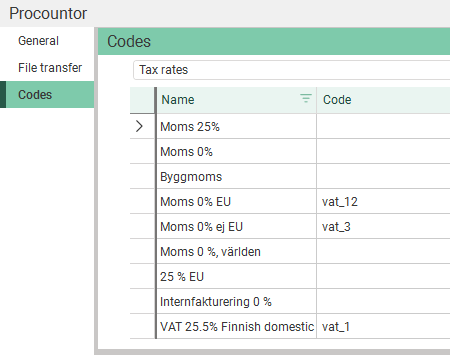
Click on Save to save all changes.
Step 4: Add the invoice export in the invoice export settings
Click Economy > Invoices > Invoice export settings and select “Procountor (API)” (or the name you gave the invoice export) for the configurations that are to generate an export to Procountor. As all invoices must be posted, you should select the export option for all export configurations in the list on the left.
You can set the configuration to be applied to a specific customer. Select a configuration from the drop-down list Invoice export setting on the Invoice information tab in the customer register.
Step 5: Exporting invoices to Procountor
The invoice information can be exported from Opter when closing an invoice period, or subsequently when choosing whether to export entire invoice periods or individual invoices.
Procountor does not have invoice periods, but the invoice date in Opter must fall within an open financial year in Procountor.
Proceed as follows:
-
Click on Economy > Invoices > Invoices.
-
Select the invoice or invoice period you want to export, right-click and select Export.
-
Click Export and send to export the invoice or the invoice period.
The Invoice export window displays the number of invoices to be exported and the number of invoices exported, as well as a progress indicator (at the bottom of the window). When the invoice export has been completed, the entire progress bar is green.
If the invoice export fails, the progress bar turns grey and there is a statement indicating that the export failed. If the export failed, an error message will be displayed; see below.
Error messages
If the export to Procountor is not working as it should, an error message will appear. Once you have rectified the error, you can try exporting the invoices again.
For more detailed information, see the Windows Event Log. Check Opter’s event log, as the calls are coming from Opter.
|
Error message |
Description |
|---|---|
|
Error during API call |
This error message is linked to an error message from Procountor. Contact for more information. |
|
The user credentials were not accepted by Procountor |
|
|
The product group {0} does not exist/could not be created in Procountor |
Contact for more information. |
|
Incorrectly stated account number: {0} |
Check the account number in Opter. |
|
No {0} account in Procountor. Check the accounts available in Procountor. |
The account numbers used in Opter must be available in Procountor. |
|
Could not retrieve accounts from Procountor |
Contact for more information. |
|
The dimensions {0} do not exist in Procountor |
What is referred to as an ‘economic unit’ in Opter is called a ‘dimension’ in Procountor. For more information, see Economic units and dimensions above. |
|
Could not retrieve account coding for invoice {0} from Procountor |
Opter was unable to retrieve the account coding for the invoice that Opter exported. Contact for more information. |
|
Could not update account coding for invoice {0} in Procountor |
Contact for more information. |
|
The period for date {0} does not exist or is closed in Procountor |
Procountor does not have invoice periods, but the invoice date in Opter must fall within an open financial year in Procountor. |
|
The customer {0} could not be created in Procountor (customer code: {1}, customer no.: {2}) |
You can try creating the customer manually in Procountor. It is important that the customer number matches the one already in Opter. See Customer number above. You can then try to export the invoice again. |
|
The customer {0} could not be updated in Procountor (customer code: {1}, customer no.: {2}) |
You can try updating customer information manually in Procountor. It is important that the customer number matches the one already in Opter. See Customer number above. You can then try to export the invoice again. |
|
There is no customer number in Procountor for customer: {0} (customer code: {1}, customer no.: {2}) |
Enter a sales ledger number for the customer in Opter. See Customer number above. You can then try to export the invoice again. The error message states that the customer number is missing in Procountor, but it is in Opter that the sales ledger number should be entered. |
|
This error message is just a warning. The invoice is created in Procountor, but the PDF file from Opter is not included. This may be because, for example, the PDF file is too large.
|
|
|
Too many calls |
Contact for more information. |
See also
-
Procountor’s documentation: https://help.procountor.se/sv/
-
API documentation: https://dev.procountor.com/

