Customise the menu in Opter Driver (classic)
Last updated: 14 October 2025
In this article
You can set which menu items are displayed on the menu ( ) in both the list view and the detail view. This means you can control what drivers can do in the app. The settings are made using a number of Mobile data settings. For more information on what the different menu items do, see Tabs and menu in Opter Driver (classic).
There are two types of settings:
-
XyzPermission: Show/hide the field ("true"/"false").
-
XyzOrder: Location of the field. The lower the number, the higher up the menu it is.
The menu in the list view

By default, all menu items are displayed. If you want to hide any of them, set it to "false".
|
Menu options |
Mobile data settings |
|---|---|
|
New order |
CreateNewOrderPermission CreateNewOrderOrder |
|
Sort |
SortPermission SortOrder |
|
Filter |
FilterPermission FilterOrder |
|
Working hours |
WorkingTimesPermission WorkingTimesOrder |
|
Select status |
SetArbitraryStatusPermission SetArbitraryStatusOrder |
|
Settings and End |
Always shown at the bottom of the menu. Cannot be changed. |
The menu in the detail view
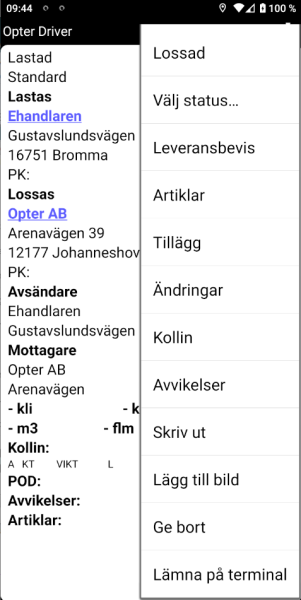
By default, all menu items are displayed (except Add package by scanning). If you want to hide any of them, set it to "false".
|
Menu options |
Mobile data settings |
|---|---|
|
Next status |
Always displayed at the top of the menu and cannot be changed. |
|
Select status |
SetArbitraryStatusPermission SetArbitraryStatusOrder |
|
Proof of delivery |
ProofOfDeliveryPermission ProofOfDeliveryOrder |
|
Price items |
ArticlesPermission ArticlesOrder Available in mobile device must be selected on the Price items tab of the price list for the Price items to be selectable in the app. |
|
Extras |
AddServicePermission AddServiceOrder |
|
Changes |
ChangesPermission ChangesOrder |
|
Packages |
PackagesPermission PackagesOrder |
|
Deviations |
DamagesPermission DamagesOrder Available in mobile device must be selected in the Deviation types window for the deviations to be selected in the app. |
|
|
PrintPermission PrintOrder |
|
Add image |
AddImagePermission AddImageOrder |
|
Add package by scanning |
AddPackageByScanningPermission AddPackageByScanningOrder "False" by default and will not be displayed unless you set AddPackageByScanningPermission to "true". |
|
Give away |
GiveAwayPermission GiveAwayOrder |
|
Leave at terminal |
ShipmentDeliveryAtTerminalPermission ShipmentDeliveryAtTerminalOrder |
Troubleshooting
 It is not possible to add or change Price items
This may be due to the fact that no Price items in the current price list may be used in Opter Driver. Check which price list the order you are viewing in the app uses. Then go to Economy > Price lists > Price lists > Price items tab and check that the checkbox Available in mobile device is ticked for at least one Price item. If no Price items are selected, it is not possible to add any items, although it is possible to fill in the form.
It also looks like it is possible to change existing Price items, but
If you don't want any Price items to be added or changed in the app, we recommend that you hide the menu item completely by setting ArticlesPermission to "false".
It is not possible to add any deviations
This may be because no deviation types can be used in Opter Driver. The menu option Deviations is still displayed because it is possible to view existing deviations on the order in the app that have been added to the Order reception or via EDI. Go to Settings > Deviations > Deviation types and check that the checkbox Available in mobile device is ticked for at least one deviation type.

