Customising the package view in Opter Driver
Last updated: 5 August 2025
In this article
To open the package view in Opter Driver, click Packages on the menu in the detail view and then select an existing package or add a new one.
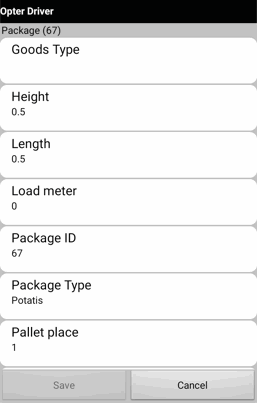
You can choose which fields to display in the column view. You can also rename the fields and choose the order in which they appear. The settings for the coal view are made using the Mobile data settings starting at "SPA_". There are three types of SPA_ settings:
-
"SPA_XyzPermission": Show/hide the field ("True"/"False").
-
"SPA_XyzName": Enter a new name for the field.
-
"SPA_XyzOrder": Location of the field. The lower the number, the higher up the view it is.
Setting which fields are displayed
-
All SPA_Permission is "True" by default, which means that all fields will be displayed in the column view if you do not make any settings at all.
-
If you set the Permission for one field to "True", you must set the Permission for all other fields to be displayed to "True" as well. Otherwise, only the field that you set to "True" will be displayed.
-
If you set the Permission for one field to "False", you must set the Permission for all fields to be displayed to "True". Otherwise, no fields are shown in the Colli view at all.
How to show/hide fields in the column view:
-
Click on Settings > Mobile data > Settings mobile data.
-
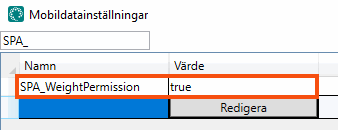
Click on an empty row in the Name column and then on the down arrow in the row being added. Select the SPA_Permission setting to be displayed in the package view, for example SPA_WeightPermission which determines whether the Weight field is displayed or not.
-
Enter one of the following in the cell to the right:
-
“True”: if the Weight field should be displayed in the package view.
-
“False”: if the Weight field should not be displayed in the package view.
-
-
To add multiple fields to the list in the package view, repeat the above two steps for each field to be displayed.
-
Click on Save.
Renaming fields
Here's how to rename the fields in the Colli view:
-
Click on Settings > Mobile data > Settings mobile data.
-
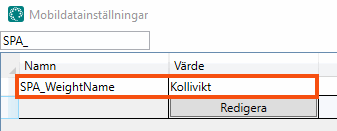
Click on an empty row in the Name column and then on the down arrow in the row being added. Select the SPA_Name setting whose name should be changed, for example SPA_WeightName.
-
In the cell on the right, enter the name that should appear in the field in the package view, for example “Package weight”.
-
To change the names of several fields, repeat the above two steps for each field.
-
Click on Save.
Change the order of the fields
If you do not make any settings, the fields are displayed in alphabetical order. If you want to change the location of the fields, proceed as follows:
-
Click on Settings > Mobile data > Settings mobile data.
-
Click on an empty row in the Name column and then on the down arrow in the row being added. Select the SPA_Order setting whose order should be changed, for example SPA_WeightOrder.
-
In the cell on the right, enter a number to indicate where in the list the field should be located. For example, enter the number “1” if the field should be at the top of the list. Enter the number “2” if the field should be the second field in the list.
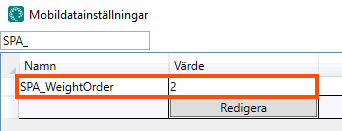
The field with the lowest number appears at the top. This means that setting one of the SPA_Order settings to "2" is not enough for it to appear in second place. If "2" is the lowest number, that field will be at the top anyway. In that case, you need to set another field to "1".
-
Click on Save. When you have finished configuring the settings, you can close the window.

