Display customer logo in Opter Driver (classic)
Last updated: 23.05.2022
In this article
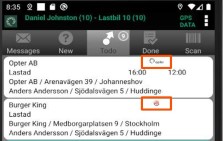
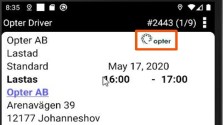
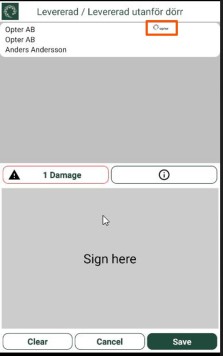
You can display a small logo in the task list, detail view and POD view in Opter Driver. The logo is specified in the customer registry, so it is possible to have different logos depending on which customer the shipment relates to. Then, in App.Design set where the logo should be displayed in Opter Driver.
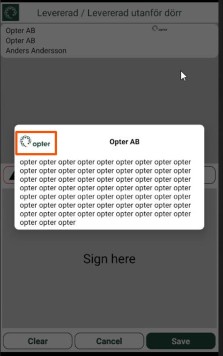
If you have entered information text that can be displayed on the POD view in the Information text to show in app on POD field in the customer registry, the logo will also appear in that window.
Bear in mind that the image file used should be as small as possible because it will be transferred to the app. Proceed as follows:
Step 1: Add the image file to the customer registry
Click on Register > Customers, find the customer and go to the Proof of Delivery (POD) tab. Select an image from the Logo to show in app on POD drop-down list. If the logo you want to use is not in the list, open the image library at  and add it.
Step 2: Specify where in Opter Driver the logo should appear
Click on Settings > Mobile data > Settings mobile data and open App.Design. Add the tag CUSTOMERLOGOTYPE to the sections where you want to add the logo (see table below):
<item itemname="CUSTOMERLOGOTYPE" width="40" />
If the logo is alone on a line and you do not specify a width for the image (width), it will not be scaled down in Opter Driver, which may result in the entire page being covered by the logo. Therefore, always enter a width for CUSTOMERLOGOTYPE.
|
Location in the app |
Example |
Section in App.Design |
|---|---|---|
|
Shipment list |
|
<summaryrows> |
|
Detail view |
|
<expandedrows> |
|
POD view |
|
<podrows> |
|
Information text in the POD view |
|
The logo does not need to be added to App.Design. It will be displayed automatically if there is text in the Information text to show in app on POD field, and if an image has been selected from the Logo to show in app on POD drop-down list (see step 1 above). |
Example
The following examples correspond to the screenshots in the above table. The logo is displayed in the task list (row 4) and the detail view (row 21) in Opter Driver.
<summaryrows>
<row>
<item itemname="CUSTOMER" width="70" />
<item itemname="CUSTOMERLOGOTYPE" width="30" />
</row>
<row>
<item itemname="CURRENTSTATUS" width="60" />
<item itemname="EARLIESTPICKUPTIME" width="20" />
<item itemname="LATESTDELIVERYTIME" width="20" />
</row>
<row>
<item itemname="ADDRESSFROM,' / ',STREETFROM,' ',STREETNOFROM,' / ',CITYFROM" width="100" />
</row>
<row>
<item itemname="ADDRESSTO,' / ',STREETTO,' ',STREETNOTO,' / ',CITYTO" width="100" />
</row>
</summaryrows>
<expandedrows>
<row>
<item itemname="CUSTOMER" width="70" font="LARGE" />
<item itemname="CUSTOMERLOGOTYPE" width="30" />
</row>
<row>
<item itemname="CURRENTSTATUS" width="100" font="LARGE" />
</row>
<row>
<item itemname="SERVICETYPE" width="50" font="LARGE" />
<item itemname="ORDERDATE" width="50" font="LARGE" />
</row>
