Customising the package list in Opter Driver
Last updated: 5 August 2025
In this article
The parcel list is displayed in Opter Driver when you press Packages on the menu in the detail view and the order has more than one parcel.
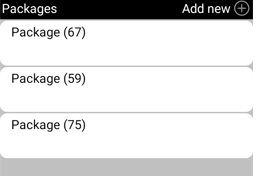
By default, only the parcel number is displayed in the parcel list (67, 59 and 75 in the image). To see more info, you need to open a column row. If you want to view more information about each parcel directly in the list, such as weight and volume, you can use the Mobile data settings SPA_ListDetails.
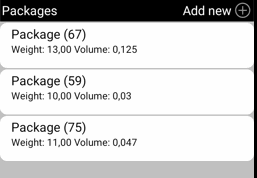
To display weight and volume as in the image above, add the Mobile data settings SPA_ListDetails and enter "Weight: SPA_Weight Volym: SPA_Volume" in the column Value. The tags take the values from the column rows on the order.
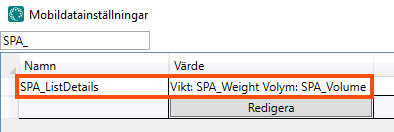
SPA_ListDetails acts as a free text field where you can write any text you want around the tags. For example, you can add the unit after the tag if you want to clarify, "Weight: SPA_Weight kg Volume SPA_Volume m3".
You can view the following information directly in the checklist:
-
SPA_Quantity = number of packages on the package row
-
SPA_Weight = weight
-
SPA_Volume = volym
-
SPA_LoadMeter = load metre
-
SPA_Area = Pallet space
-
SPA_Width = bredd
-
SPA_Height = height
-
SPA_Depth = depth
-
SPA_PackageType = package type
-
SPA_Text = goods text
-
SPA_GoodsType = goods type.
-
SPA_ExtraDimension1-SPA_ExtraDimension5 = extra dimension 1-extra dimension 5
-
SPA_ExtraId1-SPA_ExtraId5 = extra ID 1-extra ID 5
-
SPA_AlertMessage = alarm message
You can enter a maximum of 60 characters, including tags and spaces, in the Value column. If you enter more than 60 characters, only the first 60 are displayed.

