User accounts for Opter Driver
Last updated: 1 April 2026
In this article
Depending on how you have chosen for users to log in (this is done in window Mobile devices types, see Installing Opter Driver/Install Opter Driver (classic)), you create login details for vehicles or drivers.
Creating login credentials for vehicles
The username and password are the same as those used to log in to the vehicle web. If you change them, the new details will apply there too.
-
Click Register > Vehicles, select a vehicle from the list on the left and go to the tab Mobile/web.
-
Enter the username that the resource should use to log in to the app. If the vehicle is new to the register, save it so that you can then create a password.
-
Click on Change password (1), enter the password in both fields (2 and 3), and then click on Ok (4) to save the password.
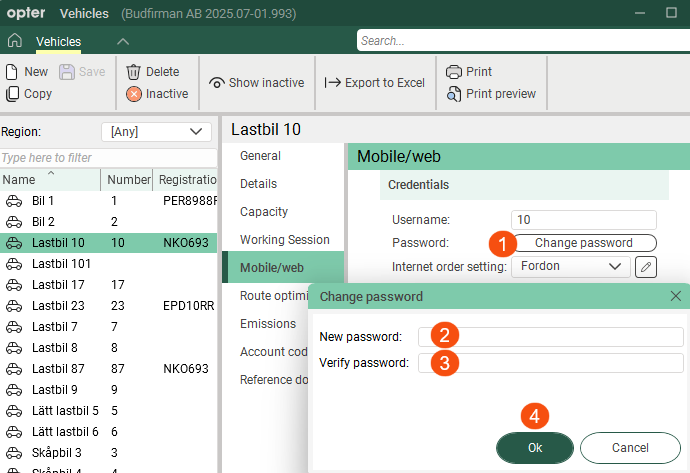
Passwords are not displayed in the log and cannot be recovered by Opter. If someone has forgotten their password, you can create a new one by clicking Change password and entering the new password.
Creating login credentials for drivers
The username and password are the same as those used to log in to the driver web. If you change them, the new details will apply there too.
-
Click on Register > Employees.
-
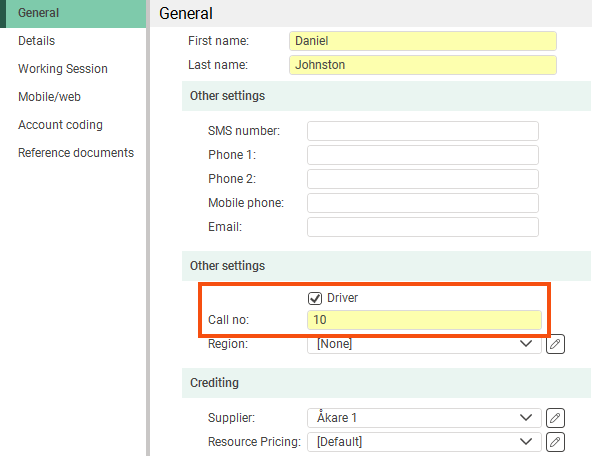
Select an employee from the list on the left, then select Driver on the tab General. A call number for the driver also has to be entered. If the driver is not listed as an employee, add them by clicking on New.
-
Go to the Mobile/web tab and enter the username you want to use to log in to the app. If the driver is new to the register, save their details so that you can create a password later.
-
Click on Change password (1), then enter your password in both fields (2 and 3). Then click Ok (4) to save the password.
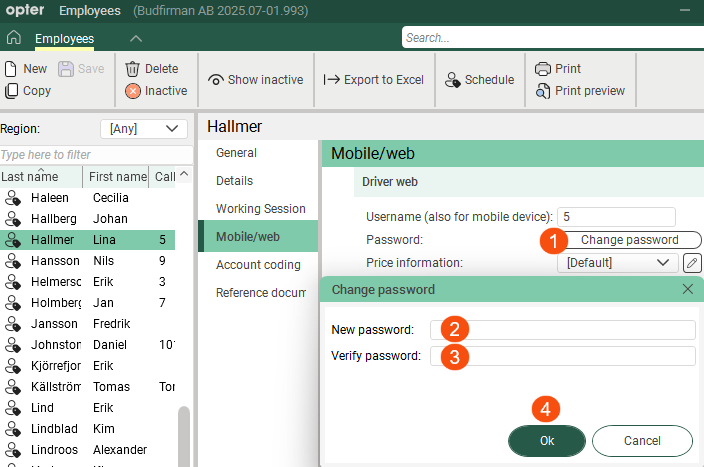
Passwords are not displayed in the log and cannot be recovered by Opter. If someone has forgotten their password, you can create a new one by clicking Change password and entering the new password.

