User accounts for the supplier web
Last updated: 19 March 2026
In this article
You can create a common user account shared by all riders, or individual user accounts for each rider, if you want full control.
If there are certain users who have specific needs to be able to view and do certain things on the supplier web, it is sufficient to create individual user accounts for those users and associate specific internet order settings with those supplier references. The REST can share on a joint account.
If the user enters the wrong password five times when logging in to the web portal, they will have to wait 15 minutes before the next attempt.
Create a common user account for all rider users
If you want to have a common account that is shared by all users of the rider, enter the username and password on the Details tab of the rider register. There you also set the internet order setting that applies to all users.
Proceed as follows
-
Click on Register > Suppliers and select a rider from the list on the left. Click on the Details tab.
-
Select which Internet order setting the skier should wear on the supplier web.
-
Enter the Username to be used to log in to the supplier web.
If the driver is new to the register, click
 Save to then be able to create a password in the next step.
 -
Depending on which version of Opter you are using:
-
For Opter version 2025.12.00 and later:
Enter the Username to be used to log in to the supplier web. If the driver is new to the register, click
Save to create a password.Click on Change password (1), enter the same password in fields New password (2) and Verify password (3). Then click Ok (4) to save the password.
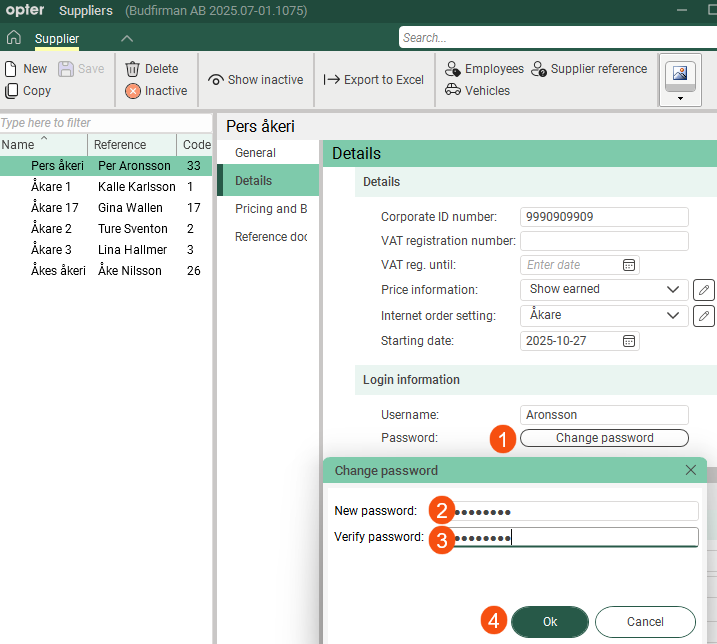
Passwords are case-sensitive; in other words, Opter distinguishes between upper- and lower-case letters. For example, Opter treats “PASSword&!999” and “Password&!999” as two different passwords.
Passwords are not displayed in the registry. If someone has forgotten their password, you can create a new password by clicking on the Change password button and entering the new password.
-
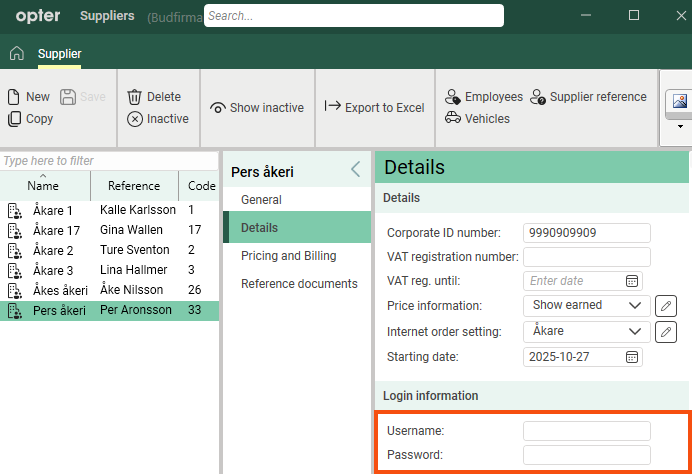
For Opter version 2025.06.00 and earlier, enter Username and Password in the fields and then click Save.
-
Create user accounts for individual users
If some or all of your staff need personal user accounts – for example, so that they can view and perform various tasks on the supplier web – you can add them as supplier references (users) and create user accounts for them. You can then associate different internet order settings with the different supplier references, and set it so that, for example, one user can see supplier bills and prices, while another cannot.
Proceed as follows
-
Click on Register > Suppliers.
-
Search for the organisation where the person you want to give login details to works.
-
Click on Supplier Reference in the menu. The Supplier reference window opens.
-
Depending on which version of Opter you are using:
-
For Opter version 2025.12.00 and later:
If the supplier reference (employee) is new to the register, please enter Name.
Enter the employee's email address in the field Email. The email address will be the person's username for logging in to the supplier web. If the supplier reference (employee) is new to the register, click
Save to create a password.Click on Change password (1), enter the same password in fields New password (2) and Verify password (3). Then click Ok (4) to save the password.
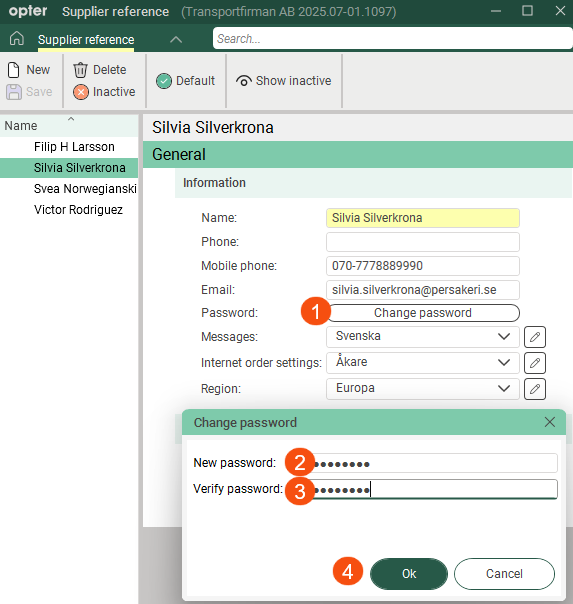
Passwords are case-sensitive; in other words, Opter distinguishes between upper- and lower-case letters. For example, Opter treats “PASSword&!999” and “Password&!999” as two different passwords.
Passwords are not displayed in the registry. If someone has forgotten their password, you can create a new password by clicking on the Change password button and entering the new password.
-
For Opter version 2025.06.00 and earlier, enter Name, Email and Password for the employee and then click Save. The email address will be the person's username for logging in to the supplier web.
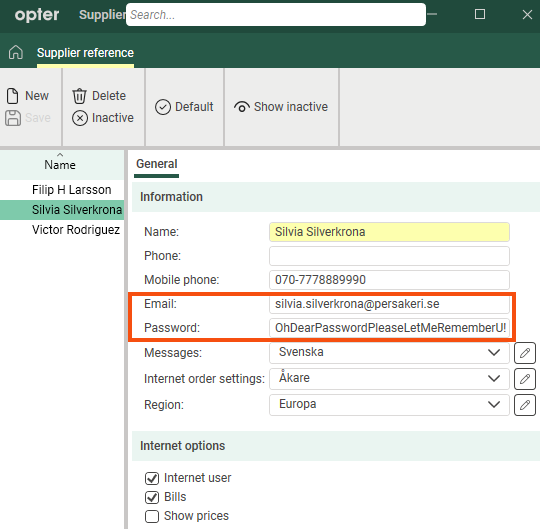
If there are supplier references with the same username (email address) and password for different hauliers, they will be asked to choose which company they belong to when they log in to the supplier web.
-
-
In the Internet order settings drop-down menu, select the internet order setting for the user. The internet order settings allow you to control the layout and functions of the supplier web, and you can create customised views for this particular user. For more information, see Internet order settings (window).
-
In the Region drop-down menu, select the region to be preselected in the order form when the user creates an order on the supplier web. For more information, see Configuring the region for orders created on the supplier web.
-
Select Internet user. It indicates that the user can log in to the supplier web.
-
Select whether the user should be able to see supplier bills and prices on the supplier web. This function is a combination of settings relating to the supplier reference, the driver and the internet order settings.
The price of an order is displayed at the top of the order page, and the supplier bills are displayed on the supplier bill page.
Desired function on the supplier web
Setting
 View supplier bills Show prices
-
Supplier reference:
-
 Bills
Bills -
Show prices
-
-
The internet order settings:
-
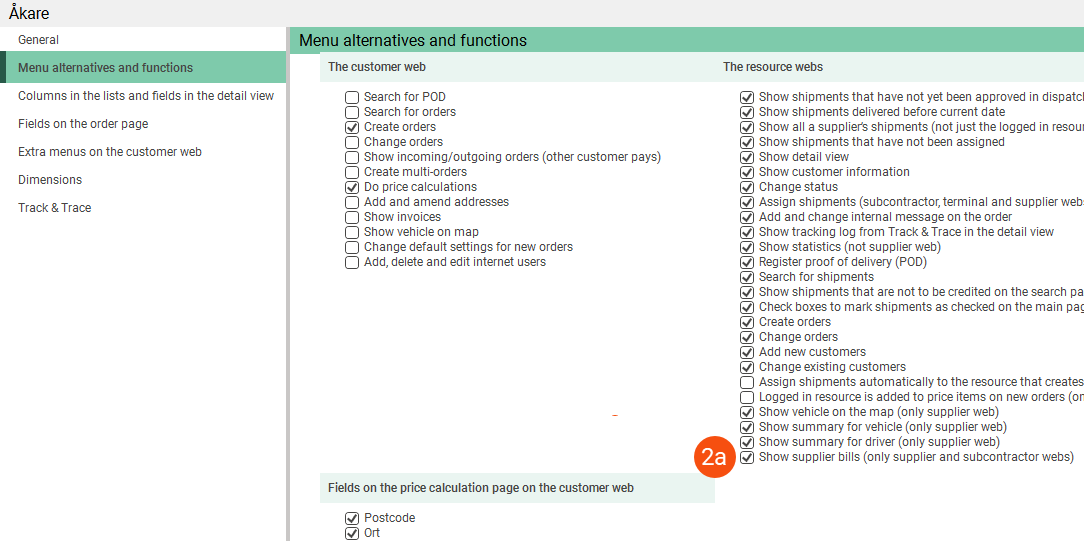
Show supplier bills (only supplier and subcontractor webs) (under The resource webs on the tab Menu alternatives and functions)
-
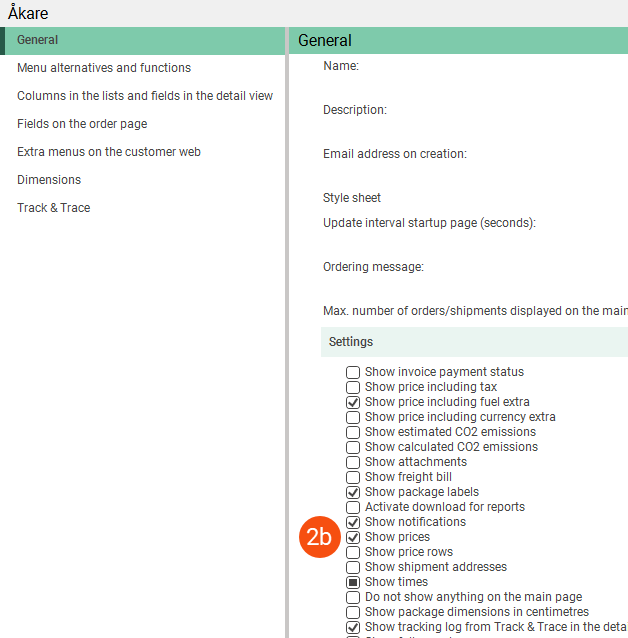
Show prices (under Settings on the tab General)
-
-
The carriers register (tab Details):
-
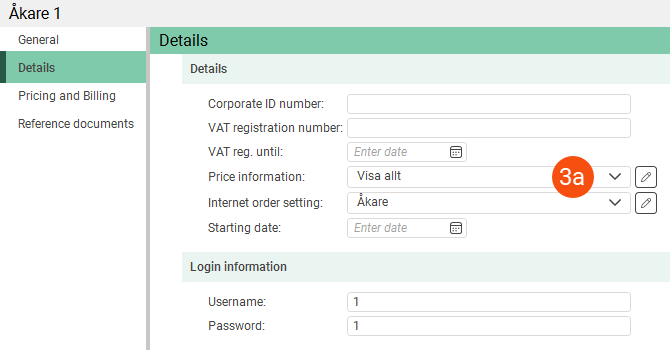
Price information: A setting with at least Generated/Shipment highlighted. So something different from Default - Show no prices.
-
-
Only supplier bills in closed supplier bill periods are displayed.
-
When you activate the features in the internet order settings, they are activated for all riders with that internet order setting. Check if there are any users who should not be able to see supplier bills or prices and if so, deselect Bills and/or Show prices on those supplier references.
View supplier bills Show prices
Supplier reference:
Bills Show prices
Internet order settings (2a):
Show supplier bills (only supplier and subcontractor webs) (under The resource webs on the tab Menu alternatives and functions).-
Only supplier bills in closed supplier bill periods are displayed.
-
When you activate the feature in the internet order settings, it is enabled for all riders with that internet order setting. Check if there are any users who should not be able to see supplier bills and if so, deselect Bills on those supplier references.
View supplier bills Show pricesSupplier reference:
Bills Show pricesInternet order settings (2b):
Show prices (under Settings on the tab General)The carriers register (tab Details):
Price information (3a): A setting with at least Generated/Shipment highlighted. So something different from Default - Show no prices.
When you activate the feature in the internet order settings, it is enabled for all riders with that internet order setting. Check if there are any users who should not be able to see prices and if so, deselect Show prices on those supplier references.
View supplier bills Show pricesSupplier reference:
Bills Show pricesIf you don't want to show supplier bills or prices to any users at all, you can disable those features completely in the internet order settings.
-
Deactivate individual users
If you want to deactivate an individual user, you can uncheck the box Internet user in the window Supplier reference and then click Save.

