Suppliers (window)
Last updated: 17 April 2026
 Register > Suppliers
In this article
In this window you register your riders and manage their properties. For more information, see Add new suppliers.
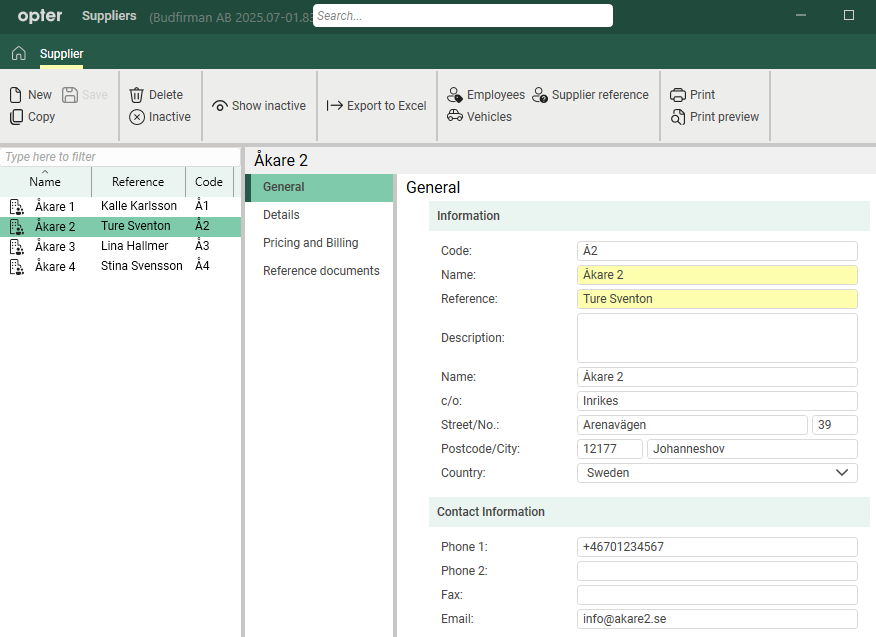
The concepts of haulier and subcontractor are described in Carriers and subcontractors, overview.
Some of the information you enter on the tabs General, Details and Pricing and Billing is sent with the settlement exports to financial systems, such as Fortnox. For more information, see Supplier bill export to Fortnox.
General
Information
|
Function |
Description |
|---|---|
|
Code |
Give the driver a code. |
|
Name |
Enter the rider's name as you want it to appear in Opter. |
|
Reference |
Please enter the name of your contact person at the haulier. |
|
Description |
A free text field. Describe the rider if you wish. |
|
Name |
Company name of the rider. |
|
c/o |
Enter the department of the company if you wish. |
|
Street/No |
The street name and number of the rider's address. |
|
Zip code/City |
Postcode and postcode of the rider's address. |
|
Country |
Select the country of the rider's address. |
Contact Information
|
Function |
Description |
|---|---|
|
Phone 1 Phone 2 |
The rider's telephone number. |
|
Fax |
Fax number if applicable. |
|
|
The driver's main address. Supplier bills will be sent here unless you enter an address in the Email supplier bill export field on the tab Pricing and Billing. |
Details
Details
|
Function |
Description |
|---|---|
|
Corporate ID number |
Enter the rider's Corporate ID number. |
|
VAT registration number |
Enter the haulier's VAT number. |
|
VAT reg. until |
Applies only to Norwegian companies that have to withhold VAT for start-ups they hire. If the haulier has VAT withheld, indicate the date until which you will withhold the VAT. See also the checkbox Withhold VAT on the tab Pricing and Billing. |
|
Select the price details of the shipment to be displayed in the order preview. Clicking on |
|
|
Internet order setting |
Select the internet order setting for the driver on the supplier web. (Click [Default]: The setting on the Internet tab in the office settings is used. |
|
Login hours |
The function was not used and is therefore removed as of Opter 2025.12.00. |
|
Starting date |
Enter the start date for when the haulier starts working for you. |
 opens the
 Login information
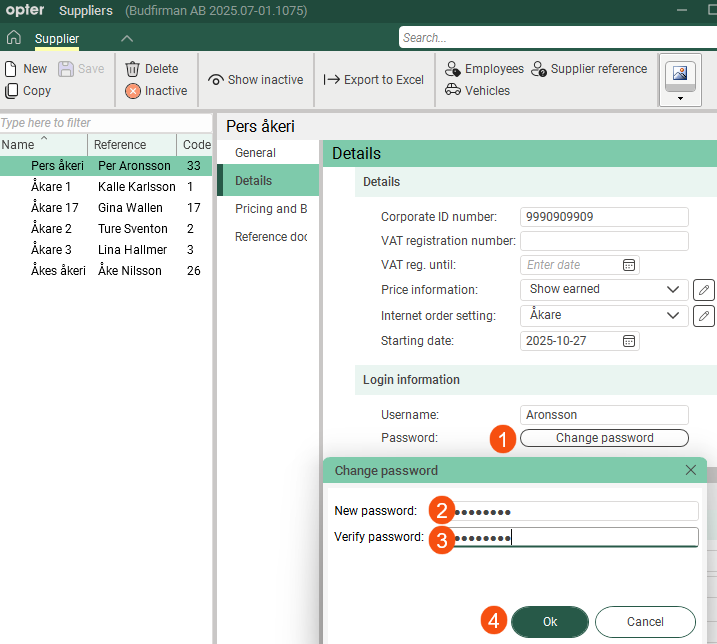
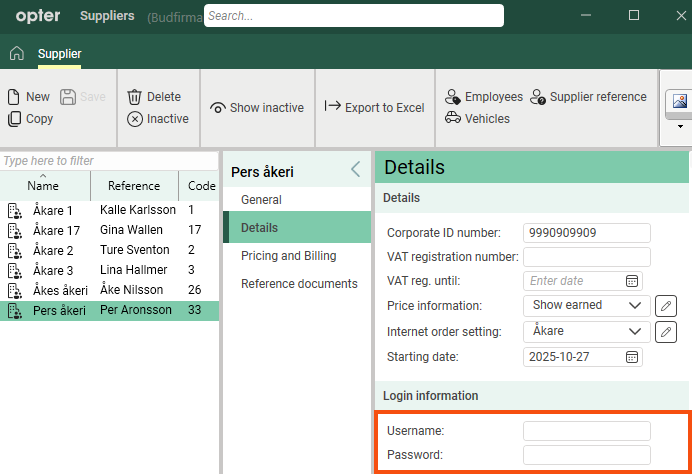
Here you can create a shared user account that all users of the rider can use to log in to the supplier web. (If you want full control, you can create individual user accounts for each user, see User accounts for the supplier web.)
|
Function |
Explanation |
|---|---|
|
Username |
Username for logging in to the supplier web. For more information, see User accounts for the supplier web and Introduction to the supplier web. |
|
Password Change password (The button is available from Opter 2025.12.00 onwards.) |
Password for logging in to the supplier web.
For more information, see User accounts for the supplier web and Introduction to the supplier web. |

Pricing and Billing
Pricing
|
Function |
Description |
|---|---|
|
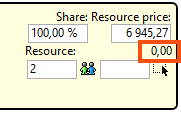
Choose resource pricing. You can also add new or modify existing resource prices by clicking on [None] means that no cost is generated, even if you enter a manual cost.
In the figure above, no cost has been generated for the shipment. The picture shows the shipment in the Order reception. [None] means, therefore:
|
|
|
Fuel extra |
Only valid if the checkbox No fuel extra (below) is unticked. Choose which fuel supplement the haulier should receive. For more information, see Fuel surcharge (fuel extra), overview and Selecting the fuel extra for a subcontractor or supplier. |
|
No fuel extra |
Choose whether the haulier should receive a fuel surcharge or not.
If no setting is configured or if the checkbox is deselected, the description provided for the Fuel extra drop-down list above applies. |
|
Create cost price items automatically |
For more information, see Receiving invoices from subcontractors and suppliers, Settings for receiving invoices and tracking costs and Adding new cost price items to cost check.
|
 : The driver does not receive a fuel surcharge.
 : The haulier receives the fuel surcharge according to the drop-down list
 Billing
|
Function |
Description |
|---|---|
|
Crediting interval |
Select the settlement interval. To add a new settlement interval or change an existing settlement interval, click on |
|
Supplier bill export |
Select settlement export. |
|
Ledger number |
The sales ledger number for the haulier is sent along with the invoice to Netvisor. |
|
Supplier bill design |
Select the report for the supplier bills. For more information, see Reports (window). |
|
You can pay your hauliers and subcontractors in two different ways. You can credit the cost to them (self-billing), or they can bill you. For more information, see Receiving invoices from subcontractors and suppliers.
|
|
|
Withhold VAT |
Applies only to Norwegian companies that have to withhold VAT for start-ups they hire. The checkbox setting is available for printing on the settlement note and for exporting settlement information to accounting systems.
There is no automatic deduction of VAT, so you have to keep track of this yourself (using the checkbox). See also VAT reg. until on the tab Details.
|
|
Email supplier bill export |
Enter the email address to which supplier bills should be sent. If you do not enter an email address here, the supplier bills will be sent to the main address on the tab General. Applies only to settlement exports of types PDF, XmlSerializer and Fortnox. |
|
VAT Account number |
Account number for VAT. |
|
The rider's bank account number. If you export supplier bills to Fortnox, Opter will retrieve the bank account number from this field and send it to Fortnox. It is important that you enter the bank account number and any clearing number in the correct format. For more information, see Supplier bill export to Fortnox. |
|
|
Bank giro account |
The rider's bankgiro number. |
|
Post giro account |
The rider's plusgiro number. |
|
IBAN |
IBAN, i.e. international bank account number. |
|
BIC/SWIFT |
BIC/SWIFT. |
|
Payment Condition |
For more information, see Payment Condition (window). |
|
Currency |
Enter the currency of the rider. If you have travellers in other countries, you can make it easier for them by crediting them in their currency. For more information, see Currencies and Currencies (window). |
Reference documents
On the Reference documents tab, files that can be opened on other computers can be added. The files that are added are not attached to orders, instead the function works as a file server and is intended for exchanging information. The files are saved in the database.
|
Function |
Description |
|---|---|
|
New |
Adds a file that is on the computer. It is only possible to add one file at a time. |
|
Delete |
Deletes files from the registry. It is only possible to delete one file at a time. |
|
Open |
Opens the selected file in the list. |
|
File name (column) |
The file name. |
|
Created |
When the file was added as a document in Opter. |
|
File name (field) |
The file name of the selected file. You can rename the file by typing the new name and clicking Save on the menu. Remember to keep the same file extension (for example “.docx”), otherwise the application to use has to be selected when the file is opened. |
|
Comment |
Free text. Information about the file. The information is only shown here. |

