Supplier reference (window)
Last updated: 17 March 2026
 Register > Suppliers > Supplier reference
In this article
In this window, you can create personal user accounts for individual users at the hauliers. You can have a shared user account for all users at the haulage contractor’s (set up in the haulage contractor register) and personal user accounts for those who need them (set up here). For example, if some users require a different view or different functions to others (different internet order settings).For more information, see User accounts for the supplier web and Suppliers (window).
Information
|
Function |
Description |
|---|---|
|
Name |
The user's first name. |
|
Phone Mobile phone |
The user's telephone number. |
|
|
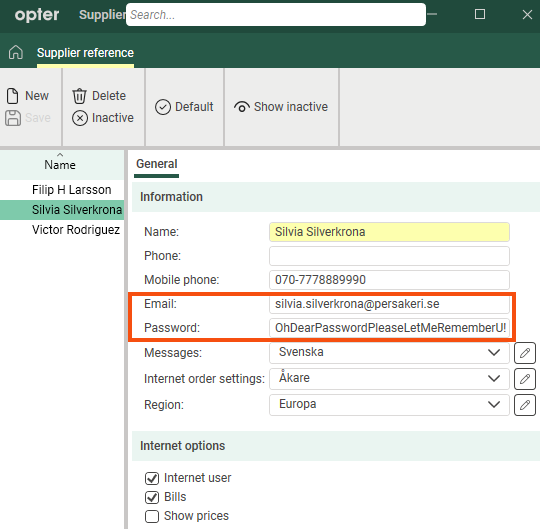
The email address will be the person’s username for logging in to the supplier web. |
|
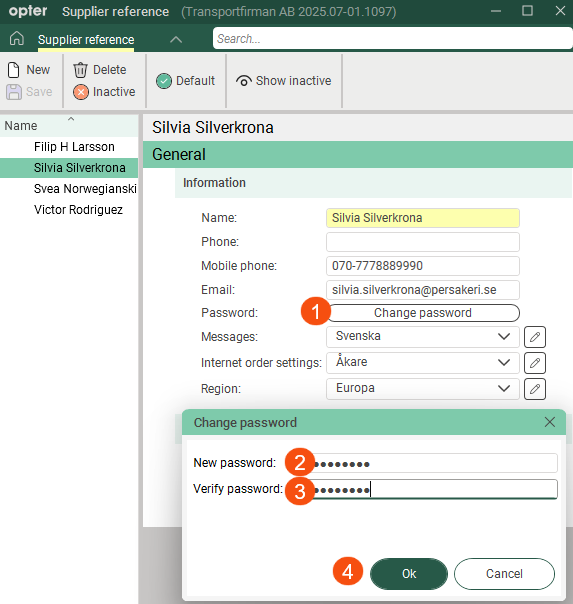
Change password (The button will be available from Opter 2025.12.00.) |
Password for logging in to the supplier web.
For more information, see User accounts for the supplier web and Introduction to the supplier web. |
|
Messages |
If you wish to use specific notifications for this supplier reference, select a message group here. [Default]: The message group that is selected by default in the window Messages. |
|
Internet order settings |
If you want to use a specific view and specific functions on the supplier web for this particular user, you can create a specific internet order setting for that purpose. (If you want to create a new internet order setting, click [Default]: The setting in the driver register is used. |
|
Region |
The region is preselected in the booking form when this user makes a booking on the supplier web portal. |

 to open the
 Internet options
|
Function |
Description |
|---|---|
|
Internet user |
|
|
Bills |
Shows/hides the menu option Supplier bills on the supplier web. For more information, see User accounts for the supplier web and Internet order settings (window). |
|
Show prices |
Shows/hides the price details at the top of the order form on the supplier web. For more information, see User accounts for the supplier web and Internet order settings (window). |
 : Users can log in to the supplier web using their email address and password.
 : The user cannot log in to the supplier web (even though an email address and password have been entered above).
