Adjust address positions (window)
Last updated: 15 April 2026
 Register > Adjust address positions
In this article
In this window, you can manually adjust the position of an address, by searching for the address and then moving the cross to where you want it on the map, or entering the exact coordinates.
An address position may need to be manually adjusted:
-
To make it more precise. For example, if the entrance to the address is from another side of the property.
-
For example, if the street number or postcode is missing from the HERE map data, you can enter the position of the address.
-
If you are Route optimising and Opter displays a warning that the address position accuracy is poor (when calculating the route sequence).
In order for the routes to be as good as possible, it is important to have good position accuracy for the addresses on the shipments.
If an address has a manually adjusted position, it is always used first. Secondly, the position from the service you have chosen to use is used to find sender and recipient addresses.
If an address position has been adjusted manually, the  icon is displayed next to the address in the list on the left (1). The icon () also appears in the order reception if the address is used for the sender or recipient.
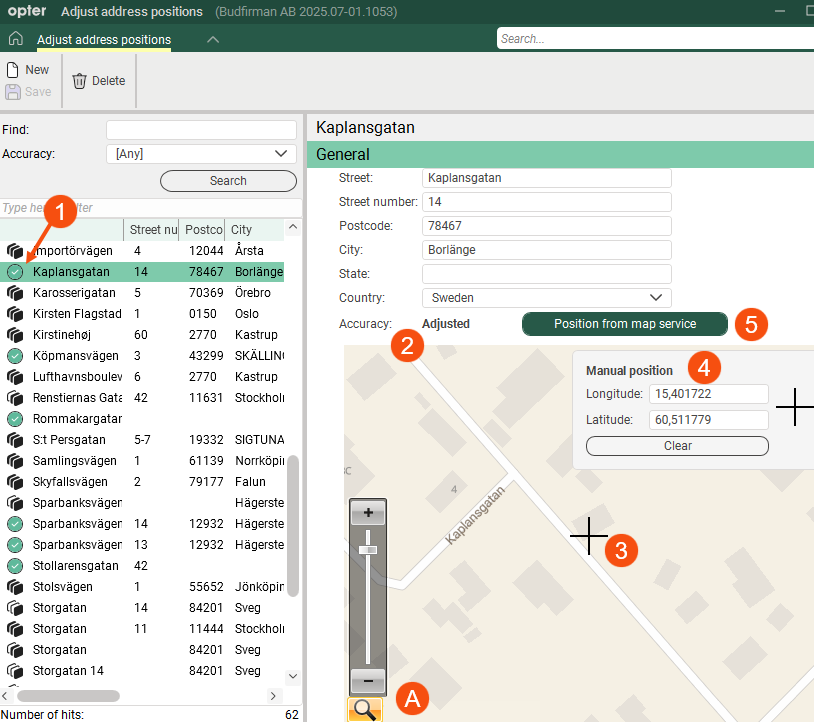
The accuracy of the address position is indicated by an icon ( /
/ /
/ /
/ /) in the address list on the left, and the accuracy is shown in words (2) above the map. For more information, see See the table below, Accuracy.
If you have adjusted an address position and saved it, but then change your mind, you can reset the address position from the map service by pressing Position from map service (5).
Proceed as follows
If you want to adjust an address position manually:
-
Find the address on the left-hand side of the window (or click
 to add a new address).
 -
Zoom in on the address on the map and place the tick (3) where you want the exact address position to be, or enter the exact coordinates (4 in the image above).
-
To zoom in on the map, click on the magnifying glass (A in the image above), then + or -, or drag the slider up or down.
-
In Opter's classic design, you can also zoom in the map by scrolling. In the new design, you zoom by holding down the Ctrl key and scrolling.
-
Hold the mouse pointer where you want the cross on the map and click. If you want to move the tick, hover over the new position and click.
-
-
Click Save when you are happy with it.
General
This shows the address you have selected in the list on the left. The position accuracy for the address is shown in the field Accuracy. The address position is shown as a cross on the map and with its coordinates in the box Manual position.
|
Function |
Description |
|---|---|
|
Street |
The street name. |
|
Street number |
The street scene. |
|
Postcode |
Postcode. |
|
City |
Postal town. |
|
State |
Shows which state the address is located in, for example, if the country is the United States.  More details More details
Shows the country in which the address is located, provided that the drop-down list Address format (in window Countries) is set to US for the country in which the address is located. |
|
Country |
Shows which country the address is in. |
|
Accuracy |
The position of the address is marked with a cross on the map. The accuracy of the position on the map may vary depending on the part of the address found on PTV. The accuracy is indicated by an icon in the address list on the left and above the map the accuracy is shown in words:
For more information, see Addresses and address positions. |
|
Position from map service (Button) |
Click on the button to retrieve the address position from the map service. The button is useful if you have manually adjusted the address position and saved, but later regret it and want to restore the position from the map service. When you press button Position from map service, the following happens:
|
Manual position
Box Manual position (4 in the image above) shows the exact coordinates of the address position (Longitude and Latitude).
Here you can manually adjust the position of the address by entering the exact coordinates in the Longitude and Latitude. When you click in another field in the window, the cross on the map moves to the position you have specified, and you can check that the position seems reasonable. If you want to move the tick, hover over the new position and click. Click Save when you are happy with the position.
Consider the following
-
If you wish to adjust the visiting address for a specific customer, you can do so in the customer register on the Map tab. For more information, see Customers (window).
-
If you wish to adjust the sender’s address position or the recipient’s address position for a specific order, click on the icon (
////) in the order reception (in group Sender or Receiver). For more information, see Sender/Receiver (order reception) and Map (window).

