Distances, addresses and maps, overview
Last updated: 9 October 2025
In this article
The distance on an order can either be retrieved from an internal database table installed with Opter, or from the GIS service PTV. You can also not calculate the distance of the orders at all. You set up how the distance calculation works on the Weight/Distance tab in the office settings. More information on the options is available at Office (window).
If using PTV v2, the price vehicle type on the order influences the distance between two addresses as PTV takes into account the characteristics of the price vehicle type, such as height and weight, when choosing the route. For more information, see Price vehicle types (window).
PTV
In co-operation with PTV, we can offer a range of services in Opter, including distance calculation between street addresses. PTV is an optional extra available for an additional fee. No software needs to be installed on your premises as the information is downloaded directly from PTV's xServer cloud service.
Some of the features you can access if you activate PTV in Opter
-
Distance lookup between addresses worldwide.
-
Coordinates of addresses worldwide. For more information, see Addresses and address positions.
-
Show the addresses and route on the map in order reception.
-
Show the addresses for the selected shipments on the map in dispatch.
-
Show the addresses for the selected vehicle’s shipments on the map in dispatch.
-
Route optimisation of shipments for a vehicle in dispatch. (Route optimisation for multiple vehicles simultaneously is another optional service.) For more information, see Route optimisation, overview.
-
Route optimisation of shipments included in consignment orders in Order reception. For more information, see Route sequence for consignment orders.
-
Calculation of road tolls such as the Norwegian bompeng, the German maut and Danish road tolls. For more information, see Administering road tolls.
More information on PTV is available at https://www.ptvlogistics.com/en and https://xserver-blog.ptvlogistics.com/.
If you want to activate PTV in Opter or have any specific questions, please contact .
HERE
PTV uses map data from HERE in its service. HERE updates the maps at least twice a year. Minor updates, such as changes to Road tolls or other specific areas, may be made on an ongoing basis. HERE endeavours to keep its map data as up-to-date and accurate as possible. Nevertheless, some delay in updates and variations in data quality may occur.
If you discover errors or omissions, such as incorrect routes, addresses or locations, you can report them directly to HERE. For more information, see Report map errors to HERE.
Basic distance table
When Opter is installed, it comes with a distance table between locations in Sweden. The distance is calculated between central points of the locations, and is therefore not the exact distance between the sender and recipient addresses on the order. This option is therefore less suitable if you run courier services, but may be perfectly adequate if you run long-distance services, and it doesn't matter much if the actual distance differs by a few kilometres from what is stated on the order.
The distance table is not updated, but you can adjust the distances in Settings > City distances.
Select Transport Administration distances in Sweden in the office settings.
No distance calculation
If you price orders by means other than distance, you can omit the calculation of the distance on the orders so that they don't get a price based on distance by mistake. If you still want a distance on the orders, you will have to enter it by hand in the Order reception.
Select [None] in the office settings.
Troubleshooting
To improve performance, Opter saves positions and distances in a cache. If HERE updates its map data, the cache in Opter needs to be cleared so that new data from HERE can be loaded. If you have problems with distances or positions, the first step is to clear the cache. Click on Help > Diagnostics > Clear distance cache/Clear address position cache (see Help (meny)) and then restart Opter.
 The address does not exist
If the system does not find the address when you enter it in the Order reception, it may be because the address register is out of date. Try importing the address register again. For more information, see Importing address registries.
Accuracy only indicates hit on street, even though I have the street number
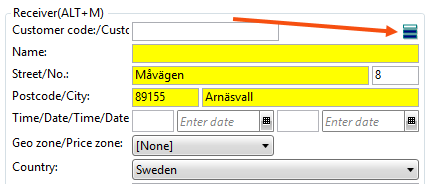
This may be because the street number is missing from the HERE map data. Report an address error on mapfeedback.here.com. For more information, see Report map errors to HERE. You can also enter the position of the address in Register > Adjust address positions.
Accuracy only indicates a hit on location, even though I have the postcode
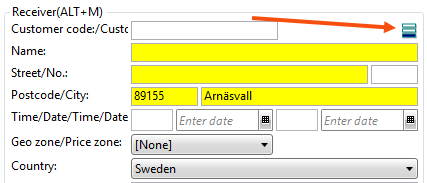
This may be because the postcode is missing from the HERE map data. Report it as an "other error" on mapfeedback.here.com. For more information, see Report map errors to HERE. You can also enter the position of the address in Register > Adjust address positions.

