Subcontractor web user accounts
Last updated: 5 March 2026
In this article
Here's how to create login details for the subcontractor web:
-
Click Register > Subcontractors and select a subcontractor from the list on the left. Go to the Details tab.
-
In the drop-down list Internet order settings, select which internet order setting the subcontractor should have on the subcontractor web.
-
If you want the subcontractor to be able to place orders on the subcontractor web, you must enter a Internet order customer here. The Internet order customer is therefore listed as the reference on the order.
Click on the button (
 ) on the right. Find a customer and click Use selected.
 -
Depending on which version of Opter you are using:
-
For Opter version 2025.12.00 and later:
Enter the Username to be used to log in to the subcontractor web. If the subcontractor is new to the register, click
 Save to create a password.
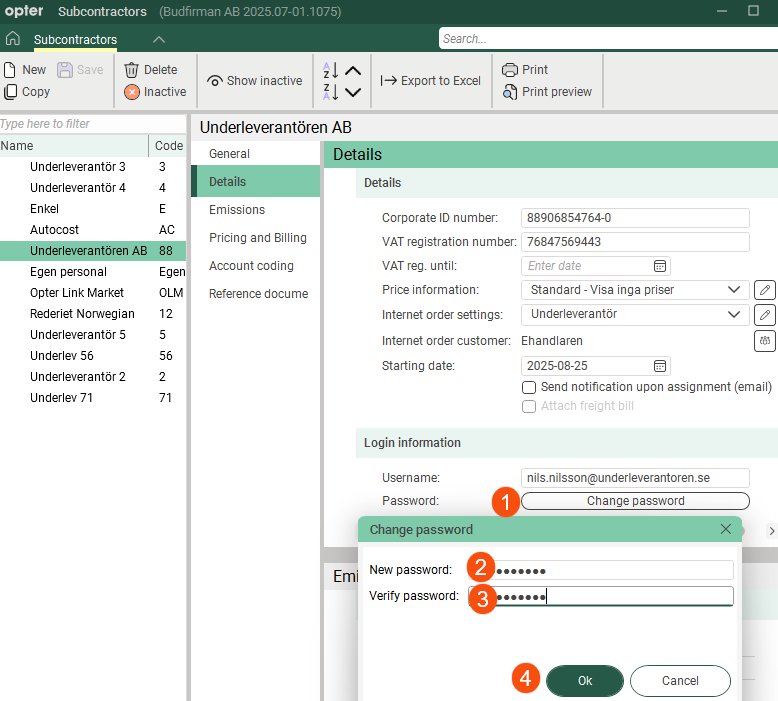
Click on Change password (1), enter the same password in fields New password (2) and Verify password (3). Then click Ok (4) to save the password.
Passwords are case-sensitive; in other words, Opter distinguishes between upper- and lower-case letters. For example, Opter treats “PASSword&!999” and “Password&!999” as two different passwords.
Passwords are not displayed in the registry. If someone has forgotten their password, you can create a new password by clicking on the Change password button and entering the new password.
-
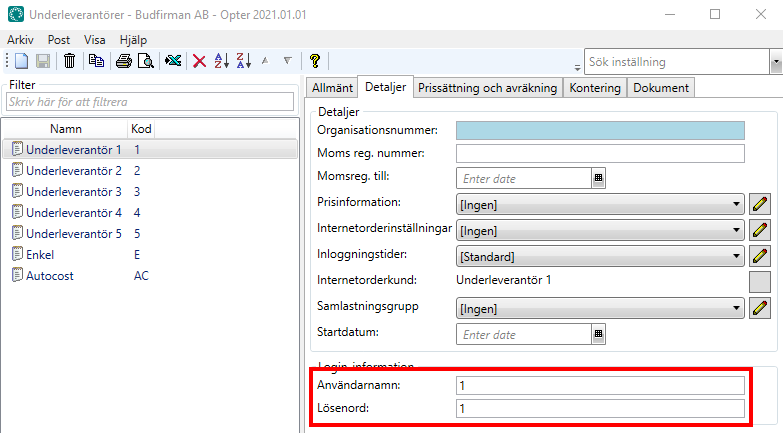
For Opter version 2025.06.00 and earlier, enter Username and Password in the fields and then click Save.
If the user enters the wrong password five times when logging in to the web portal, they will have to wait 15 minutes before the next attempt.
See also
-

