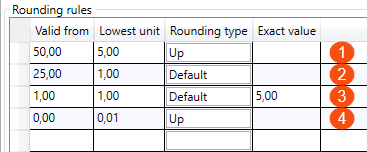
Rounding rules (window)
Last updated: 6 August 2025
 Settings > Weight calculation and on the tab General and then click on
  or
or  at the drop-down menu Pricing weight rounding or Rounding after conversion to KG.
Settings > Weight calculation and on the tab Automatic dimensions and then click on or at the drop-down menu Rounding (in the box Volume, Load metre or Pallet space).
In this article
For example, if you want the pricing weight or volume weight to be rounded, you can set how it should be rounded in the Rounding rules window. Examples can be found in Calculating the pricing weight.
General
|
Function |
Description |
|---|---|
|
Name |
Enter the name of the rounding rules. |
|
Description |
Free text field for internal notes. The description is not displayed anywhere else but here. |
Rounding rules
The columns of the table are described below Rounding rules. Examples of how to use the table can be found in Calculating the pricing weight.
To add a row, click on the row at the bottom of the table and then press Enter. To delete a row, select the row by clicking on the far left of the row and then on Delete.
|
Function |
Description |
|---|---|
|
Valid from |
The rule in the row applies from the value you enter in the column Valid from.
For example, if your table looks like the one in the picture above, the rules on line 1 apply from "50.00" upwards. The rules in row 2 apply to the range '25.00' to '49.99'. The rules in row 3 apply to the range '1.00' to '24.99'. The rules in row 4 apply to the range '0.00' to '0.99'. |
|
Lowest unit |
The lowest unit to which the value is rounded. Works in conjunction with Rounding type below. |
|
Rounding type |
How to round the value. Works in conjunction with Lowest unit above.
|
|
Exact value |
If you want the value to be rounded to an exact value, for example "5.00". For example, in the example in the table above, a pricing weight or a volume weight that falls in the range "1.00" to "24.99" will be rounded to "5.00", according to the rules in row 3. |