Weight calculation (window)
Last updated: 23 September 2025
 Settings > Weight calculation
In this article
In this window, you can configure the settings for weight calculation. For more information, see Calculating the pricing weight.
The weight calculations can be set in the following register. If the setting is [Default], Opter moves on to the next option in the list:
-
The Customer Register (the tab Order Settings).
-
Price list (tab General).
-
The art settings where you must select a weight calculation (the tab Weight/Distance).
General
General
|
Function |
Description |
|---|---|
|
Name |
Enter the name of the weight calculation. |
|
Description |
Free text field for internal notes. The description is not displayed anywhere else but here. |
|
Pricing weight rounding |
Select which set of Rounding rules to use. If you want to create a new set of Rounding rules or edit an existing one, click The default setting [None] means that no rounding takes place. (In earlier versions of Opter, it says [Default] instead of [None]. If you select [Default], no rounding takes place.) |
|
Length weight calculation |
Select which Length weight calculation to use. [Default]: No weight calculation is carried out for long goods. If you want to create a new Length weight calculation or edit an existing one, click on |
|
Ignore quantity when calcualting packages |
Select whether Opter should take into account, or disregard, the number of packages shown in column Quantity on the package line in the order reception when calculating the pricing weight:
Select this option if you want to be able to enter, for example, ‘10 parcels weighing a total of 50 kg’ on a parcel line, but do not want the value in column Weight (or more) to be multiplied by the value in column Quantity (as this would result in a total of 10 × 50 kg = 500 kg).
Select this option if you want to be able to enter, for example, ‘10 parcels of 5 kg each’ on a parcel line and have the weight calculation total this as 10 × 5 kg = 50 kg.
If you do not display the Quantity column under Packages and instead show each consignment on a separate line, it does not matter what setting this tick box has. Opter performs the weight calculation on the basis that there is one parcel per row. |
|
By default, Opter totals all dimensions on the order individually. For example, all load metres for all packages in an order are added together to give a total. If you frequently handle consignments containing a mix of units (e.g. some with volume or load metre measurements, others without), you can tick box Aggregate package pricing weights to ensure the weight used for pricing is correct.
ExampleThis is how Opter calculates the pricing weighting depending on the setting of the tick box: Package 1: Weight: 70 kg, Volume: 1.0 m³. Package 2: Weight: 200 kg, Volume: No information available.
|
 : Opter does not take into account the number of packages on the package line when calculating the pricing weight.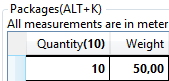
 : Opter takes the number of packages into account when calculating the weighting for pricing.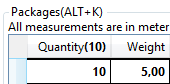
Weight factors
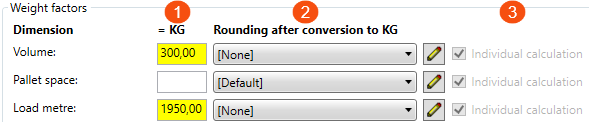
The weight factors are used to convert the current dimension into kilograms. For example, 1 m³ = 300 kg, and 1 load metre = 1,950 kg.
-
In the = KG field, enter a weighting factor for the dimension.
-
In the drop-down list Rounding after conversion to KG, you can select one of the following:
-
[None].
The value you have entered in the = KG field is not rounded.
-
Default.
The value is rounded according to standard rules, but if the decimal is 0.5, it is rounded to the nearest even integer. (This is to ensure that rounding does not systematically result in higher values.)
-
5.1 kg > 5.0 kg (normal rounding)
-
4.9 kg > 5.0 kg (standard rounding)
-
4.5 kg > 4.0 kg (nearest whole number)
-
5.5 kg > 6.0 kg (nearest even integer)
-
-
Rounding rules that you have created yourself in the window Rounding rules.
If you want to create a new set of Rounding rules or edit an existing one, click
 or
or  next to the drop-down list. For more information, see Rounding rules (window).
-
-
The tick box Individual calculation:
If you are using extra dimensions, you can choose whether an extra dimension should be calculated individually or whether you want two or more to be totalled together. The tick box works as follows:
-
 : The dimension is calculated on a case-by-case basis.
 The tick box is automatically ticked (and cannot be changed) for dimensions Volume, Pallet space and Load metre, as these dimensions must always be calculated individually.
For extra dimensions, tick the box if you want the extra dimension to be calculated individually.
-
 : The dimension is calculated on a case-by-case basis.
 -
 : If you are using extra dimensions, you can deselect the tick box for two or more extra dimensions. The extra dimensions will then be added together. See the example below.
 Examples, extra dimensions
Extra dimension 1 has a weight factor of 325 kg.
Extra dimension 2 has a weight factor of 162.5 kg.
Extra dimension 3 has a weight factor of 400 kg.
We want extra-dimensions 1 and 2 to be added together, and extra-dimension 3 to be calculated separately. So we untick the tick box Individual calculation for extra dimensions 1 and 2, and tick the tick box for extra dimension 3.
We have an order for 2 of extra dimension 1, 2 of extra dimension 2, and 2 of extra dimension 3. Opter then calculates as follows:
Extra dimension 1: 2 × 325 kg = 650 kg.
Extra dimension 2: 2 × 162.5 kg = 325 kg.
Extra dimension 3: 2 × 400 kg = 800 kg.
Opter summarises Extra dimension 1 and Extra dimension 2: 650 kg + 325 kg = 975 kg.
This is more than the rated load from any other dimension (Extra dimension 3 800 kg), so the rated load is 975 kg.
-
|
Function |
Description |
|---|---|
|
Volume |
Here you can specify which weighting factor Opter should use when performing the weight calculation for the dimension Volume. For example, if you want to convert one cubic metre to 300 kg, enter ‘300’ in the field = KG. The drop-down list Rounding after conversion to KG is then automatically selected [None]. The tick box Individual calculation is selected automatically, as dimension Volume must always be calculated individually. For instructions, see above the table. |
|
Pallet space |
Here you can specify which weighting factor Opter should use when performing the weight calculation for the dimension Pallet space. For instructions, see above the table. |
|
Load metre |
Here you can specify which weighting factor Opter should use when performing the weight calculation for the dimension Load metre. For instructions, see above the table. |
|
Extra dimension 1—Extra dimension 5 (displayed if you are using extra dimensions.) |
Here you can specify which weighting factor Opter should use for the weight calculation of extra dimensions, and choose whether the extra dimensions should be calculated individually, or whether two or more should be added together. For instructions, see above the table. |
Automatic dimensions
Volume
|
Function |
Description |
|---|---|
|
Calculate volume automatically |
|
|
Calculate volume only if the package is stackable |
This tick box can only be ticked if tick box Calculate volume automatically (above) is ticked.
You decide for yourselves what you want ‘stackable’ to mean in your business. You can specify for each parcel whether it is stackable or not. If, for example, you are transporting flagpoles, you can make the most of the space by loading several flagpoles on top of one another, or by placing the flagpoles on top of other goods. Flagpoles are durable and not particularly heavy. Consequently, the length weight – and therefore the price – may be lower than if the full width of the vehicle had been utilised. |
|
Rounding |
Select one of the following:
|
|
Maximum length |
Enter the maximum length of the parcel so that the volume can be calculated. WCA_VolumeMaxLength |
|
Maximum width |
Enter the maximum width of the parcel so that the volume can be calculated. |
|
Maximum height |
Enter the maximum height of the parcel so that the volume can be calculated. |
Load metre
|
Function |
Description |
|---|---|
|
Calculate load metres automatically |
|
|
Calculate load metres only if volume is missing |
This tick box can only be ticked if tick box Calculate load metres automatically (above) is ticked.
|
|
Calculate load metres only if length weight is missing |
This tick box can only be ticked if tick box Calculate load metres automatically (above) is ticked.
|
|
Rounding |
Select one of the following:
|
|
Maximum length |
Enter the maximum length of the consignment so that the calculation of load metres can be carried out. |
|
Maximum width |
Enter the maximum width of the package so that the load metre calculation can be carried out. |
|
Maximum height |
Enter the maximum height of the consignment so that the load metre calculation can be carried out. |
|
Square metres per load metre |
Enter the number of square metres that one load metre should correspond to, for example 2.40. |
Pallet space
|
Function |
Description |
|---|---|
|
Calculate pallet spaces automatically |
|
|
Calculate pallet spaces only if evenly divisible by pallet size |
This tick box can only be ticked if tick box Calculate pallet spaces automatically (above) is ticked.
Enter the length and width of a pallet in the fields:
|
|
Rounding |
Please select one of the following:
|
|
Maximum length |
Enter the maximum length of the package so that the pallet space can be calculated. |
|
Maximum width |
Enter the maximum width of the package so that the pallet space can be calculated. |
|
Maximum height |
Enter the maximum height of the package so that the pallet space can be calculated. |
|
Load metres per pallet space |
Enter the number of load metres that one pallet space should correspond to, for example 1.20. |
Example
Box Example shows how volume, load metres and pallet spaces are calculated.
The calculation for load metres will change if you have changed the value in field Square metres per load metre in box Load metre above.
The calculation for the pallet space will change if you have changed the value in field Load metres per pallet space in box Pallet space above.

