kontor (window)
Last updated: 16 June 2026
 Seaded > Kontorid
In this article
The settings configured in this window are called the office settings. Many general settings, which are often used as default settings, are set here. The same settings can then be made at lower levels of the system, such as at the region, customer and customer reference levels, to customise the system in more detail.
Üldine
Teave
This information concerns your company.
|
Function |
Description |
|---|---|
|
Nimi |
Your company name. |
|
Kood |
Abbreviation of your company name. |
|
Organisatsiooni number |
Your corporate ID number. |
|
E-post |
Email address used as sender for emails sent from Opter, such as notifications and emails to subcontractors. You can have different addresses for different regions and for financial mailings, such as invoices. For more information, see Alternative email addresses. |
Pildid
|
Function |
Description |
|---|---|
|
Väike pilt Suur pilt |
These images are used in reports, such as invoices and Freight bills, with the report tags OFF_SmallImage and OFF_LargeImage. To add more images, open the image library at In this example, there is a condition on the image (condition), which makes the name from the tab Arve üksikasjad (OFF_NameInv) appear if there is no large image. |
 and upload them.
Vaikevalikud
This tab can be used to specify some of the default settings used if they have not been specified in the relevant registry.
|
Function |
Description |
|---|---|
|
Minimaalne kliendinumber |
The starting value for the sales ledger number in the customer registry. For example, if you want the sales ledger number to consist of at least four digits, you can write "1001" here. This setting does not apply to the supplier and subcontractor registries. |
|
Maksimaalne kliendiarv |
The maximum value for the Müügireskontra number field in the customer registry. The maximum number that can be entered is "2147483647" (10 digits). If you leave this field blank, you can enter up to 38 digits in the Müügireskontra number field. This setting does not apply to the supplier and subcontractor registries. |
Kaal/kaugus
This tab can be used to control the weight calculation, weight correction, sources of geographical data and route optimisation.
Kaalutegurid
|
Function |
Description |
|---|---|
|
Kaalu arvutamine |
Select weight calculation from the drop-down list. Click on |
|
Uuenda kollektsioonlaste automaatselt |
We recommend that a consignment is created rather than using collection freight. For more information, see Consignment, overview.
|
|
Täiendav kaalu korrigeerimiseks |
The weight correction can automatically add a surcharge if the initially specified weight or volume of the order is less than the sum of the weights or dimensions of the package rows measured. For more information, see Weight correction. If you want to add an extras, select one. Select [puudub] if you do not want to add any extras. The prices of the extras are set in the price lists. |
 to create a new weight calculation. For more information, see
  : Collection freights are not updated automatically.
Geograafiliste andmete allikad
|
Function |
Description |
|---|---|
|
Aadresside positsioonid |
The service used to find positions for sender and recipient addresses. Regardless of the service you use, a check is always made to see if there is a manually adjusted position for the address first. Then the service you choose below is used. For more information, see Addresses and address positions.
If you use Google kaardid or PTV (v2) and have problems with incorrect address positions, you can try clearing the cache by clicking on Abi > Diagnostika > Clear address position cache, so that the positions can be reloaded from the service. For more information, see Abi (meny). |
|
The service used to calculate the distance between sender and recipient on an order.
If you have problems with incorrect distances, you can try clearing the cache by clicking on Abi > Diagnostika > Clear distance cache so that the distances can be reloaded from the service. For more information, see Abi (meny). |
|
|
Teekonna kujundamine |
Opter uses PTV for route optimisation. You can disable the entire function by selecting [puudub]. For more information, see Route optimisation: preparation and configuration. |
|
Marsruudi optimeerimine (mitu sõidukit) |
Opter uses PTV for route optimisation. You can disable the entire function by selecting [puudub]. For more information, see Route optimisation: preparation and configuration. |
 .
.Marsruudi optimeerimise seaded
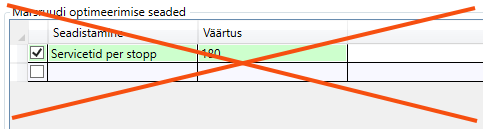
It is only for internal Opter use, and should not be used. Even if a row is added and a value is entered in the table, such as "Service time per stop 180 seconds", it is not used in the route optimisation.
Road toll settings
Here you set which toll types Opter should automatically create toll items for, and whether the Price items should be displayed individually or grouped.
The settings can also be made in the Riigid registry on the Road toll settings tab. It doesn't matter if you make the settings in the country register or in the office settings, basically the same data is changed. If you want to make the same settings for all countries, it is most efficient to make them here in the office settings. If you do not make any settings either here or in the country register, the default settings are used:
-
General road tolls (Type: GENERAL) are shown grouped by country.
-
All other road tolls are displayed individually, i.e. one price item row per road toll.
Instructions on how to set up Road tolls in Opter can be found at Administering road tolls.
Create a new row in the table for each setting you want to make.
|
Column |
Option |
|---|---|
|
Country |
Select which country the setting should apply to. [ükskõik milline] = the setting applies to all countries. |
|
Type |
Select the toll type.
|
|
Management |
Choose how the Road tolls should be displayed on the item rows.
|
Tellimuse sätted
Tellimuse sätted
|
Function |
Description |
|---|---|
|
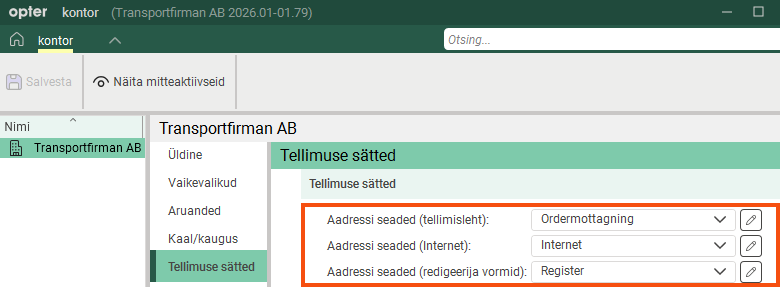
Aadressi seaded (tellimisleht) Aadressi seaded (redigeerija vormid) |
Select the address settings to be used as the default for the address groups in order reception and the registers.
If you want to change any address settings, click |
|
"Kliendi ja ressursi jaoks eralda ""Ei ole kütuselisa""." |
For more information, see Separating the fuel extra setting for customer and resource. Database fields: OFF_SeparateNoFuelExtra |
Hinnakujundus
|
Function |
Description |
|---|---|
|
Valuuta |
The default (system) currency in which all invoices and supplier bills are issued unless specific settings have been made for customers or resources. Report tag (currency code): CUR_Code_Standard |
|
Koostage ehitusarved eraldi |
Downplayed if the customer is not a construction company. See tab Arveteave in the customer register. |
Arve tasumine
Makseinfo
|
Function |
Description |
|---|---|
|
Ei mingit maksmist ennem |
Enter the earliest date that can be used as the payment date when recording payments. It is used to avoid including payments already processed in another system if you switch to Opter. If you try to register payments with a date earlier than the one you enter here, you will receive a message that the date is too early. On the Arve seaded tab, you can also set a date block for invoicing (date field Ei ole arveid ennem). |
Arve seaded
Use this tab to set up how invoicing will work. These are the basic settings for invoicing. Many of the settings can be overridden elsewhere, for example in the customer registry.
|
Function |
Description |
|---|---|
|
Arve malli skeem |
Select which invoice reports to use. Click on For more information, see Aruanded (window). To make an exception for a specific customer, set it up on the Arveteave tab in the Arve kujundus drop-down list in the customer registry. |
|
Tasu |
Select the invoice fee. To make an exception for a specific customer, set it up at Register > Kliendid, on the Arveteave tab in the Tasu drop-down list. |
|
Maksetingimus |
Select the payment conditions. To make an exception for a specific customer, set it up at Register > Kliendid, on the Arveteave tab in the Maksetingimus drop-down list. |
|
Hilinenud makse intressimäär |
Select the late payment interest rate from the drop-down list, for example 10%. To make an exception for a specific customer, set it up at Register > Kliendid, on the Arveteave tab in the Hilinenud makse intressimäär drop-down list. |
|
Arveldamiseks |
Select the invoicing interval from the drop-down list, for example invoices every two weeks or monthly. To make an exception for a specific customer, set it up at Register > Kliendid, on the Arveteave tab in the Arveldamiseks drop-down list. |
|
Arve tüüp |
Kollektsioon: one invoice per customer is created. Projekti kohta: one invoice per customer project is created. Tellimuse järgi: one invoice per order is created. To make an exception for a specific customer, set it up at Register > Kliendid, on the Arveteave tab in the Arve tüüp drop-down list. |
|
Arveldusrežiim |
Üks avatud periood. Only one invoice period can be open at a time. The open invoice period must be closed before a new invoice period can be created. Mitu avatud perioodi. It is possible to have several invoice periods open at the same time. If several invoice periods are open at the same time, they must be closed in the same order as they were opened. Lisa avatud üksikule perioodile. To be able to create invoices and add them to the existing open period in which there are already one or more invoices. |
|
Arve numbri tellimus |
Select the order in which invoice numbers are taken when invoices are created in an invoice period.
|
|
OCR-numbri tüüp |
The method used to calculate and display OCR numbers on invoices. The OCR number is calculated from the invoice number. Report tag: INH_OCRNumber. You must agree with your bank that the OCR number is mandatory when paying invoices. |
|
Kaasake OCR-numbri pikkuse number |
Only applies if you use the OCR number types rootsi keel or Svea KID. For other OCR number types, the length digit is set in the Ocr-numbri tüüp window. A length digit is a single number that indicates how many digits the OCR number consists of, and is used to check that the OCR number is correct. Example:
|
|
Arve eksport |
The invoice export group used by default. Exceptions can be made for a customer by selecting a different export group from the Arve eksport drop-down list on the Arveteave tab of the customer registry. If [Vaikimisi] is selected from that drop-down list, the export group selected here will be used. The default export group can also be set in the Arve ekspordi seaded window. For more information, see Invoice and settlement exports, overview. |
|
Ei ole arveid ennem |
Enter the earliest date that can be used as the invoice date when invoicing. This can be useful, for example, in order to lock a period of time. If you try to create invoices with an invoice date earlier than the one you enter here, you will receive a message that the invoice date is too early. The Arve tasumine tab can also be used to set a date lock for payment registrations (the Ei mingit maksmist ennem date field). |
|
Arve hinnad sisaldavad kütuselisa Arve hinnad sisaldavad valuutalisahindu Arve hinnad sisaldavad tarnevõimaluste hindu |
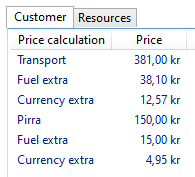
Controls whether or not fuel extra, currency surcharges and optional items are included in the total price of the order line on the invoice (i.e. included in the tag Price_Customer or not). As fuel extra and currency extra are integrated into the total price of the order row, it is not clear how much of the total price of the order row is fuel extra and currency extra. To make it clearer, you can show the total for fuel extra and currency surcharges on a separate line in the summary at the bottom of the invoice. For more information, see Fuel surcharge on invoices. The options are displayed on the order line as Price items (under <!-- Price Items --> in the report), but with Arve hinnad sisaldavad tarnevõimaluste hindu you choose whether or not to include the price of the option items in the total price on the order line (with or without fuel extra and currency surcharge), and whether or not to include the price of the option item in the total price on the item line (i.e. included in the tag TotalPrice_Customer).
An order with the following price rows will be displayed as below on the order row of the invoice.
|
|
Arvelda negatiivse hinnaga kirjed arve parandustena |
|
|
Luba sisemine klient |
With this setting, the internal invoicing function can be turned on/off for all internal customers. If you have made specific account coding settings, they will still be there the next time you switch on the function. For more information, see Internal invoicing. |
|
Kasutage paranduste tegemiseks kehtivat käibemaksumäära |
|
|
Eraldi arvete numbrid piirkondade jaoks |
It is only advisable to set up different invoice number series for different regions if you work with several different companies (legal entities) in the same Opter system. For more information, see Offices and regions.
|
|
Kuva alates kuupäevast valikuna arvete koostamisel |
|
|
Näita arvete koostamisel valikuna arvestuskuupäeva |
|
|
Manuaalarve koostamiskuupäev |
|
|
Kaasa tekitatud intressid transpordiarvetele |
For more information, see Late payment interest and reminder fee. |
|
Kaasake transpordiarvetele loodud meeldetuletuse tasu |
For more information, see Late payment interest and reminder fee. |
|
Include attachments without a file category in invoice mailings |
Select the checkbox to allow attachments without a file category to be sent with invoices. If Kaasa arvega is
For more information, see Manused (order reception). |








 for an attachment in the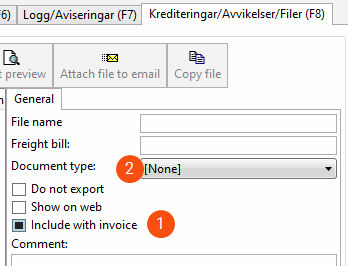
Veokorraldus
Use this tab to configure settings on how shipments should work in dispatch.
Contact Information
|
Function |
Description |
|---|---|
|
E-post |
Email address for dispatch. |
|
Telefoninumber |
Telephone number, including country code. Example: “+460701234567”. If a phone number is entered here, drivers can call dispatch by tapping a button on the chat page in Opter Driver for iOS. For more information, see Chat or call the dispatch centre from Opter Driver. Database fields: OFF_PhoneNoDispatch |
Järjekord/ajakava koostamine
For more information, see Activating and grouping the queue in dispatch.
|
Function |
Description |
|---|---|
|
Luba ajastatud planeerimine |
We recommend that this is not used. |
|
Luba konteinerite planeerimine |
We recommend that this is not used. The checkbox and function will be deleted. |
|
Luba järjekord |
In dispatch it is possible to choose to display a queue of vehicles/resources that currently have no shipments. For more information, see Activating and grouping the queue in dispatch.
|
|
Rühmitage sõidukitüübi järgi |
In order to group the queue by vehicle type, the primary resource must be vehicles, because employees do not have a vehicle type.
|
|
Rühmitada tsoonide kaupa |
For more information, see Activating and grouping the queue in dispatch.
|
|
Rühmitada piirkonna järgi |
|
|
Järjekorras geograafiliste tsoonide kogu |
If the Rühmitada tsoonide kaupa checkbox has been selected and a collection of geographical zones is to be used, this can be set in the Järjekorras geograafiliste tsoonide kogu drop-down list. For more information, see Activating and grouping the queue in dispatch and Geograafilise tsooni kogud (window). |
Puhasta
|
Function |
Description |
|---|---|
|
Loetud sõnumid eemaldatakse veokorraldusest ja Opter driverist |
Applies to chat messages from drivers. |
|
Lõpetatud saadetised eemaldatakse veokorraldusest |
Completed shipments are shipments that have a status where the checkbox Kaasa igapäevasesse puhastuses is ticked. You can check the settings of the statuses in the window Elutsüklid. |
|
Ilma PODita saadetised eemaldatakse veokorraldusest |
Even if the shipment is completed, there may sometimes be no POD. Then you may want to keep those shipments in dispatch until the POD is registered. Give this setting a higher number than Lõpetatud saadetised eemaldatakse veokorraldusest. Otherwise, they are removed when finalised regardless of whether they have a POD or not. |
|
Kõik saadetised eemaldatakse veokorraldusest |
All shipments are removed from the dispatch, regardless of their status. |
Veokorraldus
|
Function |
Description |
|---|---|
|
Lukusta järjestikused saadetised |
Example: If an order has three shipments with the status Määratud, it is not possible to set the second shipment to Korjatud until the first has the status Kohale toimetatud. And the third shipment cannot be set to Korjatud until the second has the status Kohale toimetatud.
|
|
Määrake saadetiste jagamisel üksikasjad |
|
|
Laadige saadetisi ainult (valitud) piirkonna veokorraldusse |
|
|
|
Select what happens to the precedence in dispatch when the space bar is pressed:
Dispatch needs to be restarted for the changes to take effect. |
|
Action for selected shipment if Enter/double click |
Choose what to do with the shipments in dispatch when Enter is pressed or a double-click is done:
You need to restart the dispatch for the change to take effect. |
 : It is not possible to change the status of shipments that are later in the life cycle unless the previous shipment has been completed.
 : All shipments can be changed to any status.
Automaatne saatmine
Here it can be defined how routes are selected on orders that are auto dispatched.
|
Function |
Description |
|---|---|
|
Kulude arvutamine |
Kulu siis saabumisaeg: Opter prioritises the route with the lowest number of points. Saabumisaeg siis hind: Opter prioritises the route with the earliest arrival time. |
|
Kaasatavate plaanitud marsruutide päevade arv |
The number of days ahead that Opter checks for suitable routes.  Example Example
Set this setting to "5". You have the Sundsvall-Luleå route once a week, on Wednesdays, with the latest departure time 10.00 am from the terminal in Sundsvall. A shipment with a last delivery time to the terminal in Sundsvall at 1.00 pm on Wednesday is then not automatically auto dispatched on that route because there are more than 5 days until the next departure time. Instead, Opter looks for another route that departs within 5 days. |
|
Automaatne lähetamise sügavus |
Number of shipments into which an order is split for auto dispatch. |
|
Tasakaalustage saadetise jagamine vahemaa abil |
For more information and examples, see Split the revenue between the shipments on an order. |
|
Olemasolevate tellimuste automaatne lähetamine teenuse vahetamisel |
If the service on an order that has already been started is changed, shipments could be cancelled as they may disappear when the routes are changed.
|
|
Andke liiniveoks automaatsed väljastuspunktid, kui pealevõtmist pole |
Some statistical reports may be misleading because they assume that there is a pickup shipment. Example
If you have an order with four shipments (25% each) and you delete the first shipment, the 25% will be split between the two line shipments if the checkbox is selected (37.5% + 37.5% + 25%). If the checkbox is not selected, the 25% is divided equally between the remaining three shipments (33.3% + 33.3% + 33.4%). |
|
Kui jaotusi ei toimu, andke liiniveoks automaatsed väljastuspunktid |
Some statistical reports may be misleading because they assume that there is a delivery shipment. Example
If you have an order with four shipments (25% each) and you delete the last shipment, the 25% will be split between the two line shipments if the checkbox is selected (25% + 37.5% + 37,5%). If the checkbox is not selected, the 25% is divided equally between the remaining three shipments (33.3% + 33.3% + 33.4%). |
Internet
|
Function |
Description |
|---|---|
|
Link to Privacy Policy |
If you have your own privacy policy that you wish to link to on the web portals, please enter the full web address of the privacy policy here, for example “https://transportfirman.com/privacypolicy/”. The link appears on the page containing information about cookies, which you can access from the login page and the home page of the web portals.
|
|
Domains that are permitted to embed the web portals |
Here you specify websites authorised to embed the web portals in the format "https://www.exempel.com" (full URL). Several addresses are delimited by spaces, "https://www.exempel.com https://www.test.com". It is not possible to embed the web portals on another website if you are running HTTP. You must use HTTPS. See also |
|
Interneti stiilileht |
CSS file used to format the web portals. [puudub]: Opter's standard CSS is used. |
|
Kinnitage EDI tellimused tellimuse lehel |
|
|
Kuva jälgimislehe link sisselogimislehel |
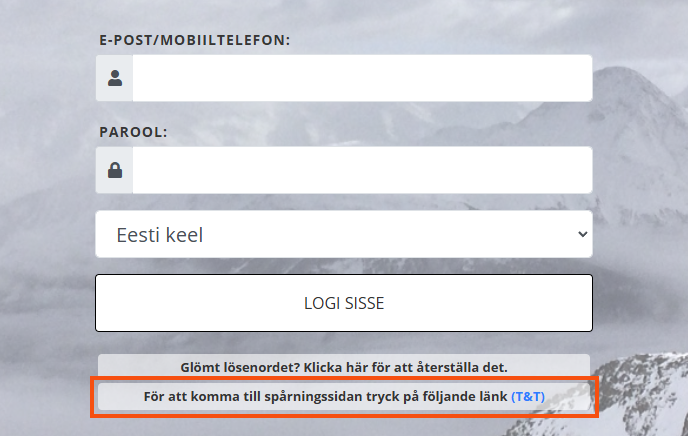
Displays a link to Track & Trace on the login page of the web portals.
|
|
Interneti pilt |
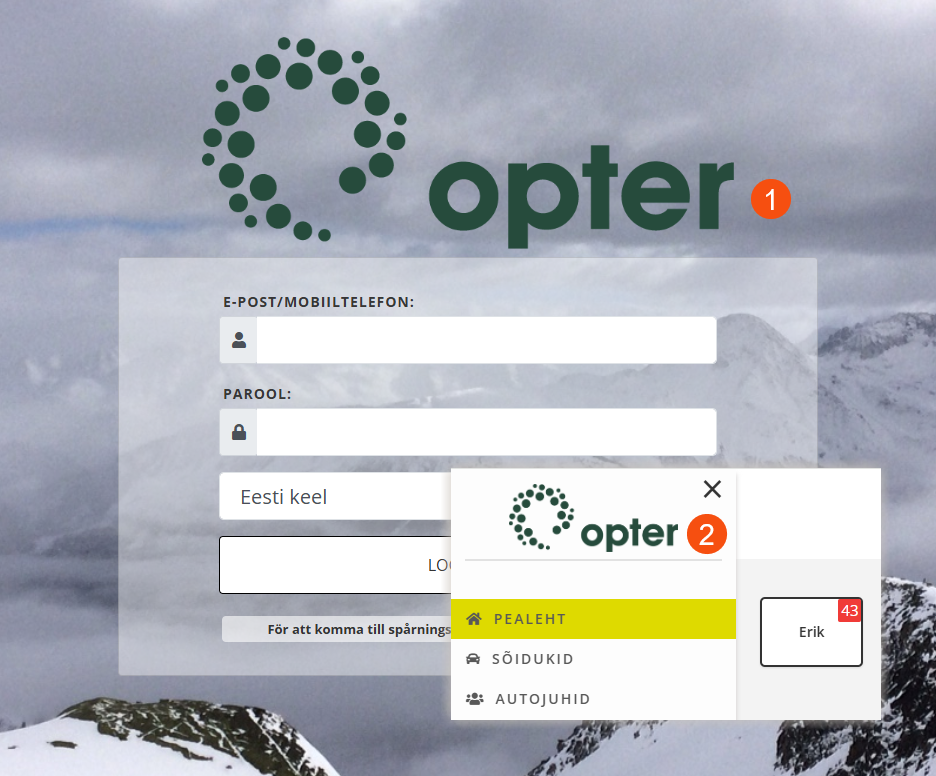
This image appears on the login page of the web portals (1) and in the top left corner above the menu (2). It can go well with your logo.
|
|
Sisselogimislehe taustapilt |
The background image of the web portals' login page and Track & Trace. Database fields: OFF_IMG_Id_BackgroundInternet |

Majandus
Raamatupidamine
|
Function |
Description |
|---|---|
|
Tellimuse piirkonna kasutamine raamatupidamises (nii arveldamine kui ka tarnija arveldamine) |
In the first instance, the region is used on the shipments for account coding, but you can override this and use the region on the orders by ticking this option. For more information, see Account coding by region. |
|
Show the month from the order date in the account coding / invoice export |
The year and month of orders are included in the account coding for invoice exports of type XmlSerialiser. This can be useful if you are accruing based on order date instead of invoice date. |
|
Show the month from the consignment in the account coding / invoice export |
The year and month of consignment orders are included in the account coding for invoice exports of type XmlSerialiser. This can be useful if you invoice consignment orders and accrue based on the order date instead of the invoice date. |
|
Show the freight bill number from the consignment in the account coding / invoice export |
The consignment note number on the consignment order is included in the account coding for invoice exports of type XmlSerialiser. |
Serverid
On this tab, you configure an email account, for Opter emails, and the Pixie service, used for SMS notifications. For more information, see Sending emails from Opter and Activating the Pixie SMS service.
|
Function |
Description |
|---|---|
|
SMTP-server |
The server address the email service or internet service provider uses for outgoing messages, e.g. “smtp.office365.com”. |
|
Test meil |
Opens a dialogue box where the email account can be tested. |
|
Port |
Port for outgoing email on the SMTP server, usually 587. |
|
Kasutajanimi |
User ID for email account. Usually the same as the email address. |
|
Parool Show password |
Password for the email account. Can be displayed in plain text. |
|
Turvaline ühendus (SSL) |
|
|
Ms Graph Tenant ID |
If you use Microsoft 365 as your email service, you need to register Opter in Azure and then enter Directory (tenant) ID from Azure here. For more information, see Sending emails from Opter using Microsoft 365. If there is a value in this field, it does not matter if the fields above on this tab are filled in (SMTP-server, Port, Kasutajanimi, Parool and Turvaline ühendus (SSL)). This information is not used, as the authentication is done through the app registration in Azure. It can be a good idea to remove the information in them, so that there is no risk of misunderstanding. |
|
Ms Graph Client ID |
If you use Microsoft 365 as your email service, you need to register Opter in Azure and then enter Application (client) ID from Azure here. For more information, see Sending emails from Opter using Microsoft 365. |
|
Ms Graph Client Secret |
If you use Microsoft 365 as your email service, you need to register Opter in Azure and then enter the Azure client secret value here. The client secret is only shown when you register Opter in Azure and cannot be found out afterwards. Therefore, when registering Opter in Azure, make sure to copy the secret. For more information, see Sending emails from Opter using Microsoft 365. |
|
Logi sõnumid |
Messages sent using the above email account are stored in Opter and can be retrieved by clicking on Otsige meili, much like the sent mail folder in Outlook. If the messages are not logged, it is not possible to see which messages have been sent from Opter. |
|
Otsige meili |
Opens a window in which searches can be carried out on emails sent from Opter. |
|
SMS-i saatja |
What is shown as the sender of the SMS notifications. A maximum of 11 characters, A–Z, a–z and 0–9. Dimmed if Kasutage HTTP SMS is deselected. |
|
Vaikimisi riigikoodid |
Country code in the format "+46", "46" or "0046". Used if a country code is not already included in the telephone number to which the notification is sent. Dimmed if Kasutage HTTP SMS is deselected. |
|
SMS-i ID |
User name for the Pixie service if you use the old Pixie system. Dimmed if Kasutage HTTP SMS is deselected. |
|
SMS parool |
Password to your Pixie account if you are using Pixie's old platform, or API key if you are using Pixie's new platform. The API key can be found in your Pixie account. For more information, see Activating the Pixie SMS service. |
|
Varasem aeg SMS-teadete saamiseks + SMS-teatiste viimane aeg |
The times between which automatic SMS notifications may be sent, for example from "8:00" (Varasem aeg SMS-teadete saamiseks) to "21:00" (SMS-teatiste viimane aeg). Can be overridden for individual services. For more information, see Setting the time interval for automatic SMS notifications. Dimmed if Kasutage HTTP SMS is deselected.
|
|
Kasutage HTTP SMS |
|
|
Use Pixie’s new platform |
Pixie's new platform is used to send SMS. For more information, see Activating the Pixie SMS service and on the Pixie website. |
|
Test SMS |
Opens a dialogue box where the Pixie service can be tested. |
|
Serveri sätted teisaldatakse süsteemi (avamiseks klõpsake siin) |
Opens the Süsteemisätted window. |
Skaneerimine
This tab can be used to configure certain settings for scanning, such as whether the system should check that the location of the scan is correct and whether a new order should be created if an unknown freight bill number is scanned.
Skaneerimine
|
Function |
Description |
|---|---|
|
Ajapiirang millal lugeda kaup kadunuks(minutid) |
A package is reckoned to be missing if the other packages on the same order have progressed further, such as having arrived at the next terminal. To avoid a warning about this being issued by the Puuduvad kaubad column in dispatch, order and consignment check during the time it takes to scan all the order packages, enter a number of minutes delay here. |
|
Terminali töö ajalõpp |
If the Looge puuduvate kaupade skannimisel uus tellimus function is used, a new order is created if a missing package arrives at a terminal after the other packages on the order have departed. To avoid this happening by mistake when the other packages have already had a departure scan, but loading work is still in progress, set a few minutes delay here. |
|
Looge uus tellimus tundmatu saatekirja numbri skanneerimisel |
In the field below it is possible to specify which customer to use when creating new orders from unknown freight bill numbers.
|
| Klient tellimusele, mis on loodud tundmatu veokirja numbri skaneerimisega
|
Enter the customer to be used when new orders are automatically created when scanning unknown packages. Dimmed if Looge uus tellimus tundmatu saatekirja numbri skanneerimisel is deselected. |
|
Konsolideerimistüüp skaneerimisel |
Enter the consolidation type to be used if the Konsolideerige skaneerimise ajal function is used. For more information, see Consolidating upon arrival scanning at a terminal and Consolidating orders. |
|
Looge puuduvate kaupade skannimisel uus tellimus |
A number of minutes of delay can be set in the Terminali töö ajalõpp field above.
|
|
Uuendage veokirja skaneerimisel olekut ja ressurssi isegi siis, kui olek on saavutatud |
|
|
Skannimise ajal ei kontrollita vale asukohta |
Example: an order goes from the sender to terminal 1, then to terminal 2, and then to the receiver. If a package or freight bill on the order has undergone arrival and departure scanning at terminal 1 and then at terminal 2, and then undergone arrival scanning at terminal 1 again, the scan is approved in Opter Driver/Opter Terminal. However, the status of the shipment does not change even though the shipment is now back at an earlier position in the order chain.
|
|
Jaga tellimus saabumisel/lahkumisel kui skannitakse ootamatus terminalis |
 : If an arrival or departure scan takes place at an unexpected terminal, the order is automatically split at that terminal. : If an arrival or departure scan takes place at an unexpected terminal, the order is automatically split at that terminal.
|
|
Logige Opteri terminalis terminalina sisse |
Choose whether users should log in as terminals or with personal user accounts:
For more information, see Installing Opter Terminal for Android. |
|
Ärge lähtestage oleku muutmisel tellimuse kuupäeva |
Also make sure that the Lähtesta skannimisel tellimuse kuupäev checkbox in the order settings on the Seaded tab has the desired setting for new orders. For more information, see Tellimuse sisestamise seaded (window). |
|
Block delivery scan if the shipment is not allocated to the resource |
This setting only applies to the last shipment on the order.
The setting does not prevent incorrect use of delivery scanning. For example, if an order has two shipments, and the same resource is on both shipments, she or he can delivery scan the entire order when the first shipment is scanned at the terminal.
|
|
Use the Weight Correction function if the weight is changed in Opter Terminal |
For more information, see Weight correction and Changing package dimensions in Opter Terminal. |
Status
|
Function |
Description |
|---|---|
|
Hoiatage, kui on teine ressurss välja skanneerimise staatusega |
Applies to departure scan at terminal. If you want the resource (driver/vehicle) to be given a warning in Opter Driver if a departure scan is done on something that is associated with a different resource’s shipment, select the status from which the warning should be shown, for example Määratud. The default setting is Korjatud. It is possible to make exceptions to the general setting. To make exceptions for certain vehicles, click on Register > Transpordivahendid, then on the Mobiil/veeb tab, and make the desired setting in the Skaneerimine box. To make exceptions for certain drivers, click on Register > Töötajad, then on the Mobiil/veeb tab, and make the desired setting in the Skaneerimine box. For more information, see Block or warn about another resource when scanning in Opter Driver. |
|
Hoiatage, kui on teine ressurss skanneerimise staatusega |
Applies to pickup scanning at the sender. If you want the resource (driver/vehicle) to be given a warning in Opter Driver if a pickup scan is done on something that is associated with a different resource’s shipment, select the status from which the warning should be shown, for example Määratud. The default setting is Korjatud. It is possible to make exceptions to the general setting. To make exceptions for certain vehicles, click on Register > Transpordivahendid, then on the Mobiil/veeb tab, and make the desired setting in the Skaneerimine box. To make exceptions for certain drivers, click on Register > Töötajad, then on the Mobiil/veeb tab, and make the desired setting in the Skaneerimine box. For more information, see Block or warn about another resource when scanning in Opter Driver. |
|
Blokeeri oleku/ressursi muutmine, kui maha skannimisel staatus |
Applies to departure scan at terminal. If only the resource (driver/vehicle) who was assigned the shipment should be able to make changes to the status or resource in Opter Driver during departure scanning, select the status from which the block applies, for example Määratud. The default setting is Korjatud. It is possible to make exceptions to the general setting. To make exceptions for certain vehicles, click on Register > Transpordivahendid, then on the Mobiil/veeb tab, and make the desired setting in the Skaneerimine box. To make exceptions for certain drivers, click on Register > Töötajad, then on the Mobiil/veeb tab, and make the desired setting in the Skaneerimine box. For more information, see Block or warn about another resource when scanning in Opter Driver. |
|
Blokeeri oleku/ressursi muutmine, kui peale skannimisel staatus |
Applies to pickup scanning at the sender. If only the resource (driver/vehicle) who was assigned the shipment should be able to make changes to the status or resource in Opter Driver during pickup scanning, select the status from which the block applies, for example Määratud. The default setting is Korjatud. It is possible to make exceptions to the general setting. To make exceptions for certain vehicles, click on Register > Transpordivahendid, then on the Mobiil/veeb tab, and make the desired setting in the Skaneerimine box. To make exceptions for certain drivers, click on Register > Töötajad, then on the Mobiil/veeb tab, and make the desired setting in the Skaneerimine box. For more information, see Block or warn about another resource when scanning in Opter Driver. |
|
Määrake paki ID lõpliku kohaletoimetamise skaneerimise olek |
This setting is not recommended as the status is set to Kohale toimetatud/Kohale toimetatud before the driver has filled in the pod in Opter Driver.
|
|
Veokirja oleku määramine viimase kohaletoimetamise skanneerimisel |
This setting is not recommended as the status is set to Kohale toimetatud/Kohale toimetatud before the driver has filled in the pod in Opter Driver.
|

