Block or warn about another resource when scanning in Opter Driver
Last updated: 22 July 2024
Applies to Opter Driver for iOS and Opter Driver Labs for Android.
In this article
It can be set so that scanning is blocked or that drivers receive a warning if they try to departure scan and/or pickup scan a shipment that is not scheduled for that resource. You set from which status the departure scan and/or pickup scan should be blocked or that the driver should receive a warning.
The general setting is made in the office settings. Then exceptions for certain drivers and/or vehicles can be made.
 Details
If a setting has been made for the vehicle, that setting is used. If there is no setting for the vehicle, the setting for the driver is used. If there is no setting for either the vehicle or the driver, the general setting in the office settings is used.
If warning and blocking have both been set, the scan is blocked. (In other words, Opter prioritizes blocking over warning).
Block scanning
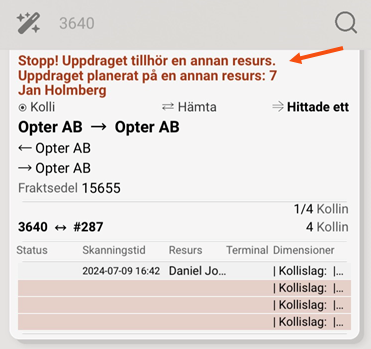
If it is set up so that scanning is blocked from a certain status onwards if the driver tries to scan a shipment that is not assigned to that resource, the text Stop! This shipment is assigned to a different resource.The shipment is planned for a different resource is displayed. The driver can also see for which resource the shipment is planned, see image below.
No status change or change of resource occurs. The scan is shown in the order log in order reception, (see the Tellimuste logi tab in the Tellimuste logi section).
Instructions for drivers are available at Scanning with Opter Driver.
To block scanning if other resource upon scanning, proceed as follows:
-
Click on Seaded > Kontorid > and on the Skaneerimine tab. In the Status box, you set the status from which departure scanning and pickup scanning should be blocked. Use the drop-down lists Blokeeri oleku/ressursi muutmine, kui maha skannimisel staatus and Blokeeri oleku/ressursi muutmine, kui peale skannimisel staatus. For more information, see kontor (window).
-
An exception for a certain drivers can be set up at Register > Töötajad, on the Mobiil/veeb tab. Use the drop-down lists Blokeeri oleku/ressursi muutmine, kui maha skannimisel staatus and Blokeeri oleku/ressursi muutmine, kui peale skannimisel staatus. For more information, see Töötajad (window).
-
An exception for a specific vehicle can be set up at Register > Transpordivahendid, on the Mobiil/veeb tab. Use the drop-down lists Blokeeri oleku/ressursi muutmine, kui maha skannimisel staatus and Blokeeri oleku/ressursi muutmine, kui peale skannimisel staatus:. For more information, see Sõidukid (window).
-
Save all changes.
For example, if you want to change the colour of the text displayed in the app and if you use the XML file App.OpterDriver.Design, search for OTHERRESORUCEBLOCKING and OTHERRESOURCERESOURCE, and change color on the two lines of the sections scanrows and/or scandetailrows. For more information, see App.OpterDriver.Design.
If you want to block delivery scans for resources that do not have the shipment assigned to them, instructions are available at Prevent delivery scanning if the resource is not stated on the last shipment.
Warn during scanning
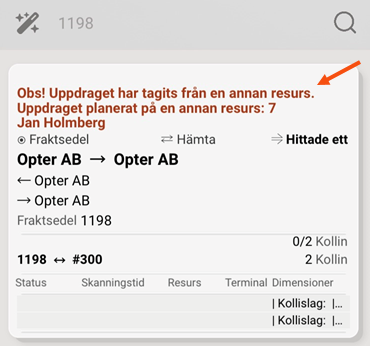
If it has been set so that the resource (the driver/vehicle) will receive a warning in Opter Driver, from a certain status onwards, that the driver is departure scanning or pickup scanning something that belongs to another resource's shipment, then the Note! This shipment has been transferred from a different resource. text will be displayed. The shipment is planned for a different resource. The driver can also see for which resource the shipment was planned, see image below.
A status change and change of resource occur. The driver has thus taken over the shipment from the other resource. The driver can undo the scan.
Instructions for drivers are available at Scanning with Opter Driver.
To issue a warning if other resource upon scanning, proceed as follows:
-
Click on Seaded > Kontorid > and on the Skaneerimine tab. In the Status box, you set the status from which departure scanning and pickup scanning should be blocked. Use the drop-down lists Hoiatage, kui on teine ressurss välja skanneerimise staatusegaand Hoiatage, kui on teine ressurss skanneerimise staatusega. For more information, see kontor (window).
-
An exception for a certain drivers can be set up at Register > Töötajad, on the Mobiil/veeb tab. Use the drop-down lists Hoiatage, kui on teine ressurss välja skanneerimise staatusega and Hoiatage, kui on teine ressurss skanneerimise staatusega. For more information, see Töötajad (window).
-
An exception for a specific vehicle can be set up at Register > Transpordivahendid, on the Mobiil/veeb tab. Use the drop-down lists Hoiatage, kui on teine ressurss välja skanneerimise staatusega and Hoiatage, kui on teine ressurss skanneerimise staatusega. For more information, see Sõidukid (window).
-
Save all changes.
For example, if you want to change the colour of the text displayed in the app and if you use the XML file App.OpterDriver.Design, search for OTHERRESOURCEWARNING and OTHERRESOURCERESOURCE, and change color on the two lines of the sections scanrows and/or scandetailrows. For more information, see App.OpterDriver.Design.

