Allow packages to be added by scanning in Opter Driver
Last updated: 1 October 2025
Applies to Opter Driver for iOS and Opter Driver Labs for Android version 2.4.25 and later.
In this article
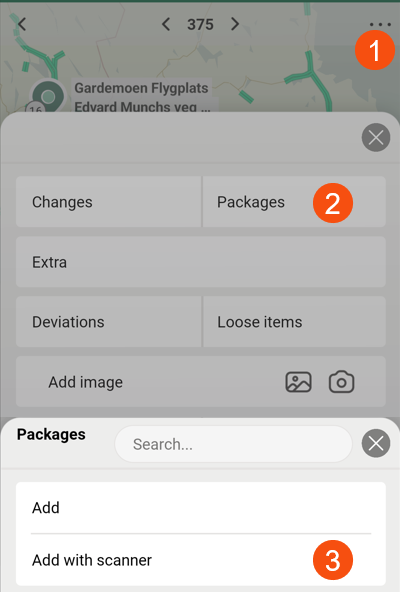
By default, drivers cannot add packages to orders by scanning them, but you can set the app to allow drivers to do so. The menu item Lisage pakkeüksus skannimise teel will then appear in the detail view after the driver has pressed Packages.
Areas of use:
-
If the driver has received a shipment where he does not know in advance how many packages the shipment has and what the package numbers are.
-
If the driver creates a new order in the app and then wants to scan all the packages included.
If you choose to allow drivers to add packages to orders by scanning them, you can make exceptions for certain services.
The Add package with scanner feature has previously been available in Opter Driver (classic) for Android, but has been improved in Opter Driver for iOS and Opter Driver Labs for Android:
-
The driver can remove packages that were incorrectly scanned.
-
The driver can directly change the dimensions of the packages he adds.
The Add package with scanner function works:
-
If the Opter Driver Labs app for Android has been installed directly on a scanner, such as a Zebra.
-
If the driver uses a standalone Bluetooth scanner (instead of the mobile phone’s built-in camera). For more information, see Settings in Opter Driver.
-
If the driver scans with the mobile phone's built-in camera.
-
The driver can also enter the parcel number manually in the scanning view.
Instructions for drivers are available at Adding parcels with scanning in Opter Driver.
Plan
The following settings control whether it is possible to add packages to orders by scanning with Opter Driver:
-
Mobile data settings AddPackageByScanningPermission:
-
“True”: packages can be added to orders by scanning with Opter Driver.
-
”False” (default): packages cannot be added to orders by scanning with Opter Driver.
The setting can be overridden for individual services using the Allow Add packages with scanner checkbox in the Teenused window ( Dispatch tab).
-
-
Tick the box Allow Add packages with scanner on the service:
-
 (default): The setting for AddPackageByScanningPermission applies.
 -
 : The packages can be added, regardless of the AddPackageByScanningPermission setting.
 -
 : Collin cannot be added, regardless of the setting for AddPackageByScanningPermission.
-
Select one of the following:
-
Regardless of the service, drivers can add packages by scanning them.
Set AddPackageByScanningPermission = "True", and check that the checkbox Allow Add packages with scanner is
(default) on all services. -
Most services allow drivers to add packages by scanning them, but not all services.
Set AddPackageByScanningPermission = "True", and uncheck (
) the checkbox Allow Add packages with scanner on those services where drivers are not allowed to add packages by scanning them. Check that the checkbox Allow Add packages with scanner is (default) on the rest of the services. -
Only on one or a few services are drivers allowed to add packages by scanning them.
Set AddPackageByScanningPermission = "False" (default), and tick (
 ) the checkbox Allow Add packages with scanner on these services. Check that the checkbox Allow Add packages with scanner is (default) on the rest of the services.
 -
Drivers may not add packages by scanning them. Set AddPackageByScanningPermission = "False" (default), and check that the checkbox Allow Add packages with scanner is
(default) on all services.
Proceed as follows
-
Please use the section Plan above to know how to set the Mobile data settings AddPackageByScanningPermission and the checkbox Allow Add packages with scanner on the services.
-
In Opter, click on Seaded > Mobiilne andmeside > Mobiilse andmeside seaded.
-
Click on an empty row in column Nimi, then click the down arrow in the row that is added.
-
Select AddPackageByScanningPermission from the list.
-
Enter “true” or “false” in column Väärtus as follows:
-
“True”: packages can be added to orders by scanning with Opter Driver.
-
”False” (default): packages cannot be added to orders by scanning with Opter Driver.
The setting can be overridden for individual services using the Allow Add packages with scanner checkbox in the Teenused window ( Dispatch tab).
-
-
Click on Salvesta. Click on Sulge to close the window.
-
Click on Majandus > Hinnakirjad > Services. Select a service from the list on the left and click on the tab Dispatch.
-
Please tick the box Allow Add packages with scanner for the services you require:
-
(default): The setting for AddPackageByScanningPermission applies.
-
: The packages can be added, regardless of the AddPackageByScanningPermission setting.
-
: Collins cannot be added, regardless of the setting for AddPackageByScanningPermission
-
-
Click on Salvesta.
-
If you want drivers to be able to create new orders in the app (and then be able to scan all the parcels to be included in the order), please make sure that the Mobile data settings CreateNewOrderPermission are set to "True". For more information, see New orders in Opter Driver.
Users who are logged in to the app when the changes are saved in Opter must log out and then log back in to the app to see the changes.

