Teenused (window)
Last updated: 11 June 2026
In this article
w Majandus > Hinnakirjad > Services
This window is used to configure the services to be offered, and what can and cannot be done on orders with the current service.
If you have the Price List Editor open and make changes in this window, such as activating/deactivating a service or reordering the services, you will need to close and reopen the Price List Editor for the changes to appear there.
Üldine
|
Function |
Description |
|---|---|
|
Nimi |
Used for identification. The name is shown in the list on the left when a new service is saved. |
|
Kirjeldus |
Free text field for internal notes. The description is not displayed anywhere else but here. |
|
Veokorralduskood |
An abbreviation of the service name used in dispatch to save space. Can also be used in reports, such as for invoices. It is recommended to state the code as one or two capital letters, e.g. "EX". |
|
Teenuste nimekiri |
The service list to which the service belongs. Mandatory. The service lists are used to group the services together in different lists, for example on the Teenused tab in the price list editor. You can specify one (1) default service by service list. The service lists are managed under Majandus > Hinnakirjad > Service lists. |
|
Saadaval Internetist tellimiseks |
The service can be selected when ordering on the web portals. |
Dispatch
General
|
Function |
Description |
|---|---|
|
Eluring |
The life cycle that orders with the service follow. |
|
Peida veokorraldusaknas (kuid vöötkoodi skannimiseks siiski saadaval) |
Orders with the service are not displayed in dispatch, but can be handled in the system by scanning packages. |
|
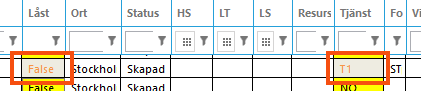
Teksti värv |
Font colour for the service code to differentiate orders with this service in dispatch. Only the Teenus (kood) and Lukustatud columns are given this font colour, not the entire row. By default, the text colour is black.
|
|
Taustavärv |
Background colour for the service code if orders with this service are to be differentiated in dispatch. Only the Teenus (kood) and Lukustatud columns are given this background colour, not the entire row. By default, the background colour is white.
|
|
Controls whether packages can be added to orders by scanning with Opter Driver.
For more information, see Allow packages to be added by scanning in Opter Driver. |
|
|
Jätke mobiilseadmetest tehtud tellimuse muudatuste kinnitamine vahele |
|
Auto dispatch
|
Function |
Description |
|---|---|
|
Marsruudigrupp |
The route group used for the auto dispatch of orders with the service. |
|
Luba automaatset veokorraldust |
Orders can be auto dispatched in accordance with the route group selected above. For more information, see Creating and setting up routes. |
|
Luba otseühendused (otsevedu) |
Used for auto dispatch on two distribution routes (one for pickup and one for delivery).
|
|
Kasutage automaatse saatmise ajal terminalide puhkeaega |
In the case of auto dispatch, orders are placed on routes in accordance with the opening hours of the terminals. Has no effect if Luba automaatset veokorraldust is not selected.
For more information, see Terminalid (window). |
|
Kasutage terminalide puhkeaega automaatse saadetise korje ajal |
In the case of auto dispatch pickup shipments, orders are placed on routes in accordance with the opening hours of the terminals. Has no effect if Luba automaatset veokorraldust is not selected.
For more information, see Terminalid (window). |
|
Kasutage terminalide puhkeaega automaatse saadetise tarne ajal |
In the case of auto dispatch delivery shipments, orders are placed on routes in accordance with the opening hours of the terminals. Has no effect if Luba automaatset veokorraldust is not selected.
For more information, see Terminalid (window). |
Home delivery
|
Function |
Description |
|---|---|
|
Kojuveo seaded |
The home delivery settings used for orders with the service. If [puudub] is selected, the home delivery features are disabled for the service, which means, for example, that receivers cannot select the delivery date on Track & Trace. |
|
Service time per stop (s) |
Specify how many seconds each stop on the route is expected to take. Service times can be set at several places in Opter. All these are added to create a total, which is used for the calculation of subsequent delivery times during route optimisation. For more information, see Service time. |
|
Time per additional shipment (s) |
State how much extra time a delivery to the same address is expected to take in addition to the service time, for example if there is a delivery to floor 3 and a delivery to floor 5 in the same building. Time for additional shipments can be set in several places in Opter. All these are added to create a total, which is used for the calculation of subsequent delivery times during route optimisation. For more information, see Service time. |
|
Varasem aeg SMS-teadete saamiseks |
Dimmed unless Kasutage HTTP SMS is selected in the office settings (the Serverid tab). Forms a time range together with the SMS-teatiste viimane aeg field, within which SMS notifications about the order will be sent out. If no times are entered here, the time interval in the office settings (the Serverid tab) is used. |
|
SMS-teatiste viimane aeg |
Dimmed unless Kasutage HTTP SMS is selected in the office settings (the Serverid tab). Forms a time range together with the Varasem aeg SMS-teadete saamiseks field, within which SMS notifications about the order will be sent out. If no times are entered here, the time interval in the office settings (the Serverid tab) is used. |
|
Allow only automatic calculation of arrival time |
Used for automatic route optimisation. The effect of this checkbox depends on how the corresponding checkboxes have been set in the office settings and registry Sõidukid/Töötajad. For more information on how the settings interact, see Automatic route optimisation.
The Allow automatic calculation of route sequence and arrival time checkbox must also be unselected to enable the pickup and delivery times not to be updated.
|
|
Allow automatic calculation of route sequence and arrival time |
Used for automatic route optimisation. The effect of this checkbox depends on how the corresponding checkboxes have been set in the office settings and registry Sõidukid/Töötajad. For more information on how the settings interact, see Automatic route optimisation.
|
Orders and pricing
Pricing
|
Function |
Description |
|---|---|
|
Hinna aja kokkuvõte |
[puudub]: The time is not automatically totalled. Kohaletoimetamine: The time it takes to execute the order is totalled at the order level, without the parts of the route to intermediate terminals, i.e. as ordered by the customer. Saadetis: The time taken to execute the order is totalled for each individual order, which includes stops at intermediate terminals, i.e. as the order is carried out. The summary is shown in italics under Mõõtmed in the Order reception. |
|
Hinnavahe kokkuvõttev |
Here you choose how to calculate the distance on the order. Summed distances are shown in italics under Mõõtmed in the Order reception.
This setting does not apply to consignment orders. If the order is a consignment order, the distance is always totalled according to the consignment order, i.e. as the consignment order is actually carried out. |
|
Kaalu arvutamine |
The weight calculation to be used on orders with the service. If [Vaikimisi] is selected, the weight calculation set in the price list (General tab) will be used. |
Default values for new orders
Here you set the default setting for new orders with the current service. These settings override the corresponding order settings (tab Seaded). The checkboxes can be set for individual orders under Juhi soovitus in the Order reception.
 : The order setting applies.
 /
/ : The setting in this window applies.
Order settings
|
Function |
Description |
|---|---|
|
Ehitusteenus |
The service is invoiced with construction VAT (0%). For more information, see Construction VAT. |
|
Automaatne konsolideerimine puudub |
|
|
Autosaadetist pole |
(default): Orders with this service can automatically be made into consignments in the Saadetised window.
|
|
Veokirja numbrite seeria |
Number series for freight bills. If [Vaikimisi] is selected, the number series set in the office settings (Tellimuse sätted tab) will be used. |
|
Pakkeüksuse ID numbri seeria |
Number series for packages. If [Vaikimisi] is selected, the number series set in the office settings (Tellimuse sätted tab) will be used. |
|
Prevent internet orders without prices from being saved |
The same checkbox must also be selected on the Üldine tab in the internet order settings to prevent the order from being saved without a price. This makes it possible to have the same service on an order, and control whether it can be saved or not via the internet order settings. |
|
|
Specify whether orders without a price, or with a price of 0 SEK, should be created in Opter during EDI imports. The default setting that applies to all orders is configured in the EDI mapping, on the tab Üldine. With this setting, you can make exceptions for individual services. If the checkbox is ticked |
 , the setting applies to the EDI mapping.
Road tolls
Here you specify whether toll items should be added to orders using this service. For more information, see Administering road tolls and.
|
Function |
Description |
|---|---|
|
Arvutage teemaksud |
For the calculation to take place, Kohaletoimetamine or Saadetis must be selected in the Calculate road tolls based on drop-down list (see below).
|
|
Calculate road tolls based on |
Dimmed unless Arvutage teemaksud is selected (see above). Select one of the following:
|
|
Teemaks kohalikus valuutas |
|
|
Group road tolls by country |
The checkbox has been removed as of Opter 2024.12.00, as the functionality has been improved. Instead, follow the instructions in Administering road tolls.
|
|
Võtke arvesse sõiduki mõõtmeid |
|
|
Arvutage edasi-tagasi reis |
|
Emissions
The emissions factor is used to produce statistics on the environmental impact of the orders. For more information, see:
|
Function |
Description |
|---|---|
|
Take pricing weight into account when calculating CO2 emissions |
Take the pricing weight of the order compared to the capacity of the vehicle into account. For more information, see CO2 emissions, overview. |
|
Emission factor |
In practice, the emission factor is usually more or less than 100%, but it can be used as an average and a starting point. |
|
The table |
If the emission factor for the service combined with certain price vehicle types differs from the overall emission factor for the service, enter them here. Delete a line by selecting it and pressing Delete. |
Price lists
The price lists in which the service will be available can be specified on this tab. Including a price list here has exactly the same effect as selecting the service in the Teenused tab of the price list. The basic idea is that services are selected in the price list editor, and at the same time given a price, but if a new service that can be used in all (or just a few of) the price lists is created, it is possible to quickly and easily add them here instead of having to go into each price list and select the service. If the setting in a price list is changed, that change is reflected here, and if a change is made here it is reflected in the price list.
Double-click on the price lists to move them between Välistatud and Kaasas. In the text field at the top of each list, it is possible to search for the name of the price lists.
Extras types
To restrict which extras can be used on orders with this service, double-click on those not to be used to move them to the Välistatud list. By default, all the extras can be selected.
Vehicle types
To restrict which price vehicle types can be used on orders with this service, double-click on those that it should not be possible to use, to move them to the Välistatud list. By default, all price vehicle types can be selected.
Searches on price vehicle types can be done in the text field above the lists. The list of price vehicle types is sorted alphabetically, first by service list, then by price vehicle type. So "Truck (A service list)" comes before "Bicycle (B service list)".
Options
To restrict which options can be used on orders with this service, double-click on those not to be used to move them to the Välistatud list. By default, all options can be selected.
Searches for options can be done in the text field above the lists.
For the option to be available on the order, the Saadaval tellimuste jaoks checkbox must also be selected on the option in the Valikud window. For more information, see Valikud (window).
Raamatupidamine
In Opter, the VAT rate on the order determines the income and cost account to which a certain amount is booked. On this tab you can make exceptions to the regular account coding. The tabs you make changes to are marked with  .
.
Click on  to display the VAT rates held in the system. Then select the account to which amounts with the different VAT rates should be posted. More information on the individual drop-down lists can be found at The Raamatupidamine tab. The settings in this tab apply if you reach item 4 in the list in How Opter selects accounts for income and expenses. If [Vaikimisi] is selected for any of the options here, the account coding is taken from the VAT rate.
For more information on how Opter selects the VAT rate on orders (column Müük) and supplier bills (column Kulu), see How Opter chooses the VAT rate for customer invoices and How Opter chooses the VAT rate on credits.

