Automatic route optimisation
Last updated: 11 June 2025
In this article
Automatic route optimisation of a vehicle means that the route and the estimated time of arrival (ETA) are continuously updated. The arrival time is recalculated when one of the following occurs
-
An order is saved.
-
An order is assigned to a resource.
-
An order is deleted from a resource.
-
The status of an order changes.
The function is intended to be used in conjunction with manual route optimisation and manual dispatch notifications.
The recipient can always see the estimated delivery time on Track & Trace if you tick Kuva automaatselt värskendatud ETA on the Saadetise jälgimine tab in the internet order settings.
For more information on the conditions and the factors and settings that affect route optimisation, see Route optimisation: preparation and configuration.
Continuous route optimisation only applies to shipments that have already been allocated to a resource. The missions are not reallocated to other vehicles and no shipments are added to the resources. The function makes as few changes as possible so as not to disturb drivers unnecessarily.
If you want to distribute and Route optimise several shipments on many vehicles at the same time, see Multi-vehicle optimisation.
Make a first optimisation
-
Perform a manual route optimisation to see which vehicles should be used and what shipments they should perform.
-
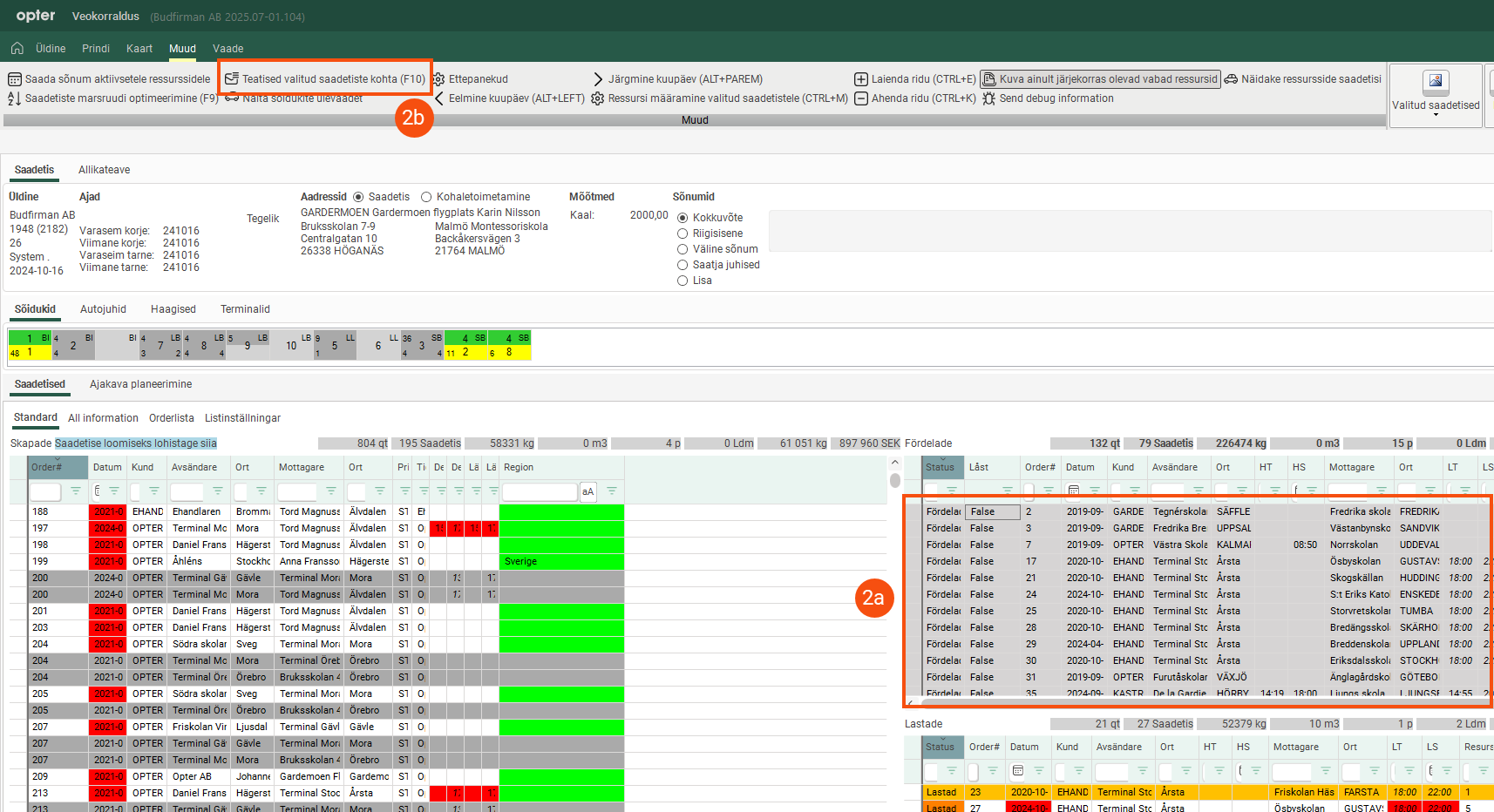
To send notifications with delivery times to recipients, select the shipments in the dispatch and press F10.
-
Use the settings under Saabumise aeg in the home delivery settings to create a time window for the ETA notification. For more information and examples, see Kojuveo seaded (window).
-
No new notifications are sent if the estimated time of arrival changes. Include a link to Track & Trace in the notification so that the recipient can follow any updates to the delivery time there. For more information, see Notifications with links to Track & Trace.
-
You can use the report Notification delivery window, SMS (English) as a basis for creating the notification.
 Example
The report below is an XML notification (report type Tekst) with the time window for the delivery according to the home delivery settings, and a link to Track & Trace. For more information on tags that can be used in notifications, see Report tags for route optimisation and Home delivery.
XMLHej <item name="CRE_Name"/>!
Din beställning från <item name="ADR_AddrLine1From"/> är på väg och levereras <item name="RoundedEstimatedDeliveryTimeOrTimeWindowString"/>.
Du kan följa ordern på Track & Trace: https://budfirman.opter.cloud/TT?keyword=<item name="DEL_Id"/>.
Mvh
<item name="OFF_Name"/>Hi Daniel!
Your order from the E-retailer is on its way and is expected to be delivered today 18:30 - 19:30.
You can follow your order on Track & Trace: https://budfirman.opter.cloud/TT?keyword=12345.
Best wishes,
The deliveryman
-
-
Activate the continuous update of ETA and route sequence. See below.
Activate the continuous update
The automatic route optimisation is configured with two checkboxes.
-
Lubage määratud saadetiste ETA automaatne arvutamine
-
Lubage määratud saadetiste sortimisjärjestuse automaatne arvutamine
When an order is changed, the settings are checked and a new route optimisation is done (if the settings allow it). The changes are visible in dispatch and the driver can see the updated driving route sequence in Opter Driver.
If you want both ETA and route sequence to be continuously updated for all shipments, you must select Lubage määratud saadetiste sortimisjärjestuse automaatne arvutamine in three different registers:
-
the office settings
-
on all resources in Sõidukid/Töötajad (depending on what you are signposted to)
-
on all services.
The office settings
Click on Seaded > Kontorid > tab Kaal/kaugus and tick the two checkboxes under Marsruudi optimeerimine.
Select the route optimisation settings you want to use from the drop-down list Automaatsed marsruudi optimeerimise seaded. If you select [Vaikimisi], the configuration selected by default in the Marsruudi optimeerimise seaded window is used. For more information, see Marsruudi optimeerimise seaded (window).
Sõidukid/Töötajad
-
Sõidukid: Click on Register > Transpordivahendid > tab Route optimisation and tick the two checkboxes for all the resources you use in the route optimisation.
-
Töötajad: Click on Register > Töötajad > tab Detailid and tick the two checkboxes for all the resources you use in the route optimisation.
You can exclude certain resources from the automatic route optimisation (by not ticking any of the checkboxes), or prevent the route sequence from being changed for shipments dispatched by a certain resource (by not ticking Lubage määratud saadetiste sortimisjärjestuse automaatne arvutamine).
Services
Click on Majandus > Hinnakirjad > Services > Dispatch tab and tick the two checkboxes under Route optimisation for all services.
You can exclude certain services from the automatic route optimisation (by not ticking any of the checkboxes), or prevent the route sequence from changing for orders that have a certain service (by not ticking Allow automatic calculation of route sequence and arrival time).
Pause the continuous update
Automatic route optimisation can be paused for individual resources. Right-click on the resource box in dispatch and select Marsruudi käsitsi optimeerimine. To turn automatic route optimisation back on, right-click on the resource box and select Automaatne marsruudi optimeerimine.
The pause applies to the current working session. If the resource logs out and back in, automatic route optimisation is reactivated.
General about the continuous route optimisation settings
Route optimisation is configured via two checkboxes at different levels.
-
Lubage määratud saadetiste ETA automaatne arvutamine: Only the ETA is continuously updated. The aim is to be able to send out reliable delivery notifications.
-
Lubage määratud saadetiste sortimisjärjestuse automaatne arvutamine: Both the route sequence and the ETA are continuously updated. The aim is to make transport operations as efficient as possible.
The checkboxes can be found in the following windows:
-
kontor (the Kaal/kaugus tab)
-
Sõidukid (the Route optimisation tab, used if the vehicle is a primary resource)
-
Töötajad (the Detailid tab, used if the driver/employee is a primary resource)
-
Teenused (the Dispatch tab)
The office settings have priority over the other settings. The following rules apply:
-
If none of the checkboxes is selected in the office settings, there is no automatic calculation of either route sequence or delivery time regardless of the vehicle/employee and service settings.
-
If only Lubage määratud saadetiste ETA automaatne arvutamine is selected in the office settings, only the delivery time is calculated regardless of the vehicle/employee and service settings.
-
At least one of the checkboxes must be selected on the vehicle/employee for any automatic calculation to take place.
-
In order for an automatic calculation of the route sequence to take place, Lubage määratud saadetiste sortimisjärjestuse automaatne arvutamine must be selected in all three places (office, vehicle/employee, service).
This table shows the results of different combinations of settings for the two checkboxes at different levels. The table assumes that both checkboxes are selected in the office settings.
|
Sõidukid/Töötajad |
Service |
Automatic calculation |
||
|---|---|---|---|---|
|
Lubage määratud saadetiste ETA automaatne arvutamine |
Lubage määratud saadetiste sortimisjärjestuse automaatne arvutamine |
Allow only automatic calculation of arrival time |
Allow automatic calculation of route sequence and arrival time |
E = ETA S = route sequence – = no calculation |
|
|
|
|
|
– |
|
|
|
|
|
– |
|
|
|
|
|
– |
|
|
|
|
|
– |
|
|
|
|
|
– |
|
|
|
|
|
S + E |
|
|
|
|
|
E |
|
|
|
|
|
S + E |
|
|
|
|
|
– |
|
|
|
|
|
E |
|
|
|
|
|
E |
|
|
|
|
|
E |
|
|
|
|
|
– |
|
|
|
|
|
S + E |
|
|
|
|
|
E |
|
|
|
|
|
S + E |


