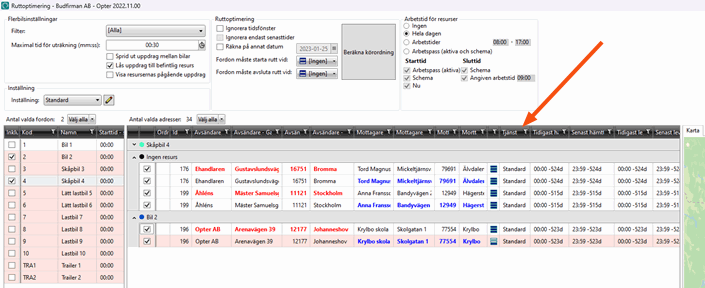
Marsruudi optimeerimise seaded (window)
Last updated: 17 December 2025
 Seaded > Marsruudi optimeerimise seaded
In this article
This window provides settings to control how the route sequence, loading order and estimated delivery time are calculated. It is possible to have several different configurations, but bear in mind that the results may be different if the configuration is changed between optimisations.
For manual route optimisations, select the configuration to be used in the Seadistus drop-down list in the Marsruudi optimeerimine window. For automatic route optimisations, select the configuration to be used in the Automaatsed marsruudi optimeerimise seaded on the Kaal/kaugus tab in the office settings.
For instructions on how to carry out route optimisation, see Manual route optimisation, Multi-vehicle optimisation and Automatic route optimisation.
Üldine
Use this tab to specify how the route sequence and estimated delivery time are to be calculated. The result of the calculation is an exact time. In the home delivery settings, a time window can be created that can be communicated to the receiver.
Üldine
|
Function |
Description |
|---|---|
|
Nimi |
Used for identification. The name is shown in the list on the left when a new configuration is saved. |
|
Kirjeldus |
Free text field for internal notes. The description is not displayed anywhere else but here. |
|
If you click on Arvutage sõidujärjekord after manually entering a number, the manually-entered number is removed.
|
|
|
Lihtrežiim (aadresside asemel ainult saadetised) |
The shipments are displayed in just one row in the sort list. This option can be useful if all the shipments are picked up at the same address (e.g. a terminal), but the overview of the route sequence is not as good if the shipments are not picked up at the same address. |
|
Reverse route sequence for pickups from the same address |
Controls the loading order if several shipments have the same pickup address, such as a terminal.
|
|
Uuendage teavet viimase saabumisaja ja viivituste kohta ressursside teabe veokorralduse aknas |
Select this checkbox to display information about the last estimated delivery time and delays for the resources in dispatch. |
|
Use resource home location as end position if specified |
Select this checkbox to ensure that the home location of the resource is used as the end position for automatic route optimisation. If the vehicle/driver has a home location entered in the vehicle or employee registry, it will be used. If there is no home location specified for a vehicle or driver, a normal route optimisation is performed, i.e. the route ends where the last shipment is delivered. For more information, see Home location for vehicles and drivers. |
 : It is possible to manually change the route sequence by changing the number in the
  : The route sequence cannot be changed by typing a new number in the
 Aeg
|
Function |
Description |
|---|---|
|
Ignoreeri ajapilusid |
Route optimisation is carried out without taking into account the earliest and latest pickup and delivery times for the orders. The proposed route is based only on the optimum route sequence between the addresses. If this checkbox is selected, Tähtaegadest ületav lisaaeg and Lühim tähtaeg praegusest ajast are dimmed. |
|
Ignoreeri ainult viimaseid aegu |
Route optimisation only takes into account the earliest pickup and delivery time for the orders. This can be useful if you have a lot of deliveries with the same latest delivery time. Dimmed unless Ignoreeri ajapilusid is deselected. |
|
Kasutage positsiooni ja arvutage sõiduaeg esimese peatuseni |
Takes into account the current position of the resource when creating the route sequence.
If the checkbox is not selected, the first estimated arrival time will be the time at which route optimisation is carried out, regardless of whether it is a pickup or a delivery. This assumes that the vehicle is already at the first address. It is possible to set a fallback position for vehicles and drivers, which is use if the vehicle's position cannot be determined, for example due to poor mobile phone coverage. For more information, see Vehicle position. |
|
Määrake hinnanguline korje aeg, et jõuda kohale esimese tarne jaoks õigel ajal |
Once route optimisation is complete, the pickup time for the shipments to be picked up before the first delivery is calculated based on the driving time to the first delivery address and the service time for the pickups, so that the first delivery checks off the time calculated in the route optimisation. |
|
Teisalda varaseimad kättesaamise/tarnekuupäevad tänasesse |
The dates of the earliest pickup and delivery times for the shipments are changed to today’s date. This can be useful if automatic route optimisation is being used. |
|
Teisalda viimased kättesaamise/tarnekuupäevad tänasesse |
The dates of the latest pickup and delivery times for the shipments are changed to today’s date. This can be useful if automatic route optimisation is being used. |
|
Tähtaegadest ületav lisaaeg |
Enter a value in the format HH:MM:SS. This time is added to the latest pickup and delivery time for the order so that there is always a realistic time interval for the transport. The time indicated here is always added, regardless of the earliest and latest pickup and delivery times for the order. Example: if the earliest and latest pickup and delivery times for an order are 10 am, it should actually be delivered in 0 seconds. If 30 minutes is entered in this field, the earliest pickup and delivery time will be 10 am and the latest pickup and delivery time will be 10:30 am. The time frame is therefore 30 minutes. |
|
Lühim tähtaeg praegusest ajast |
Enter a value in the format HH:MM:SS. The time specified here is the minimum time interval that an order can have in route optimisation, so that there is always a reasonable time interval for pickup and delivery. The value for this field is added before Tähtaegadest ületav lisaaeg. Example: if the earliest pickup time is 10:00 am and the latest pickup time is 10:15 am, and the earliest and latest delivery time is 11:00 am, and 1 hour has been entered in this field, the pickup interval will be 10:00–11:00 and the delivery interval will be 11:00–12:00. If 30 minutes have also been added for Tähtaegadest ületav lisaaeg (as in the example above), the intervals are as follows:
The value in this field may mean that the last delivery time for the order is not adhered to. |
|
Optimisation |
Distance and driving time are calculated by PTV. The slider can be used to choose whether route optimisation should prioritise a short distance or the fastest driving time. There is a similar slider on the Kaal/kaugus tab in the office settings, but this slider controls order reception. |
Teenindusaeg
For more information, see Service time.
|
Function |
Description |
|---|---|
|
Kasutage automaatset teenindusaega |
The service times in the route optimisation are based on the times specified for office, home delivery, price vehicle type, service and price item. |
|
Kasutage manuaalset teenusaega |
The route optimisation is based on the service time specified in the Teenindusaeg peatuse kohta field below. |
|
Teenindusaeg peatuse kohta |
Enter the duration of each stop, in the format HH:MM:SS, if manual service time is being used. Dimmed if you use automatic service time. |
Taasoptimeerimine
|
Function |
Description |
|---|---|
|
Taasoptimeerimiskatsete arv |
If not all shipments can be accommodated within the specified timeframe, you can specify that a number of new attempts should be made within a larger timeframe. Re-optimisation is automatic if at least one shipment cannot be accommodated within the timeframe. The maximum number of re-optimisation attempts is 5. The amount of extra time to be added for each attempt is indicated in the Lisamise aeg katse kohta field. The more attempts, the longer the route optimisation takes. |
|
Lisamise aeg katse kohta |
Enter the amount of time to be added for each re-optimisation in the format HH:MM:SS. The time is added to the latest delivery time for all shipments included in the optimisation. |
|
Tehke viimane katse, kuid ignoreerige aegu |
If the maximum number of re-optimisation attempts has been made, and not all shipments can be accommodated, despite the extended time frame, a final attempt can be made regardless of the earliest and latest pickup and delivery times for the orders. |
Mitme sõiduki optimeerimine
|
Function |
Description |
|---|---|
|
Arvutusaeg (sekundites) mitme sõiduki optimeerimine |
Allows a default value to be set for the Maksimaalne arvutamise aeg (mm:ss) field in the Marsruudi optimeerimine window. Enter the maximum time in seconds that multi-vehicle optimisation should take. Default: 30 |
|
Jaotage saadetised sõidukite vahel |
Allows a default value to be set for the Jaotage saadetised sõidukite vahel checkbox in the Marsruudi optimeerimine window.
|
|
Show resources’ ongoing shipments |
Allows a default value to be set for the Show resources’ ongoing shipments checkbox in the Marsruudi optimeerimine window. |
Interface
|
Function |
Description |
|---|---|
|
Show summary after calculation |
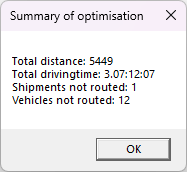
A message summarising the route optimisation is displayed when the calculation has been completed.
|
|
Issue warning if shipments have poor positional accuracy |
In the address list, shipments with poor position accuracy are displayed in a red colour. 'Poor positional accuracy' means that the coordinates of the exact address were not found. For example, the coordinates for the street were found, but not for the specific street number. Manually adjusted address positions are always considered to have good positional accuracy. For more information on address positions, see Addresses and address positions.
|
|
Issue warning if shipments have a pickup time that is later than the delivery time |
|
|
Issue warning if shipments have options for which no resource has the required capacity |
The warning only appears if both this checkbox and Plan shipments with options using vehicles that have the required capacity on the Piirangud tab (see below) are selected.
|
|
Issue warning if resources do not have a position |
|
|
Issue warning if resources have a position that is older than (mins) |
|
|
If the Vehicle being Route optimised has no capacity for weight, volume, Pallet space, load metre or the extra dimensions taken into account by the Route optimise, a warning is displayed when calculating the route sequence. You can see which dimensions the route optimisation takes into account on the tab Piirangud (see below). The capacity of the Vehicles can be found under Laadige teave on the tab Mahutavus in the Vehicle Register. If any of those fields has the value "0", the warning is displayed (provided that the route optimisation takes into account that dimension). |
Täpsemalt
|
Function |
Description |
|---|---|
|
Max paralleelsete arvutuste arv |
The number of automatic route optimisations that can be carried out simultaneously. Default: 4 If too high a value is entered, the calculations will queue and take longer. We recommend keeping the default value. |
|
Looge mobiiliserveris logifaile |
Route optimisation log files are stored in <Opter installation folder>\Mobile\Logs on the mobile server. As of version 2025.12.00 and 2025.06.326 it works like this:
|
|
Aktiveerige andmebaasi logimine (suur kettaruumi kasutus) |
All route optimisations are logged in the database. Requires a lot of storage space on the database server. Single-vehicle optimisations are saved for seven days and multi-vehicle optimisations for three days. The logs are then deleted during the regular database clean-up. |
Piirangud
Use this tab to specify which dimensions and characteristics on the order should be compared to the vehicle capacity when carrying out route optimisation. Capacity is primarily used at the vehicle level. If no capacity has been specified for the vehicle, the capacity of the vehicle type is used. If neither the vehicle nor the vehicle type have a capacity, it is in principle considered to be infinite.
You can get a warning if the capacity of a vehicle is "0" for any of the dimensions you select here by selecting Issue warning if resources have zero capacity in the tab Üldine. The warning is displayed when calculating the route sequence in the route optimisation window.
Marsruudi optimeerimisel kasutatavad piirangud
If the vehicle or vehicle type has the value “0” for a dimension selected, no route optimisation is performed.
Example: if Kaal is selected, the weight of the shipments is compared to the weight capacity of the vehicles and the route optimisation takes this into account when assigning the shipments between the vehicles. If the weight capacity is set to “0” for any of the vehicles (or vehicle types), route optimisation is not carried out for those vehicles.
|
Function |
Description |
|---|---|
|
Kaal |
Route optimisation takes into account the weight of the goods. |
|
Maht |
Route optimisation takes into account the volume of the goods. |
|
Kaubaaluste koht |
Route optimisation takes into account the number of pallets the goods require. |
|
Laadimismeeter |
Route optimisation takes into account the number of load metres the goods take up. |
|
Lisamõõde 1–Lisamõõde 5 |
Route optimisation takes into account the extra dimensions that have been created and any capacity that is available for this in the vehicles. The checkboxes are only displayed if there are extra dimensions. |
|
Hind |
Route optimisation takes into account the customer price for the transport in accordance with the maximum amount specified in the Suurim kogus ressursi kohta field (see below). |
|
Suurim kogus ressursi kohta |
Enter the maximum amount that can be allocated to the resource if the Hind checkbox is selected (see above). |
Options
Select Plan shipments with options using vehicles that have the required capacity if the capacity of the vehicles is to be matched to the options on the orders. The setting applies to the options shown in the list. To set which options the route optimisation should take into account, go to Seaded > Valikud and select Available for route optimisation for those options.
If no vehicles have capacity for the options available on the shipments, a warning is displayed when calculating the route sequence. See Issue warning if shipments have options for which no resource has the required capacity on the tab Üldine.
Veerud
Use this tab to specify which columns to display in the list of resources in the Marsruudi optimeerimine window. The list is only displayed if route optimisation is carried out for several vehicles at the same time.
Put the columns you want to display in the list Kaasas. Double-click on a column to move it between the lists. You can move several columns at once by Ctrl-clicking or Shift-clicking them and then pressing Enter.
In the text fields above the lists, it is possible to search for the name of a column.
You decide the order of the columns by dragging and dropping them up and down the list.
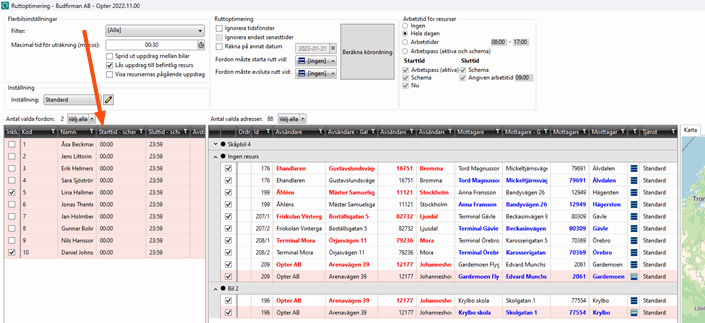
Veeru seaded – saadetised
Use this tab to specify which columns to display in the address list in the Marsruudi optimeerimine window.
Put the columns you want to display in the list Kaasas. Double-click on a column to move it between the lists. You can move several columns at once by Ctrl-clicking or Shift-clicking them and then pressing Enter.
In the text fields above the lists, it is possible to search for the name of a column.
You decide the order of the columns by dragging and dropping them up and down the list.