Veokorralduse seadistused (window)
Last updated: 26 January 2026
 Seaded > Veokorralduse seadistused
In this article
Views for dispatch can be customised and created in this window. The different views are shown in the list on the left. Select the view on which you want to change the settings. To create a new view, click on Uus and give it a name on the Üldine tab. Once you have made changes to one of the tabs in this window, click on Salvesta to save them.
You select the view you want to use from the Seadistus drop-down menu on the Üldine menu tab in the dispatch itself.
It is not possible to delete a view that someone is using in the dispatch. However, it is possible to disable a view that someone is using, and then delete the disabled view. If there is only one view in the system, it is not possible to delete that view.
It is possible to reset the dispatch window settings. This can be useful, for example, if you have lost panels, or if some elements are displayed in the wrong language. Proceed as follows:
-
Close the window with dispatch.
-
Click on Abi > Eemaldage veokorralduse akna doki sätted. The following then occurs:
-
The size and position of the panels in dispatch are restored to their default values.
-
Panel names are reset. The next time dispatch is opened, the names of the panels will be in the language chosen by the user at the last login.
-
If certain panels (for example Parvlaevad, Marsruudid and Alltöövõtjad) have been closed, displayed or attached (
 ), these settings will also be reset.
-
-
When dispatch is opened again, the view is restored.
Üldine
Upper part
|
Function |
Description |
|---|---|
|
Nimi |
The name of the view. |
|
Kirjeldus |
Free text field for internal notes. The description is not displayed anywhere else but here. |
|
Kinnitage oleku või ressursi muutmine <x> or more are selected |
It is possible to set how many shipments should be selected for the question to be displayed. This is to avoid multiple shipments being changed by mistake if several shipments have inadvertently been selected in dispatch and then have their status changed, for example. If all changes should require confirmation, type “1” in the text field.
|
|
Display the “Failed delivery” option in the context menu |
Shows/hides Tühisõit in the menu that appears when right-clicking on shipments in dispatch. |
|
Filtreerige tellimispiirkonda, kui saadetise piirkond puudub |
|
|
Filtreerige tellimuse jäljel, kui saadetise jälg on puudu |
The filter for trails in dispatch applies to trails on shipments. If there are no trails on shipments, the filter can be applied to trails on orders by selecting this option. |
 : A question appears asking you to confirm that you want to make the change to the shipments.
 : The tasks are changed immediately without having to confirm the change.
Vahekaardid
The Lists tab
Layout
|
Function |
Description |
|---|---|
|
Kaugus vasakult |
The distance of the window from the left edge of the area allocated to the mission lists. |
|
Kaugus tipust |
The distance of the window from the top edge of the area allocated to the mission lists. |
|
Fondi suurus |
Default: 8 |
|
Rea kõrgus |
Default: 18 |
Try setting a high value for the field you want to change – for example, a row height of 50 – so you can clearly see which element is affected by the different settings
Lists
These settings control how shipments are displayed in the lists in dispatch. They can be combined in different ways to create custom views.
|
Function |
Description |
|---|---|
|
An area appears in the header line above the lists where you can drop selected shipments to create a consignment. The consignment obtains the settings from the consignment type selected by default in the Saadetise liigid window. |
|
|
Viitstart Hilinemine täis |
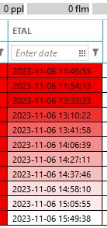
Jobs that start to approach the estimated pickup or delivery time according to the route optimisation can be tinted red and eventually turn completely red. In these two fields it is possible to control when the tinting should start and when it should be completed. Viitstart (default "60"): Number of minutes before the estimated pickup/delivery time that tinting starts. Hilinemine täis (default "20"): Number of minutes before the estimated pickup/delivery time that the field becomes completely red.
The colouring applies to the columns that show the pickup and delivery times calculated in the route optimisation:
Add the Hinnanguline korje aeg column to the Määratud list and Hinnanguline tarneaeg to the Korjatud list. Together with the colour tinting, these provide a clear overview of tasks that should soon be given a new status.  Example Example
|
|
Tavaline (ei tarnitud) |
Displays all shipments except consignment shipments. If an order is split into several shipments, one row is displayed for each shipment on that order. |
|
Saadetud |
Shows all shipments included in consignments. |
|
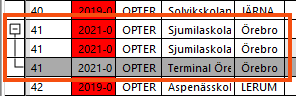
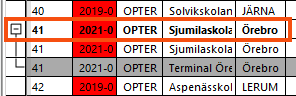
Grupisaadetised |
Combines all shipments on an order into an expandable row. Must be combined with at least one of the Tavaline (ei tarnitud) and Saadetud checkboxes above.
This checkbox cannot be combined with one of the Saadetised and Lisasaadetised checkboxes. If you want to group consignment shipments, use the options under Kaasa saadetised (see below). |
|
Saadetised |
Shows all consignment shipments. If a consignment order is split into several orders, one row is displayed for each consignment shipment on that order. |
|
Lisasaadetised |
Displays shipments created on consignment orders, and that are not on one of the original shipments, e.g. if the consignment order has been split up. |
|
Saadetised |
Groups the consignment shipments. Expand to show the consignment shipments that are on the consignment order (not the original orders). |
|
Saadetised |
Groups the consignment shipments. All shipments on the original orders are displayed when the consignment shipment is expanded, including those not included in the consignment. |
|
Lisasaadetised |
Used if you have selected Looge uued aadressid, kui saatmisel sobivaid aadresse pole on the consignment type, and if Saadetud is selected above. Groups the consignment shipments. When the consignment order is expanded, shipments that have been created on the consignment orders and that are not on one of the original shipments are displayed, e.g. if the consignment order has been split up. If this checkbox is combined with Saadetised, all shipments on the consignment order will be displayed when it is expanded. |
|
Only show shipments with the following consignment type |
Filter which consignments are displayed in dispatch based on the consignment type. |
|
Grupeeritud saadetised paksus kirjas |
Grouped shipments are shown in bold.
|
The Veerud tab
On this tab, it is possible to choose which columns to display in the different lists. Certain columns can also be given different colours to make them stand out, and formats for how times and dates are displayed can be set.
The columns can be organised by dragging and dropping them up and down the list. The higher up the list, the further to the left in dispatch. To delete a column, click on it and then press Delete on the keyboard. To add a column, click on Uue üksuse lisamiseks klõpsake siin. at the bottom of the list.
You can sort on multiple columns in the dispatch by holding down shift and clicking on them. Click several times to switch between ascending/descending sorting.
|
Column |
Description |
||||||||||||
|---|---|---|---|---|---|---|---|---|---|---|---|---|---|
|
Nimi |
Double-click in the field and type the name of the column as it should appear in dispatch. If the field is left blank, the column will not be named and it may be difficult to know what information it contains. |
||||||||||||
|
Veerg |
The Opter system’s name for the column. This is where you choose which columns to display, and it is this column name that we refer to in the help in the instructions on how to display information in dispatch. Columns that apply to senders and receivers:
Columns related to shipments or orders, or which automatically select whether the field should be taken from shipments or orders:
Available columns
|
||||||||||||
|
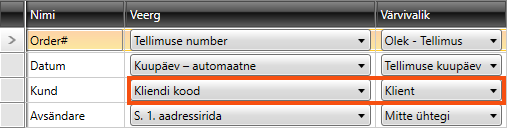
The list contains a number of registries and other places where colours can be set. Select the registry from which the colour settings for the column should be taken. For example, if you have set the colour for a customer (Veokorraldus tab in the customer registry), you can select, for example, Klient for columns with customer information, such as Kliendi nimi and Kliendi kood.
For those customers for whom you have not made any colour settings, the fallback colour is used, see Varuvärv below. (If you do not see the column Varuvärv, please scroll to the right.) If you want to set the colour for a customer, see Kliendid (window). |
|||||||||||||
|
Vorming |
The format in which the time and date are displayed can be changed here. If no format is specified, the following default format is used:
The separator for date columns is always a hyphen (-). If you enter the date format "dd/MM/yyyy", it will be displayed as "18-07-2024". For the time, however, you can use other characters as separators, such as a point, "15.47". There are no columns in dispatch that contain both date and time. "MM" means month and "mm" means minutes. If "mm" is used in a date column, "00" is displayed as the month. If "MM" is used in a time column, the month is shown as minutes (i.e. 01-12 only). Example
|
||||||||||||
| Filter
|
If you want the column to be filtered by default in dispatch, set the filter here. Click twice on the row to set the filter. Select one of the options in the drop-down list and enter what you want to filter on in the text field on the right. The text field can be very narrow if there are no other filters in the column. If that is the case, it is possible to make it wider to make it easier to write. The filter settings are not personalised, but apply to everyone who uses the system. For more information, see Predefined column filters in the dispatch. The different filters produce the following results in terms of what is displayed in the column in dispatch:
|
||||||||||||
|
Varuvärv |
Set the colour of the fallback column in dispatch. For example, if Klienthas been selected under Värvivalik (see above), but the colour has not been set for all customers in the customer registry, the fallback colour set here will be used for those customers. Click on |
 . The
. The Kokkuvõtted
Select which totals to display at the top of each table/window in the dispatch. For example, if the sum of all packages (2) in the table is to be displayed, tick the checkbox Pakkeüksuste loendiga.
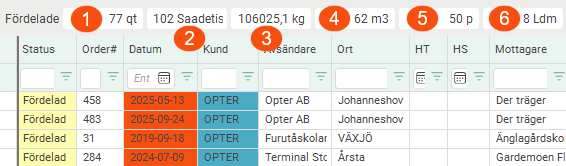
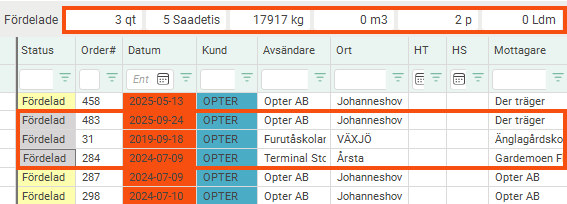
If you mark orders/shipments in the dispatch, only the marked orders/shipments are totalled. In the image below we have highlighted three orders/shipments.
|
Function |
Description |
|---|---|
|
Kaasa kogus (1) |
|
|
Pakkeüksuste loendiga (2) |
|
|
Kaasa kaal (3) |
|
|
Kaasa mahuga (4) |
|
|
Kaasa kaubaalused (5) |
|
|
Kaasaarvatud- LDM (6) |
|
|
Kaasa hinna kaal |
|
|
Kaasa sissetulek |
|
|
Kaasa kulu |
|
|
Kaasake tulemus |
|
|
Lisamõõde 1-Lisamõõde 5 (Displayed if you use extra dimensions.) |
If you use extra dimensions, you can choose for each extra dimension whether it should be totalled:
|
Värvi seaded
Here you can set colours for the dispatch, such as text colour and background colour for locked shipments.
Opter is available in classic design and in new design (as of 2025.12.00). The new design allows you to freely enter your own colour codes or choose colours from an advanced palette.
Choose colours like this:
-
If you use Opter in classic design:
To select a colour, click on the down arrow and then on a colour in the colour picker.
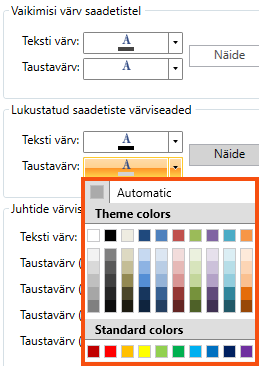
If you want to go back to Opter's default colour, click on the down arrow and then on Automatic.
-
If you use Opter in a new design:
To select a colour, click on the down arrow and then on a colour in the colour picker.
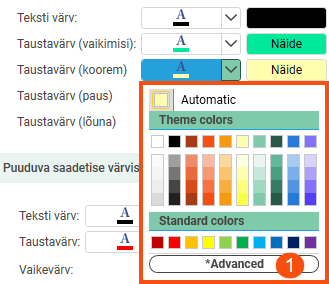
If you want more colours to choose from, click on Täpsemalt (1). The advanced colour picker will then open (2) and you can freely choose the colour. For example, you can enter a colour code as an RGB value (3) or hexadecimal value (4).
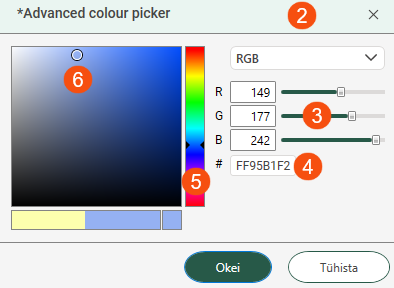
In the hexadecimal value field (4), the first two digits indicate the transparency and the following six digits indicate the colour. If you don't want anything in the background to show through the colour, write "FF" as the first two digits. If you only enter the six digits representing the colour, Opter will automatically add "FF" in front of the colour digits (when you save).
You can also choose the colour by dragging the slider (5) up or down, and dragging and releasing the circle (6) on the colour you want.
If you want to go back to Opter's default colour, click on the down arrow and then on Automatic.
Vaikimisi värv saadetistel
|
Function |
Description |
|---|---|
|
Teksti värv |
Select the default colour for the text on the shipments. |
|
Taustavärv |
Select the default colour for the background of the shipments. |
Lukustatud saadetiste värviseaded
Locked shipments are also called "grey legs" because Opter's standard colour for locked shipments in dispatch is grey. However, you can choose the colour of locked shipments.
For more information, see Locked shipments.
|
Function |
Description |
|---|---|
|
Teksti värv |
Choose the colour for the text on locked shipments. |
|
Taustavärv |
Choose the colour for the background of locked shipments. |
Juhtide värviseaded
The resource boxes are the boxes displayed for the different resources in dispatch.

The colour of the resource boxes varies depending on whether the resource is logged in to the app or not, how many shipments the resource has and the status of the shipments. For more information, see Explanation of symbols – the resource boxes.
Choose the colour of the resource boxes if, for example, a logged-in resource is on a lunch break (C) or if the resource has both allocated and loaded, perhaps also unloaded, shipments (B).
|
Function |
Description |
|---|---|
|
Teksti värv |
Select the text colour for the text on the resource boxes. Default: Black. |
|
Taustavärv (vaikimisi) |
Select the background colour of resource boxes where the logged-in resource has, for example, only unloaded shipments or no shipments. (See A in the picture above.) Default: Green. |
|
Taustavärv (koorem) |
Select the background colour of resource boxes where the logged-in resource has, for example, both allocated and loaded, perhaps also unloaded, shipments. (See B in the picture above.) Default: Gul. |
|
Taustavärv (paus) |
Select the background colour of resource boxes where the logged-in resource is on break. Default: Red. |
|
Taustavärv (lõuna) |
Select the background colour of resource boxes where the logged-in resource is on lunch break. (See C in the picture above.) Default: Blue. |
Puuduva saadetise värviseaded
|
Function |
Description |
|---|---|
|
Teksti värv |
Select text colour for unknown packages. |
|
Taustavärv |
Select background colour for unknown packages. |
|
Vaikevärv |
Select for which column Teksti värv and Taustavärv apply. |
Probleemne värv
|
Function |
Description |
|---|---|
|
Määrake probleemiks märgitud saadetiste taust |
|
|
Taustavärv |
Select the background colour for shipments that are marked as problematic. The checkbox above must be ticked. |
You can set shipments with options to be highlighted with a text colour or background colour in the dispatch lists. For more information, see Options and Valikud (window).
Sisu seaded
This tab can be used to specify which summaries are to be displayed on the Alltöövõtjad and Marsruudid panels in dispatch. They can be used to obtain an overview of the load and profitability of individual subcontractors and routes.
There is one set of checkboxes for Alltöövõtjad and one for Marsruudid, so you can specify which totals should be displayed on the different panels independently.
|
Function |
Description |
|---|---|
|
Koguarv |
Total number of shipments, regardless of status. |
|
Mõjutab veoki lasti |
Number of shipments with a status that affects the vehicle load according to the life cycle settings. Usually Määratud to even Korjatud. Answers the question "What is the resource working on right now?". |
|
Numbrit pole määratud |
Number of shipments with a status earlier than Määratud, whether or not they have a resource. |
|
Kaal Kaubaalused Laadimismeeterid |
Total weight/total number of Pallet spaces/total number of load metres for the shipments that, according to the life cycle settings, affect the vehicle load. If an order has several shipments, the weight/pallet spaces/load metres are counted once for each shipment on the order. |
|
Tulemus |
Income minus cost for all shipments, regardless of status. The purpose is to be able to see if the route/subcontractor is profitable over the whole day. "Will it be profitable if I do this?" |

