Kliendid (window)
Last updated: 18 March 2026
 Register > Kliendid
In this article
The customer registry brings together all your customers and is where you configure settings that affect pricing, invoicing, account coding, how orders are dispatched and so on.
For information on the Klient section of Order reception, see Klient (order reception).
The Otsing box
To display a list of all your customers, leave the Leia field blank and click on Otsing.
|
Function |
Description |
|---|---|
|
Drop-down list |
Choose how to search for the customer:
|
|
Leia |
Free text field for searching. The whole or the first part of the search string can be entered. "opt" finds "Opter" and "Optimal". "ter" does not find "Opter". The search is not case-sensitive. |
|
Piirkond |
You can search for customers in a specific region or in all ([ükskõik milline]). |
Üldine
Teave
In Opter, a customer code is used instead of a customer number to identify customers in the system. The customer code can contain both letters and numbers. To work on customer numbers instead, this can be done in Opter using what are known as sales ledger numbers.
|
Function |
Description |
|---|---|
|
Kliendi kood |
Acts as a customer number and is used to identify the customer in the system. The customer code can contain both letters and numbers, unlike the sales ledger number, which can only contain numbers. |
|
Nimi |
Enter the customer's name. |
|
Müügireskontra number |
Enter the customer's sales ledger number. (The field can only contain numbers.) If you are creating a new customer in the customer register, and want the customer to receive the next available sales ledger number, press the button to the right of the field. Opter then fills in the next available number. (If there is a gap in the number series, Opter will select the sales ledger number.) The number series for the sales ledger numbers is controlled in the office settings (Seaded > Kontorid > Vaikevalikud) in the fields Minimaalne kliendinumber and Maksimaalne kliendiarv. |
|
Organisatsiooni number |
The customer’s corporate ID number. |
|
Telefon |
The customer’s main telephone number, for example, mobile number "+46707328676999". |
|
Telefon 2 |
The customer’s secondary telephone number, for example, mobile number "+4673777876777". |
|
Faks |
The customer's fax number. |
|
E-posti aadress |
The customer's email address. |
|
Hinnakiri |
Select a price list for the customer. |
|
Teave |
Used for internal notes about the customer. |
Külastusaadress
The physical address of the customer. It sometimes differs from the billing address, which is indicated on the Arveteave tab.
|
Function |
Description |
|---|---|
|
Nimi |
Enter the customer's name. |
|
Firma |
The field can be used for the department of a company, the company name, c/o, or something else. |
|
Tänav/Nr |
Street addresses. On the Kaart tab, you can manually adjust the address position, if you want it more precise. |
|
Postiindeks/Maakond/Linn |
Postcode and town. The field Maakond is only displayed if:
|
|
Riik |
Indicate the country in which the visiting address is located. |
|
Teave |
Information about the customer's address. The text is downloaded to the Teave field under Saatja/Saaja, and the Teave column in the address list, in the Order reception The text can be displayed in Opter Driver with the fields Order - Address information (from) [DELIVERYADDRESSINFOFROM] and Order - Address information (to) [DELIVERYADDRESSINFOTO] (the tags DELIVERYADDRESSINFOFROM/DELIVERYADDRESSINFOTO if you use App.OpterDriver.Design). For more information, see Information linked to the customer’s address and Design field for mobile (window). |
|
Sissepääsu kood |
Enter the port code if applicable. Database fields: CUS_EntreCode |
Logi
|
Function |
Description |
|---|---|
|
Loodud Uuendatud |
Date and time when the customer was created and last modified, and who made the modification. This information is included when you export the customer register to Excel. |
Veokiri (POD)
Use this tab to set up how the proof of delivery for customer orders will be handled in Opter Driver.
Veokiri (POD)
|
Function |
Description |
|---|---|
|
Standardne POD-i tüüp |
Select the proof of delivery type to be used as the default for the customer. If you select [Vaikimisi], the type set as the default in the Veokirja tüüp window is used. |
|
Keela peamise POD-i tüübi muutmine mobiilis |
If the checkbox is selected, the main proof of delivery type cannot be changed in the apps. It is only possible to choose between the proof of delivery types available under the main proof of delivery type set in the Standardne POD-i tüüp field above. |
|
POD-i ajapiirang |
Select the time limit within which the proof of delivery must be registered after ordering or delivery. If you select [Vaikimisi], the time specified by default in the POD-i ajapiirangud window, which you can open by clicking on |
|
Nimi alati valikuline |
|
|
Allkiri on alati vabatahtlik |
|
|
Märkus alati valikuline |
|
|
Märkus alati valikuline |
|
|
Pilt on alati valikuline |
Database fields: CUS_PodPictureAlwaysOptional |
|
Rakenduses kuvatav teabetekst POD peal |
: Text that is displayed in Opter Driver when the receiver accepts the proof of delivery. For example, this could be a disclaimer. If an image is selected in the Rakenduses kuvatav logo POD peal field, it will be displayed above the information text. |
 , will be used. This function is used for subsequent registration of a proof of delivery.
Pildid
|
Function |
Description |
|---|---|
|
Rakenduses kuvatav logo POD peal |
The image can be displayed in the job list, the detail view and on the signature page in Opter Driver. The image must first be uploaded to the image library to be selected here, and then added with Customer logo [CUSTOMERLOGOTYPE] in Design field for mobile, or with the tag CUSTOMERLOGOTYPE in App.OpterDriver.Design/App.Design. You open the image library with For more information, see POD view in Opter Driver and Display customer logo in Opter Driver (classic). |
 .
.Tellimuse sätted
Tellimuse vastuvõtul kohustuslikud väljad
Here you specify which fields should be mandatory to fill in on new orders for this customer. These settings override the corresponding settings on the Vormi vool tab in the order settings (see Tellimuse sisestamise seaded (window)).
Mandatory fields are highlighted in yellow in order reception.
 : Mandatory to fill in on orders for this customer.
 : The setting on the Vormi vool tab in the order settings applies.
|
Function |
Fields in Order reception |
|---|---|
|
Tellimisaknas viide kohustuslik |
The field Kliendi viide under Klient. |
|
Projekt kohustuslik tellimisaknas |
Literature section of the field Kliendi projekt/projekti nr under Klient. |
|
Projekti number on tellimisaknas kohustuslik |
The project part of the field Kliendi projekt/projekti nr under Klient. |
|
Saaja viide on tellimisaknas kohustuslik |
The field Saaja viide under Andmed. |
|
Tellimuse aknas on saatja viide kohustuslik |
The field Saatja viide under Andmed. |
|
Veokirja number kohustuslik |
The field Veokiriunder Andmed. |
|
Raamatupidamisprojekt kohustuslik tellimisaknas |
The field Raamatupidamisprojektunder Klient. |
|
Extra ID 1–Extra ID 5 |
The fields Extra ID 1-Extra ID 5under Andmed. If these fields have been given names on the Terminoloogia tab in the office settings, those names will be displayed instead of “Extra ID 1”. |
Seaded
|
Function |
Description |
|---|---|
|
Aadressi ajalugu |
Addresses that are entered in order reception and on the web portals are stored in a temporary address registry. Enter the number of days the addresses will be stored in the temporary address registry. If nothing is entered here, the addresses will be saved for as long as is specified in the office settings (Tellimuse sätted tab). |
|
Kaalu arvutamine |
Select the calculation to be used for converting dimensions to a pricing weight. If [Vaikimisi] is selected, the option specified in the price list used on the order will be used. |
|
Staatuse ajarühm |
Select the times that are to be suggested for orders in order reception. If [puudub] is selected, the option specified for the service used on the order is used. |
|
Ärge kunagi viivitage |
|
Veokirja number
|
Function |
Description |
|---|---|
|
Numbriseeria |
The number series used for freight bills. [Vaikimisi]: the option specified in the office settings (Tellimuse sätted tab) is used. |
|
ID laiend |
The modification of the freight bill number used. [Vaikimisi]: the option specified in the office settings (Tellimuse sätted tab) is used. |
|
Opteri driveris korjel |
Tšekki pole (default): the freight bill number does not need to be checked. Kontrollige kehtivat veokirja numbrit: The freight bill number is already filled in Opter Driver and needs to be checked. Sundige uue veokirja numbri sisestamist: The freight bill number must be scanned or entered into Opter Driver. By default, the check is made when the status of the first shipment of an order changes to Korje and/or when the last shipment of an order changes to Kohale toimetatud/Kohale toimetatud, i.e. at the sender and/or receiver of the order. However, it can be defined that the check is done during the loading or unloading of each shipment on the order by setting the mobile data setting CheckFreightBillAtAllPickUpAndDelivery to "True". For information on how to set up mobile data settings, see Mobiilse andmeside seaded (window). |
|
Tarnimisel Opter Driveris |
Tšekki pole (default): the freight bill number does not need to be checked. Kontrollige kehtivat veokirja numbrit: The freight bill number is already filled in Opter Driver and needs to be checked. Sundige uue veokirja numbri sisestamist: The freight bill number must be scanned or entered into Opter Driver. By default, the check is made when the status of the first shipment of an order changes to Korje and/or when the last shipment of an order changes to Kohale toimetatud/Kohale toimetatud, i.e. at the sender and/or receiver of the order. However, it can be defined that the check is done during the loading or unloading of each shipment on the order by setting the mobile data setting CheckFreightBillAtAllPickUpAndDelivery to "True". For information on how to set up mobile data settings, see Mobiilse andmeside seaded (window). |
|
Kontrollnumbri arvutamine |
The method by which the freight bill number should be checked. Currently only the Moodul 10 option is available. A checksum can only be calculated if the freight bill numbers contain only numbers. Database fields: CUS_CDC_Id_FreightBillCheckMobile |
|
Tähemärkide arv |
Enter the number of characters that make up the freight bill number, if you want it to be checked in Opter Driver. If you do not want the number to be checked, enter “0” (default). |
Saadetise Nr
|
Function |
Description |
|---|---|
|
Numbriseeria |
The number series used for packages. [Vaikimisi]: the option specified in the office settings (Tellimuse sätted tab) is used. |
|
ID laiend |
The modification of the package ID used. [Vaikimisi]: the option specified in the office settings (Tellimuse sätted tab) is used. |
Arveteave
The default invoicing setting applicable to all customers is configured on the Arve seaded tab in the office settings. To use different settings for a specific customer, configure those settings here.
Arveteave
|
Function |
Description |
|---|---|
|
Tasu |
The invoice fee, which is added to all the customer’s invoices. For more information, seeInvoice fee. [Vaikimisi]: the setting is retrieved from the Arve seaded tab in the office settings. |
|
Hankija/Subcontractor |
|
|
Arve manus |
Used to show/hide elements with the condition CUS_InvoiceAttachment in reports, such as invoice reports. This means that the same report can be used, but showing or not showing certain information based on the specific customer.
Example: <item name="**Bilagor" condition="CUS_InvoiceAttachment" x="0" y="10" width="65" /> Displays the text "**Attachments" on invoices to customers with the checkbox ticked, but not on invoices to customers where it is unticked. The attachments themselves are not attached. This is done via the invoice export. For more information, see Attaching files to invoices. |
|
klient |
Report tag: Header.CUS_InternalCustomer (displays "True"/"False"). For more information, see Internal invoicing. |
|
Valuuta |
The currency in which the customer is invoiced. Report tag (currency code): CUR_Code_Standard |
 : Elements conditioned with
  : Elements conditioned with
 Teave
The invoice address. If it is the same as the visiting address, as entered on the Üldine tab, it can be copied by clicking on Sama mis aadress.
|
Function |
Description |
|---|---|
|
Nimi |
Enter the customer's name. |
|
Firma |
The field can be used for the department of a company, the company name, c/o, or something else. Database fields: CUS_CompanyInv |
|
Tänav/Nr |
Street addresses. |
|
Postiindeks/Maakond/Linn |
Postcode and town. The field Maakond is only displayed if:
|
|
Riik |
Please indicate the country in which the billing address is located. |
|
Teave |
Information about the billing address. |
Veokorraldus
Veokorraldus
|
Function |
Description |
|---|---|
|
If you wish, you can specify the background colour and text colour for the customer. You can then choose how the colour setting will be used in the dispatch system by doing the following
For more information, see Veokorralduse seadistused (window). |
|
|
Lisapäevade arv enne kui tarnitud saadetis eemaldatakse veokorraldusest |
Enter the number of extra days you want completed shipments to remain in the dispatch before they are cleared. |
|
Lisapäevade arv enne, kui saadetised ilma PODita eemaldatakse veokorraldusest |
Enter how many extra days you want shipments without pods to remain in the dispatch queue before they are cleared. |
|
Teenindusaeg peatuse kohta |
Service time is the time it takes to drop off the goods in addition to the actual driving time between addresses. Indicate how many seconds each stop is expected to take. For more information, see Service time. |
|
Aeg ühe täiendava saadetise kohta |
State how much extra time a delivery to the same address is expected to take in addition to the service time, for example if there is a delivery to floor 3 and a delivery to floor 5 in the same building. Enter the time in seconds. For more information, see Service time. |
 to save all changes.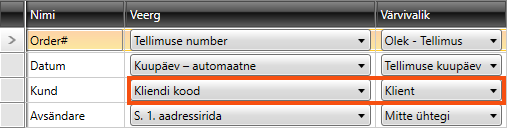
|
Function |
Description |
|---|---|
|
The early pick-up warning will appear in Opter Driver if the following applies:
When the driver receives the alert in the app, they can choose to undo the scan/status change or go ahead and still change the status to Korjatud. So it's just a warning, not a block. For more information, see Warning in case of premature collection, Opter Driver.
|
|
|
When a driver delivers a shipment later than the latest delivery time indicated on the order, the delivery is considered late. With the Mobile data settings App.ForceDelayReasonOnDelay you can set whether drivers have to give a reason for the delay. This setting allows you to make exceptions to the Mobile data settings for this customer. This only applies to deliveries to the recipient, not to the Terminal.
The reason and comment are displayed in the Ajad (tähtajad) group in the Order reception. For more information, see . |
|
|
When a driver delivers a shipment later than the latest delivery time indicated on the order, the delivery is considered late. With the Mobile data settings App.ForceDamageOnDelay you can set whether drivers have to register deviations for late deliveries. This setting allows you to make exceptions to the Mobile data settings for this customer. This only applies to deliveries to the recipient, not to the Terminal.
For more information, see Managing delays in Opter Driver. |
 : Drivers must state the reason for delay and enter a delay comment in the event of delayed delivery. This setting replaces the one made in
  :
: Lahtiolekuajad
The customer's opening hours affect the collection times for orders where the customer is the sender. For example, you do not want an order to have a pick-up time of 9:00 a.m. if the customer does not open until 10:00 a.m. On the Rohkem seadeid tab in the order settings, you can choose how opening hours should affect orders created in the order reception.
Internet
Customer-specific settings for the customer web and Track & Trace.
Teave
|
Function |
Description |
|---|---|
|
Interneti-tellimuse seadistus |
Customer's internet order setting. You may have a different setting for individual references (see Kliendi viide (window)), for example a variation of the customer’s internet order setting, but with a few changes. |
|
Interneti stiililehed |
CSS file used to format the customer web. The CSS file is also used on Track & Trace after a search has been made. |
Pildid
|
Function |
Description |
|---|---|
|
Interneti pilt |
This image is shown in the bottom left corner. A logo or something else that identifies the customer may be appropriate.
|
|
When the recipient searches for an order belonging to this customer on Track & Trace, the original background image is replaced. [puudub]: The image is not replaced when the search is made. The same background image as for the web portals is used. It is set on the Internet tab in the office settings. |
Manused
On the Manused tab, files that can be opened on other computers can be added. The files that are added are not attached to orders, instead the function works as a file server and is intended for exchanging information. The files are saved in the database.
|
Function |
Description |
|---|---|
|
Uus |
Adds a file that is on the computer. It is only possible to add one file at a time. |
|
Kustuta |
Deletes files from the registry. It is only possible to delete one file at a time. |
|
Avatud |
Opens the selected file in the list. |
|
Faili nimi (column) |
The file name. |
|
Loodud |
When the file was added as a document in Opter. |
|
Faili nimi (field) |
The file name of the selected file. You can rename the file by typing the new name and clicking Salvesta on the menu. Remember to keep the same file extension (for example “.docx”), otherwise the application to use has to be selected when the file is opened. |
|
Kommentaar |
Free text. Information about the file. The information is only shown here. |
Raamatupidamine
In Opter, the VAT rate on the order determines the income and cost account to which a certain amount is booked. On this tab you can make exceptions to the regular account coding. The tabs you make changes to are marked with  .
.
Click on  to display the VAT rates held in the system. Then select the account to which amounts with the different VAT rates should be posted. More information on the individual drop-down lists can be found at The Raamatupidamine tab. The settings in this tab apply if you reach item 4 in the list in How Opter selects accounts for income and expenses. If [Vaikimisi] is selected for any of the options here, the account coding is taken from the VAT rate.
For more information on how Opter selects the VAT rate on orders (column Müük) and supplier bills (column Kulu), see How Opter chooses the VAT rate for customer invoices and How Opter chooses the VAT rate on credits.
Kaart
The address position of the customer's Külastusaadress (on the Üldine tab) may need to be manually adjusted to make it more accurate. For example, if the entrance to the address is from another side of the property.
Zoom in on the address on the map and place the tick where you want the exact address position to be, or enter the exact coordinates.
In Opter classic design, you zoom in the map by scrolling. In the new design, you zoom by holding down the Ctrl key and scrolling.
Hold the mouse pointer where you want the cross on the map and click. If you want to move the tick, hover over the new position and click. Click on Salvesta when you are satisfied.
If you only want to adjust the address position for a specific order, you can do so in the order reception, in group Saatja or Saaja, by clicking on  . For more information, see Kaart (window).
For more information, see Addresses and address positions and Reguleerige aadressi asukohti (window).
The menu
The following options are available in the customer register menu.

