Sõidukid (window)
Last updated: 6 March 2026
 Register > Transpordivahendid
In this article
Register your vehicles and manage their properties in this window.
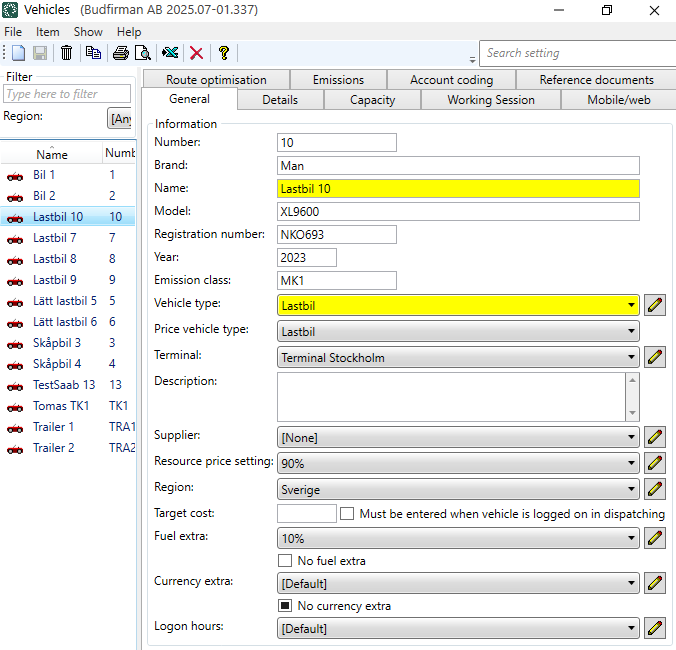
For instructions, see Adding a new Vehicle.
Üldine
On this tab, enter basic information about the vehicle, such as the number, name, registration number, vehicle type, price vehicle type and whether the vehicle is associated with a supplier or not, and whether the vehicle should receive fuel extra and currency extra.
|
Function |
Description |
|---|---|
|
Number |
The vehicle’s call number. Used in dispatch, among other things. A call number is required for each vehicle. |
|
Bränd |
The make of the vehicle, for example DAF, Scania, Volvo or MAN. |
|
Nimi |
Give the vehicle a name, such as “Truck 10” (i.e. the vehicle type and call number) or the registration number. |
|
Mudel |
The vehicle model. |
|
Registreerimisnumber |
The vehicle registration number. |
|
Aasta |
Model year of the vehicle, for example 2021. |
|
Emissiooniklass |
The environmental class of the vehicle, e.g. Euro 5. |
|
Sõiduki tüüp |
Type of vehicle, such as truck, light truck, van or trailer. Click on To enter specific capacities for a specific vehicle, go to Register > Transpordivahendid on the Mahutavus tab. These capacities then apply instead of the capacities applicable to the vehicle type. For more information, see Sõidukite tüübid (window). |
|
Sõidukitüübi hind |
To add new or change existing price vehicle types, go to Majandus > Hinnakirjad > Price vehicle types. |
|
Terminal |
If the vehicle belongs to a terminal, select that terminal. You can also add new terminals or edit existing ones by clicking on |
|
Kirjeldus |
A free text field. Describe the vehicle if desired. |
|
Hankija |
If the vehicle belongs to a haulier, select that haulier. You can also add new drivers or edit existing ones by clicking on |
|
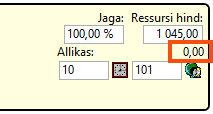
Select resource pricing for the vehicle. You can also add new resource pricing or edit existing ones by clicking on [puudub] means that no cost is generated, even if you enter a cost manually on the order.
In the figure above, no cost has been generated for the shipment. The picture shows the group Saadetised in the Order reception. [puudub] means, therefore:
|
|
|
Piirkond |
Select the region to which the vehicle belongs. |
|
Sihtkulu |
Enter the budgeted cost per shift. For more information, see Budgeted cost of resources. |
|
Tuleb sisestada, kui sõiduk on veokorraldusse sisse logitud |
Specify whether the traffic controller must enter a target cost when logging the vehicle into the dispatch system. |
|
Kütuselisa |
Applies only if Kütuselisa pole (below) is unchecked. Select the fuel extra the vehicle should be given. If you select [Vaikimisi], the following applies:
For more information, see Fuel surcharge (fuel extra), overview and Selecting fuel extra for a vehicle. |
|
Kütuselisa pole |
|
|
Valuuta lisatasu |
This setting only applies if the Ei mingit lisavaluutat checkbox is deselected. Select which currency extra the vehicle should be given. If no setting is configured here, the general setting for currency extras under Seaded > Kontorid, in the Valuuta lisatasu drop-down list on the Hinnakujundus tab, will apply. |
|
Ei mingit lisavaluutat |
If no setting is configured here, the checkbox will take its value from the general setting for currency extras under Seaded > Kontorid, in the Valuuta lisatasu drop-down list on the Hinnakujundus tab. If the general setting should not apply to this vehicle, use the Ei mingit lisavaluutat checkbox as follows:
|
|
Login hours |
The function was not used and is therefore removed as of Opter 2025.12.00. |
 to add new vehicle types or change your existing vehicle types. In the
  .
.
 : The vehicle is not eligible for a fuel allowance.
 : The vehicle is being refuelled. Select the DMT to be used from the drop-down menu
 Detailid
Teave
Here you can provide further details about the vehicle if you wish.
|
Function |
Description |
|---|---|
|
Tarnekuupäev |
Please enter the date on which the vehicle was delivered to you. Free-text field. (Opter does not use the information in this field for any purpose.) |
|
Rikkis |
If the vehicle is no longer in use, you can enter the date on which it was taken out of service. Free-text field. (Opter does not use the information in this field for any purpose.) The vehicle is still visible in the dispatch system, and it is still possible to assign shipments to it. We recommend that you deactivate the vehicle by selecting it in the vehicle register and clicking on |
|
Vastutav isik |
Select one of the people listed in the register Töötajad. |
|
Kulude kogumid |
Select the cost group to which the vehicle belongs. |
|
Finantsettevõte |
Please enter the name of the finance company if you wish. Free-text field. (Opter does not use the information in this field for any purpose.) |
|
Finantslepingu number |
Please enter the contract number if you wish. Free-text field. (Opter does not use the information in this field for any purpose.) |
|
Rahastamisleping lõppeb |
Please enter the date on which the funding ends. Free-text field. (Opter does not use the information in this field for any purpose.) |
|
Transpordilitsentsi number |
Enter your vehicle registration number if you wish. Free-text field. (Opter does not use the information in this field for any purpose.) |
 .
.Mahutavus
Laadige teave
Here you specify the vehicle’s maximum load capacity. If the value in the field is displayed in italics, this means that the value comes from the vehicle type (which you have selected in the drop-down list Sõiduki tüüp on the tab Üldine). If you wish, you can enter different values for the vehicle here in the vehicle register. Opter obtains information about capacity primarily from the vehicle itself, and secondarily from the vehicle type.
|
Function |
Description |
|---|---|
|
Kaal |
The maximum weight the vehicle can carry. Weight is given in kilograms (kg). |
|
Kaubaaluste koht |
The maximum number of pallet spaces in the vehicle. |
|
Maht |
The maximum load capacity of the vehicle. Volume is given in cubic metres (m³). |
|
Laadimismeeter |
The maximum number of load metres in the vehicle. The area is given in metres (m). |
|
Lisamõõde 1 — Lisamõõde 5 (Displayed if you are using extra dimensions.) |
Enter the maximum load capacity of the vehicle for each additional dimension you use. |
The standard dimensions and any additional dimensions are shown in box Allikateave in the dispatch system. At (2) in the image below, the value you have entered (for example, in field Kaal) on tab Mahutavus in the vehicle register is displayed; alternatively, the value in the vehicle type register is shown.
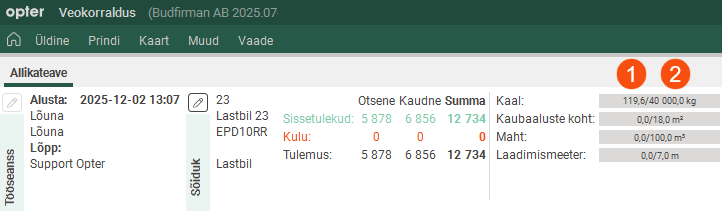
At (1) in the image, the total sum (e.g. of the weight) for all shipments allocated to the resource (i.e. the vehicle or driver) is shown.
Mõõtmed
If you wish, you can enter the vehicle’s dimensions, such as its length, width and gross weight. These are free-text fields, and Opter does not use the information in these fields for any purpose.
|
Function |
Description |
|---|---|
|
Isolatsioon |
The drop-down menu will be removed. |
|
Temp. jälgimine |
The drop-down menu will be removed. |
|
Lastiruum |
Free-text field. (Opter does not use the information in this field for any purpose.) |
|
Sõiduki kaal |
Free-text field. (Opter does not use the information in this field for any purpose.) |
|
Kogukaal |
Free-text field. (Opter does not use the information in this field for any purpose.) If you are using route optimisation, the information in the Total weight (kg) field for the vehicle type is important (see the Route optimisation tab under Dimensions for PTV in the vehicle type register). For more information, see Sõidukite tüübid (window). |
|
Pikkus |
Free-text field. (Opter does not use the information in this field for any purpose.) If you are using route optimisation, the information in the Length (cm) field for the vehicle type is important (see the Route optimisation tab under Dimensions for PTV in the vehicle type register). For more information, see Sõidukite tüübid (window). |
|
Laius |
Free-text field. (Opter does not use the information in this field for any purpose.) If you are using route optimisation, the information in the Width (cm) field for the vehicle type is important (see the Route optimisation tab under Dimensions for PTV in the vehicle type register). For more information, see Sõidukite tüübid (window). |
|
Kõrgus |
Free-text field. (Opter does not use the information in this field for any purpose.) If you are using route optimisation, the information in the Height (cm) field for the vehicle type is important (see the Route optimisation tab under Dimensions for PTV in the vehicle type register). For more information, see Sõidukite tüübid (window). |
Mahutavus
If the vehicle has the capacities (load types) listed here, please specify the maximum number of vehicles it can carry. For example, these could be cargo cages, and the vehicle may have a maximum capacity of 8 cargo cages.
If you want to add capacities (load types) that will then be displayed here, click on Seaded > Kapatsiteedi tüübid. Give the load type a name, then enter the weight, pallet space, volume and/or load metre for that load type. For more information, see Kapatsiteedi tüübid (window).
Valikud
Indicates the options fitted to the vehicle, e.g. air conditioning. The options you select in the vehicle register will appear in the resource information in dispatch. When the traffic controller assigns shipments with options (e.g. refrigeration) to vehicles in the dispatch system, does not check whether the vehicle has that option available. For more information, see Options.
You can add the options shown here in the vehicle register in the Valikud, For more information, see and Options windows Valikud (window). The options shown in the vehicle register are those for which the checkbox Saadaval sõidukitele is ticked in the window Valikud.
Tööseanss
On this tab it is possible to view, edit and export working sessions. Working sessions are created based on the activities that the vehicles/drivers state in Opter Driver, or that the dispatchers add to drivers or vehicles in dispatch.
New rows can be added manually by clicking in a field in the empty row at the bottom of the list. Double-click in the field in the Tegevus column and a drop-down list will appear, in which it is possible to choose, for example, Töötab, Haige or Puhkus.
Double-click in the Alates, To, Lõuna alates and Lõuna kuni fields, and then it is possible to either enter the date and time manually or click on the calendar icon in the field and select the date and time, then click on Close. If the time needs to be adjusted, click in the field again and enter the correct time.
To export working sessions to Excel, see Exporting working sessions to Excel.
|
Function |
Description |
|---|---|
|
date field List box with time periods |
Select from to which date you want to show shifts, or a time period in the drop-down list. |
|
|
Copy row. If you click on the far left of a row, it will be highlighted, then you can click on |
|
|
Merging working sessions. To merge shifts, select two or more rows and then click on this button. If two working sessions are merged, the earliest start time and the latest end time are used. Example: If you merge a work shift that is at 9:00-12:00 with a work shift that is at 16:00-21:00 on the same date will be the new evening session at 9:00–21:00. |
|
|
Export to Excel. The shifts currently displayed in the list are exported to Excel. |


|
Column |
Description |
|---|---|
|
Tegevus |
Double-click in the field in the Tegevus column and a drop-down list will appear, in which it is possible to choose, for example, Töötab, Haige or Puhkus. |
|
Alates |
Enter the date on and time at which the working session started. Double-click in the Alates, To, Lõuna alates and Lõuna kuni fields, and then it is possible to either enter the date and time manually or click on the calendar icon in the field and select the date and time, then click on Close. If the time needs to be adjusted, click in the field again and enter the correct time. |
|
To |
Enter the date on and time at which the working session ended. |
|
Lõuna alates |
Enter the date on and time at which the lunch break started. Double-click in the Alates, To, Lõuna alates and Lõuna kuni fields, and then it is possible to either enter the date and time manually or click on the calendar icon in the field and select the date and time, then click on Close. If the time needs to be adjusted, click in the field again and enter the correct time. |
|
Lõuna kuni |
Enter the date on and time at which the lunch break ended. |
|
Tööaeg |
Opter calculates the working time and displays the number of hours and minutes in the column. |
|
millest pausid |
Opter calculates the break time and displays the number of hours and minutes in the column. This shows the break time excluding the lunch break time. |
|
Tööaeg sh. Lõuna |
Opter calculates the working time including the lunch break and displays the number of hours and minutes in the column. |
|
Sõiduk |
Shows which vehicle was used. If desired, it is possible to enter or change the vehicle for the working session. |
|
Mõõtja start |
Enter the mileage reading of the vehicle at the start of the working session, if the number of kilometres the vehicle drives during the working session is to be registered. |
|
Mõõtja stop |
Enter the mileage reading of the vehicle at the end of the working session, if the number of kilometres the vehicle drives during the working session is to be registered. |
|
Sihtkulu |
Enter the budgeted cost for the resource. If you wish, you can set or change the target cost. For more information, seeBudgeted cost of resources. |
|
kontor |
Shows at which office the working session was registered. |
|
Kommenteeri |
Displays comment for the working session. It is possible to enter or change the comment. |
|
Loodud |
Shows who created the working session. If it says "mdc", it means that the working session was created automatically based on the activities entered in Opter Driver by the driver. |
Mobiil/veeb
Autentimisvahendid
|
Function |
Description |
|---|---|
|
Kasutajanimi |
Username for logging in to the vehicle web and the Opter Driver and Fleet 101 K2 Mobile apps if the user logs in as a vehicle. For more information, see User accounts for The vehicle web and Installing Opter Driver. For information on how to set the resource type (vehicle or driver) that app users log in as in Opter Driver, see Install Opter Driver (classic). |
|
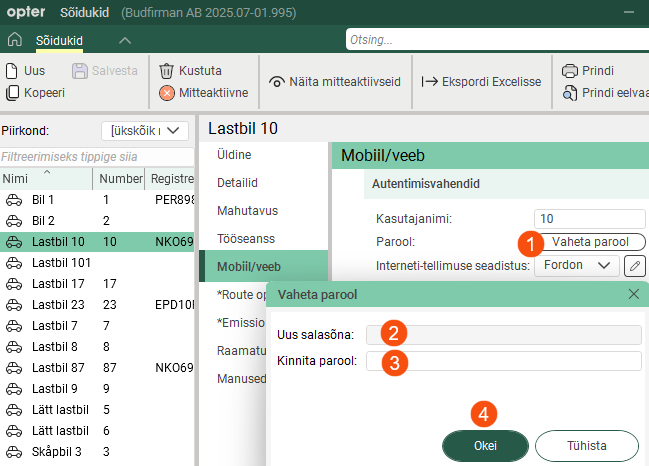
Parool Vaheta parool (The button is available as of Opter 2025.12.00.) |
Password for logging in to The vehicle web and to the Opter Driver and Fleet 101 K2 Mobile apps if the user logs in as a vehicle.
For more information, see User accounts for The vehicle web and Installing Opter Driver. |
|
Interneti-tellimuse seadistus |
Select the internet order setting for the vehicle on the Vehicle Web. To add a new access category or change the access of an existing category, click on |
|
Jätke mobiilseadmetest tehtud tellimuse muudatuste kinnitamine vahele |
The setting only has an effect if App.ApproveChanges = "True". If the mobile data setting App.ApproveChanges is set to "True", the dispatcher must authorise changes made from the vehicle in Opter Driver. This checkbox allows exceptions to be made for a vehicle.
For more information, see Setting how changes made in Opter Driver are approved. |

 : Dispatch must authorise changes made by the vehicle in Opter Driver. In other words, the setting for
  : Dispatch does not have to authorise changes made by the vehicle in Opter Driver.
Mobiilseadmed
The mobile devices used by the vehicle are displayed here.
|
Column |
Description |
|---|---|
|
Mobiilseade |
If “App” is indicated, this means that the employee uses or has used one of the Opter Driver or Fleet 101 K2 Mobile apps. If it says Rakendus <driver>, it means that the driver has logged in as a driver and then added the vehicle as a secondary resource. If several mobile device types have been enabled, they will also be displayed here, e.g. “SMS”. If desired, more mobile device types can be enabled under Seaded > Mobiilne andmeside > Mobiilseadmete tüübid. |
|
Aadress |
Settings for mobile device types, such as SMS and Transics. If desired, more mobile device types can be enabled under Seaded > Mobiilne andmeside > Mobiilseadmete tüübid. For example, if SMS is enabled, use the Aadress field to enter the mobile number to which the SMS is to be sent. |
|
Aadress 2 |
Settings for mobile device types, such as Transics and DHL. |
|
Aktiivne |
For information only. The checkbox provides the following information:
|
|
Versioon |
This shows which version of Opter Driver or Fleet 101 K2 Mobile the vehicle is using. |
|
Viimane kasutus |
This shows the date and time when the vehicle last logged into the app. |
|
|
Operating system of the mobile device, for example Android or iOS. |
|
|
Version of the operating system, for example version 11 (SDK 30). |
|
Mudel |
Make and model of the mobile device, for example Sony G8441 or Samsung SM-N770F. |
Skaneerimine
|
Function |
Description |
|---|---|
|
Hoiatage, kui on teine ressurss välja skanneerimise staatusega |
Applies when the vehicle performs departure scanning at the terminal. If you do not make a setting here, the setting for the driver will apply under Register > Töötajad, on the tab Mobiil/veeb in the drop-down list Hoiatage, kui on teine ressurss välja skanneerimise staatusega. If no setting is configured here for the vehicle or driver, the general setting under Seaded > Kontorid, in the Hoiatage, kui on teine ressurss välja skanneerimise staatusega drop-down list on the Skaneerimine tab, will apply. If you want the vehicle to receive a warning in Opter Driver if the vehicle scans something that belongs to another resource's shipment, select the status from which the warning should be displayed. The default setting is Korjatud. For more information, see Block or warn about another resource when scanning in Opter Driver. |
|
Hoiatage, kui on teine ressurss skanneerimise staatusega |
Applies when the vehicle performs pickup scanning at the sender. If you do not make a setting here, the setting for the driver will apply under Register > Töötajad, on the tab Mobiil/veeb in the drop-down menu Hoiatage, kui on teine ressurss skanneerimise staatusega. If no setting is configured here for the vehicle or driver, the general setting under Seaded > Kontorid, in the Hoiatage, kui on teine ressurss skanneerimise staatusega drop-down list on the Skaneerimine tab, will apply. If you want the vehicle to receive a warning in Opter Driver if the vehicle scans something belonging to a shipment that is allocated to another resource, select from which status. The default setting is Korjatud. For more information, see Block or warn about another resource when scanning in Opter Driver. |
|
Blokeeri oleku/ressursi muutmine, kui maha skannimisel staatus |
Applies when the vehicle performs departure scanning at the terminal. If you do not make a setting here, the setting for the driver will apply under Register > Töötajad, on the tab Mobiil/veeb in the drop-down list Blokeeri oleku/ressursi muutmine, kui maha skannimisel staatus. If no setting is configured here for the vehicle or driver, the general setting under Seaded > Kontorid, in the Blokeeri oleku/ressursi muutmine, kui maha skannimisel staatus drop-down list on the Skaneerimine tab, will apply. If you do not want anyone other than the person assigned to the shipment to be able to make changes to the status or resource in Opter Driver during the departure scan, select the status from which the blocking applies. The default setting is Korjatud. For more information, see Block or warn about another resource when scanning in Opter Driver. |
|
Blokeeri oleku/ressursi muutmine, kui peale skannimisel staatus: |
Applies when the vehicle performs pickup scanning at the sender. If you do not make a setting here, the setting for the driver will apply under Register > Töötajad, on the tab Mobiil/veeb in the drop-down menu Blokeeri oleku/ressursi muutmine, kui peale skannimisel staatus. If no setting is configured here for the vehicle or driver, the general setting under Seaded > Kontorid, in the Blokeeri oleku/ressursi muutmine, kui peale skannimisel staatus drop-down list on the Skaneerimine tab, will apply. If you do not want anyone other than the person assigned to the shipment to be able to make changes to the status or resource in Opter Driver during the pickup scan, select the status from which the block applies. The default setting is Korjatud. For more information, see Block or warn about another resource when scanning in Opter Driver. |
Route optimisation
In the Route optimisation tab, configure route optimisation settings for the vehicle, such as Teenindusaja tegur and Sõiduaja tegur.
Marsruudi optimeerimise seaded
|
Function |
Description |
|---|---|
|
Lubage määratud saadetiste ETA automaatne arvutamine |
Select whether to allow the automatic calculation of ETA on assigned shipments. Only the ETA is continuously updated. The aim is to be able to send out reliable delivery notifications. The setting for this checkbox only applies if the vehicle is the primary resource and if the Lubage määratud saadetiste ETA automaatne arvutamine or Lubage määratud saadetiste sortimisjärjestuse automaatne arvutamine checkbox is selected in the office settings and for the service. The office settings have priority over the other settings for this checkbox. For rules and instructions, see Automatic route optimisation. |
|
Lubage määratud saadetiste sortimisjärjestuse automaatne arvutamine |
Choose whether to allow the automatic calculation of the route sequence and delivery time. Both the route sequence and the ETA are continuously updated. The aim is to make transport operations as efficient as possible. The setting for this checkbox only applies if the vehicle is the primary resource and if the Lubage määratud saadetiste sortimisjärjestuse automaatne arvutamine checkbox is selected in the office settings and for the service. The office settings have priority over the other settings for this checkbox. For rules and instructions, see Automatic route optimisation. |
|
Teenindusaja tegur |
If the vehicle is used as a primary resource, a specific Teenindusaja tegur for the vehicle can be entered here. An experienced driver may only need 80% of the service time, while an inexperienced driver may need 110%. For more information, see Service time. |
|
Sõiduaja tegur |
If the vehicle is used as a primary resource, a specific Sõiduaja tegur for the vehicle can be entered here. If a driver generally needs a longer driving time than calculated, enter a percentage that is higher than 100. Setting a percentage lower than 100 means that the driver has to move faster than the calculated driving time, which is based on factors such as speed limits. For more information, see Driving time. |
|
Fallback position |
If a vehicle’s position cannot be determined, for example due to poor mobile coverage, a fallback position can be entered. The fallback position is set in the office settings, but a fallback position for a specific vehicle can be set here in the registry by clicking on If there is a setting there already that is to be changed, click on If you do not enter any position at all, Opter's Stockholm office is used as a fallback position. For more information, see Vehicle position. |
|
Home location |
Home location can be used to ensure that routes start/end close to the resource’s home so that the system can optimise the route sequence for shipments so that resources are used as efficiently as possible. A home location can be set for a vehicle by clicking on If there is a setting there already that is to be changed, click on For more information, see Home location for vehicles and drivers. |
 and selecting a location on the map or entering the coordinates.
 and select a new location on the map, or enter new coordinates for the vehicle’s fallback position.
Täpsem
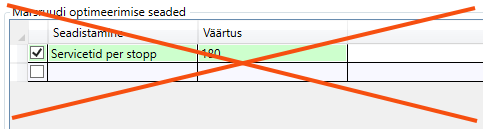
It is only for internal Opter use, and should not be used. Even if a row is added and a value is entered in the table, such as "Service time per stop 180 seconds", it is not used in the route optimisation.
Emissions
In this tab you make settings so that Opter can calculate CO2 emissions. For more information, see CO2 emissions, overview, Settings for CO2 emission calculations (and CO2 emissions in tonnes).
|
Function |
Description |
|---|---|
|
CO2 emissions (g/km) |
Enter the CO2 emissions of the vehicle in grams per kilometre. If you enter Fuel, Fuel consumption (per 100 km) and CO2 emissions (g/km), Opter will use the value in the CO2 emissions (g/km) field to calculate CO2 emissions for shipments and orders. If you want Opter to calculate the CO2 emissions of your vehicle (in g/km), leave the field CO2 emissions (g/km) empty and fill in the fields Fuel and Fuel consumption (per 100 km). The data on CO2 emissions is taken firstly from the vehicle, secondly from the vehicle type and thirdly from the price vehicle type. If the shipment is subcontracted, the CO2 emissions data will be obtained firstly from the subcontractor and secondly from the price vehicle type. For more information, see Settings for CO2 emission calculations. |
|
Fuel |
Indicate the type of fuel used by the vehicle, e.g. diesel. The CO2 emissions of the fuel must be entered in the fuel register. For more information, see Settings for CO2 emission calculations. |
|
Fuel consumption (per 100 km) |
Indicate the average fuel consumption of the vehicle in the selected unit per 100 km. The unit is set in the fuel registry. Example: 2.5 litres per mile = 25 litres/100 km. If you enter Fuel, Fuel consumption (per 100 km) and CO2 emissions (g/km), Opter will use the value in the CO2 emissions (g/km) field to calculate CO2 emissions for shipments and orders. If you want Opter to calculate the CO2 emissions of your vehicle (in g/km), leave the field CO2 emissions (g/km) empty and fill in the fields Fuel and Fuel consumption (per 100 km). The data on CO2 emissions is taken firstly from the vehicle, secondly from the vehicle type and thirdly from the price vehicle type. If the shipment is subcontracted, the CO2 emissions data will be obtained firstly from the subcontractor and secondly from the price vehicle type. For more information, see Settings for CO2 emission calculations. |
|
Capacity converted into pricing weight (kg) |
The field is used if the pricing weight of the order compared to the capacity of the vehicle is to be taken into account. For more information, see Settings for CO2 emission calculations. |
Raamatupidamine
In Opter, the VAT rate on the order determines the income and cost account to which a certain amount is booked. On this tab you can make exceptions to the regular account coding. The tabs you make changes to are marked with  .
.
Click on  to display the VAT rates held in the system. Then select the account to which amounts with the different VAT rates should be posted. More information on the individual drop-down lists can be found at The Raamatupidamine tab. The settings in this tab apply if you reach item 4 in the list in How Opter selects accounts for income and expenses. If [Vaikimisi] is selected for any of the options here, the account coding is taken from the VAT rate.
For more information on how Opter selects the VAT rate on orders (column Müük) and supplier bills (column Kulu), see How Opter chooses the VAT rate for customer invoices and How Opter chooses the VAT rate on credits.
Manused
On the Manused tab, files that can be opened on other computers can be added. The files that are added are not attached to orders, instead the function works as a file server and is intended for exchanging information. The files are saved in the database.
|
Function |
Description |
|---|---|
|
Uus |
Adds a file that is on the computer. It is only possible to add one file at a time. |
|
Kustuta |
Deletes files from the registry. It is only possible to delete one file at a time. |
|
Avatud |
Opens the selected file in the list. |
|
Faili nimi (column) |
The file name. |
|
Loodud |
When the file was added as a document in Opter. |
|
Faili nimi (field) |
The file name of the selected file. You can rename the file by typing the new name and clicking Salvesta on the menu. Remember to keep the same file extension (for example “.docx”), otherwise the application to use has to be selected when the file is opened. |
|
Kommentaar |
Free text. Information about the file. The information is only shown here. |

