Setting how changes made in Opter Driver are approved
Last updated: 26 March 2024
Applies to all Opter Driver variants, i.e. Opter Driver (classic) for Android, Opter Driver for iOS and Opter Driver Labs for Android.
In this article
By default, changes made in Opter Driver must be manually approved in dispatch for the change to be saved, but it can be set so that no changes at all need to be approved, or only certain changes need to be approved.
Global setting for approval of changes
How to set what is generally applicable to all changes:
-
In Opter, click on Seaded > Mobiilne andmeside > Mobiilse andmeside seaded.
-
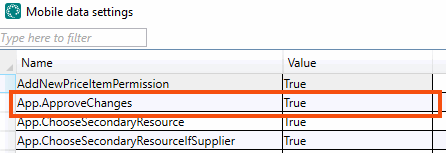
If Nimi is not already in the list, click on an empty row in the App.ApproveChanges column and then on the down arrow in the row being added. Select App.ApproveChanges from the list.
-
Enter one of the following in the cell to the right:
-
”True” (default): all changes must be manually approved in dispatch.
This means that every order change and shipment change made in the app is displayed on the Ootel muudatused panel in dispatch, and must be manually approved there before the change is saved. For instructions on how to approve changes, see Approving changes in dispatch.
-
“False”: changes do not have to be manually approved in dispatch.
If no value is specified for App.ApproveChanges, it will be treated as “true”.
-
-
Click on Salvesta.
Making exceptions to the global setting
If App.ApproveChanges has been set to "false", changes never have to be approved in dispatch, regardless of the settings made elsewhere. If App.ApproveChanges has been set to "true", i.e. changes require approval in dispatch, exceptions can be made for certain drivers/vehicles, changes to specific information, or changes to orders with a specific service; these then do not require approval in dispatch.
 Making an exception for a particular driver
How to define that changes made by a certain driver in Opter Driver do not need to be approved in dispatch:
-
Click on Register > Töötajad and select driver in the list on the left.
-
Go to the Mobiil/veeb tab and select Jätke mobiilseadmetest tehtud tellimuse muudatuste kinnitamine vahele.
-
Click on Salvesta to save all changes.
Making an exception for a particular vehicle
How to define that changes made by a certain vehicle do not need to be approved in dispatch:
-
Click on Register > Transpordivahendid and select vehicle in the list on the left.
-
Go to the Mobiil/veeb tab and select Jätke mobiilseadmetest tehtud tellimuse muudatuste kinnitamine vahele
-
Click on Salvesta to save all changes.
Making an exception for a specific change, such as a change in weight or entry code
How to define that a particular change does not need to be approved in dispatch:
-
Click on Seaded > Mobiilne andmeside > Saadetise muutmise elemendid.
-
Select the change for which an exception should be made from the list on the left.
-
Deselect Nõua heakskiitu and click on Salvesta.
Making an exception for a particular service
How to define that changes to orders with a particular service do not need to be approved in dispatch:
-
Click on Majandus > Hinnakirjad > Services and select service from the list on the left.
-
Go to the Dispatch tab and select Jätke mobiilseadmetest tehtud tellimuse muudatuste kinnitamine vahele.
-
Click on Salvesta to save all changes.

