Getting started with Opter Driver
Last updated: 21 January 2025
Applies to Opter Driver for iOS and Opter Driver Labs for Android.
In this article
Opter Driver is the app used by drivers to manage shipments when they are being carried out. The app allows drivers to communicate important information to dispatchers without having to call or text. The app sends information to dispatch when the status of shipments is changed or breaks are taken. You can send messages to dispatch to make sure they get through, even if the dispatcher who was on duty that morning has left for the day and someone else has taken over. If you encounter any problems using the app, contact your company’s contact person.
What is displayed in the app, how it is displayed and which functions are available, can be configured to a certain extent in Opter. If you are a system administrator, see “For system administrators” for more information.
If you are a driver who has just started using Opter Driver, you can start by reading Pages, tabs and menus in Opter Driver under “For drivers”.
Installing Opter Driver for iOS
Opter Driver requires iOS version 15.0 or later. To see which iOS version your phone is running, tap Settings > General > About.
How to install the app:
-
Open App Store on your iPhone or iPad.
-
Search for “Opter Driver” and install the app with that name.
Installing Opter Driver Labs for Android
The new Opter Driver Labs app for Android has the same underlying technology as Opter Driver for iOS, and all the features found in, for example, version 2.4.20 of Opter Driver for iOS are also found in version 2.4.20 of Opter Driver Labs for Android.
Opter Driver Labs for Android is currently a beta version, which means it is still under development. The app may lack some specialised functionality.
Opter Driver Labs requires Android 7.1 or later. You can see the Android version of your mobile phone by tapping Settings > About phone > Android version (or Software information).
To start using Opter Driver Labs for Android, proceed as follows:
-
Open the Play Store on your mobile phone, search for "Opter Driver Labs" and install the app with that name.
-
Then follow the instructions below.
Configure the app
To connect the app to your Opter system, proceed as follows:
-
Open Opter Driver on your mobile (by tapping the app icon).

-
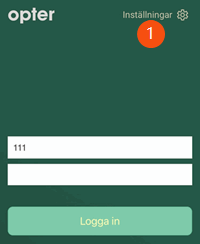
Tap Settings (1).
-
Connect the app to your Opter system in one of the following ways:
-
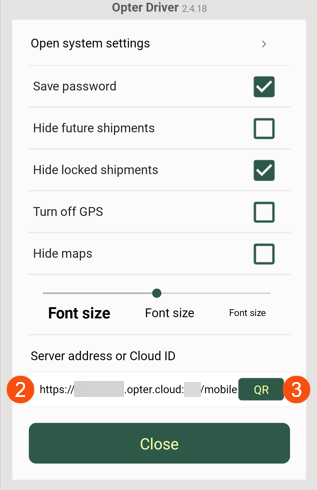
In the Server address or Cloud ID (2) field, enter your cloud ID (cloud name). i.e. your company name as it is known in Opter, for example “courierservices”. There must be no spaces in the name.
-
Tap QR (3) and scan the Opter Driver QR code given to you, as the driver, by your system administrator. (The QR code can be found under QR codes and links for our apps on the left of the main menu in Opter).
-
In the Server address or Cloud ID (2) field, enter the server address given to you, as the driver, by the system administrator, for example “https://courierservices.opter.cloud:xyz/mobile”.
-
-
To ensure that the app remembers your password, select Save password.
(The username is always saved.)
-
Tap Close. Your changes are saved.
-
You can now log in by entering Username and Password, and tapping Log in.
If your system administrator has set the system up so that you have the option or are required to add a vehicle or driver, select the vehicle or driver from the list displayed.
The current shipments are now visible. For more information, see Pages, tabs and menus in Opter Driver.
To ensure the times of shipments are displayed correctly in the app, the correct time zone must be set. On an iPhone, tap Settings > General > Date and time and activate Set automatically. On your Android device, tap the Settings icon> System > Date and time and activate Set automatically.
Log in
You can log in to Opter Driver as a driver or a vehicle, depending on the settings configured by the system administrator. If you log in as a driver, you may also need to select a vehicle, and if you log in as a vehicle, you may also need to select a driver. Further information on the settings that the system administrator can configure can be found in Installing Opter Driver.
Login credentials can be obtained from the system administrator or dispatcher. If you want to change how you are logged in, log out and then log in again with the new login credentials.
Once the app has been connected to your Opter system as described above, log in as follows:
-
Open Opter Driver on your mobile.
-
Enter Username (1) and Password (2), if you have not already chosen to be remembered by the app.
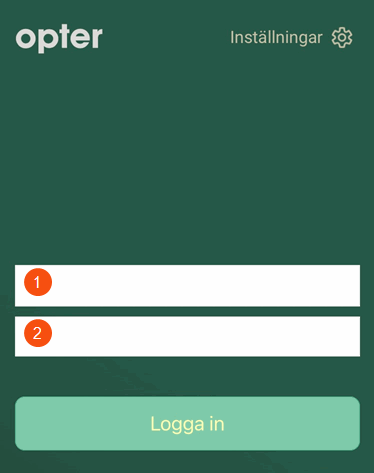
The username is always saved. If you want the app to also remember your password, tap Settings and select Save password. Then tap Close.
-
Tap Log in.
If your system administrator has set the system up so that you have the option or are required to add a vehicle or driver, select the vehicle or driver from the list displayed.
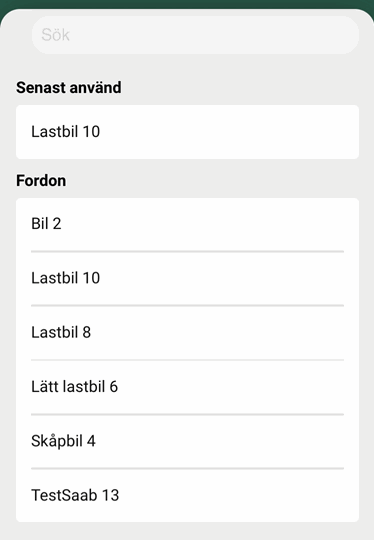
The current shipments are now visible. For more information, see Pages, tabs and menus in Opter Driver.
Your status (i.e. ‘logged in’) and location are displayed in dispatch. The positions recorded whilst you are logged into Opter Driver are saved in Opter.
If you want to know what username and secondary resource, if applicable, you are logged in as, tap the menu ( ) in the upper right corner of the shipment page, and select Profile. This shows which primary and secondary resource you are logged in as. Primary and secondary resources are also displayed at the top of the menu.
Logging out
To log out of Opter Driver, proceed as follows:
-
If you are in the task list, tap the menu (
 ) in the top right-hand corner and select Log out.
 -
If you are elsewhere in the app, for example in chat or on the map page, do this:
-
Tap Shipments at the bottom of the app.

-
Tap the menu (
) in the top right corner and select Log out.
-
Your status (i.e. ‘logged out’) is displayed in dispatch. Once you have logged out, your location will no longer be visible to dispatch, and no locations will be saved in Opter.

