Settings in Opter Driver
Last updated: 24 February 2026
Applies to Opter Driver for iOS and Opter Driver Labs for Android.
In this article
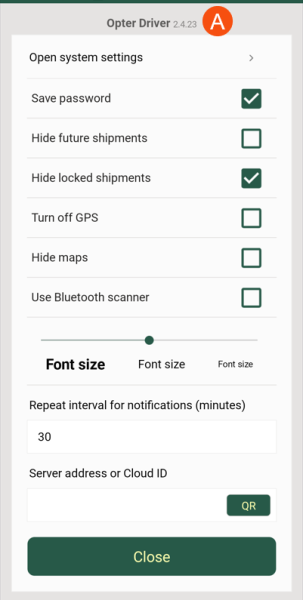
Most of the settings relating to the way the app works, such as what should be mandatory to fill in and which statuses are available for selection, are configured by the dispatcher. But you can adjust some basic settings in the app. These settings apply only on the device on which they are set.
The settings can be found in the app in one of the following ways:
-
In the task list, tap
 in the top right-hand corner and select Settings.
 -
On the login page and profile page, tap Settings in the top right-hand corner.
Hide future shipments, Hide locked shipments and Turn off GPS are not displayed if you open the settings from the login page.
When you are done with the settings, press Close, the settings will be saved and the page will close.
|
Function |
Description |
|---|---|
|
Version |
At the top, you can see which version of Opter Driver you have (A). We recommend that you always use the latest version of the app, as it is constantly being improved. |
|
Open system settings |
The app settings on your mobile phone will open. For example, you can view and change the permissions your phone has to use the camera, notifications and location access. |
|
The username is always saved. If this option is selected, the password will also be saved to make it easier to log in. If you save the password, the following applies:
|
|
|
Hide future shipments |
Shipments that are to be carried out the next day or further ahead are hidden. Only the current day’s shipments are shown in the app. This setting can be hidden by the system administrator. If the working session extends beyond midnight, shipments are hidden after 00.00 if this option is selected. |
|
Hide locked shipments |
The dispatcher can define that shipments are to be locked as long as the previous shipment on the order has not yet been unloaded. If you tick this option, locked shipments will not appear in the app. For more information, see Pages, tabs and menus in Opter Driver. This setting can be hidden by the system administrator. |
|
Turn off GPS |
Turns off the GPS function. If you turn off the GPS function, your position will not be shown in dispatch. This setting can be hidden by the system administrator. |
|
Hide maps |
Hides the maps for the individual shipments in the detail view. The main map (which is accessed by tapping Map in the shipment list) is not hidden; it is always shown. |
|
Use Bluetooth scanner |
If you want to use a standalone Bluetooth scanner (instead of your phone’s built-in camera), select this option. Then turn on Bluetooth on your mobile phone and pair it with the Bluetooth scanner. |
|
Font size |
Adjust the text size in the app. |
|
Specify how often notifications should be repeated. When you receive a new shipment, you’ll be notified straight away. This setting then determines how often the notification is repeated. Example:
|
|
|
Server address or Cloud ID |
Once the app has been connected to your Opter system, your cloud ID (cloud name) or server address is displayed here. This is used to communicate with the Opter system. Please contact your system administrator or traffic controller if you need to connect the app to your Opter system. For more information, see Getting started with Opter Driver. |
|
Close |
Saves the settings and returns to the previous page. |

