CO2 emissions, overview
Last updated: 30 March 2026
In this article
Introduction
 New in 2025.12.00
-
If the distance is specified manually on the order, the shipment will automatically be assigned the same distance as you specified on the order, provided that the following applies:
-
The order has only one shipment.
-
The shipment does not have a manually specified distance.
The calculated CO2 emissions for the shipment are therefore based on the distance entered manually on the order.
(For Opter version 2025.06.00 and earlier, the journey’s CO2 emissions are calculated based on Opter’s/PTV’s distance, even if the distance has been entered manually on the order and the order contains only one shipment.)
For more information, see This is how Opter calculates CO2 emissions.
-
-
CO2 emissions from the subcontractor register.
Previously, CO₂ emissions were calculated based on the price vehicle type if the shipment was subcontracted to a contractor.
You can now enter details of CO2 emissions (e.g. fuel type and fuel consumption) in the subcontractor register.
If the shipment is subcontracted, the CO₂ emissions calculation is now based primarily on the subcontractor and secondarily on the price vehicle type.
For more information, see This is how Opter calculates CO2 emissions and Settings for CO2 emission calculations.
-
Estimated CO2 emissions (g) and Calculated CO2 emissions (g) is now displayed to two decimal places.
(Previously, Estimated CO2 emissions (g) and Calculated CO2 emissions (g) were displayed as integers only. For orders involving, for example, low weights and short distances that resulted in CO2 emissions of less than 1 gram, the CO2 emissions were shown as “0”. If there are many such orders, this will become a more significant error over time.)
-
If you handle consignments:
The percentage, which indicates the proportion of the consolidated shipment’s CO2 emissions attributed to a specific consignment order, is now displayed to two decimal places. (Previously, the percentage was shown as a whole number only.)
(The percentage is displayed on the shipment in the order reception (under Detailid, on the General tab) when you hover the mouse pointer over the field CO2 emissions, calculated (g).)
Here’s how you can see the estimated CO2 emissions from your transport operations:
-
The CO2 emissions statistical report in Opter.
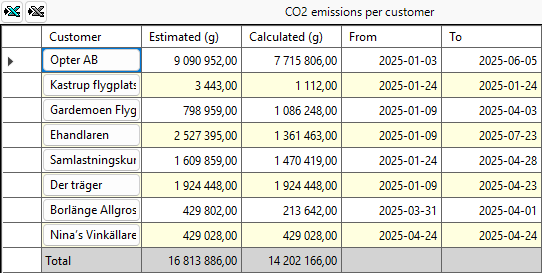
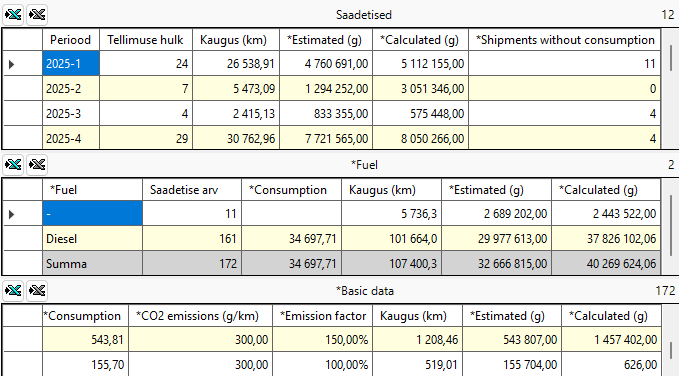
You can manually generate a statistics report whenever you like and as often as you like. For more information, see Creating a statistical report about CO2 emissions in grams. The image below shows what the display might look like if you have chosen to view the statistics by customer. More details are displayed when you tap the customer's name.
-
Opter's statistics API.
You can develop a solution where you call Opter’s statistics API, retrieve the data you’re interested in, and then present the statistics in whatever way you like. You can automate the workflow so that information is retrieved from Opter as often as you like. For more information, see Retrieve statistical data via API, CO2 emissions in grams.
Estimated and calculated CO2 emissions
Opter calculates the following values for CO2 emissions:
-
The order’s estimated CO2 emissions.
The estimated CO2 emissions are an initial calculation of the CO2 emissions of the order and the calculation is based on the information available at the time the customer places the order.
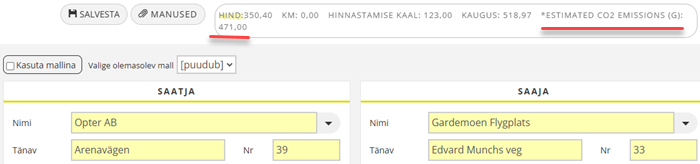
The image shows the estimated CO2 emissions on the order page of the customer web.
-
The shipment’s calculated CO2 emissions.
The calculated CO2 emissions for a shipment is a more accurate calculation than the estimated CO2 emissions for an order, as this calculation is also based on information about the actual vehicle and distance relating to the shipment.
-
The order’s calculated CO2 emissions.
The calculated CO2 emissions of an order are a summation of the calculated CO2 emissions of the shipments in the order, and this is therefore a more accurate calculation than the estimated CO2 emissions of an order.
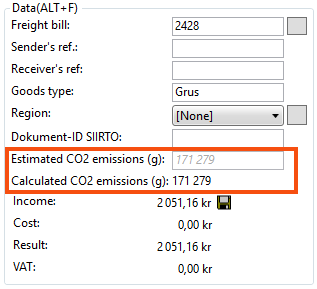
The image shows the estimated and calculated CO2 emissions for the order in the order reception.
For more information, see This is how Opter calculates CO2 emissions.
Conditions
In order for Opter to calculate CO2 emissions, the following applies:
-
You must first configure the settings described below; you can then generate statistics on CO2 emissions as often as you like.
-
There must be a space in the order. Further information on how to set a price limit on orders can be found in Distances, addresses and maps, overview.
Overview, settings in Opter
In order for Opter to be able to calculate CO2 emissions, the following settings and selections must be made first:
-
Decide whether or not the pricing weight of the order compared to the capacity of the vehicle is to be taken into account.
-
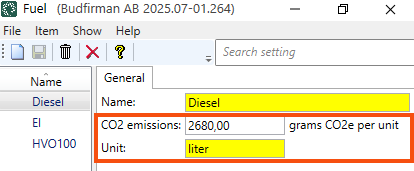
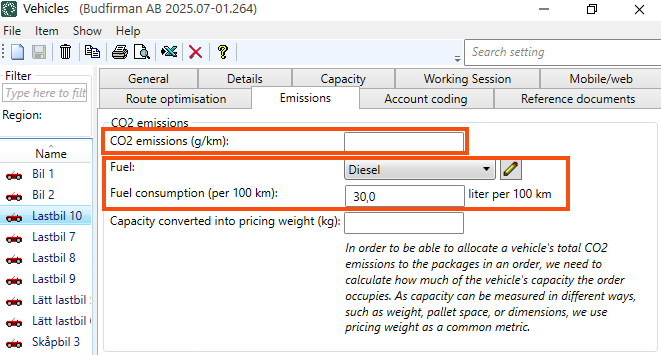
Decide whether you wish to enter the fuel’s CO2 emissions in the fuel register (so that you can then enter the fuel and fuel consumption for the vehicles, vehicle types and/or price vehicle types).
-
Enter the CO2 emissions for the vehicles, vehicle types and price vehicle types, either by specifying the fuel and fuel consumption, or by entering the CO2 emissions (in g/km) directly in Opter.
-
Decide whether you want to set the CO₂ emission factor for some or all services, and possibly for certain price vehicle types within the service.
-
If you work with consignments, you can choose whether the calculated CO2 emissions for the consignment order should be allocated across the original orders, and if so, how the CO2 emissions should be allocated.
-
If a subcontractor carries out the shipment, your Opter system can obtain information on CO2 emissions via EDI, the subcontractor register (in Opter 2025.12.00 and later versions), or the price vehicle type.
The settings are described in more detail in Settings for CO2 emission calculations.
Overview: CO2 emissions in Opter
-
On the customer web.
-
On the invoice.
-
On the freight bill.
-
In order reception.
-
In order check and shipment check.
-
In consignment check
-
In statistics.
How Opter calculates CO2 emissions
Read about how Opter calculates CO2 emissions for orders and shipments, what the CO2 calculations are based on, and the difference between estimated CO2 emissions and calculated CO2 emissions. See This is how Opter calculates CO2 emissions.
Step A: Settings for CO2 emissions calculations
In order for Opter to calculate and display CO2 emissions, you must first configure the settings as described in Settings for CO2 emission calculations.
Step B: View CO2 emissions in Opter
Select where you want CO2 emissions to be displayed in Opter, for example in order reception and order check. See View CO2 emissions in Opter.
Step C: Show CO2 emissions for customers and resources
Select whether, and if so where, you want to display CO2 emissions for customers and resources (e.g. drivers), for example on the customer web, the invoice and/or the freight bill. See View CO2 emissions for customers and resources.
CO2 emissions via EDI
Recalculate CO2 emissions for orders
If you change any of the details on which the CO2 emissions calculations are based, you may subsequently have one or more orders for which you want the CO2 emissions to be recalculated. See Recalculate CO2 emissions for orders.
Create a statistics report in Opter
You can manually generate a statistics report whenever you like. See Creating a statistical report about CO2 emissions in grams.
Retrieving statistical data via API
Using Opter’s statistics API, you can see the calculated CO2 emissions from your transport operations. See Retrieve statistical data via API, CO2 emissions in grams.
Frequently asked questions
See FAQs and troubleshooting, CO2 emissions.
Troubleshooting
See FAQs and troubleshooting, CO2 emissions.

