View CO2 emissions in Opter
Last updated: 12 March 2026
In this article
CO2 emissions can be displayed in:
-
Order reception.
-
Order control.
-
Mission control.
-
The co-loading control.
-
The statistics report CO2 emissions. (See Creating a statistical report about CO2 emissions in grams.)
More information on CO2 emissions can be found at CO2 emissions, overview.
Conditions
In order for Opter to calculate and display CO2 emissions, you must first make the settings described in Settings for CO2 emission calculations.
Show CO2 emissions in the order reception
In order reception, the following fields can be displayed:
-
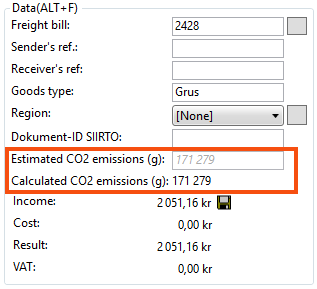
Estimated CO2 emissions (g) (formerly CO2 emissions (g)) in the section Andmed. The field shows the estimated CO2 emissions for the order. For more information, see The field for estimated CO2 emissions from the order in the Order reception below.
-
Calculated CO2 emissions (g) in the Andmed section This field shows the calculated CO2 emissions for the order, i.e. the sum of the calculated CO2 emissions for all the shipments in the order. For more information, see Calculated CO2 emissions from the order in the Order reception field below.
-
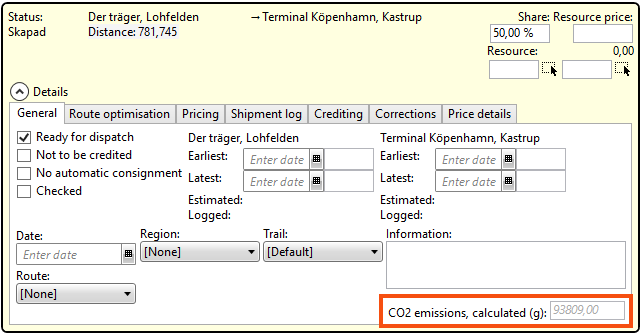
CO2 emissions, calculated (g) on the shipment. The field can be seen by clicking on Saadetised in the Detailid section and looking at the General tab. For more information, see The field for the shipment's Calculated CO2 emissions in the Order reception below.
 The field for estimated CO2 emissions from the order in the order reception
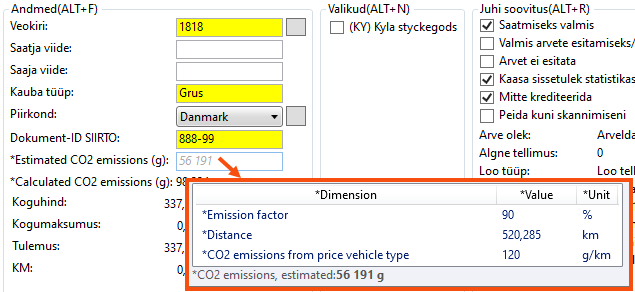
The Estimated CO2 emissions (g) (formerly CO2 emissions (g)) field can be shown in the Andmed section in order reception. This shows the estimate, i.e. a first calculation of the order’s CO2 emissions in grams. Estimated CO2 emissions for the order are calculated when the customer places the order.
Hovering over the field will display the values used to calculate the estimated CO2 emissions, see image below. For more information, see This is how Opter calculates CO2 emissions.
If you receive the text The emission values have changed. To list the emissions components, the CO2 value needs to be recalculated.
If you hover over the Estimated CO2 emissions (g) field with the mouse, and the text The emission values have changed. To list the emissions components, the CO2 value needs to be recalculated. appears, this means the following:
-
The CO2 emissions calculation saved on the order is different from what it would be if the CO2 emissions had been calculated in the current situation. For example, this may be because you have changed the CO2 emissions for a price vehicle type, after the estimated CO2 emissions of the order had been calculated and saved.
-
For example, if you have changed the CO2 emissions for a price vehicle type, Opter cannot display the values that were the basis for the CO2 calculation made previously (i.e. before the CO2 emissions for the price vehicle type were changed).
-
If you want the CO2 emissions of the order to be recalculated, instructions are available at Recalculate CO2 emissions for orders.
The value can be changed manually in the Estimated CO2 emissions (g) field
If you wish, you can change the value in the Estimated CO2 emissions (g) field by entering a new value.
If the CO2 emissions value has been manually entered in the Estimated CO2 emissions (g) field, the CO2 emissions value is displayed in normal black text. (If the CO2 emissions have not been entered manually, the calculated CO2 emissions are displayed in grey text in italics).
If you have manually changed the value in the field Estimated CO2 emissions (g) and then change your mind and want to go back to displaying Opter's calculated value for the order's estimated CO2 emissions, delete the numbers in the field Estimated CO2 emissions (g) and move to another field. After a short while, Opter displays the calculated value of the order's estimated CO2 emissions.
The field for calculated CO2 emissions from the order in the order reception
The Calculated CO2 emissions (g) field displays a summary of the calculated CO2 emissions from all shipments in the order. For more information, see This is how Opter calculates CO2 emissions.
You cannot change the value in field Calculated CO2 emissions (g), as it is a total. Instead, you can change the calculated CO2 emissions for one or more of the shipments included in the order, in which case the calculated CO2 emissions for the order will also change.
The field for the calculated CO2 emissions of the shipment in the order reception
Under Detailid on the tab General on the shipment in the Order reception, the field CO2 emissions, calculated (g) appears. That shows the shipment’s calculated CO2 emissions in grams.
If you hover over the CO2 emissions, calculated (g) field, you will see the values used for the calculation of CO2 emissions, see the images below. For more information, see This is how Opter calculates CO2 emissions.
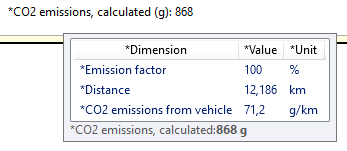
The image shows the following:
-
Emission factor, 100 %. For the calculation of CO2 emissions, Opter has used a CO2 emission factor of 100%. The CO2 emission factor is set for the different services, but can also be set for the different price vehicle types under each service.
-
Distance, 12,186 km. The shipment’s distance.
-
CO2 emissions from vehicle, 71.2 g/km. The details are taken from the vehicle registry.
If it instead states CO2 emissions from price vehicle type, that means one of the following:
-
The shipment is not yet allocated to any Vehicle.
-
There is no information on the vehicle in the vehicle register and on the vehicle type in the register of vehicle types, on the tab Emissions. (See Step 4 and Step 5 in Settings for CO2 emission calculations.)
-
The shipment is subcontracted to a subcontractor. (See Step 9 in Settings for CO2 emission calculations.)
For more information, see This is how Opter calculates CO2 emissions.
-
-
CO2 emissions, calculated (g), 868 g. This shipment is thus allocated CO2 emissions of 868 g. The calculation is distance × CO2 emissions from the vehicle × emission factor.
12,186 km × 71.2 g/km × emission factor 1.00 = 868 g of carbon dioxide.
If you receive the text The emission values have changed. To list the emissions components, the CO2 value needs to be recalculated.
If you hover over the CO2 emissions, calculated (g) field with the mouse, and the text The emission values have changed. To list the emissions components, the CO2 value needs to be recalculated. appears, this means the following:
-
The CO2 emissions calculation saved on the order is different from what it would be if the CO2 emissions had been calculated in the current situation. For example, this could be because you have changed the CO2 emissions of a vehicle, after the estimated CO2 emissions of the order had been calculated and saved.
-
For example, if you have changed the CO2 emissions of a vehicle, Opter cannot display the values that were the basis for the CO2 calculation made previously (i.e. before the CO2 emissions of the vehicle were changed).
-
If you want the CO2 emissions for the shipment (and therefore also for the order) to be recalculated, instructions are available at Recalculate CO2 emissions for orders.
You can manually change the value in the field CO2 emissions, calculated (g)
You can manually change the value in the CO2 emissions, calculated (g) field by entering a new value. If you manually change the Calculated CO2 emissions for a shipment, the Calculated CO2 emissions for the order (i.e. the value shown in the Calculated CO2 emissions (g) field in the Andmed section) will also change.
If the CO2 emissions value has been manually entered in the CO2 emissions, calculated (g) field, the CO2 emissions value is displayed in normal black text. (If the CO2 emissions have not been entered manually, the calculated CO2 emissions are displayed in grey text in italics).
For consignments
For consignments, it may look like this if you have chosen to distribute the consignment order's calculated CO2 emissions between the original shipments based on the distances of the original shipments.
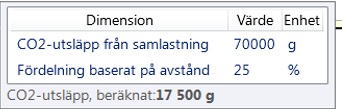
The image above shows an example of what happens when you hover the mouse pointer over field CO2 emissions, calculated (g) in an original order that has been consigned. (The original shipment’s distance is 200 km. Opter has totalled the distances of the original shipments in the consignments, and the sum was 800 km).
The image shows the following:
-
CO2 emissions from consignment, 70,000 g. Opter has added up the CO2 emissions of the consignment shipments that are included in the consignment order, and the total was 70,000 g CO2.
-
Dispatching based on distance, 25 %. This means that Relative distance has been selected in the Assignment of CO2 emissions to original shipment drop-down list on the Üldine tab of the Saadetise liigid window. (For more information, see Step 8 in Settings for CO2 emission calculations.)
In this example, this original shipment is allocated 25% of the CO2 emissions of the consignment order. The calculation is based on distance, 200 km / 800 km = 0.25 (i.e. 25%).
-
CO2 emissions, calculated (g), 17,500 g. This original shipment is thus allocated CO2 emissions of 17,500 g.
The calculation is 70,000 g x 0.25 = 17,500 g CO2 emissions. (In other words, 25% of 70,000 g is 17,500 g).
Proceed as follows
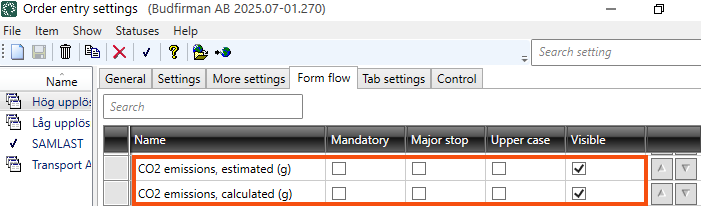
To display the fields Estimated CO2 emissions (g) and/or Calculated CO2 emissions (g) in the Order reception, please do the following
-
Click on Seaded > Tellimused& vastuvõtt > Tellimuse sisestamise seaded and the Vormi vool tab. Select the order setting you want to change in the list on the left.
-
Tick the checkbox in the column Nähtav for the fields CO2 emissions, estimated (g) and/or CO2 emissions, calculated (g).
-
Click on Salvesta to save all changes.
The CO2 emissions, calculated (g) field for the shipment's calculated CO2 emissions is automatically displayed.
Show CO2 emissions in the order check system
In order check, the CO2 emissions can be shown by adding the following columns:
-
CO2 emissions, estimated (g). The column shows the order’s estimated CO2 emissions in grams.
-
CO2 emissions, calculated (g). The column shows the order’s calculated CO2 emissions in grams.
To add the columns, follow the instructions in .
(In the order checker you can also recalculate the CO2 emissions of orders, see Recalculate CO2 emissions for orders.)
View CO2 emissions in the mission control
The shipment's calculated CO2 emissions can be shown by adding the CO2 emissions, calculated (g) column in shipment check. To add the column, follow the instructions in Saadetise seaded (window).
Show CO2 emissions in the consolidated shipment check
In the Saadetised window (consignment check) under Saadetise veerud, the shipment's calculated CO2 emissions can be shown by adding the CO2 emissions, calculated (g) column.
In the Saadetised window under Saadetise veerud, the CO2 emissions for consignment orders can be displayed by adding the CO2 emissions, estimated (g) and CO2 emissions, calculated (g) columns.
To add columns, follow the instructions in Saadetised (window).
You select if the CO2 emissions calculated for the consignment order are to be distributed between the original shipments, and in that case how the CO2 emissions should be distributed. The settings are described in Step 8 of Settings for CO2 emission calculations.
Proceed to the next step
View CO2 emissions for customers and resources.

