View CO2 emissions for customers and resources
Last updated: 12 March 2026
In this article
CO2 emissions can be displayed on:
-
Invoice
-
Freight bills
-
The customer web
More information on CO2 emissions can be found at CO2 emissions, overview.
Conditions
In order for Opter to calculate and display CO2 emissions, you must first make the settings described in Settings for CO2 emission calculations.
Consider the following
About the webs:
-
Estimated and Calculated CO2 emissions can be displayed on the customer web, but not on the resource webs.
-
Calculated CO2 emissions cannot be displayed on the customer web order page. This is a deliberate limitation, as the Calculated CO2 emissions are based on data that is not available at the time of order booking. (Information on the data on which the CO2 emission calculations are based can be found at This is how Opter calculates CO2 emissions).
View CO2 emissions on the customer web
Select whether the estimated and/or calculated CO2 emissions of the order should be displayed on the customer web as follows
-
The estimated CO2 emissions of the order can be displayed on the order page, main page and search page.
-
The calculated CO2 emissions of the order can be displayed on the main page and the search page.
Calculated CO2 emissions cannot be displayed on the order page. This is a deliberate limitation, as the Calculated CO2 emissions are based on data that is not available at the time of order booking. (Information on the data on which the CO2 emissions calculations are based can be found at This is how Opter calculates CO2 emissions).
View the estimated CO2 emissions of the order on the order page
Estimated CO2 emissions can be displayed to the customer when placing an order on the customer web as follows:
-
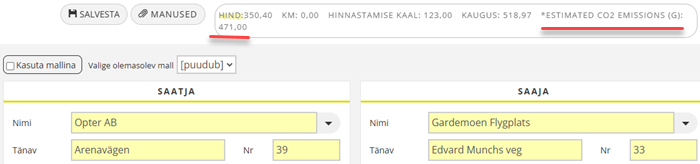
The estimated CO2 emissions are displayed at the top of the order page as soon as the customer has filled in enough information to enable the CO2 emissions to be calculated (i.e. to and from address, service and vehicle type (actually price vehicle type)). The idea is that customers can choose between different services and price vehicle types and that the CO2 emissions caused by the different choices are clear to the customer.
-
On the order page, when the customer clicks on Salvesta, a preview opens showing Estimated CO2 emissions (g) in the section Teave. Estimated CO2 emissions are also displayed in the preview (detail view) that opens when clicking on an order in any of the lists on the main page or search page.
If you want estimated CO2 emissions to be displayed on the order page and in the preview, do this
-
Click Seaded > Internet > Interneti-tellimuse seaded, and on the tab General.
-
Select the customer web from the list on the left, then tick the box Show estimated CO2 emissions in the box Seaded.
-
Click on Salvesta to save all changes.
-
In order for Opter to be able to calculate the estimated CO2 emissions, the customer must be able to fill in the to and from addresses, service and vehicle type. These fields therefore need to be displayed on the order page. Go to the Tellimuse registreerimine tab in the internet order setting and check that those fields are included. The fields are Saatja, Tänav – saatja, Tänav nr - saatja, Postiindeks – saatja, Linn – saatja, the same field for recipients, and also Teenuse tüüp and Sõiduki tüüp. For more information, see Interneti-tellimuse seaded (window).
The image below shows estimated CO2 emissions on the order page.
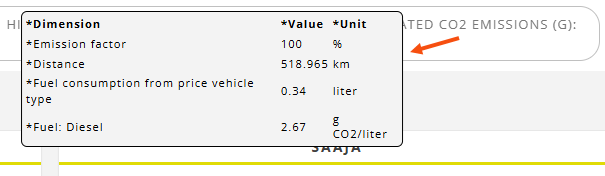
If you hover the mouse over the text Estimated CO2 emissions (g) (previously CO2 emissions (g)), the data used to calculate the estimated CO2 emissions will be displayed; see the image below.
View the estimated CO2 emissions of the order on the main page and search page
If you want to display the estimated CO2 emissions for orders on the home page and search page, you can configure this in the Tellimuse otsing tab of the internet order settings. The column is called CO2 emissions, estimated (g). For more information, see Customising the columns on the customer web and Interneti-tellimuse seaded (window).
If you chose to show estimated CO2 emissions in the preview (detail view), by ticking the checkbox Show estimated CO2 emissions in the instruction above, then Estimated CO2 emissions (g) will be shown if it is calculated for the order. This means that Estimated CO2 emissions (g) will not be displayed for older orders, unless you have deliberately chosen to recalculate the CO2 emissions of the order. (For more information, see Recalculate CO2 emissions for orders).
View the calculated CO2 emissions of the order on the main page and search page
If you want to display the calculated CO2 emissions for orders on the home page and search page, you can configure this on the Tellimuse otsing tab in the internet order settings. The column is called CO2 emissions, calculated (g). For more information, see Customising the columns on the customer web and Interneti-tellimuse seaded (window).
If you want the order's Calculated CO2 emissions to be displayed in the preview (detail view) that opens when clicking on an order in any of the lists on the main page or the search page, please do the following
-
Click Seaded > Internet > Interneti-tellimuse seaded, and on the tab General.
-
Select the customer web from the list on the left, then tick the box Show calculated CO2 emissions in the box Seaded.
-
Click on Salvesta to save all changes.
Calculated CO2 emissions (g) is displayed if it is calculated for the order. This means that Calculated CO2 emissions (g) will not be displayed for older orders, unless you have deliberately chosen to recalculate the CO2 emissions of the order. (For more information, see Recalculate CO2 emissions for orders).
Show CO2 emissions on the invoice
To show the order's CO2 emissions on invoices, the following to the report/invoice template:
-
The estimated CO2 emissions of the order: data name="EmissionForecast".
Corresponds to field Estimated CO2 emissions (g) in section Andmed of the order reception.
If the estimated CO2 emissions have been entered manually in field Estimated CO2 emissions (g), the manually entered value will appear on the invoice instead of Opter’s calculation of the order’s estimated CO2 emissions.
-
Calculated CO2 emissions of the order: data name="EmissionEstimate".
Corresponds to field Calculated CO2 emissions (g) in section Andmed of the order reception.
<dataitemheader fontbold="true">
<line x="0" y="0" width="185" height="0" thickness="0.3" />
<line x="0" y="1" width="185" height="0" thickness="0.3" />
<line x="0" y="15" width="185" height="0" thickness="0.3" />
<!--<line x="0" y="217" width="185" height="0" thickness="0.3" />-->
<item name="Order nr." x="1" y="3" width="12" />
<item name="Referens" x="1" y="7" width="28" />
<item name="Fraktsedelsnr." x="1" y="11" width="20" />
<item name="CO2 (g)" x="148" y="3" width="14" />
<item name="Uppskattat /" x="148" y="7" width="14" />
<item name="Beräknat" x="148" y="11" width="14" />
<item name="Pris" x="167" y="3" width="17" align="right" />
</dataitemheader>
<data name="DEL_Id_Presentation" orderlink="DEL_Id" x="1" y="1" width="25" />
<data name="CRE_Name" x="1" y="5" width="25" />
<data name="DEL_FreightBill" x="1" y="9" width="25" />
<data name="EmissionForecast,'/'" x="148" y="1" width="7" />
<data name="EmissionEstimate" x="148" y="5" width="7" />
<data name="Price_Customer" x="167" y="1" width="17" format="n" align="right" />For more information, see Aruanded (window) and Default settings for invoices.
Show CO2 emissions on the freight bill
To display the order’s CO2 emissions on freight bills, you can add the following to the freight bill report/template:
-
The estimated CO2 emissions of the order: data name="DEL_CalculatedEmissionForecast".
Corresponds to field Estimated CO2 emissions (g) in section Andmed of the order reception. If the estimated CO2 emissions have been entered manually in field Estimated CO2 emissions (g), the manually entered value will appear on the freight bill instead of Opter’s calculation of the order’s estimated CO2 emissions.
-
Calculated CO2 emissions of the order: data name="CalculatedEmissionEstimate".
Corresponds to field Calculated CO2 emissions (g) in section Andmed of the order reception.
For more information, see Aruanded (window).

