Interneti-tellimuse seaded (window)
Last updated: 9 June 2026
 Seaded > Internet > Interneti-tellimuse seaded
In this article
The appearance of the customer web, the resource webs and Track & Trace, as well as the menu options and functions which should be enabled on the various webs, can be managed in the Interneti-tellimuse seaded window. When Opter is installed, there is a configuration both for the customer web and for each of the different resource webs. More configurations can be created and used for different customers and resources.
“Resource webs” refers to the supplier web, subcontractor web, driver web, vehicle web and terminal web.
Üldine
|
Function |
Description |
|---|---|
|
Nimi |
Used for identification. The name is shown in the list on the left when a new configuration is saved. |
|
Kirjeldus |
Free text field for internal notes. The description is not displayed anywhere else but here. |
|
Meiliaadress loomisel |
When a new order has been created on the web, an email is sent from the office email address to all the email addresses entered here. (The office email address can be found in the E-post field on the Üldine tab of the office settings). If more than one email address is entered, then separate the email addresses with semicolons. |
|
Loomise kohta teatis kogu kontorile |
|
|
Stiilileht |
CSS file used to format the web portal. For more information, see Customising the appearance of the customer web. [Vaikimisi]: The setting on the Internet tab in the office settings is used. |
|
Tellimissõnum |
To ensure that the person who placed an order receives a message on the web, such as “Thank you for your order” or “Your order has been received”. |
|
Max. number of orders/shipments displayed on the main page and the search page |
The maximum number of orders (on the customer web) or shipments (on the resource webs) that a search on the search page should be able to return. The higher the value, the more the performance of the system is affected.
To work with more than 10,000 orders, split the search into different date ranges, for example by year. |
 : when a new order has been created from the web, a message is sent to everyone in the chat on Opter’s main page, i.e. to everyone logged into Opter.
 : no message is sent to the chat when a new order has been created on the web.
Seaded
|
Function |
Description |
|---|---|
|
Kuva arve tasumise olek |
|
|
Kuva hind koos käibemaksuga |
|
|
Näita hinda koos kütuselisaga |
|
|
Näita hinda, mis sisaldab valuuta lisa |
|
|
Show estimated CO2 emissions |
For more information, see View CO2 emissions for customers and resources.
|
|
Show calculated CO2 emissions |
For more information, see View CO2 emissions for customers and resources.
|
|
Näita manuseid |
|
|
Kuva veokiri |
|
|
Kuva saadetiste etiketid |
|
|
Aktiveerige aruannete allalaadimine |
If the web is run in an IFRAME, problems may be encountered when downloading reports such as freight bills, package labels and invoices. Select this checkbox to avoid the problem.
|
|
Kuva märguanded |
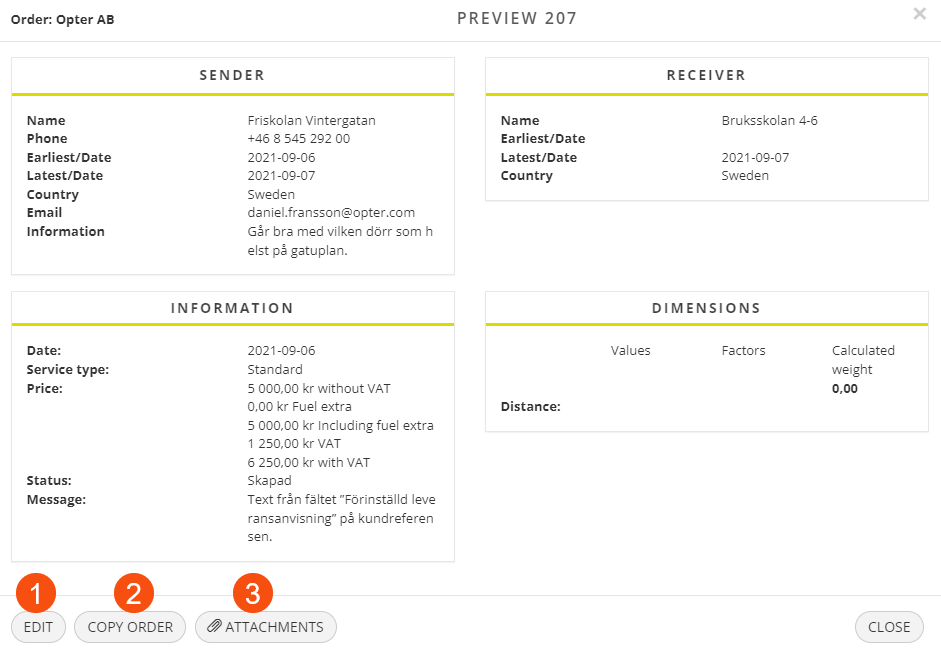
Clicking on Salvesta on the order page will open a preview, showing (among other things) the notifications that have been created. Once the order has been created, the notifications that have been created can be viewed and edited by clicking on Muuda in the detail view. For more information, see Notifications when ordering on the customer web.
|
|
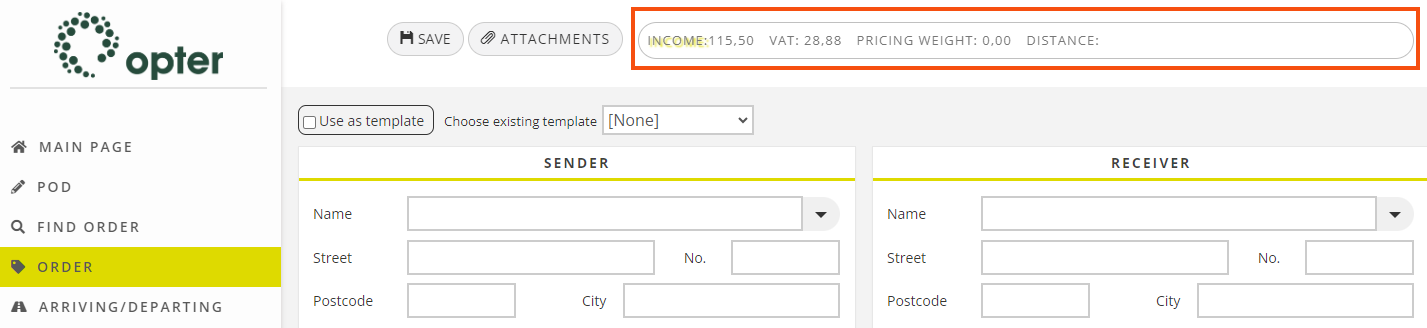
The total price, VAT, pricing weight and distance of the order are displayed at the top of the order page on the web portals.
You can hide prices for individual customers (see Kliendi viide (window)) and supplier references (see Hankija viide (window)).
|
|
|
Kuva hinnaridad |
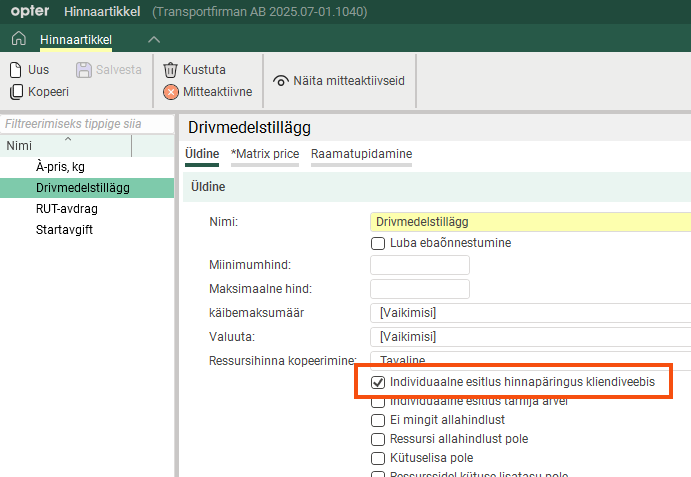
Only valid if Näita hindu above is selected. The user can get more information on how the price was calculated by clicking on it. Individuaalne esitlus hinnapäringus kliendiveebis must be marked in the Price item register on the items to be displayed on the web portals. If not all Price items are shown, the sum of the items will not match the total price of the order.
|
|
Näita saadetiste aadresse |
Shows/hides Saadetise aadressid in the detail view. Any route, arrival time and information is displayed at the addresses. |
|
Näita aegu |
No longer used and will be removed. |
|
Kuva tühi sihtleht |
|
|
Kuva pakendi mõõtmed sentimeetrites |
|
|
Kuva T&T logi kliendiveebis |
Only applies to the customer web.
|
|
Näita järgnevat järjekorda |
|
|
Loo kliendinumber (loo klient) |
|
|
Kopeeri number koodi (loo klient) |
|
|
Kasutage tellimismalle |
For more information, see The order form on the customer web. and in similar articles for all the resource webs, such as The order form on the supplier web. |

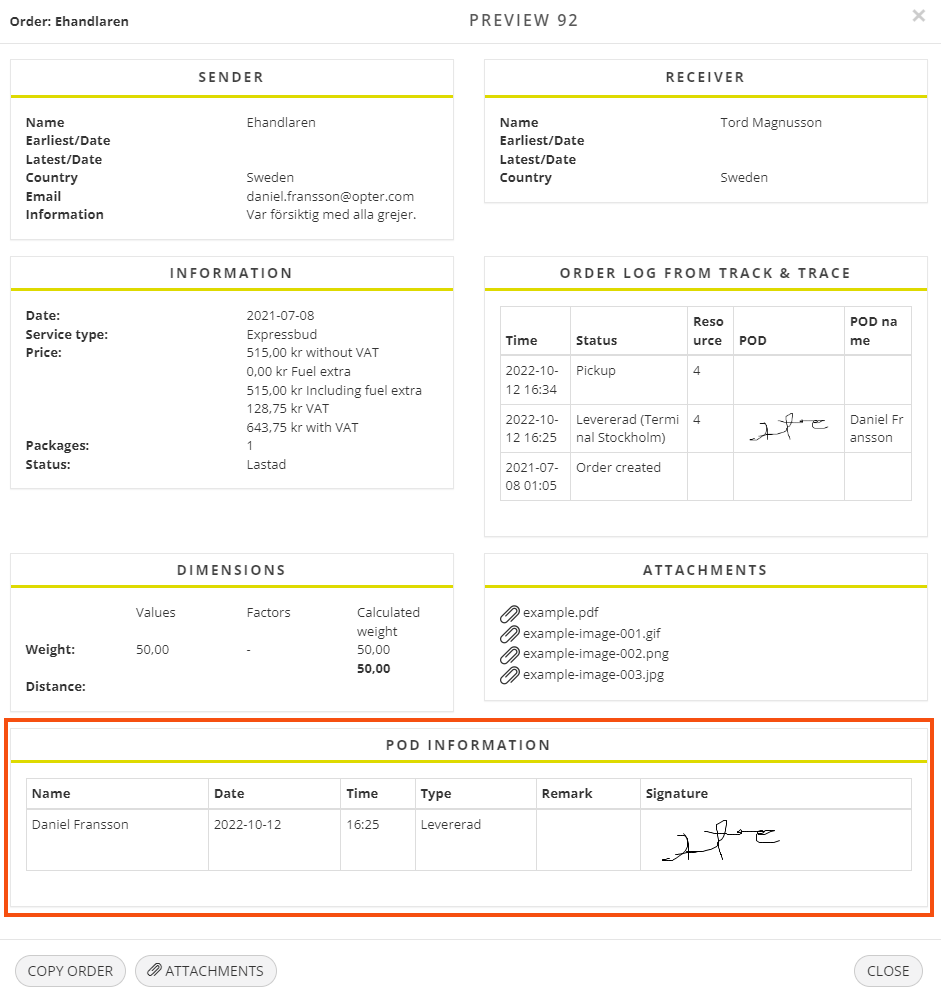
 : the tracking log from Track & Trace is displayed in the detail view.
Luba tellimuste muudatused, mis on
You can define whether or not orders booked on the web can be modified on the web as well. With this, it is possible to prevent orders that have reached a certain status from being changed so that the conditions for a shipment are not changed if, for example, it has already been assigned. The orders that can be modified are set using five checkboxes. For more information and examples, see Changes to orders registered on the customer web.
Loo tellimuse seaded
In this box, default settings can be made for new orders created on the web order page.
|
Function |
Description |
|---|---|
|
Teisenda suureks täheks |
|
|
Loo saadetise read automaatselt |
|
|
Uued tellimused luuakse uue tootega |
|
|
The setting must be combined with making at least one field under Hinnaartikkel mandatory to fill in. You can do this on the tab Tellimuse registreerimine. If you do not make any field mandatory, it is possible to save the order without Price item even if this checkbox is ticked.
|
|
|
Loo veokirja number |
|
|
Loo saadetise ID |
|
|
Kuva terminali aadressid |
|
|
Näita ressurssi |
|
|
Kuva sekundaarne ressurss |
|
|
Klient kui saatja loomisel |
|
|
Kuva marsruudi soovitused |
|
|
Avage veokirja aken automaatselt |
|
|
Avage etiketi aken automaatselt |
|
|
Manuaalse tellimuse kuupäev |
|
|
Saada kinnitus tellimuse loomise kohta |
For more information, see the Interneti-tellimuse kinnitamine (e-post) message in Sõnumid (window). To change the text, click on the report (template) in the Aruanded window and then click on Kuva muutja. For more information, see Aruanded (window).
|
|
Jäta tellimuse eelvaade vahele |
|
|
Redigeerige kliendiprojekte |
You also need to click on the Tellimuse registreerimine tab and add Projekt to the Kaasas list, then the Projekt field will appear in the Info section on the order page of the web.
|
|
Luba tellimuste registreerimine enne tänast kuupäeva |
|
|
Kopeerige saatja kuupäev tellimuse kuupäevaks |
|
|
Teeninduse kuupäevade lukustamine (möödunud kuupäevad) |
If the order date comes from the service, you can choose whether or not the ordering party should be able to change the order date to a date in the past, as follows:
The Luba tellimuste registreerimine enne tänast kuupäeva checkbox must be selected, see above. |
|
Luba veebitellimustel kontrollnimekirjad |
Shows/hides group Kontrollnimekirja valik in the order form where the user can select a checklist for the order. The checklist must be completed by the driver in connection with the POD. For the group to appear, you must also include Kontrollnimekirjad on the Tellimuse registreerimine tab. For more information, see Check lists. |
|
Lubage Interneti-tellimustele manuste lisamine |
|
|
Keela pakkeüksuste redigeerimine |
|
|
Vältige ilma hindadeta Interneti-tellimuste salvestamist |
|
|
Validate internet orders in order reception |
|
 : The user cannot select an order date before today's date.
Juurdepääs
Use this tab to specify which menu options and features should be available to users of the web portals. The options under Kliendi juurdepääs apply to the customer web and the options under Juurdepääs ressurssidele apply to the supplier web, subcontractor web, driver web, vehicle web and terminal web.
Kliendi juurdepääs
These settings can be overridden for individual ordering parties in the Kliendi viide window, see Kliendi viide (window).
|
Function |
Description |
|---|---|
|
POD |
In addition, the POD-teave section is displayed in the detail view if the order has a proof of delivery.
|
|
Otsing |
|
|
Loo tellimus |
|
|
Muuda tellimusi |
Under Luba tellimuste muudatused, mis on on the Üldine tab, it is possible to define that only orders with a certain status can be modified. For more information, see Changes to orders registered on the customer web.
|
|
Saabuvad/väljuvad tellimused (maksja on teine ??klient) |
|
|
Multitellimus |
|
|
Shows/hides the Hind option in the customer portal menu. The users can calculate total price, VAT, pricing weight and distance for an order without starting an ordering process. If the price is acceptable and the Reference wishes to place the order, the details of the price calculation are included in the order form. |
|
|
Aadressid |
|
|
Arved |
|
|
Kaart |
|
|
Seaded |
|
|
Kasutajad |
The above only applies if the Kasutajad checkbox is selected for the logged-in customer reference. The checkbox is located in the Kliendi viide window on the Internet tab. For more information, see User accounts for the customer web. If the user clicks on Kasutajad in the menu, a list of all the customer's user accounts is displayed, where users can define access rights and account information for other users.
|
Juurdepääs ressurssidele
|
Function |
Description |
|---|---|
|
Kinnitamata saadetiste saatmine |
Show/hide shipments that have not yet been approved in dispatch. Shipments that are not approved are displayed in a separate list at the top of the main page (Interneti-tellimused, mis ootavad vastuvõtmist). |
|
Show shipments delivered before current date |
Show/hide shipments with status Kohale toimetatud earlier than today's date, based on the status of the shipment or order:
Example: If an order is split into several shipments, the shipments will be displayed on the resource webs until all included shipments have the status Kohale toimetatud. This can be confusing for a haulier who may only have one of the shipments on the order and has already delivered it.
|
|
Kuva saadetised, mis pole ressursile määratud (aga sama tarnija) |
All shipments assigned to the same supplier are displayed in the lists, not just the shipments assigned to the resource that is logged in. All the supplier’s shipments are also displayed on the driver and vehicle web. |
|
Näita tellimuse teavet |
|
|
Show customer information |
|
|
Muuda olekut |
|
|
Luba ressurss saadetiste määramiseks |
Applies to the subcontractor, terminal and supplier webs. The Kiire redigeerimine section is displayed in the detail view when a shipment is opened on the main page. In it the user can assign the shipment to another resource. If the supplier should to be required to enter a resource when creating the order, make the Ressurss field in the order form mandatory. This means that you do not have to allocate the shipment to the driver in the dispatch. For more information, see Activating the assignment of shipments on the supplier web. |
|
The user can edit and add internal messages to the order. Only applies to the supplier web and the subcontractor web.
|
|
|
Kuva saadetise logi teave |
Allow a resource to view log information for shipments. The resource sees the same log as the one displayed on Track & Trace. |
|
Statistika |
Does not apply to the supplier web. Shows/hides the Saadetised menu option. The user can see a summary of completed shipments there. |
|
POD |
Allow a resource to look up orders with a proof of delivery (POD) and change proofs of delivery. |
|
Otsing |
Shows/hides the Otsige saadetisi menu option. |
|
Show shipments that are not to be credited on the search page |
Also include shipments that should not be credited in the search results on the search page. Shipments not to be credited are always displayed on the main page and in the statistics. This setting only applies to the search page. |
|
Luba saadetiste seadmine kontrollituks |
Shows/hides checkboxes on the far left of each shipment in the lists on the main page. For example, the checkboxes can be used to indicate that the shipment has been changed or checked. |
|
Loo tellimus |
Users can create new orders. It can be set so that orders created on the web have to be approved in order reception before they are ready for dispatch. Select Validate internet orders in order reception on the General tab. |
|
Muuda tellimusi |
Users can change orders. Loo tellimus (see above) must be selected so that orders can be changed. On the Üldine tab, in the Luba tellimuste muudatused, mis on box, it is possible to define that only orders with a certain status can be changed. For more information, see : |
|
Loo klient |
Users can add new customers. |
|
Muuda klienti |
Users can change the information about existing customers. |
|
Määrake saadetis tellimuse loomisel ressursile |
Only applies to the subcontractor, vehicle and driver webs. The shipment created is automatically assigned to the resource creating the order. |
|
Logged in resource is added to price items on new orders (only vehicle, driver and subcontractor webs) |
Applies to the vehicle, driver and subcontractor webs. The logged-in resource is placed on the price item rows when a new order is created. Only applies when new orders with price items are created, not if a price item is added to an existing order. |
|
Kaart (tarnija) |
Only applies to the supplier web. The map with the position of the vehicles is displayed on the supplier web. |
|
Kuva statistika (sõiduk) |
Only applies to the supplier web. The menu Sõidukid is displayed where the user can get an overview of the shipments that have been allocated to the vehicles assigned to the driver. For more information, see Setting which shipments are displayed on the supplier web. |
|
Näita statistikat (juhid) |
Only applies to the supplier web. Select the checkbox to allow the resource that is logged in to the supplier web to view driver statistics. Shipments that have been assigned to drivers linked to the supplier are displayed. For more information, see Setting which shipments are displayed on the supplier web. |
|
Arved |
Show/hide Hankija arved in the menu of the supplier web/subcontractor web. Only supplier bills in closed supplier bill periods are displayed. |
 : Displays the detail view when the user clicks on a shipment on the main page or the search page.
 : Does not display the detail view.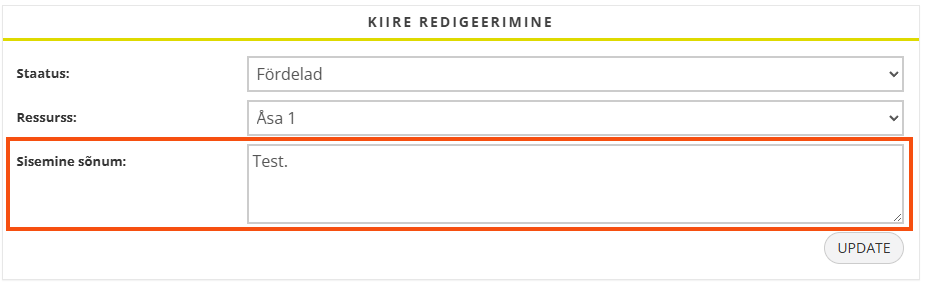
Tellimuse otsing
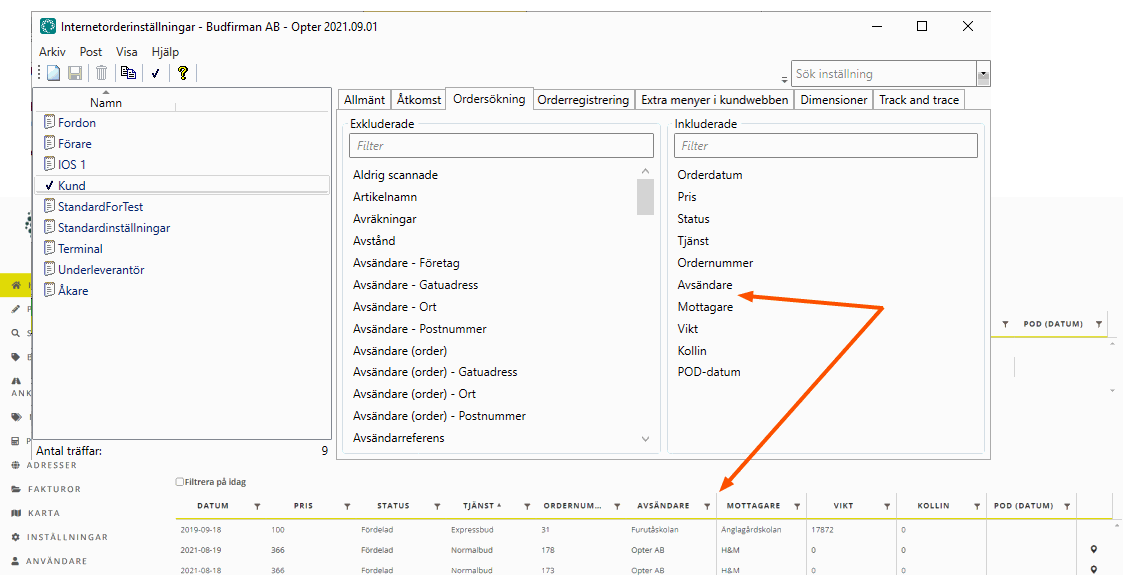
Which columns should appear in the lists on the main page and in the search results on the search pages can be defined on this tab.
Put the columns you want to display in the list Kaasas. Double-click on a column to move it between the lists. You can move several columns at once by Ctrl-clicking or Shift-clicking them and then pressing Enter.
In the text fields above the lists, it is possible to search for the name of a column.
You decide the order of the columns by dragging and dropping them up and down the list.
|
Column |
Description |
|---|---|
|
Pole kunagi skannitud |
Number of packages on the order that have never been scanned. |
|
Arrival scan |
The column shows whether the order has undergone arrival scanning at the current terminal. In other words, if at least one of the packages in the order has been scanned on arrival. The column shows one of the following values:
The Arrival scan column is only relevant to the terminal web. |
|
Hinnaartikkel |
Price item name on the order. The column shows the name of the price item. |
|
Hankija arved |
The column shows the supplier bill number, if there are any supplier bills on the shipment or order. This column is not shown on the customer web, even if it is in the Kaasas list, but it it shown on the resource webs. |
|
Saatja |
The shipment’s sender. It is more relevant to display this column on the terminal web, for example, than on the customer web. |
|
Saatja (tellimus) |
The order’s sender. The name of the column is shown as Saatja, not Saatja (tellimus), on the webs. |
|
Saatja viide |
The order’s sender reference. |
|
Kaugus |
The order’s driving distance in kilometres. |
|
Check list |
If there is a checklist on the order, its name is displayed here. For more information, see Check lists. |
|
CO2 emissions, calculated (g) |
Calculated CO2 emissions of the order in grams.For more information, see CO2 emissions, overview. |
|
CO2 emissions, estimated (g) |
Estimated CO2 emissions of the order in grams.For more information, see CO2 emissions, overview. |
|
Otsene kulu |
Direct expenses are expenses that are not to be included in the turnover. Direct expenses are always inclusive of VAT. Not displayed on the terminal web. |
|
Kaal |
Displays the Kaal column in the lists on the main page and in the search results. In the detail view, the Mõõtmed section is displayed if there is a value for any dimension on the order, and is not displayed if there is no value. So this setting does not control the Mõõtmed section in the detail view. |
|
ETA |
Estimated order delivery time. |
|
ETP |
Estimated order pickup time. |
|
Väline sõnum |
If the order has an external message, it is displayed here. |
|
Arve number |
The order’s invoice number. |
|
Arve olek |
The invoice status of the order, for example Arveldatud, Arveldamiseks, Ainult krediteerimine or EI esitata arvet. |
|
Vale asukoht |
Number of packages on the order that are misplaced. |
|
Failitüübid (manused) |
Shows the type(s) of attachment(s) that the order may have, for example Pilt, Kahju, Veokiri or Tollidokument. |
|
Konsolideerimisnumber Konsolideerimisnumber (alamtellimus) |
These two columns allow you to see which sub-orders belong to which consolidation orders. Konsolideerimisnumber shows the number of the consolidation order. Konsolideerimisnumber (alamtellimus) shows the Order numbers included in the consolidation order. |
|
LDM |
The estimated number of load metres in the order. |
|
Sõiduki tüüp |
The type of vehicle used for the shipment. |
|
Veokiri |
The order’s freight bill number. |
|
Veokiri trükitud |
This column shows whether the freight bill has been printed or not.
|
|
Terminalist |
The column shows which terminal the shipment starts at. This column can be displayed on the customer web, but it does not contain any information because it is not relevant to the customer web. |
|
Korjatud (tegelik aeg) Tarnitud (tegelik aeg) |
Shows the date and time when the status of the order was changed to Korjatud and Kohale toimetatud, i.e. when the goods were actually collected from the sender and delivered to the recipient. The columns on the web portals are korje aeg (tegelik) and Tarneaeg (tegelik). |
|
Saaja |
The shipment’s receiver. It is more relevant to display this column on the terminal web, for example, than on the customer web. |
|
Saaja (tellimus) |
The order’s receiver. The name of the column is shown as Saaja, not Saaja (tellimus), on the webs. |
|
Saadetise ID |
The order number of the consignment. Only consignments that are to be invoiced to the logged-in customer are displayed on the customer web. |
|
Options |
Options on the order, such as "cooling" or "heating". |
|
Terminali |
The column shows which terminal the shipment ends at. This column can be displayed on the customer web, but it does not contain any information because it is not relevant to the customer web. |
Tellimuse registreerimine
On this tab, you specify the fields to be displayed in the order form. The fields are displayed alphabetically in the list, but in a different sequence in the order form. It is not possible to change their order.
The Välistatud list contains the fields that can be displayed in the window. The Kaasas list contains the fields that are currently displayed. Double-click the fields to be displayed in the list on the left, and they will be added to the Kaasas list. To delete columns, double-click on them in the list on the right and they will be moved to Välistatud.
In the text fields above the lists, it is possible to search for the names of the fields.
Fields in the table
|
The internet order settings |
The order form |
|---|---|
|
Unit price (price item) |
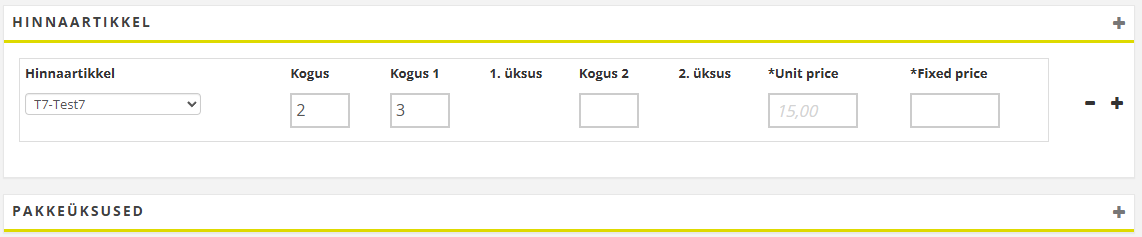
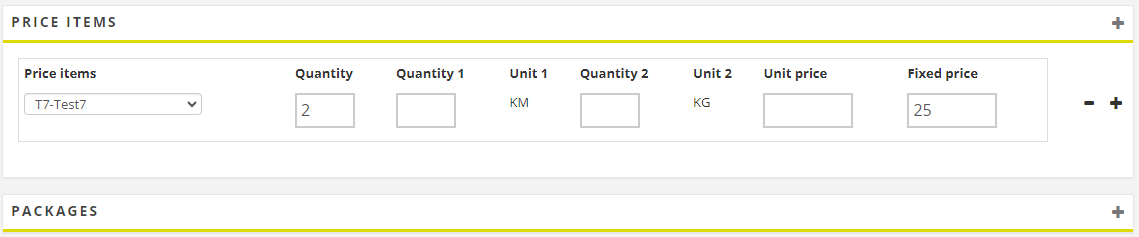
Unit price under Hinnaartikkel. Retrieves the price of the price item from the price list, if the price is a unit price. The user can overwrite the price from the price list with a manual price. If this field is included, Kogus (hinnaartikkel), Kogusühik 1 (hinnaartiklid), Kogusühik 2 (hinnaartiklid), Ühik 1 (hinnaartiklid) and Ühik 2 (hinnaartiklid) should also be included, as they work together. The unit price is multiplied by the number of units. That sum is in turn multiplied by the quantity of the price item (Kogus). The total price of the price item in the example below is 3 × 15 × 2 = 90. Hinnaartikkel must be included, otherwise this field will not be displayed as it is under that section.
|
|
Kogus (hinnaartikkel) |
Kogus under Hinnaartikkel. The number (quantity) of a price item on the order. The number is multiplied by the price of the price item and gives a total price for the price item. If this field is included, Fixed price (price item) or Kogusühik 1 (hinnaartiklid), Kogusühik 2 (hinnaartiklid), Ühik 1 (hinnaartiklid) and Ühik 2 (hinnaartiklid) should also be included, as they work together. The unit price is multiplied by the number of units. That sum is in turn multiplied by the quantity of the price item. If you use a fixed price, it is multiplied by the quantity of the price item. In that case, it does not matter if the user enters something in the Kogus 1 and Kogus 2 fields, as they are related to Unit price. Hinnaartikkel must be included, otherwise this field will not be displayed as it is under that section. |
|
Kogusühik 1 (hinnaartiklid) Kogusühik 2 (hinnaartiklid) |
Kogus 1 and Kogus 2 under Hinnaartikkel. Works in conjunction with Unit price (price item). The unit price is multiplied by the number of units. That sum is in turn multiplied by the quantity of the price item (Kogus). Hinnaartikkel must be included, otherwise this field will not be displayed as it is under that section. |
|
Hinnaartikkel |
Show/hide group Hinnaartikkel. The fields you can view under Hinnaartikkel are listed as "xxxxxx (Price item)". It is not possible to make the whole section mandatory but you can set that there must be at least one item row on the order by selecting Order requires price item on the tab Üldine (under Loo tellimuse seaded). See above.
|
|
Kontrollnimekirjad |
Show/hide the group Kontrollnimekirja valik where the user can select the checklist for the order. The checklist must be completed by the driver in connection with the POD. For the group to appear, you must also select Luba veebitellimustel kontrollnimekirjad on the Üldine tab. |
|
Ühik 1 (hinnaartiklid) Ühik 2 (hinnaartiklid) |
Price item price units (for example, "KG" and "KM") under Hinnaartikkel. Retrieved from the price item and cannot be changed on the web portals. What becomes unit 1 and unit 2 is determined by the order in which the price units were added to the price item in the price item registry. Hinnaartikkel must be included, otherwise this field will not be displayed as it is under that section. |
|
Extra ID1 (price items)–ExtraID5 (price item) |
Extra id 1-Extra id 5 under Hinnaartikkel. Free text field that can be used to add extra information about the Price item. The text is visible in the Order reception. Hinnaartikkel must be included, otherwise this field will not be displayed as it is under that section. |
|
Lisasõnum |
Shows/hides block Lisasõnum, which is a free-text field. The information entered into the web portal is displayed in Sisemine lisasõnum in the order reception area. |
|
Fixed price (price item) |
Fixed price under Hinnaartikkel. Retrieves the price of the price item from the price list, if the price is a fixed price. The price from the price list can be overwritten with a manual price. If this field is included, Kogus (hinnaartikkel) should also be included, as they work together. The fixed price is multiplied by the quantity of the price item (Kogus). The total price of the price item in the example below is 2 × 25 = 50. Hinnaartikkel must be included, otherwise this field will not be displayed as it is under that section.
|
|
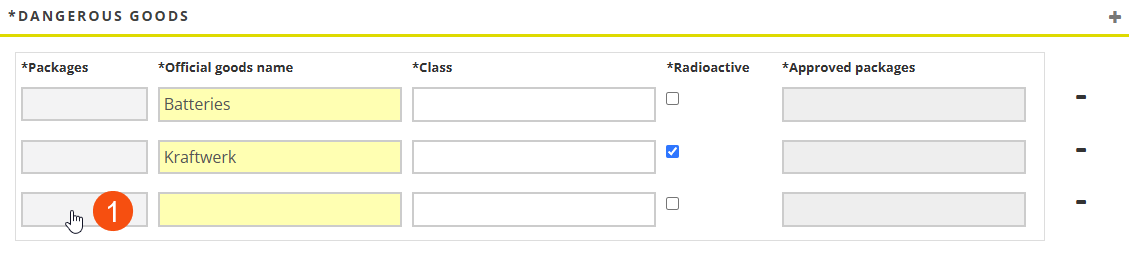
Shows/hides block Dangerous goods in the order form. The fields can be made mandatory to fill in at the time of ordering (tick Kohustuslik), which may be relevant to fulfil current legal requirements. The Reference selects which packages on the order contain dangerous goods by clicking on the grey button (1) and selecting one of the packages they have entered on the order. Dangerous goods are also shown in the detail view.
 Fields in the block Fields in the block
Same fields as in Order reception. Filter the lists for “dangerous goods” to see which fields are included in the block.
|
|
|
Pakkeüksused (grupp) |
Shows/hides block Pakkeüksused in the order form. These fields can be made mandatory when placing an order (tick Kohustuslik) Fields in the block
Filter the lists by ‘(package)’ to see which fields are included in the block.
|
|
Shows/hides block Sõnum, which is a free-text field. The information entered into the web portal is displayed in Sisemine sõnum and Väline sõnum in the order reception system. The reason is that Sisemine sõnum does not appear on the web portals, but users should still be able to see what they have entered. On the customer portal, the Sõnum field is filled in automatically if you have a pre-set message for the reference. See also Kliendi viide (window). |
The settings below the table
|
Function |
Description |
|---|---|
|
Kohustuslik |
Make a field in the order form mandatory. Select the field in the list Kaasas, then select Kohustuslik. The field is highlighted in yellow in both the list and the order form and must be completed on the web portal. If the Reference does not fill in a field marked yellow, the order cannot be saved. |
|
Aadressi seadistus |
This setting is not in use and will be removed. |
Saadetise jälgimine
Nähtavus
Specify what should be displayed on Track & Trace here. For more information, see Tracking log on Track & Trace.
|
Function |
Description |
|---|---|
|
Näita tundmatuid skaneeringuid |
|
|
Kuva konsolideerimisjärjestus |
|
|
Näita kaarti |
To display the Jälgimislogi list on Track & Trace, Kuva jälgimislogi must be selected.
|
|
Kuva skaneerimise asukoht |
To display the Jälgimislogi list on Track & Trace, Kuva jälgimislogi must be selected.
|
|
Näita saadetist |
If the Kuva jälgimislogi checkbox has been selected, the number of packages in the Jälgimislogi list will be displayed on Track & Trace. Clicking on a line in the tracking log will open a new window showing the package IDs. |
|
Näita kaalu |
|
|
Näita kubatuuri |
|
|
|
|
|
Shows the order’s estimated delivery time (date and time slot) after the first route optimisation on Track & Trace. If the estimated delivery time is updated in a new route optimisation, the old time is still shown to the receiver on Track & Trace. See also Kuva automaatselt värskendatud ETA below. |
|
|
Kuva automaatselt värskendatud ETA |
Shows the order’s current estimated delivery time (date and time slot) according to the most recent route optimisation on Track & Trace. If a new route optimisation is made, the time is updated on Track & Trace. See also Näita aega below. It is possible to allow receivers to choose a date and time slot for home deliveries in Track & Trace. For more information, see Choosing a delivery date and time in Track & Trace. |
|
Näita ressurssi |
To display the tracking log on Track & Trace, Kuva jälgimislogi must be selected.
|
|
Näita aega |
The earliest and latest delivery times from order reception are shown as an estimated delivery time range on Track & Trace, for example "14.00-18.00". It is possible to allow receivers to choose a date and time slot for home deliveries in Track & Trace. For more information, see Choosing a delivery date and time in Track & Trace. |
|
Kuva POD |
To display the Jälgimislogi list on Track & Trace, the Kuva jälgimislogi checkbox must be selected.
|
|
Kuva viimane olek |
|
|
Näita kahjustusi |
|
|
Näita aadresse pärast tellimuse kättesaamist |
If non-encrypted search is used on Track & Trace, you can choose to never show the receiver’s address by selecting the Peida vastuvõtja (krüpteerimata otsing) checkbox. If required, encrypted search can be enabled on Track & Trace by selecting the Krüpteeritud otsing checkbox in the Otsinguvalikud box on the Saadetise jälgimine tab in the internet order settings. Encryption makes it impossible for an outsider to guess the correct link to an order in Track & Trace. |
|
Näita aadresse |
If non-encrypted search is used on Track & Trace, you can choose to never show the receiver’s address by selecting the Peida vastuvõtja (krüpteerimata otsing) checkbox. If required, encrypted search can be enabled on Track & Trace by selecting the Krüpteeritud otsing checkbox in the Otsinguvalikud box on the Saadetise jälgimine tab in the internet order settings. Encryption makes it impossible for an outsider to guess the correct link to an order in Track & Trace. |
|
Näita manuseid |
|
|
Kuva jälgimislogi |
|
|
Kliendi logo aadressi asemel |
|
| Näita järelejäänud peatuste arvu
|
|
|
T&T kliendi lubamismärk |
For more information, see Activating signing of POD on Track & Trace and Signing the proof of delivery in Track & Trace. If the function is used to send SMS with links to Track & Trace, Krüpteeritud otsing should also be selected under Otsinguvalikud to hide the order number in the link. Otherwise, the recipient can easily figure out other Order numbers and and search on them. For more information, see Activating SMS with a link to Track & Trace. |
|
Aktiveerige kokkupakitud vaade |
|
|
Peida vastuvõtja (krüpteerimata otsing) |
If required, encrypted search can be enabled on Track & Trace by selecting the Krüpteeritud otsing checkbox in the Otsinguvalikud box on the Saadetise jälgimine tab in the internet order settings. Encryption makes it impossible for an outsider to guess the correct link to an order in Track & Trace. |
|
Päevade arv kui tellimus on otsitav pärast kohaletoimetamist |
Enter the number of days that an order should be searchable on Saadetise jälgimine after delivery, for example “7” days.
|
 to expand them and view the information. If there is a lot of information, this view can provide a better overview.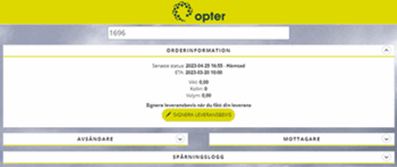
Otsinguvalikud
Specify here what it is possible to search for on the Track & Trace search bar. To enter information text that will be displayed in the Track & Trace search bar, such as “Search by order number”, see Adding information text to the search field on Track & Trace.
|
Function |
Description |
|---|---|
|
Tellimuse numbri otsing |
It is possible to search by order number. |
|
Veokirja otsing |
It is possible to search by freight bill number. |
|
Saadetise ID otsing |
It is possible to search by package number. |
|
Saatjate viiteotsing |
It is possible to search on the name of the sender reference. |
|
Saaja viiteotsing |
It is possible to search on the name of the receiver reference. |
|
Krüpteeritud otsing |
Select the checkbox if the Track & Trace search should be encrypted. Encryption makes it impossible for an outsider to guess the correct link to an order in Track & Trace. The checkbox is usually used for home delivery. |
|
Extra ID search |
It is possible to search on Extra ID. |

