Tracking log on Track & Trace
Last updated: 9 November 2022
In this article
You can choose whether or not to display the tracking log in Track & Trace. If the tracking log is displayed, you can set the columns displayed in it to some extent.
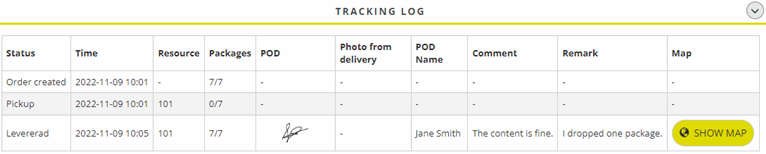
You can also choose whether or not to display the Näita kaarti button in the tracking log. Clicking on the Näita kaarti button will open a map showing, for example, where the order has been scanned or delivered.
Clicking on a line in the tracking log will open a new window showing the package IDs. Then it is possible to see which package numbers have been scanned or delivered. Click on the Tellimus tehtud row to see the package IDs that were available when the order was created.
For example, if you click on the Kohale toimetatud status bar in the tracking log, it might look like this:
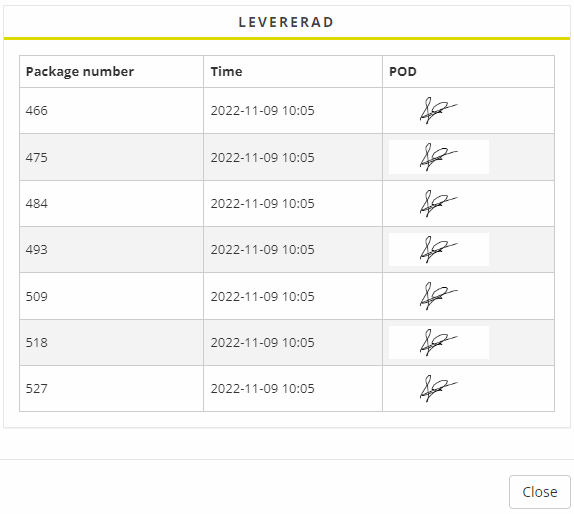
The list shows which package IDs have been delivered, when they were delivered (date and time) and the receiver’s signature on the proof of delivery.
Show the tracking log and select columns
-
Click on Seaded > Internet >Saadetise jälgimine and go to the Interneti-tellimuse seaded tab.
-
Select Kuva jälgimislogi under Nähtavus. Then choose whether to show or hide the following columns:
-
POD: select Kuva POD.
-
Allikas: select Näita ressurssi.
-
Kaart: select Näita kaarti.
The rest of the columns are always displayed in the tracking log.
-
-
Choose whether or not to use encrypted search. If Krüpteeritud otsing (under Otsinguvalikud) is selected, it is impossible for an external party to guess the correct link to an order in Track & Trace. Usually used for home deliveries.
Columns
Jälgimislogi
|
Function |
Description |
|---|---|
|
Staatus |
Shows the status of the order. |
|
Aeg |
Shows the date and time when the status was set on the order. |
|
Allikas |
Shows which resource changed the status of the order, so you can see which resource delivered the order, for example. If you want the Allikas column to be displayed in the tracking log, select the Näita ressurssi checkbox in the Nähtavus box on the Saadetise jälgimine tab in the internet order settings. |
|
Pakkeüksused |
Shows the number of packages out of the total number of packages that have been scanned or delivered, for example. For example, if the Pakkeüksused column on the Kohale toimetatud status bar indicates “2/3”, it means that two packages out of three have been delivered. |
|
POD |
Show the receiver’s signature on the proof of delivery. If you want the POD column to be displayed in the tracking log, select the Kuva POD checkbox in the Nähtavus box on the Saadetise jälgimine tab in the internet order settings. |
|
Foto kohaletoimetamisest |
Shows a delivery photo if available. The photo can be enlarged by clicking on it. |
|
POD-i nimi |
Shows the name of the receiver on the proof of delivery. |
|
Kommenteeri |
Shows any comments on the proof of delivery. |
|
Märkus |
Shows any remarks on the proof of delivery. |
|
Kaart |
When the order has been scanned or delivered, the Näita kaarti button is displayed in the Kaart column. Clicking on the Näita kaarti button will open a map showing, for example, where the order has been scanned or delivered. If you want the Kaart column to be displayed in the tracking log, select the Näita kaarti checkbox in the Nähtavus box on the Saadetise jälgimine tab in the internet order settings. |

