Calculating the pricing weight
Last updated: 1 August 2025
In this article
How Opter calculates pricing weight
Opter calculates a pricing weight in three steps:
 1. Add up all the dimensions
Opter adds up all the dimensions contained in the order, individually. For example, all load metres for all packages on an order are added together into one total. If you enter a value in a specific field, such as volume, that value applies regardless of what is specified in the rest of the order.
If you use extra dimensions, you can choose whether they are calculated individually or whether some (or all) of them are added together.
If you work a lot with packages that have mixed units (e.g. some have volume or load metres, others do not), you can have the pricing weight calculated separately for each package. The pricing weights are then totalled. This is to obtain a correct pricing weight.
2. Calculate the corresponding weight
Opter converts the dimensions to a weight in kilograms according to the values you entered in the weight calculation settings. The weight calculation setting used is selected in the following order:
-
Customer (exemption from price list/office).
-
Price list (except for offices).
-
Office (default setting).
After the conversion, the corresponding weight is rounded if you have set this. Read more about Rounding below.
3. Use the greatest weight as a pricing weight
Opter uses the greatest corresponding weight from the dimensions as the pricing weight. The pricing weight is rounded if you have set this.
Here's how to do it
Enter the weight calculation settings like this:
-
Click on Seaded > Kaalu arvutamine to configure the weight calculation settings. The fields in the window are described in Kaalu arvutamine (window).
You can also open the Kaalu arvutamine window:
-
Ümardamise reeglid and make adjustments if you wish. For more information, see Ümardamise reeglid (window).
-
Pikkuse kaalu arvutamine and make adjustments if you wish. For more information, see Setting up weight calculation for long goods and Pikkuse kaalu arvutamine (window).
-
-
Click on Salvesta to save all changes.
-
Select the weight calculation to be used generally in your Opter.
On the Kaal/kaugus tab, click on Seaded > Kontorid and make your selection from the drop-down menu Kaalu arvutamine.
-
If you want to make an exception to the general setting for a particular:
-
Price list.
Click on Majandus > Hinnakirjad and select the price list from the list on the left. Select the weight calculation to be used in the drop-down list Kaalu arvutamine (on the tab Üldine).
-
Customer.
If you want to make an exception to the general setting and any price list setting, click on Register > Kliendid and select customer from the list on the left. Select the weight calculation to be used from the Kaalu arvutamine drop-down list on the Tellimuse sätted tab.
-
-
Click on Salvesta to save all changes.
Rounding
Weights can be rounded differently depending on their size.
In the table Ümardamise reeglid (in the window Ümardamise reeglid), specify the rules to be applied for rounding. Enter one line per row. The columns are described in Ümardamise reeglid (window).
Examples of rounding rules:
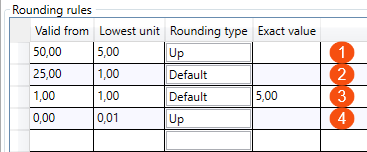
If the above rules are applied, it gives the following results:
|
Entered on order |
Rounded to |
According to the row number in the image above |
|---|---|---|
|
50.1 |
55 |
Wheel 1 |
|
25.6 |
26 |
Row 2 |
|
25.4 |
25 |
Row 2 |
|
25 |
25 |
Row 2 |
|
20 |
5 |
Row 3 |
|
1 |
5 |
Row 3 |
|
0.09 |
0.09 |
Row 4 |
|
0.001 |
0.01 |
Row 4 |
Pricing weight per package
The default handling is that Opter sums all dimensions on the order, one by one. For example, all load metres for all packages on an order are added together in one total.
If you work a lot with packages that have mixed units (e.g. some have volume or load metres, others do not), you can tick the checkbox Saadetise koondhinna hinnastamise kaal to get a correct pricing weight. The pricing weight is then calculated separately for each package, and these separate pricing weights are then totalled. For more information and examples, see Kaalu arvutamine (window).
Testing
We recommend that you test that the pricing weight is as you wish. Proceed as follows:
-
Create a new order in Order reception and test with different dimensions of the package. Will the pricing weighting be as you wish?
In the Mõõtmed box in Order reception, you will see the results of the weight calculation for the different dimensions (1 in the image below), and the pricing weight Opter will apply to the order (2). (Opter uses the largest corresponding weight from the dimensions as the pricing weight).
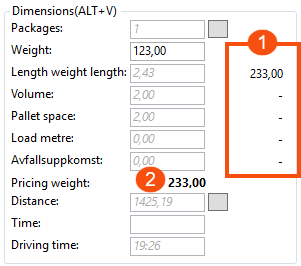
In the image, Opter uses the long goods weight calculation as the pricing weight of the order.
-
Feel free to test with more than one parcel on the order. For example, give parcels different volumes and load metres. Will the pricing weighting be as you wish?
If the pricing weight is not as you wish, see Troubleshooting below.
Troubleshooting
If the pricing weight is not as you wish, you can check the following:
-
In the Mõõtmed box in the Order reception, you will see the weight calculation results for the different dimensions (1 in the image above), and the pricing weight Opter will apply to the order (2). Opter uses the greatest corresponding weight from the dimensions as the pricing weight. You may need to change some weight calculation settings to get the pricing weight you want. See Do this above.
-
In the window Kaalu arvutamine on the tab Üldine:
-
Check that the correct weight calculation is generally used in your Opter, by looking in the list on the left which one is marked as default
 . There may also be exceptions for a particular price list or customer, see Do this above.
 -
Check that the correct set of rounding rules is selected in the drop-down list Hinnastamise kaalu ümardamine (if you have several different ones).
-
Check that the correct set of length weight calculation is selected in the drop-down list Pikkuse kaalu arvutamine (if you have several different ones).
-
For example, if you use extra dimensions, check that the correct extra dimensions are added together or calculated individually. See Kaalu arvutamine (window).
-
-
In the Kaalu arvutamine window on the Automaatsed mõõdud tab, check that the settings for dimensions LDM, Maht and Kaubaaluste koht are set as required. For more information, see Kaalu arvutamine (window).
-
If the pricing weight is rounded off incorrectly, check the settings in the Ümardamise reeglid window. For more information, see Ümardamise reeglid (window) and Rounding above.

