Locked shipments
Last updated: 30 May 2025
In this article
This feature allows you to lock the shipments on an order, so that it is not possible to change their status unless the previous shipment is completed. This makes the information in Opter more reliable as it is not possible to indicate that a shipment has started before it is practically possible, for example that goods that have not yet been unloaded at a Terminal have already been loaded at the next shipment. This function is only relevant for orders with more than one shipment.
Locking shipments if previous shipments are not completed
Click on Seaded > Kontorid. Go to the Veokorraldus tab and select Lukusta järjestikused saadetised.
Shipments that fulfil the following conditions are locked and cannot be given a new status in the dispatch:
-
The Lukusta järjestikused saadetised checkbox is selected in the office settings.
-
The shipment status is earlier than Korje/peale laetud in the life cycle. If the shipment’s status is Tarnitud / maha laaditud, it remains unlocked even if the status of a previous shipment is changed back to a previous status.
-
The previous shipment is ready for dispatch (in accordance with the checkbox in order reception).
-
The previous shipment has not achieved the status Tarnitud / maha laaditud according to the life cycle.
The conditions are checked for all shipments on an order when a new status is assigned to a shipment and when the order is saved.
If you try to set a status that is not allowed for a locked shipment in dispatch, the Kinnitage muudatused dialogue box appears. It indicates that the shipment is locked and that the status cannot be changed. Nothing can be done in that dialogue box, despite the name.
Example
If an order has three shipments with the status Määratud, it is not possible to set the second shipment to Korjatud until the first has the status Kohale toimetatud. And the third shipment cannot be set to Korjatud until the second has the status Kohale toimetatud.
Setting colours for locked shipments
Locked shipments are also called "grey legs" because the default colour for locked shipments in dispatch is grey. However, you can choose the colour of locked shipments. Click on Seaded > Veokorralduse seadistused > Värvi seaded tab. Then select the text colour and background colour from the drop-down menus under Lukustatud saadetiste värviseaded.
Hiding locked shipments in dispatch
Locked shipments can be hidden in dispatch in order to get a better overview of the currently active shipments. You do this by displaying a column for locked shipments and filtering that column.
Step 1: Add the Lukustatud column in dispatch
-
Click on Seaded > Veokorralduse seadistused and go to the Vahekaardid tab.
-
Select the tabs and windows in which columns are to be added under Vahekaardid and Aknad and click on the Veerud tab in the right-hand pane.
-
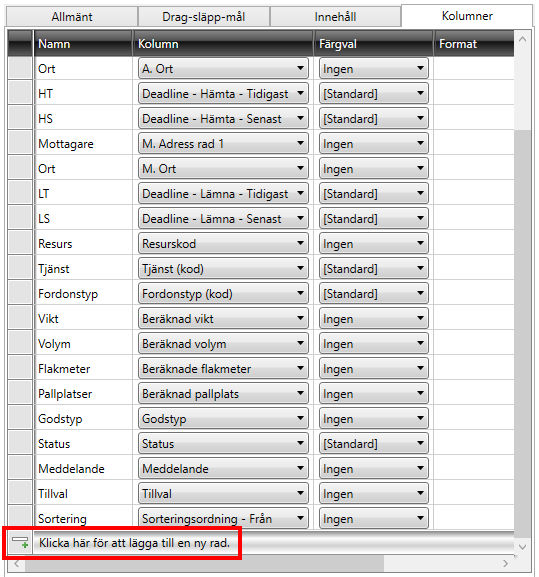
Scroll to the bottom of the list and click on Uue üksuse lisamiseks klõpsake siin..
-
Select Lukustatud in the Veerg column, then double-click in the Nimi column and enter a descriptive name for the column, such as “Locked” or “Grey legs”.
-
Click on Salvesta to save all changes.
Step 2: Filter out locked shipments
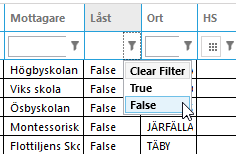
Go back to dispatch, click on the filter icon ( ) for the column that was just added.
-
Select False if you want to hide all locked shipments.
-
Select True if you only want to view locked shipments.
-
To view both locked and unlocked shipments, select Clear Filter.