Adding columns to the dispatch
Last updated: 30 December 2025
In this article
You can choose which columns to display in the various lists (windows) in the dispatch system. Certain columns can also be given different colours to make them stand out, and formats for how times and dates are displayed can be set.
Proceed as follows
For example, here’s how to display the Consignment order no. column in the dispatch system:
-
Click on Seaded > Veokorralduse seadistused. In the list on the left, tick the view you want to change the settings for.
-
Click on the Vahekaardid tab.
-
In the section Vahekaardid, select the tab where you want to add the column Consignment order no..
-
In the section Aknad, select the window (that is, the list) where you want to add the column Consignment order no..
-
Click on the Veerud tab.
-
To add a column, click on Uue üksuse lisamiseks klõpsake siin. at the bottom of the list.
-
In the column Nimi, enter the name you want the column to have in the dispatch.
In the Veerg column, select Consignment order no.. (Here the Opter system name is displayed on the column).
You can also choose colours, Vorming and Filter for your columns, see Veokorralduse seadistused (window).
The columns can be organised by dragging and dropping them up and down the list. The higher up the list, the further to the left in dispatch.
-
Click on Salvesta to save all changes.

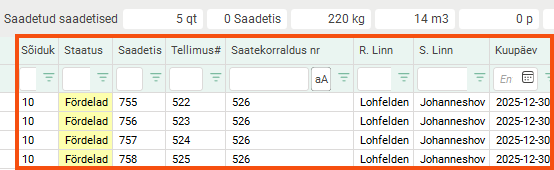
The image below shows what it might look like in the dispatch when we have added the column Consignment order no..
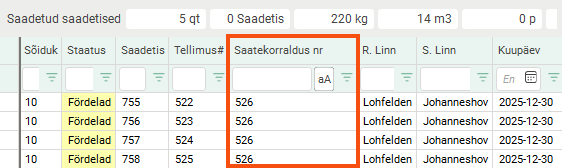
If you work with consignments, it can be useful to show which consignment order number a shipment or order belongs to.
Delete a column
-
Click on Seaded > Veokorralduse seadistused. In the list on the left, tick the view you want to change the settings for.
-
Click on the Vahekaardid tab.
-
In the section Vahekaardid, select the tab where you want to delete a column.
-
In the section Aknad, select the window (i.e. the list) where you want to delete a column.
-
Click on the Veerud tab.
-
Click on the column you want to delete and press Delete on your keyboard.
-
Click on Salvesta to save all changes.
Troubleshooting
If the columns do not appear as you expected, you can check the following:
-
If there are several different dispatch views, make sure that the correct dispatch view is selected at the top of the Veokorraldus window on the Üldine tab in the Seadistus drop-down list.
You can also check that the dispatch view that is usually used is selected by default
 in the list on the left of the Veokorralduse seadistused window.
 -
In the Veokorralduse seadistused window, on the Vahekaardid tab, check that the column is extras on the correct Vahekaardid and Aknad.

