Embed the vehicle web on another website
Last updated: 19 September 2025
In this article
If you do not host your website yourself but use another platform, such as a customer portal, you can embed Opter’s web portals on that platform.
You can only embed the web portals if you are using HTTPS. If you’re using Opter Cloud, you’ve got it. If you’re running the system on-premises, you can check whether you’re using HTTPS by going to the customer web and seeing if ‘https’ appears in the address bar.
Proceed as follows
-
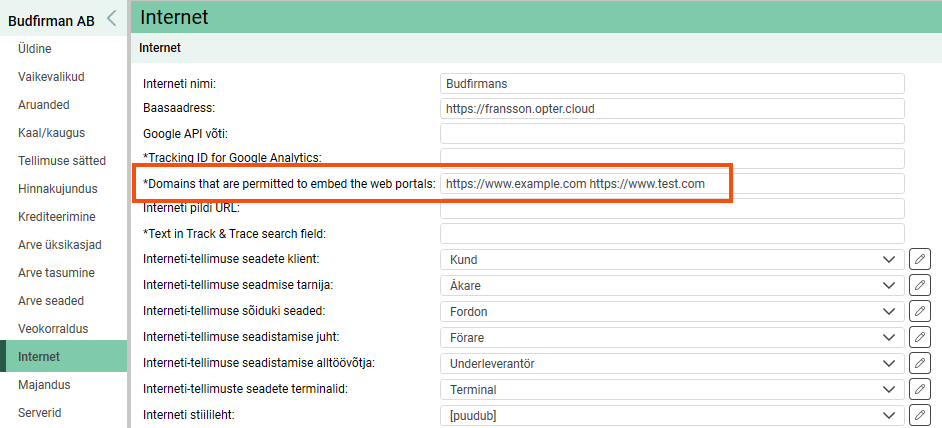
Enter the full web address of the domain where the portal is to be embedded in the Domains that are permitted to embed the web portals field on the Internet tab in the office settings. You can enter multiple domains separated by spaces, for example if you have different domains for customers and suppliers.
-
Create a blank page on your website with an iframe pointing to the vehicle web address.
Check the embedding settings
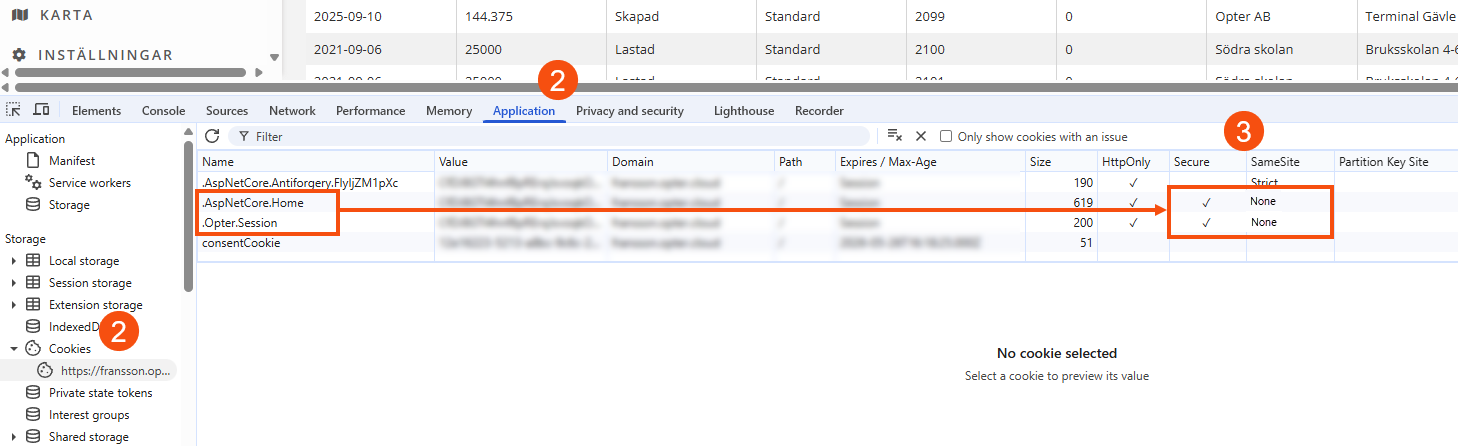
Cookie files used must be set to SameSite = None, which also means that they must be Secure in order to display the web portal via an iframe in a browser.
These instructions apply to Chrome, but it works in much the same way in other browsers.
-
Log in to The vehicle web and press F12.
-
Go to Applications and select the website under Cookies on the side menu.
-
Check that the .AspNetCore.Home and .Opter.Session cookie files have a tick in the Secure column and that there is None in the SameSite column.
-
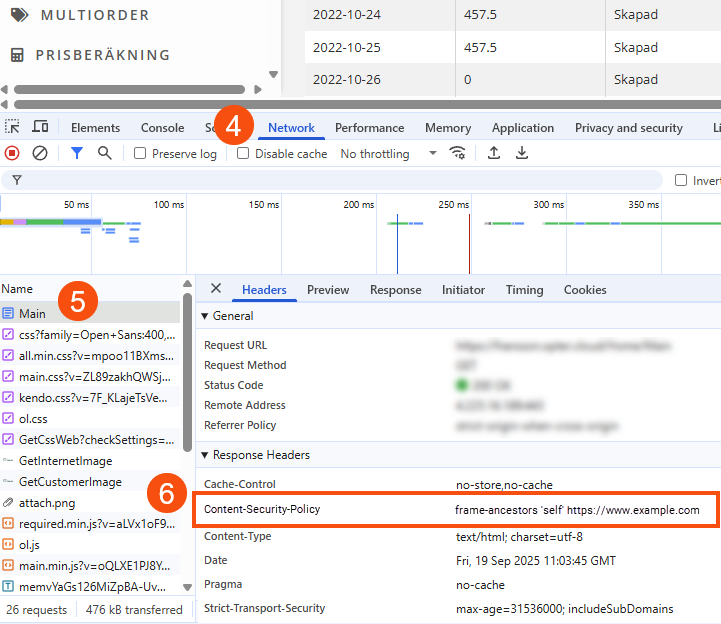
Then go to Network and reload the page.
-
Click on the top entry in the list, "Main" in this example. It may be different depending on which page is open in the web portal.
-
Check that Content-Security-Policy has frame-ancestors set to the domain you specified in the office settings.