Alternative email addresses
Last updated: 14 May 2025
In this article
By default, all messages from Opter are sent using the main account address as the sender (the one on the Üldine tab in the office settings), but it is possible to specify other addresses as the sender. For example, financial messages can be sent from “invoice@courierservices.com” and other messages from “info@courierservices.com”, even though the main account address is “admin@courierservices.com”.
If Kasutage Outlooki has been selected on the PDF e-posti teel invoice export (Faili edastus tab), the email account configured in Opter is not used to send messages with attached invoices, but the account configured in Outlook on the user’s computer is used instead. For more information, see (fönster).
Step 1: Enter the new sender addresses
Notifications, emails to subcontractors and other outgoing information (information messages)
-
If regions are used and different sender addresses are needed for them, enter the address for each region in the E-post field on the Üldine tab under Majandus > Piirkonnad. Otherwise, leave the field blank.
-
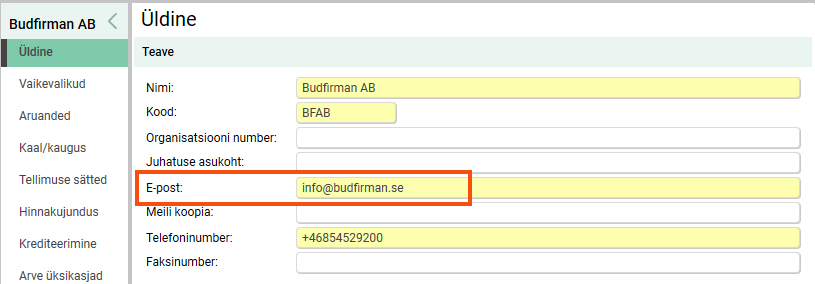
If regions are not used, or the same sender address should be used regardless of the region, enter the new address in the E-post field on the Üldine tab in the office settings.
Invoices, supplier bills, invoice reminders and invoice summaries (financial messages)
-
If regions are used and different sender addresses are needed for them, enter the address for each region in the E-post field on the Arve üksikasjad tab under Majandus > Piirkonnad. Otherwise, leave the field blank.
-
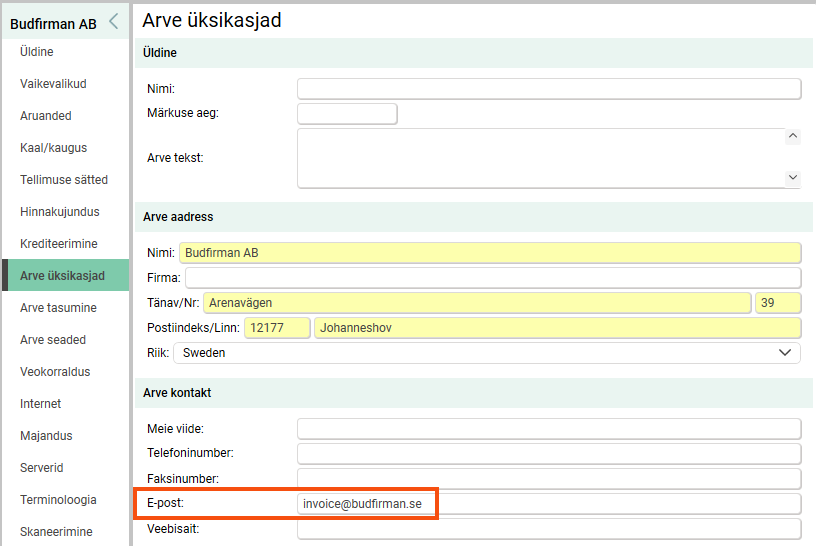
If regions are not used, or the same sender address should be used regardless of the region, enter it in the E-post field on the Arve üksikasjad tab in the office settings.
-
If the same sender address should be used for both financial messages and Opter info messages, leave the field on the Arve üksikasjad tab blank and enter the new address in the E-post field on the Üldine tab in the office settings instead.
Step 2: Set the access rights for the main account
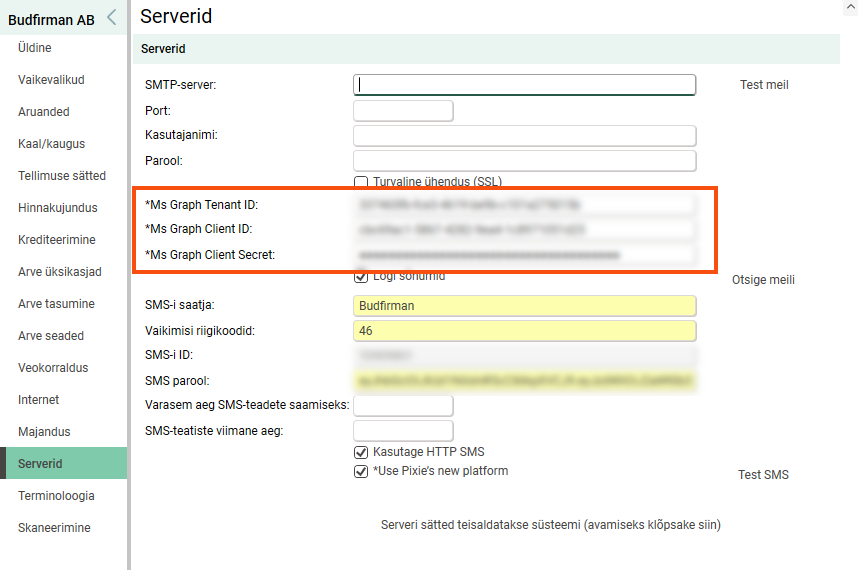
Contact your IT provider and ask them to configure the email account set as the main account in the Serverid tab of the office settings so that it has permission to use the alternative addresses as senders.
Step 3: Test the addresses
Once the IT provider has configured the settings, you can check that they work. Click on Seaded > Kontorid > the Serverid > Test meil tab. Enter the address to be used as a sender in the Saatja field and click on Saada. Repeat for all alternative addresses and check that a green OK appears at the bottom of the dialogue box.
Example
Courier Services has created a Microsoft 365 account with the address “admin@courierservices.com”. This account is used as the main account in Opter. But they want to use the “info@courierservices.com” sender address for information messages and the “invoice@courierservices.com” sender address for financial messages, regardless of the region. The account admin@budfirman.se has been configured in Microsoft 365 to be authorised to send messages as the two addresses, and this is what it looks like in the account settings.
The Serverid tab
The Üldine tab
The Arve üksikasjad tab