Activating the Pixie SMS service
Last updated: 16 July 2025
In this article
Opter uses the Pixie SMS service to send SMS notifications. To send notifications via SMS, you need to register an account with them.
If you already have an account with Pixie and want to upgrade to their new system, follow the instructions below. To upgrade, you need to create an account for their new platform, so it's the same as setting up a new account. More information is available at www.pixie.se.
Register a Pixie account
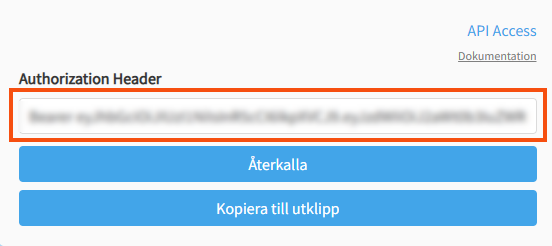
You can register an account for their new system introduced in 2022. It works in Opter. Go to www.pixie.se and fill in the details. Once you have received your login details, log in to your Pixie account and go to the user details. There you can generate an API key to be pasted into the office settings in Opter.
Setting up Opter for SMS sending
-
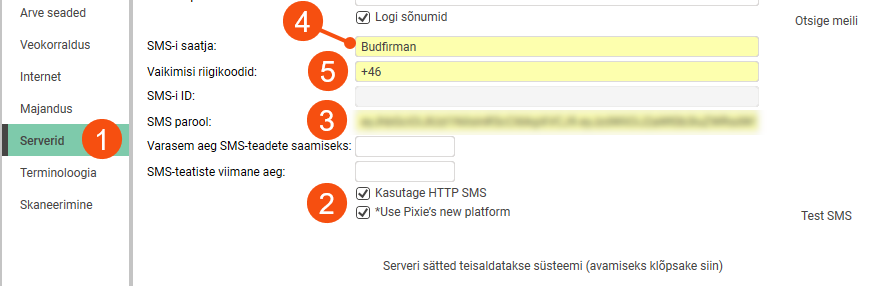
Click on Seaded > Kontorid and go to the Serverid tab.
-
Select Kasutage HTTP SMS and Use Pixie’s new platform. The fields that must be filled in are yellow.
-
Paste the API key from Pixie into the SMS parool field.
-
Enter what you want to appear as sender in the notifications in the field SMS-i saatja. Maximum 11 characters. You can use both letters and numbers (A-Z and 0-9), for example "Budfirman".
-
In the Vaikimisi riigikoodid field, enter the country code to be used if the recipient's phone number does not contain a country code. You can enter the country code as "+46", "46" or "0046. If there is a country code in the phone number to which the notification is sent, that country code is used instead of the one you enter here.
Pixie's old system
If you already have an account in Pixie's old system, you can continue to use it as usual by filling in the fields SMS-i ID and SMS parool. If you send SMS via e-mail in the old system, you must also deselect Kasutage HTTP SMS.
You can manage your old account at www.pixie.se.
Checking that the SMS service works
-
Click on Seaded > Kontorid > the Serverid tab.
-
Click on Test SMS to the right of the Use Pixie’s new platform field. The SMS test dialogue box opens.
-
Enter a mobile number and click on Saada.
If you have filled in the fields correctly, a confirmation will be displayed and a test message will be sent to the phone number you entered.

