Consolidating orders
Last updated: 21 November 2019
In this article
Consolidating orders means combining several orders into one. The transport operations themselves are not affected; this is a merger for administrative reasons. If you wish to combine transport options, see Consignment, overview.
Consolidation can be done manually or automatically. The consolidation orders that are created are determined by a consolidation type.
Configuring a consolidation type
You can have several different consolidation types for different types of consolidations.
-
Click on Tellimus > Konsolideeri tellimused.
-
Click on
 , next to the Konsolideerimise tüüp drop-down list.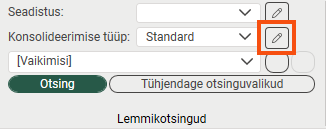
-
To create a new consolidation type, click on Uus and enter a name in the Nimi field.
-
On the Üldine tab, select the Lubage konsolideeritud tellimuste loomine, kasutades lohistamist checkbox. It controls whether orders can be consolidated both automatically and manually.
-
Select any other options that should apply to the consolidated order.
-
Click on the Seaded tab.
-
Select which fields should match to enable automatic consolidation by double-clicking on the fields in the lists. The fields you add to the Kaasas list must match in the different orders in order for them to be merged. The more fields there are, the stricter the consolidation rules.
-
Click on Salvesta to save all changes.
Consolidating orders automatically
To consolidate orders automatically, the criteria that must be met for the orders to be consolidated first have to be specified. This is done on the Seaded tab in the consolidation type (see above).
-
Select the type of consolidation (consolidation settings) you want to use in the Konsolideerimise tüüp drop-down list.
-
Click on Tellimuste automaatne konsolideerimine.
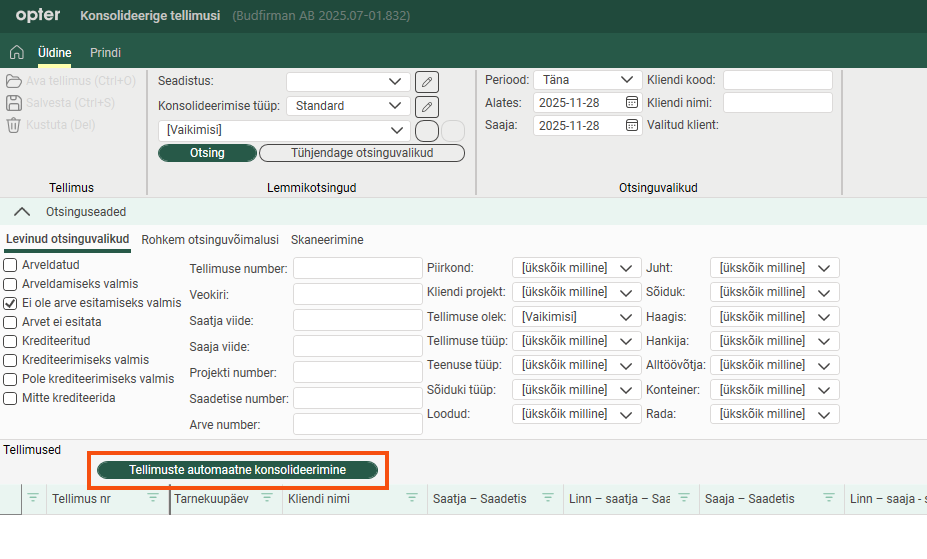
A message about the number of consolidations that have been created is displayed and the consolidation orders are shown in the Konsolideerimised table at the bottom of the window.
-
Click on Salvesta to save all changes.
Consolidating orders manually
Orders can be consolidated manually without restrictions regarding certain criteria having to be met.
-
Click on Tellimus > Konsolideeri tellimused.
-
Find the orders you want to consolidate.
-
Select the orders you want to consolidate in the list Tellimused and drag and drop them into the list Konsolideerimised at the bottom of the window.
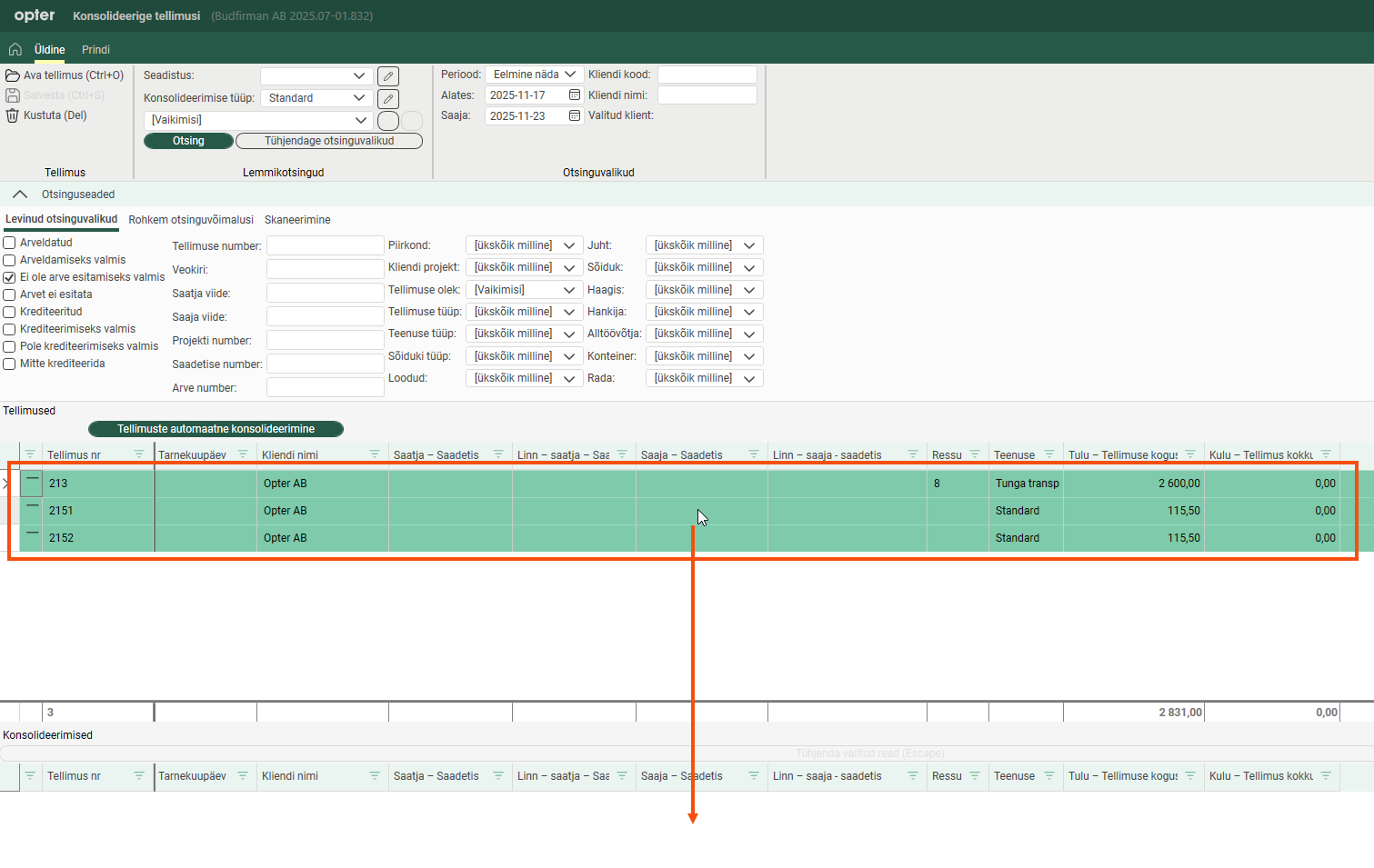
When orders are consolidated manually, a warning message is displayed if the fields specified as matching criteria for automatic consolidation in the consolidation type do not match. The orders can be consolidated anyway, but to avoid receiving the warning message the consolidation type can be configured as desired and the orders consolidated automatically instead (see above).

